Connect an external website to live web tracking
Live web tracking captures visitor activity on Creatio landing pages automatically, but you can also connect an external website to capture visitor actions there and link them to Creatio contacts. To do this, generate a tracking script in the Web analytics section and embed the script into the pages of your website. Learn more about the functionality: Live web tracking.
Add the tracking script to every page of the website that you want to track. Creatio captures visitor activity only on pages that include the script.
To connect an external website:
-
Go to the Web analytics section.
-
Click Settings to open the settings panel.
-
Click Add your website in the External website tracking block (Fig. 1). This opens the Add domain window.
Fig. 1 The External website tracking block 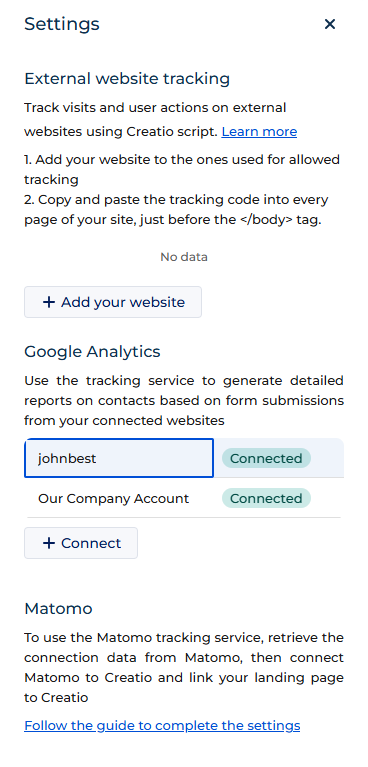
-
Enter the domain of your website. For example, if your website is hosted at
example.com, enter "example.com." -
Click Save. Creatio generates the tracking script and opens the View tracking code window (Fig. 2).
Fig. 2 The View tracking code window 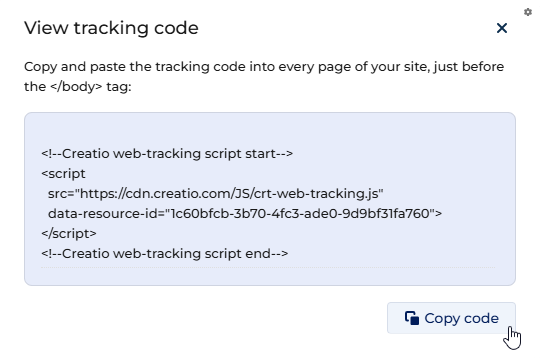
-
Click Copy code.
To open the tracking code of a connected website later, return to the External website tracking block. Each connected website appears there as a row. Point to the row, click Row actions, and select View tracking code.
-
Paste the tracking script into the source code of every page on your website that you want to track, immediately before the closing
</body>tag. -
Publish the changes to your website.
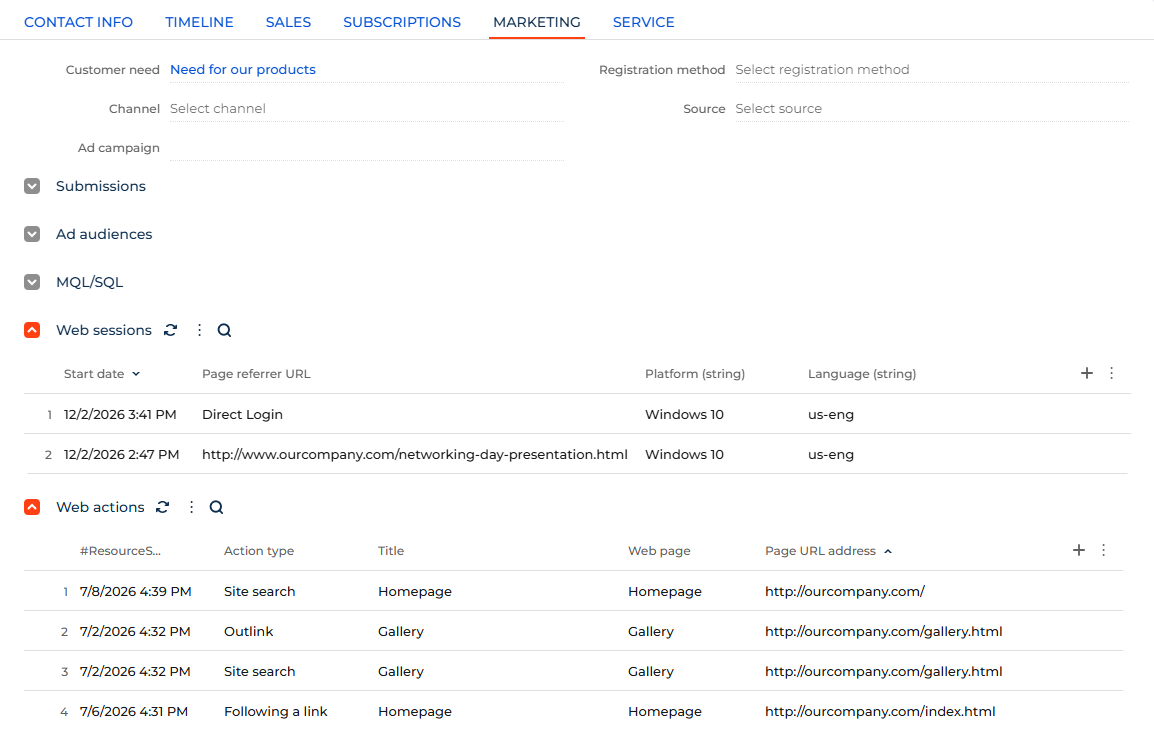
As a result, Creatio will capture visitor actions on your external website. While a visitor remains anonymous, Creatio stores their activity and links it to a contact after the visitor is identified. The identification happens when the visitor submits a form integrated using webhooks or follows a personalized link from a bulk email. The activity is displayed in the Web sessions and Web actions expanded lists on the Marketing tab of the contact page (Fig. 3). Learn more: Live web tracking.
See also
Cookies and browser storage in live web tracking
Work with web analytics basics