Live web tracking
Marketing teams need to know how visitors behave on their landing pages and websites, and they need that behavior available as CRM data on which they can act. Live web tracking captures visitor activity as it happens and connects it to Creatio contacts, so you can respond to real engagement signals in near real time. Creatio adds a tracking layer to its native landing pages as well as your external websites, captures visitor actions automatically, and links anonymous activity to a known contact once the visitor submits a form or follows a personalized email link. The functionality works entirely using built-in Creatio tools and is available out of the box in Creatio Marketing.
What live web tracking captures
Live web tracking records the actions that matter for understanding engagement: session starts, page views, button clicks, link clicks, form starts, form submissions, and file downloads. The functionality covers the following kinds of pages:
- Creatio landing pages. Creatio injects the tracking scripts into the page automatically when you publish or export it. The tracking works without additional per-page setup.
- External websites. You can connect any website built outside Creatio by embedding a tracking script generated in the Web analytics section. Learn more: Connect an external website to live web tracking.
Live web tracking uses browser cookies and supports the Google Chrome and Microsoft Edge browsers, both on Creatio landing pages and on external websites.
You can use only one tracking tool to collect data from Creatio landing pages at a time. Out of the box, live web tracking is active. If your company standardizes on Google Analytics, switch the tracking on Creatio landing pages to it. Learn more: Use Google Analytics on landing pages designed in Creatio.
How anonymous visitors become known contacts
Most visitors start out anonymous. Creatio captures and stores their activity and ties the activity to a person as soon as it can identify the visitor. Live web tracking identifies visitors in the following ways:
- Form submission. When a visitor submits a form on a tracked page, Creatio creates or identifies the contact, and the web activity becomes available on the contact page. The form must be created using Creatio landing pages or embedded forms, or integrated using webhooks. Also, the form must create records in the "Submission" (
FormSubmitcode) object. - Personalized email link. When a known contact follows a personalized link from a bulk email, Creatio recognizes the contact immediately, before they submit any form. This is the fastest path to identified tracking. The link or button in the bulk email must use the
https://protocol and contain the?crt_pref=[#Recipient.PrefillToken#]parameter. For example,https://example.com/landing?crt_pref=[#Recipient.PrefillToken#].
After a visitor becomes a known contact, Creatio records their subsequent actions as personalized activity in near real time.
The first activity of a new visitor takes longer to appear. When the visitor submits their first form and Creatio has no contact for them yet, Creatio creates the contact and completes the initial 30-minute web session before the activity appears on the contact page. This is expected behavior. Afterwards, actions arrive in near real time.
Where to view the activity
Captured activity is displayed in the Web sessions and Web actions expanded lists on the Marketing tab of the contact page. Use the lists to see what a contact viewed, clicked, and submitted, and take those signals into account when deciding how to engage.
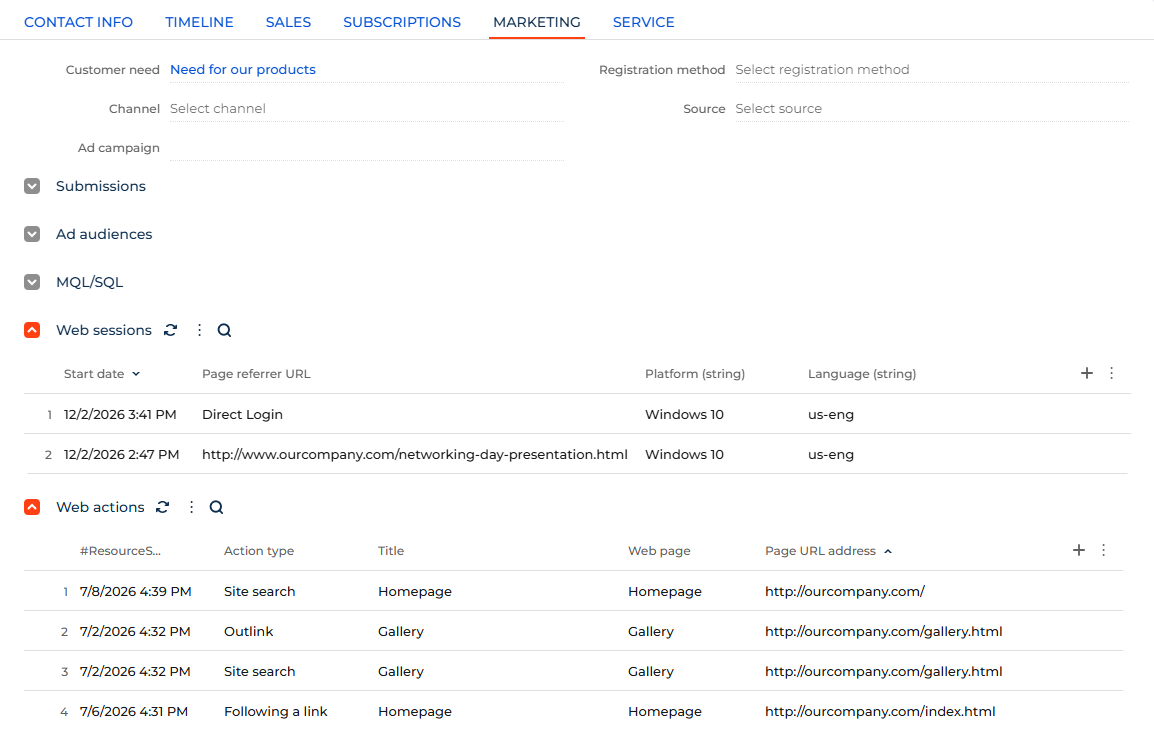
Set up the Web sessions list to display the following columns that are the most useful for analyzing live web tracking data:
Column | Description |
|---|---|
Start date | Date and time when the web session started. |
Page referrer URL | Address of the page that referred the visitor to the tracked page. |
Platform (string) | Platform of the visitor's device. For example, "Windows Chrome." |
Language (string) | Language of the visitor's browser. |
Set up the Web actions list to display the following columns:
Column | Description |
|---|---|
Start date | Date and time when the action was performed. |
Action type | Type of the action. For example, page view or link click. |
Title | Title that details the specific action. For link clicks, the column contains the link text. For button clicks, the column contains the button title. |
Web page | Meta title of the page where the action occurred. |
Page URL address | URL of the page where the action occurred. |
Historical activity before identification
Live web tracking keeps the activity a visitor performed before Creatio identified them. Once an anonymous visitor becomes a known contact, Creatio loads their earlier activity for up to 30 days before the identification. This way, you get a fuller picture of how the contact engaged with your pages before they converted. To change the backfill period, add a system setting that has the WebTrackingSyncLookbackDays code, set the Type field to "Integer," and specify the new period in the Default value field on the system setting page.
Creatio synchronizes the historical activity once a day. To load data on demand, run the "Web tracking data synchronization" business process manually.
Use web activity in campaigns
Web activity becomes most valuable when it drives automation. The Web action captured campaign element template adds contacts to the campaign audience when Creatio captures a web action that matches the element settings. For example, move a contact to the next campaign step when they view a specific page or click a link on it. To apply the template, add the Triggered adding element to a campaign, click Select from lookup in the element settings, and select "Web action captured." The template is available in environments where the Lead Generation app is installed.
Out of the box, the template includes filters by web page and action type. Adjust the filters to react to the action you need:
-
To react to page views, set Action type to "Page view" and identify the page in one of the following ways: keep the Web page column and specify the page title, or replace it with the Page URL column and specify the full page address.
-
To react to link clicks, button clicks, or file downloads, filter the records by three columns joined with the "AND" operator:
- Action type. Type of the captured action: "Following a link," "Button click," or "Downloading."
- Title. Text of the link or title of the button.
- Page URL. Address of the link, button, or file.
Learn more: Campaign element reference.
See also
Connect an external website to live web tracking
Work with web analytics basics