Set up folders
Folders help you group section records and find them quickly. This article explains how to create and manage dynamic and static folders. To learn how folders work and which folder type to choose, read Folders.
Manage dynamic folders
To create a dynamic folder that has the corresponding filter conditions:
-
Click Add in the folder tree.
Fig. 1 Add a folder 
-
Select Add folder if Add opens a menu. The menu is available in sections that support static folders. Creatio adds the new folder to the folder tree.
Fig. 2 Add a dynamic folder 
-
Enter the folder name in the field that Creatio selects automatically. The new folder shows all records of the section.
Fig. 3 Newly created dynamic folder 
-
Click the
 button to the right of the folder name to open the Setup filters window.
Fig. 4 Open the folder filter 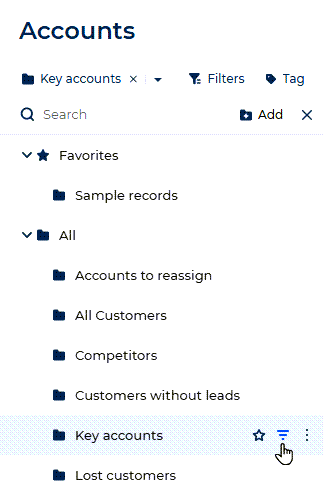
-
Set up filter conditions and click Save. Folder filter conditions are set up the same way as in the Filters panel. Learn more: Advanced filters.
Fig. 5 Set up the folder filter 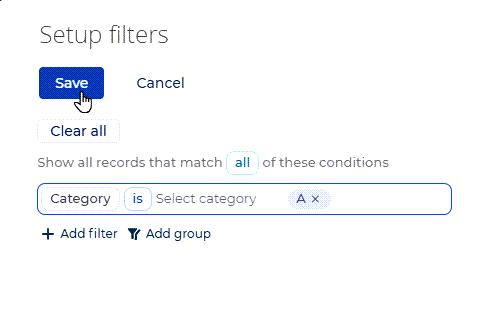
As a result, the section list shows the records that match the filter conditions when you select the folder.
For Creatio 10.0
In Creatio 10.0, click the button to the right of the folder name, set up the filter conditions in the folder filter setup area, and click Save. Filter condition setup is identical to the advanced filter setup in Creatio 8.3. Learn more: Filters (Creatio 8.3 documentation).
Starting from Creatio 10.1, you can also save a filter as a dynamic folder directly from the Filters panel. You can save the whole filter or a single condition group. Learn more: Save a filter as a folder.
You can copy the necessary folder if you need to create a folder whose filter conditions are partially identical to one of the existing folders. You can also copy the original folder access rights if necessary. To do this, select Copy in the menu of the necessary folder. Learn more: Folder access rights.
Manage static folders
Create a static folder
Static folders are available out of the box in some Creatio sections. You can create a static folder in the following ways:
- Add a folder and fill it with records manually.
- Copy the folder content from a dynamic folder.
Add a static folder manually
-
Open the folder area in the section by clicking the Folders button.
-
Click Add to open the menu.
-
Select Add static folder (Fig. 6).
Fig. 6 Create a static folder  note
The Add button opens a menu only in sections where you can create a static folder.
-
Enter the folder name.
As a result, Creatio adds the new static folder to the section. To fill the folder, select the needed records and run the Add to static folder action. Learn more: Add records to a static folder.
Convert a dynamic folder into a static folder
-
Open the folder area in the section by clicking the Folders button.
-
Select a dynamic folder whose content to include in a static folder.
-
Click
 → Convert to static folder option.
Fig. 7 Convert the dynamic folder to static 
-
Enter the new folder name.
As a result, Creatio adds the static folder as a subfolder of the selected dynamic folder. At the moment of conversion, both folders contain the same records. To add records to the static folder, use the Add to static folder action. Learn more: Add records to a static folder.
The Convert to static folder action doesn't change the content of the original dynamic folder.
Add records to a static folder
-
Open the folder area in the section by clicking the Folders button.
-
Select one or more records you want to add to the static folder. The actions menu appears.
-
Click Add to static folder (Fig. 8). This opens the window that contains the list of static folders available in the current section.
Fig. 8 Add records to static folder 
-
Select the needed static folder and click Select.
As a result, Creatio adds the selected records to the static folder.
Remove records from a static folder
-
Open the folder area in the section by clicking the Folders button.
-
Select the static folder you want to edit.
-
Select one or more records you want to remove from the static folder. The actions menu appears.
-
Click
 → Remove from static folder (Fig. 9). This opens the window that contains the list of static folders available in the current section.
Fig. 9 Remove records from static folder 
As a result, Creatio removes the selected records from the static folder.
Add folders to favorites
You can add the most frequently used folders to favorites. You can add both static and dynamic folders.
To add a folder to favorites, select it in the folder tree and click the  button (Fig. 10).

Creatio displays the added folders under the "Favorites" folder at the top of the folder tree (Fig. 11).

Set up folder access rights
You can set up access rights for both dynamic and static folders. Folder access rights don't change access to the records in the folder. Learn more: Folder access rights.
- Open the folder area in the section by clicking the Folders button.
- Open the folder menu and select Set up access rights. This opens the access rights page.
- Click New and select the permission to grant: Read access right, Edit access right, or Delete access right.
- Select the user or role that must receive the permission and click Select.
- Change the access level if needed. To do this, select the rule and click Access level → Granted or Granted/delegation permitted.
- Click Save.
As a result, the selected users and roles receive the specified permissions to the folder.