Folder access rights
As your data grows, folders help your team group records, for example, strategic accounts or customers from a specific region. Some folders are meant only for specific employees, while others are meant for the whole team. Folder access rights let you decide who can see, change, and delete a folder without affecting the records inside it.
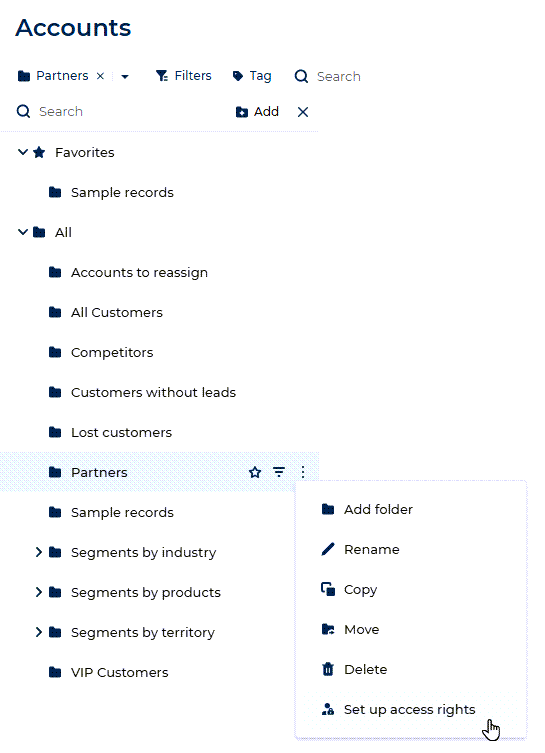
Folders that support access rights
Creatio has static and dynamic folders. You add records to a static folder manually. A dynamic folder shows records that match its filter conditions, and Creatio updates its content automatically. Learn more: Folders.
You can set up access rights for both folder types. When you copy a folder, Creatio copies its access rights to the new folder as well. Learn more: Set up folder access rights.
What folder access rights control
Folder access rights apply to the folder itself, not to the records inside it. You grant each permission to specific users or roles. By default, a new folder is visible only to the user who created it. To share the folder with colleagues, grant them access rights. The following permissions are available:
- Read. The user sees the folder in the folder tree and can open it to filter the list.
- Edit. The user can rename, move, and copy the folder. In a static folder, the user can also add and remove records. In a dynamic folder, the user can also change the filter conditions.
- Delete. The user can delete the folder.
For each user or role, you also select an access level. The Granted level lets the user perform the operation. The Granted/delegation permitted level also lets the user grant this permission to other users and roles.
Folder and record access rights
Access to a folder never changes access to the records it contains, and the reverse is also true. Creatio checks folder access rights and record access rights independently. As a result, adding a record to a shared folder doesn't share the record itself. To give a user access to a specific record, share the record. Learn more: Share records.
The table below shows what a user sees depending on their access rights.
Access to the folder | Access to the record | What the user sees |
|---|---|---|
Yes | Yes | The folder and the record in it. |
Yes | No | The folder, but the record is hidden in it. |
No | Yes | The record in the section list. The folder is hidden. |
No | No | Neither the folder nor the record. |
A sales lead creates the "Key accounts" folder, adds several accounts to it, and grants a colleague Read access to the folder. The colleague opens the folder but sees only some of the accounts. The colleague can see the folder because they have access to it. The remaining accounts are hidden because they were never shared with the colleague at the record level. To show all accounts in the folder to the colleague, the sales lead shares these account records separately.