Create a campaign using Creatio.ai
Campaign Generation Agent is available in Creatio 8.3.4 and later.
You can set up marketing campaigns faster by using the Campaign Generation Agent as part of Creatio.ai. Describe the campaign goal, target audience, and communication flow in plain language, and the agent will create the campaign with a ready campaign flow for you. You keep control over the result: the agent proposes the campaign structure first and creates the campaign only after you approve it.
The agent is available in the Digital Ads, Lead Generation, Email Marketing, and Event Management apps. It selects suitable elements from the elements available in the Campaign Designer, for example, Triggered adding, Bulk email, and Timer, and connects them with flows. The agent also generates the campaign name and goal.
The agent builds the structure of the campaign, not its full setup. The following limitations apply:
- The agent does not configure the parameters of campaign elements and flows. For example, it does not set the trigger object, link bulk emails or landing pages to elements, or set up conditions and delays in flows.
- The agent does not build flows with two or more parallel sequences.
If needed, no-code creators can expand the agent by editing it and its sub-agents. Learn more: Develop Creatio.ai Agent, Sub-agent development recommendations.
To create a campaign using the Campaign Generation Agent:
-
Click the
 button in the top right.
-
Enter the prompt, for example,
Create a welcome campaign for new contacts: send a welcome email, wait 3 days, then send a follow-up email to those who did not open the first one.The agent proposes the campaign flow: the entry point, the steps in order, and the elements it selected. It asks you to confirm the proposal.
-
Review the proposed flow. If you need changes, describe them in the chat. The agent updates the proposal.
-
Confirm the proposal in the chat.
-
Open the campaign using the link that the agent returns.
-
Set up the campaign elements and flows in the Campaign Designer. For example, select the trigger object, link the bulk emails, and set the timer and flow delays. Learn more: Campaign element reference, Transitions between campaign elements.
Check the Timer elements carefully. The agent might not apply the delay from your prompt. For example, the agent can set the "Once" frequency at the time of campaign creation instead of a 3-day wait.
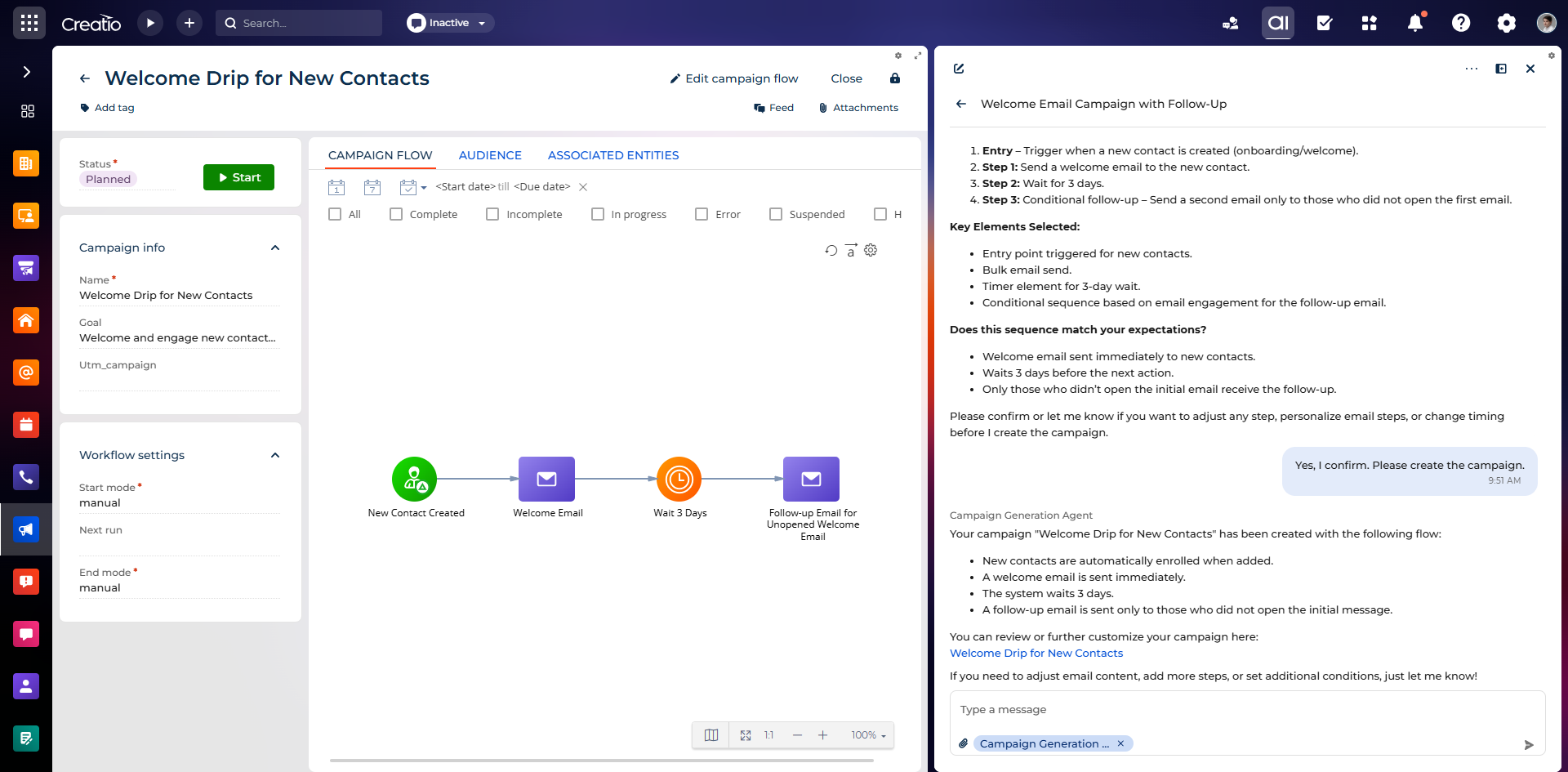
As a result, the agent will create a new campaign with the "Planned" status, a name, a goal, and a campaign flow, and display the link to it. After you set up the elements, you can start the campaign similarly to any other campaign.
Prompt examples
In general, we recommend specifying the campaign goal, the target audience, the entry point, and the sequence of steps, including waits and conditions, in your prompts. Describe one sequence at a time, since the agent does not build parallel branches. View examples below.
Create a welcome campaign for new contacts: send a welcome email, wait 3 days, then send a follow-up email to those who did not open the first one.
Create a campaign that invites contacts from the "Webinar prospects" folder to our product webinar. Send an invitation email, wait 5 days, and send a reminder to contacts who did not register. Add registered contacts to the webinar event.
Create a reactivation campaign for subscribers who have not opened any email in the last 6 months. Send a reactivation email with a special offer, wait 7 days, and exit contacts who did not respond from the campaign.