Set a usage budget or spending limit
A usage budget caps how much AI usage your agents can consume before Creatio AI Studio warns you or stops them, which keeps spending predictable and protects against runaway loops. Configure a budget on the Usage analytics page and choose whether reaching the limit only warns or blocks further requests.
When to use a usage budget
Set a budget where uncontrolled AI usage is a risk. That can be a workspace shared by many agents, or a single high-volume agent. A budget protects three time windows, and you can enforce any combination of them:
Window | Use it for |
|---|---|
Hour | Short-burst control that catches a runaway loop before it consumes much. |
Day | The everyday operational guardrail. |
Month | The long-range planning window. |
A workspace budget applies to every agent. To hold one agent to a tighter limit than the rest, set a budget on that agent as well. Read more >>>
Set a workspace budget
Your team must not run more than 1,000 AI credits per day across all agents, and runs must stop once that limit is reached. The steps below cap the workspace at a daily limit and block new requests when it is exceeded.
-
Log in to Creatio AI Studio.
-
Go to the Runtime section → Usage.
-
Click Configure Budget in the AI Credits Budget section, or Edit if a budget already exists.
-
Work in the Workspace section, which the editor opens first. It sets one shared cap for all AI usage in the workspace. Below it, the Per user section applies one limit to every platform user individually, and the External section sets one shared limit for traffic with no platform user, such as anonymous public chat. Their fields work the same way.
-
Select the Enabled checkbox on the Day window and enter an AI Credits Limit for it, such as "1,000." Enable the Hour or Month windows too if you want to enforce them.
-
Set the Warning Threshold for the window, such as "80," so Creatio AI Studio flags it once usage reaches that percentage of the limit.
-
Check Hard Stop for the window. It is selected out of the box, which blocks new requests once the limit is reached. Clear it if you want a warning without an interruption.
With Hard Stop on, agents stop serving requests for the rest of the window once the limit is reached, and resume only after the window resets. Budget windows reset on UTC boundaries — the hour on the clock hour, the day and month at 00:00 UTC.
-
Click Save.
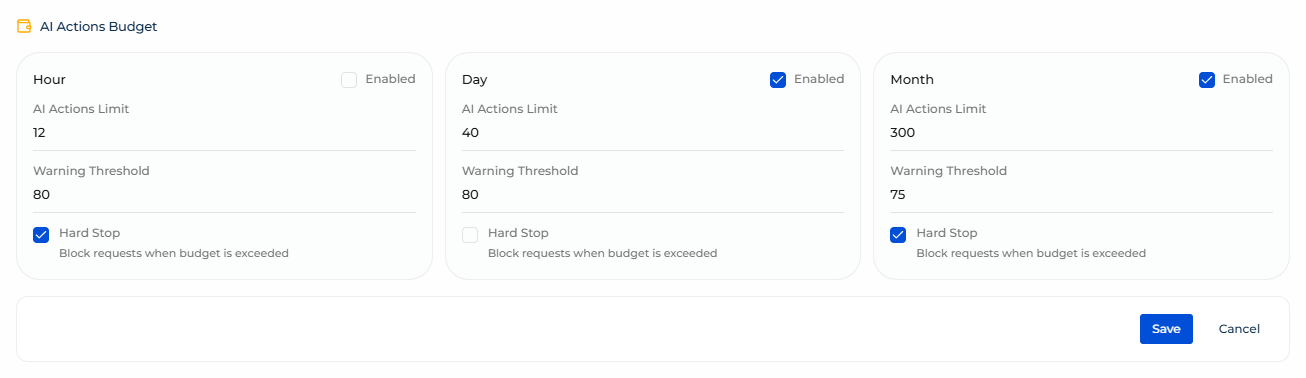
As a result, the workspace runs against the daily limit. Creatio AI Studio tracks utilization for the window, warns you at the threshold you set, and, with Hard Stop on, blocks new requests once the limit is reached until the window resets at 00:00 UTC.
When a limit with Hard Stop stops a run, the person who sent the message sees a limit message in AI Twin and in channels such as web chat. In AI Twin, the notice is titled "AI usage limit reached" and stays in the conversation after you reload the page. A request made through the API receives a refusal that names the limit. Creatio AI Studio records the refused run with the Failed status on the Agent Observability page, including a run refused before it started. Learn more: Monitor agent runs and read traces.
Set a budget for a single agent
A workspace budget applies to every agent. To hold one agent to its own limit, set a budget on the agent:
- Log in to Creatio AI Studio.
- Go to Agents.
- Open the agent you want to limit.
- Go to the Agent metrics tab on the Observe tab group.
- Click Configure Budget in the AI Credits Budget panel, or Edit if a budget already exists.
- Set the limits for the windows you want to enforce. The window, limit, Warning Threshold, and Hard Stop fields work the same as for a workspace budget.
- Click Save.
As a result, Creatio AI Studio applies the agent budget alongside the workspace budget. Both are enforced, so the agent stops at whichever limit it reaches first: an agent budget tightens the cap for that agent and cannot lift it above the workspace limit.