Send SMS bulk messages
You can send SMS bulk messages to your Creatio contacts and track how each message performs. To do this, create a bulk message in the SMS section of the Omnichannel Marketing app, compose the text, select the audience, and send the message right away, at a scheduled time, or as part of a marketing campaign. Creatio sends SMS messages through the Twilio provider to contacts located in Europe.
To send SMS messages, you must have a sender set up for your SMS channel. Your Creatio manager helps you with the Twilio configuration, so you can start without any setup in Twilio. The sender can be one of the following:
- Phone number. A Twilio number configured for your SMS channel.
- Sender name. In some countries, you can send messages from a name, such as your brand, instead of a number.
Create an SMS template
If you send similar messages often, save the text as a template in the SMS Templates section and preview how it looks. When you create a bulk message, select the template instead of typing the text again. SMS templates are ready to use without approval.
To create an SMS template:
- Open the SMS Templates section, for example, in the "Omnichannel marketing" workplace.
- Click New.
- Enter the template name in the Name field.
- Select the template category in the Category field: "Marketing" or "Transactional."
- Enter the message text in the Body field.
- Select "Active" in the Status field to make the template available for bulk messages.
- Save the template.
As a result, the template will become read-only after a bulk message uses it, so every sent message will match the template it was sent from.
Send an SMS bulk message manually
The general procedure to send an SMS bulk message manually is as follows:
- Create an SMS bulk message. Read more >>>
- Compose the message. Read more >>>
- Select the audience. Read more >>>
- Send or schedule the message. Read more >>>
1. Create an SMS bulk message
-
Open the SMS section, for example, in the "Omnichannel marketing" workplace.
-
Click Create message. This opens a mini page.
-
Enter the message name in the Name field. The name is for internal use and appears only in the SMS section list.
-
Select the message category in the Category field.
Select "Marketing" for promotional content, such as offers and event announcements. Select "Transactional" for service content, such as account notifications. The category defines which consent rules apply.
-
Select the sending method in the Sending Method field.
Select "Manual at optimal time" to send the message from the SMS section right away or at a scheduled time. Select "Using a campaign flow" to send the message as part of a marketing campaign. In this case, the campaign selects the audience and sends the message.
-
Select the I confirm checkbox to confirm the consent of the recipients and accept the usage policy.
-
Save the message.
2. Compose the message
-
Open the SMS bulk message you created.
-
Go to the Design message tab.
-
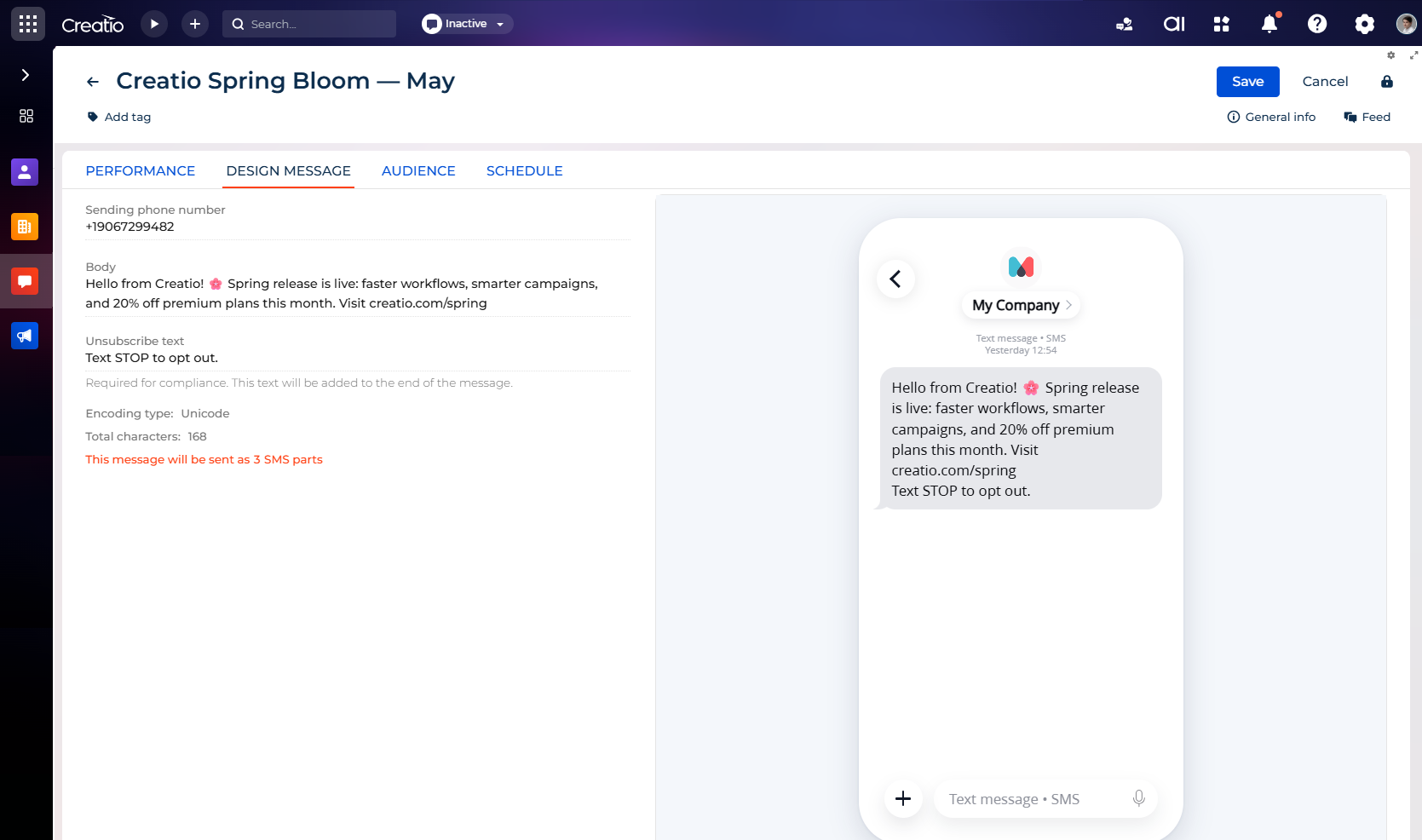
Select the sender in the Sending phone number field.
-
Enter the message text in the Body field or select an SMS template in the Template field.
Personalize the text with macros, such as the name of the contact.
As you type, Creatio shows the number of characters and how many SMS parts the message takes. One SMS holds up to 160 characters of plain Latin text (GSM encoding). Emoji and non-Latin letters, such as Cyrillic, reduce this to 70 characters. Creatio splits a longer text into several SMS parts, and each part is charged as a separate SMS, so shorten the text before sending if needed.
-
Edit the unsubscribe text in the Unsubscribe text field if needed.
Marketing messages end with the unsubscribe text, and the text counts toward the message length. Out of the box, the text is "Text STOP to opt out." Recipients opt out of messages from a sender name by texting "STOP" to the number given in your unsubscribe text.
-
Save the changes.
3. Select the audience
- Go to the Audience tab of the message.
- Click Select audience → Select contacts or Select accounts. This opens a window.
- Select the folders to add to the audience.
To exclude records from the audience, click Exclude audience → Exclude contacts or Exclude accounts and select the folders to exclude.
4. Send or schedule the message
Before sending, Creatio checks the message and shows any problems.
To send the message right away:
- Click Start on the message page. This opens a window.
- Click Send now.
To schedule the message:
- Go to the Schedule tab of the message.
- Specify the date and time in the Date and time field.
- Specify the time zone in the Time zone field. Creatio shows the sending time in your own time zone.
- Click Start → Schedule.
To cancel a scheduled message, click Unschedule → Unschedule message.
As a result, Creatio will skip contacts who opted out, contacts without SMS consent, and contacts with a wrong phone number, and will show the reason for each skipped contact on the Audience tab of the message.
Creatio records SMS consent separately from WhatsApp consent and shows it in the Omnichannel subscriptions expansion panel on the Subscriptions tab of the contact page. Marketing and transactional messages have separate consent, so a contact who opted out of marketing SMS messages still receives transactional ones, such as account notifications. Contacts can opt out at any time by replying "STOP," and replying "START" subscribes them again. You can permanently exclude specific recipients from SMS bulk messages by using global restriction rules.
Learn more: Consent and compliance, Subscription management.
Send an SMS bulk message using a campaign flow
You can embed SMS bulk messages into automated customer journeys, for example, a flash sale announcement followed by a last-chance reminder a few days later (Fig. 2). To do this, add the Send SMS message element to a marketing campaign. Schedule the send within the flow and branch the journey based on the message status of each participant, for example, "Sent" or "Failed."
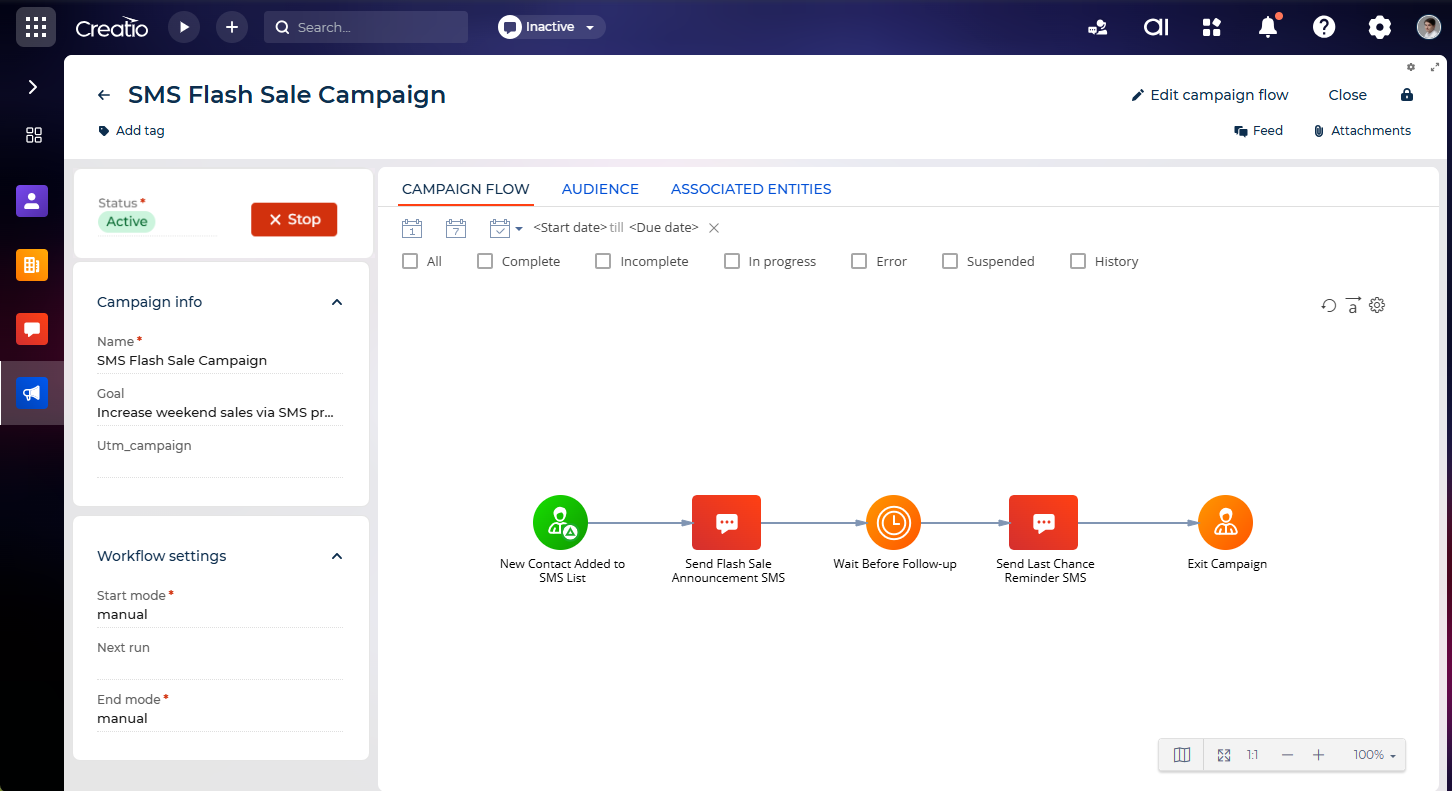
Before you set up the element, create and compose the SMS bulk message, and select "Using a campaign flow" in the Sending Method field of the message. The element lists the messages that use this sending method and have the "Ready to send" status. Learn more: Create an SMS bulk message, Compose the message.
To send an SMS bulk message using a campaign flow:
-
Open the campaign, for example, in the Campaigns section.
-
Click Edit campaign flow.
-
Drag the Send SMS message element from the Omnichannel group to the diagram.
-
Select the SMS bulk message in the Which SMS message to send? field.
-
Select an outgoing flow of the element.
-
Select "Set up responses for transferring participants" in the properties area of the flow.
-
Select the statuses that move participants down this flow in the SMS participant status group, for example, "Sent" or "Failed."
Out of the box, Creatio transfers participants down the flow regardless of their response.
-
Save the campaign.
As a result, the campaign will add its participants to the audience of the message and move each participant down the flow that matches the status of their message.
Track the results of an SMS bulk message
After Creatio sends the message, open the message to see how it performed:
- The Recipients list on the Audience tab shows the status of each recipient: "Sent," "Delivered," "Undelivered," "Failed," or "Skipped." Creatio also records the replies of the recipients.
- For each recipient who received no message, the Skip reason and Error reason columns show the reason. Either Creatio skipped the contact before sending, for example, because the contact opted out or has no SMS consent, or the message failed at the provider.
- The Performance tab shows the delivery and failure rates, opt-outs, and other aggregated metrics for the whole bulk message (Fig. 3).
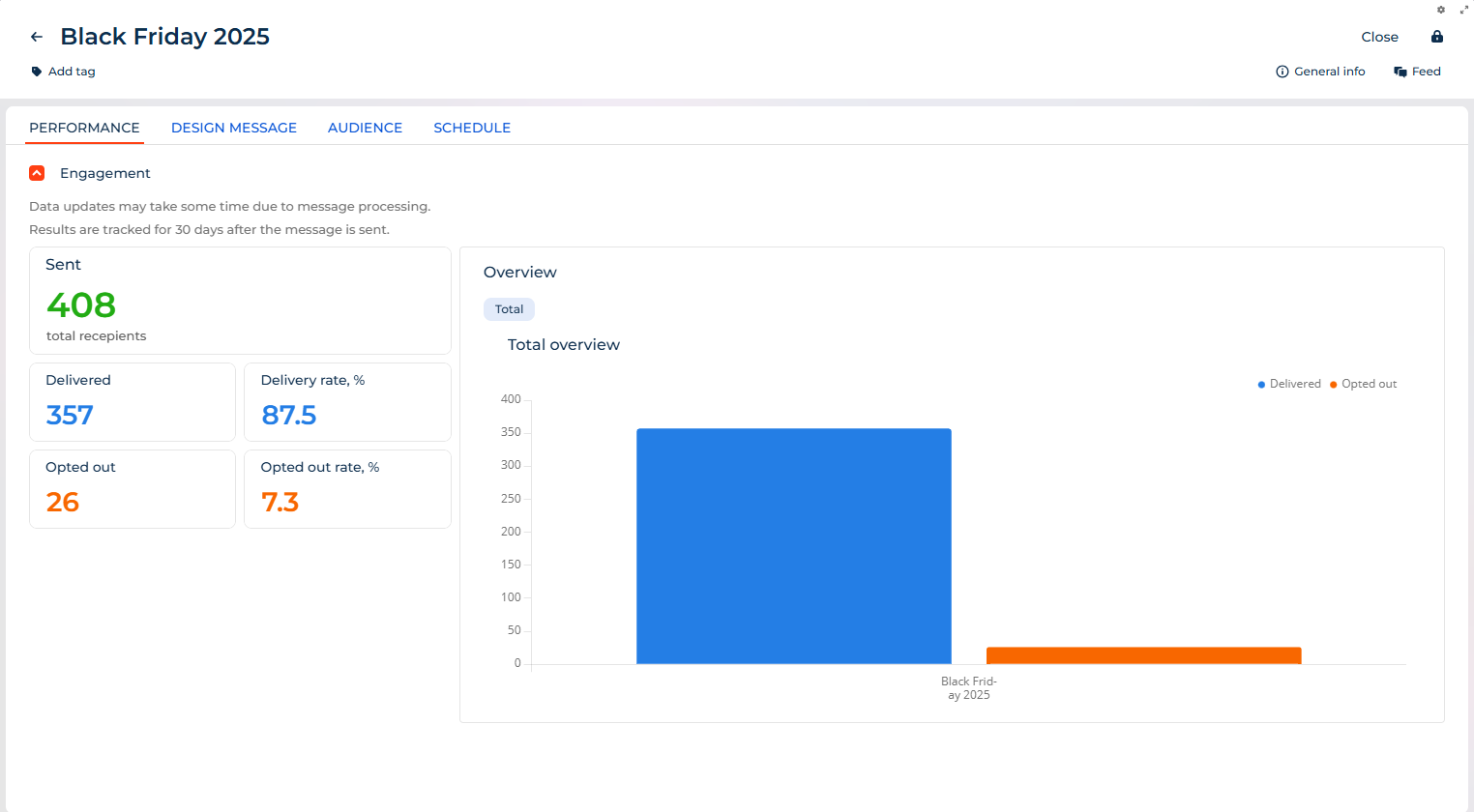
Use this data to spot issues, such as many contacts skipped because they opted out, and refine your next send.
See also
Omnichannel Marketing overview