Set up a product catalog
This functionality is available in Order and Contract Management app and Sales product.
The product catalog helps users find the right products quickly and add them to an order. Creatio implements the catalog as a Freedom UI page that groups products into a hierarchy, filters the product list by the selected hierarchy level and product features, and moves selected products to a cart.
Out of the box, the product catalog is available on the order page. To open it, click  on the Products expanded list of the order page (Fig. 1).
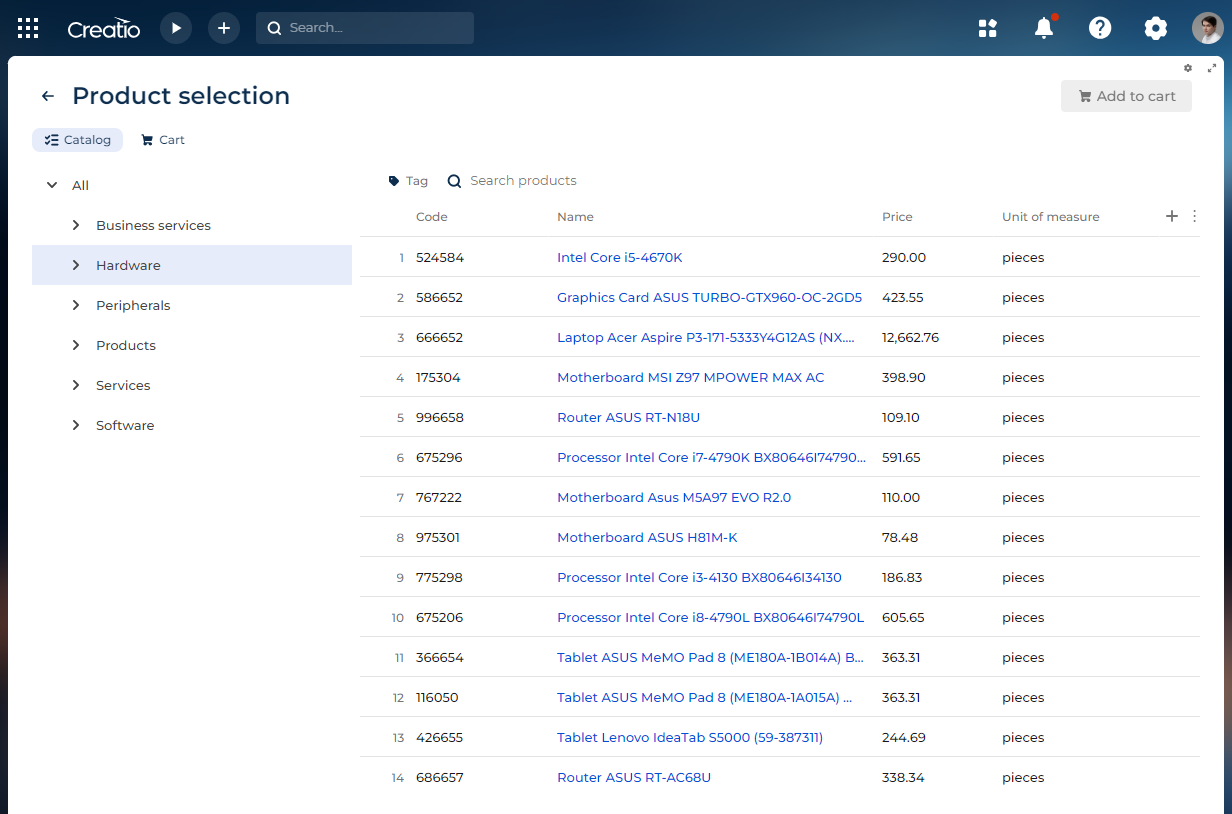
You can edit the out-of-the-box catalog page or build a similar catalog on your own Freedom UI page using the components listed below.
The Hierarchy component and the "Move selected records" button action are available in Creatio 8.1.3 and later. Filtering products by features is available in Creatio 8.1.4 and later.
Product catalog components
The product catalog includes the following Freedom UI components.
Component | Purpose in the catalog |
Hierarchy | Groups products by lookup columns, for example, from category to type. Users select a hierarchy level to view the products of that level. Out of the box, the hierarchy also lets users filter products of the selected level by product features. The Hierarchy component filters records only after you link it to the list. |
List and Gallery | Display products of the selected hierarchy level as a grid or as tiles. Set up both components with the same object and the same pre-configured filters. |
Toggle panel | Switches between the grid view and the gallery view of the catalog. Learn more: Toggle panel. |
Search | Enables users to find products by name or other visible columns. Learn more: Search. |
Quick filter | Enables users to filter products by a lookup value or condition. Learn more: Set up Quick filter components. |
Button with the "Move selected records" action | Moves products selected in the catalog list to the cart list. |
List of the cart and Summaries | Displays products added to the cart and the count, quantity, and total price of these products. Learn more: Summaries. |
Set up the catalog hierarchy
Out of the box, the product hierarchy goes from category to type. You can change the hierarchy levels or build a hierarchy on another object. To do this:
-
Open the catalog page in the Freedom UI Designer. For the out-of-the-box catalog:
- Open any order record.
- Click on the Products expanded list of the order page.
- Click
 in the top right.
-
Select the Hierarchy component on the canvas. This opens the component setup area. To build a catalog on your own page, drag the Hierarchy component to the canvas first.
-
Select the object whose records to group in the Select an object to build a hierarchy parameter, for example, "Product."
-
Set up the hierarchy levels in the Hierarchy setup block (Fig. 2).
Fig. 2 Set up the catalog hierarchy 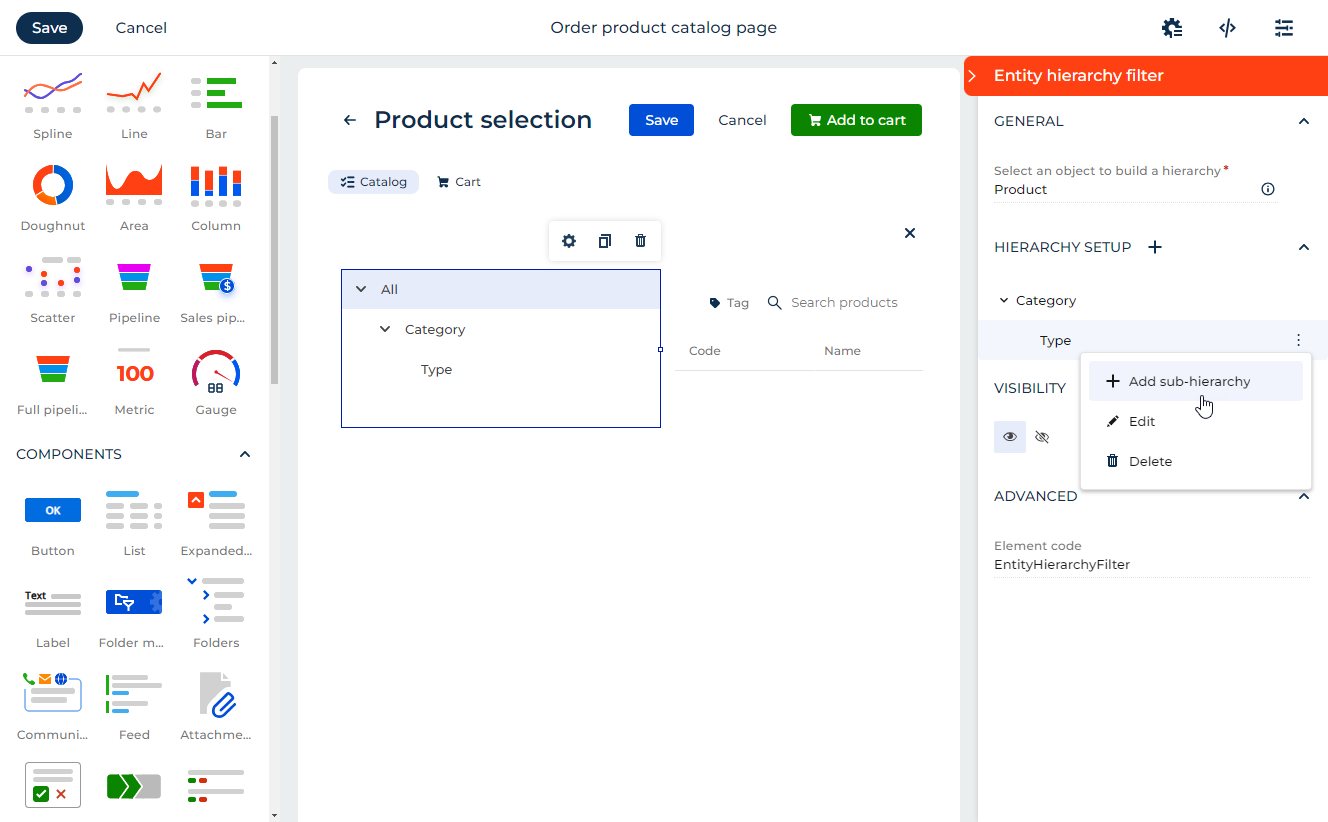
- Click Add new hierarchy column to add the top hierarchy level.
- Click
 next to the hierarchy level → Add sub-hierarchy to add a sub-level. One hierarchy level can have only one sub-level.
- Click next to the hierarchy level → Edit to change the lookup column the level uses.
- Click next to the hierarchy level → Delete to delete the level.
-
Apply a static filter to the hierarchy if needed. The option is available in Creatio 8.1.5 and later. Select the Apply static filter checkbox and set up the filter. For example, display only active products.
-
Save the changes.
As a result, the catalog will group products by the hierarchy levels you set up. To filter the product list by the selected level, link the hierarchy to the list.
8.1.2 and earlier
Out of the box, the product hierarchy goes from category to type. You can edit the hierarchy using the lookups available in the Products object by editing the Catalog component on the Freedom UI catalog page. To do this:
-
Open the Orders section.
-
Open any order record.
-
Click
on the Products expanded list of the order page. This opens a page. -
Click
in the top right. This opens the Freedom UI Designer. -
Click the Catalog component on the canvas. This opens the component setup area.
-
Click
next to the relevant hierarchy level. This lets you make the following changes:- Click Add sub-hierarchy to add a sub-level. One hierarchy level can have only one sub-level.
- Click Edit to change the lookup the hierarchy level uses.
- Click Delete to delete the hierarchy level.
-
Save the changes.
Filter the product list by the hierarchy
The Hierarchy component works as a filter element. After you link it to a list, the list displays only records of the hierarchy level the user selects. To link the hierarchy to the catalog list:
- Open the catalog page in the Freedom UI Designer.
- Select the List component that displays catalog products. This opens the component setup area.
- Click
 next to the Apply pre-configured filter parameter → the Hierarchy component.
- Link other filter elements the same way if needed, for example, the Search and Quick filter components.
- Repeat steps 2–4 for the Gallery component if the catalog has a gallery view.
- Save the changes.
As a result, when a user selects a hierarchy level, for example, a product category, the list and the gallery will display only products of that level. Selecting All displays all products.
Filter products by features
Users can narrow down products of the selected hierarchy level by product features, for example, CPU speed or supported memory. Creatio offers filters for the features specified for products of that level. Additional filtering is available only for the "Product" object. Learn more about product features: Add products.
To filter products by features:
-
Point to the relevant hierarchy level in the Hierarchy component.
-
Click
 next to the level. This opens the additional filtering area.
-
Set the feature values that the products must have. Creatio updates the product list as you change the values.
Click Clear all to reset the feature filters. Click Back to return to the hierarchy.
As a result, the catalog will display only products of the selected hierarchy level whose features match the specified values.
Set up adding products to the cart
Out of the box, users select products in the catalog list and click a button that moves them to the cart list. To set up the button on your own catalog page:
- Open the catalog page in the Freedom UI Designer.
- Drag a Button component to the canvas, for example, above the catalog list. This opens the component setup area.
- Enter the button title, for example, "Add to cart."
- Select "Move selected records" in the Action parameter.
- Select the catalog list in the Move data from parameter.
- Select the cart list in the Move data to parameter.
- Select the columns whose values to move to the cart in the Select which columns should be moved parameter.
- Save the changes.
As a result, users will be able to select products in the catalog list and click the button to add them to the cart. To display the count, quantity, and total price of products in the cart, add the Summaries component for the cart list. Learn more: Summaries.