Work with sales forecasts
Sales forecasts section lets you can review the forecast table, open the opportunities behind any number, and check each of them without leaving the forecast. This helps you find the opportunities that need attention before you submit your forecast call.
Before your team can work with the forecast, an administrator needs to set it up and grant access to forecast data. Learn more: Set up sales forecasts, Sales forecast configuration.
Drill down to opportunities
-
Open the Sales forecasts section.
-
Select the hierarchy and period in the Hierarchy and Period filters.
-
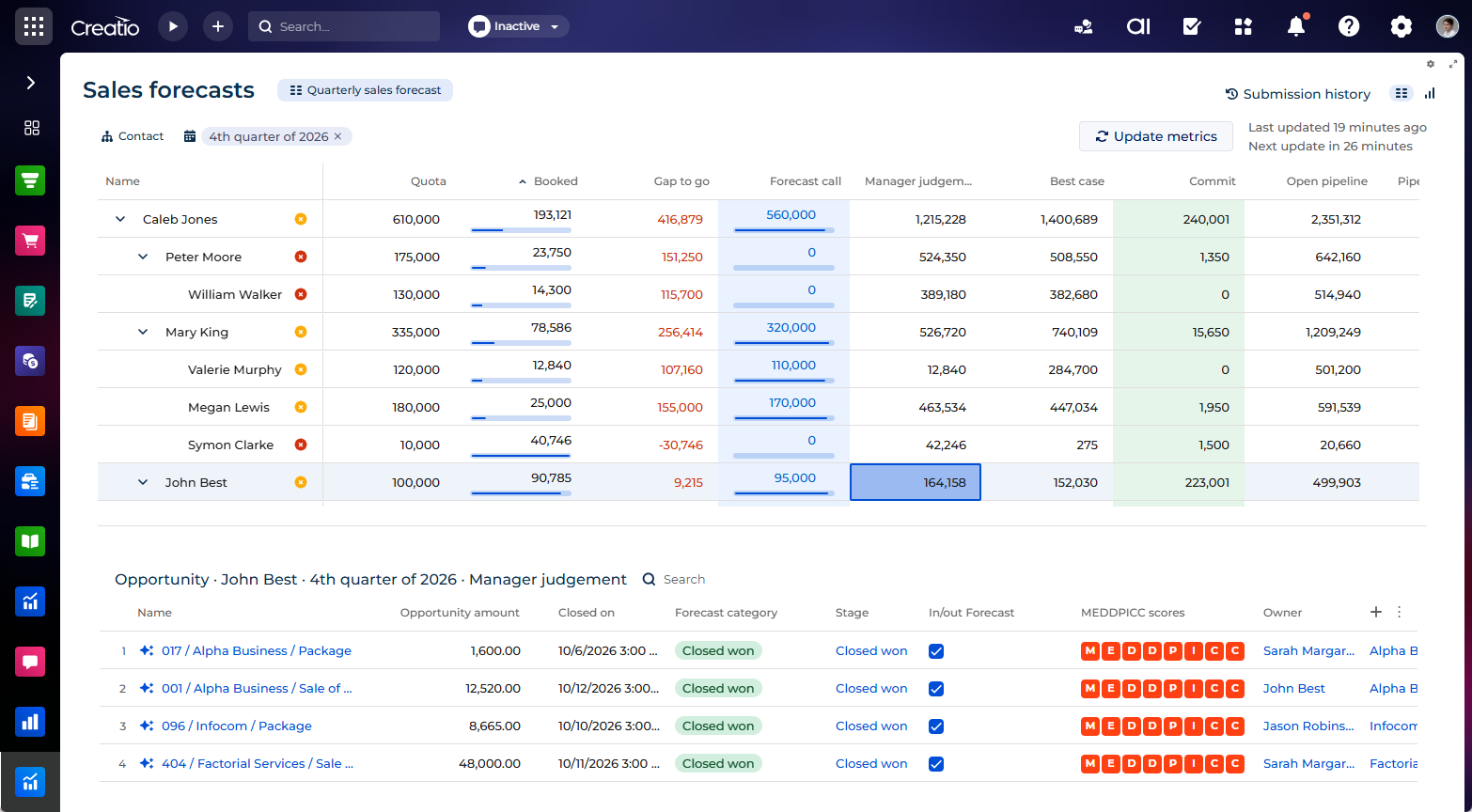
Click the hierarchy node or the cell whose opportunities to view. For example, click a cell of the Commit column to view the opportunities that make up the committed amount of a sales rep.
You can click a hierarchy node or a cell of any column whose type is "Value from object." Creatio opens the list of opportunities below the forecast table.
-
Edit the opportunity data in the list if needed.
- Double-click the cell, for example, the opportunity name.
- Enter the new value.
- Click Save.
The same access rules apply as in the list of the Opportunities section. For example, you can edit an opportunity here if you can edit it in the Opportunities section.
As a result, the list shows the opportunities behind the selected number. Creatio saves the changes you make in the list to the opportunity. If live updates are enabled for the forecast, Creatio recalculates the forecast metrics right away.
View opportunity details
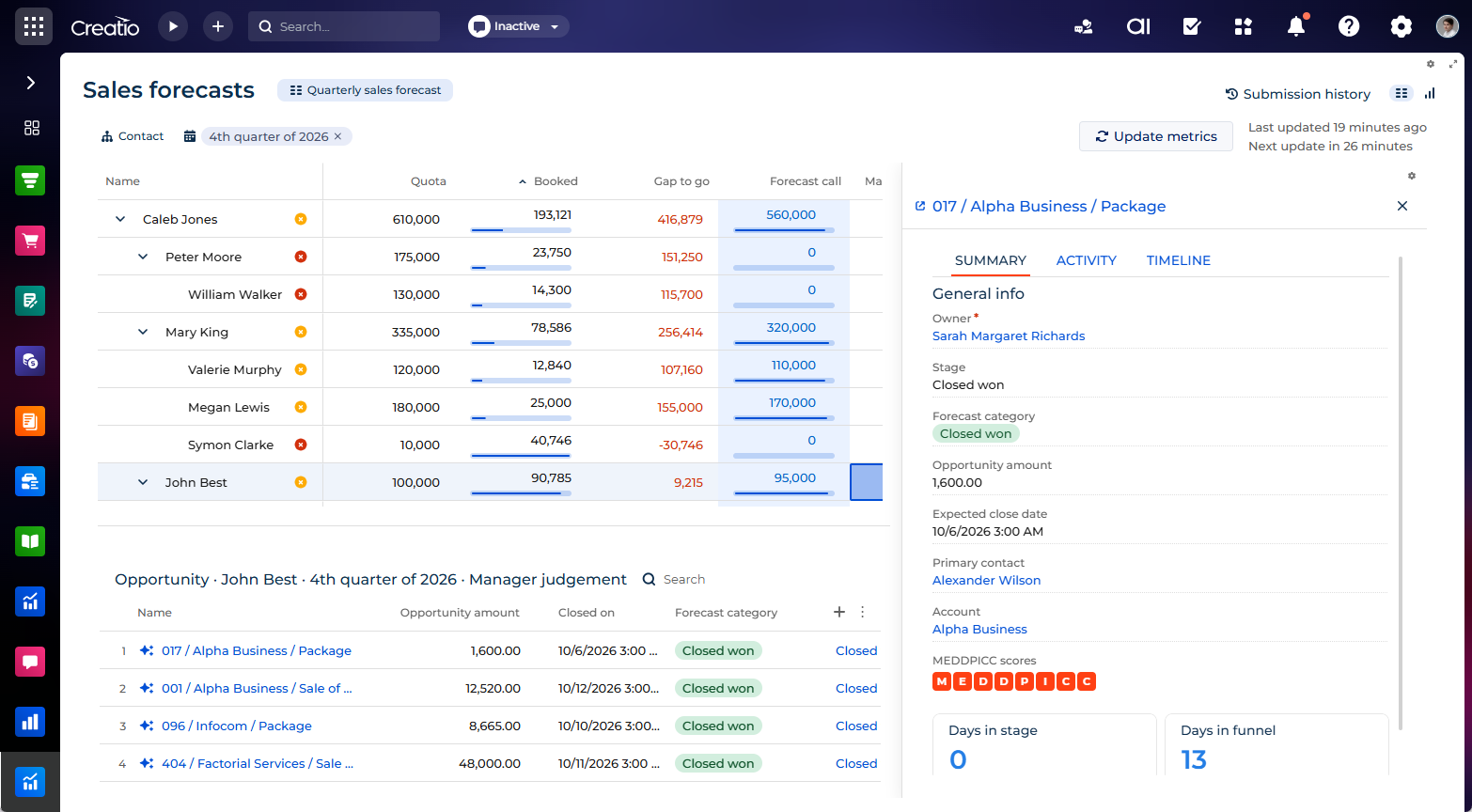
The opportunity panel shows the key data of an opportunity next to the forecast, so you can review it without opening its page.
-
Open the Sales forecasts section → click the hierarchy node or the cell whose opportunities to view.
-
Click the opportunity name in the list. This opens the opportunity panel on the right.
Clicking other cells of the row does not open the panel.
-
Review the opportunity data on the tabs of the panel.
Tab
What it shows
Summary
The Owner, Stage, Forecast category, Opportunity amount, Expected close date, Primary contact, and Account fields, the MEDDPICC scores of the opportunity, and the Days in stage and Days in funnel metrics.
Activity
The Total touches, Meetings held, Emails sent, and Emails replies metrics, and the Next steps expansion panel. You can create a task for the opportunity from this panel.
Timeline
The timeline of the opportunity.
-
Click the name of another opportunity in the list to switch the panel to it if needed.
As a result, the panel will show data of the opportunity you clicked last.
To open the opportunity page, click  in the panel header.
To change the panel width, drag its left border. Creatio saves the width for each user. If the Sales forecasts section is 848 px wide or less, Creatio hides the panel. Creatio closes the panel when you go to another page and does not reopen it after you refresh the page.
Summarize an opportunity with Creatio.ai
Creatio.ai can summarize an opportunity from the list of opportunities without asking which one you mean. This feature requires Creatio.ai to be set up in your Creatio instance. Learn more: Creatio.ai overview.
- Open the Sales forecasts section → click the hierarchy node or the cell whose opportunities to view.
- Click
 to the left of the opportunity name.
As a result, the Creatio.ai chat panel will open and show the summary of the opportunity. Creatio.ai uses the "Summarize opportunity" AI Sub-agent. The summary does not change the opportunity or forecast data. If a summary is already in progress, Creatio.ai opens a new chat for the next opportunity you click.
If the opportunity panel is open, you can also ask Creatio.ai about the opportunity in your own words, for example, "What are the risks of this opportunity?" Creatio.ai uses the opportunity open in the panel as the context.
Update forecast metrics
Out of the box, Creatio updates the forecast metrics as forecast data changes, for example, when a sales rep moves an opportunity to another stage. Your administrator can also set up scheduled updates. The section shows when Creatio last updated the metrics in the Last updated indicator and when the next scheduled update runs in the Next update indicator. Learn more: Set up sales forecasts.
To update the metrics right away, click Update metrics. You can keep working with the forecast while Creatio shows "Update in progress."