Required document setup examples
Set up required documents with or without conditions so that Creatio generates the correct document package at the right stage of the application flow. Conditions keep the package flexible. Creatio generates a conditional document only when the defined business rules are met, and generates an unconditional document for every application that reaches the specified stage. As a result, you do not have to ask customers for unneeded documents, and you still enforce compliance requirements.
This article covers the following cases:
- Deposit agreement — a document without conditions.
- Proof of funds — a document with conditions.
Deposit agreement (without conditions)
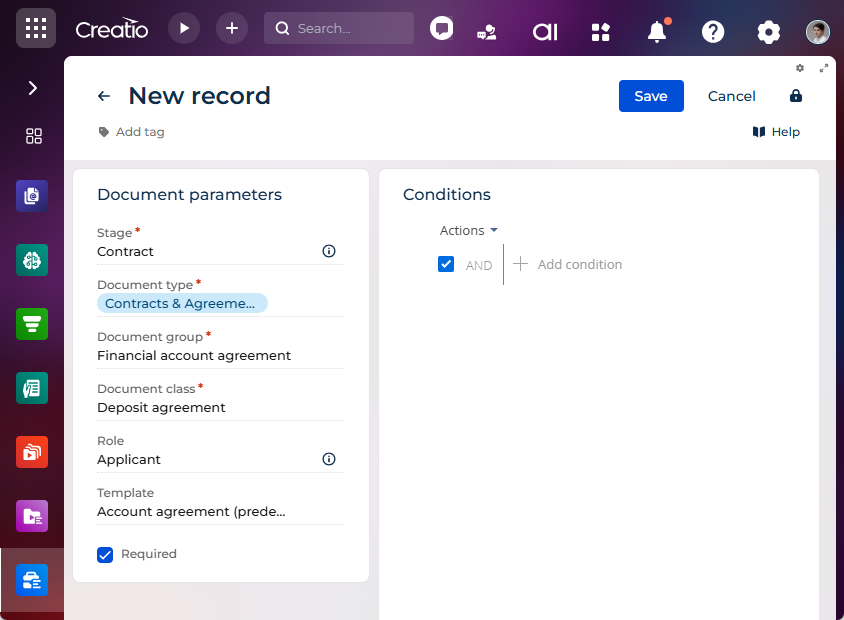
Always generate the "Deposit agreement" document for signing at the "Agreement & Signature" stage.
-
Go to the Products section.
-
Open the needed product record.
-
Go to the Product details expanded list →
 . This opens a page.
 -
Fill out the Start date field with the date when the product becomes active.
-
Go to the Documents package tab.
-
Go to the Document in package expanded list →
. This opens a page. -
Fill out the document fields:
Field
Value
Stage
Contract
Document type
Contracts & Agreements
Document group
Financial account agreement
Document class
Deposit agreement
Role
Applicant
Template
Account agreement (predefined template)
Required
Selected
Creatio shows the document at the "Agreement & Signature" stage. The Template field is optional, but we recommend filling it out for documents that require a signature.
-
Click Save.
Leave the conditions empty. Creatio generates a document without conditions for every application that reaches the specified stage.
As a result, Creatio will generate the "Deposit agreement" document for every application that reaches the "Agreement & Signature" stage. The application cannot proceed until the applicant signs the document.
Proof of funds (with conditions)
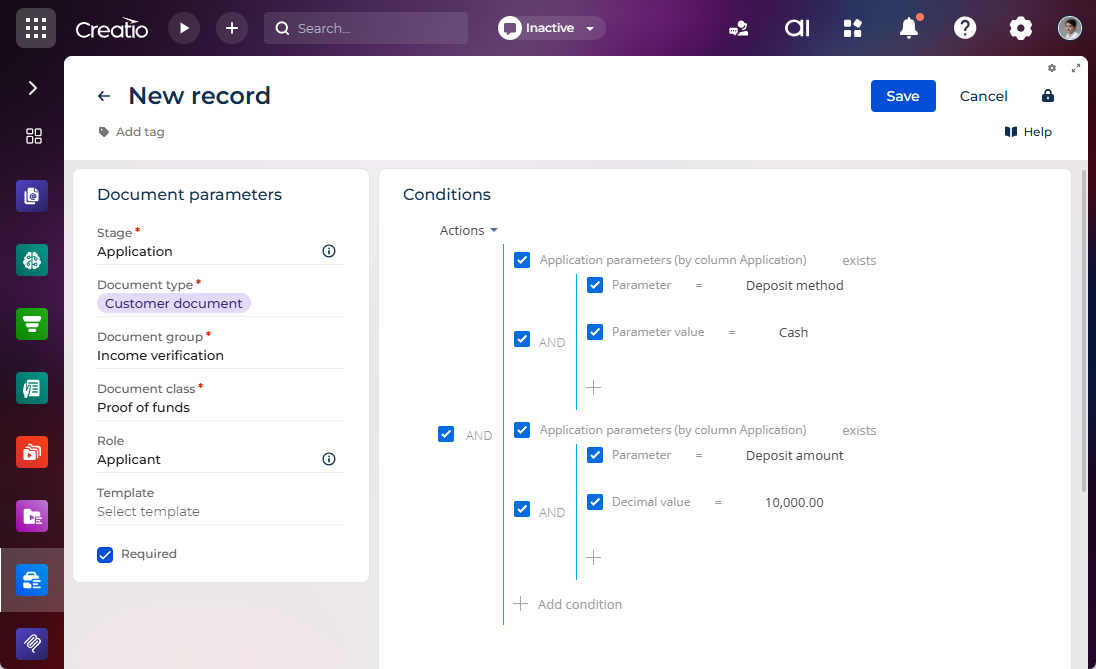
Generate the "Proof of funds" document only when the deposit method is "Cash" and the deposit amount is 10,000 or more.
-
Go to the Products section.
-
Open the needed product record.
-
Go to the Product details expanded list →
. This opens a page. -
Fill out the Start date field with the date when the product becomes active.
-
Go to the Documents package tab.
-
Go to the Document in package expanded list →
. This opens a page. -
Fill out the document fields:
Field
Value
Stage
Application
Document type
Customer document
Document group
Income verification
Document class
Proof of funds
Role
Applicant
Required
Selected
Creatio shows the document at the "Product details" stage. While the Required checkbox is selected, the application cannot move forward until the applicant provides the document and Creatio validates it.
-
Click Add condition to add the first condition group. This opens a window.
-
Click
 → Application parameters (by column Application) → set the condition to "exists."
 -
Add the conditions for the deposit method:
Field
Value
Parameter
Deposit method
Parameter value
Cash
-
Click Add condition to add the second condition group.
-
Click
→ Application parameters (by column Application) → set the condition to "exists." -
Add the conditions for the deposit amount:
Field
Value
Parameter
Deposit amount
Decimal value
>= 10,000
-
Click Save.
As a result, Creatio will generate the "Proof of funds" document only for applications where the deposit method is "Cash" and the deposit amount is 10,000 or more. For all other applications, Creatio omits the document from the package, and the application moves forward without it.