Configure required documents for a product
Set up a package of required documents on the Product details expanded list of the product page so that Creatio generates the correct documents automatically during the application or opportunity flow, including contracts and agreements.
Do not configure customer identification documents in the product details. Creatio handles these separately during the "Customer details" stage of the application.
-
Go to the Products section.
-
Open the needed product record.
-
Go to the Product details expanded list →
 . This opens a page.
 -
Fill out the Start date field with the date when the product becomes active.
-
Go to the Documents package tab.
-
Go to the Document in package expanded list →
. This opens a page. -
Fill out the document fields:
Field
Description
Stage
Creatio generates the document at this stage and adds it to the corresponding list. "Application" adds it to the Required documents list on the application ("Product details" stage), "Contract" adds it to the Documents for signing list ("Agreement & Signature" stage), and "Opportunity" adds it to the Required documents list on a commercial opportunity.
Document type
General classification that determines the available document groups and classes. "Customer document" appears in the Required documents list, "Contracts & Agreements" appears in the Documents for signing list, and "Compliance" can appear in both lists.
Document group
Mid-level category, filtered by the selected document type. "Consumer consent" for compliance documents appears in the Required documents list, and "Credit decision notice" for compliance documents appears in the Documents for signing list.
Document class
Specific category, filtered by the selected document group, for example, "Proof of funds" or "Account agreement."
Role
Participant role for which Creatio generates the document, for example, "Applicant," "Customer," or "Borrower." Optional. Creatio generates the document only if the application form includes a participant with this role.
Template
Select a predefined printable template if Creatio must generate the document for signing. Optional.
Required
Select to make the document mandatory. Creatio validates mandatory documents before the application can move forward.
Fig. 1 Documents package tab in the Product details record 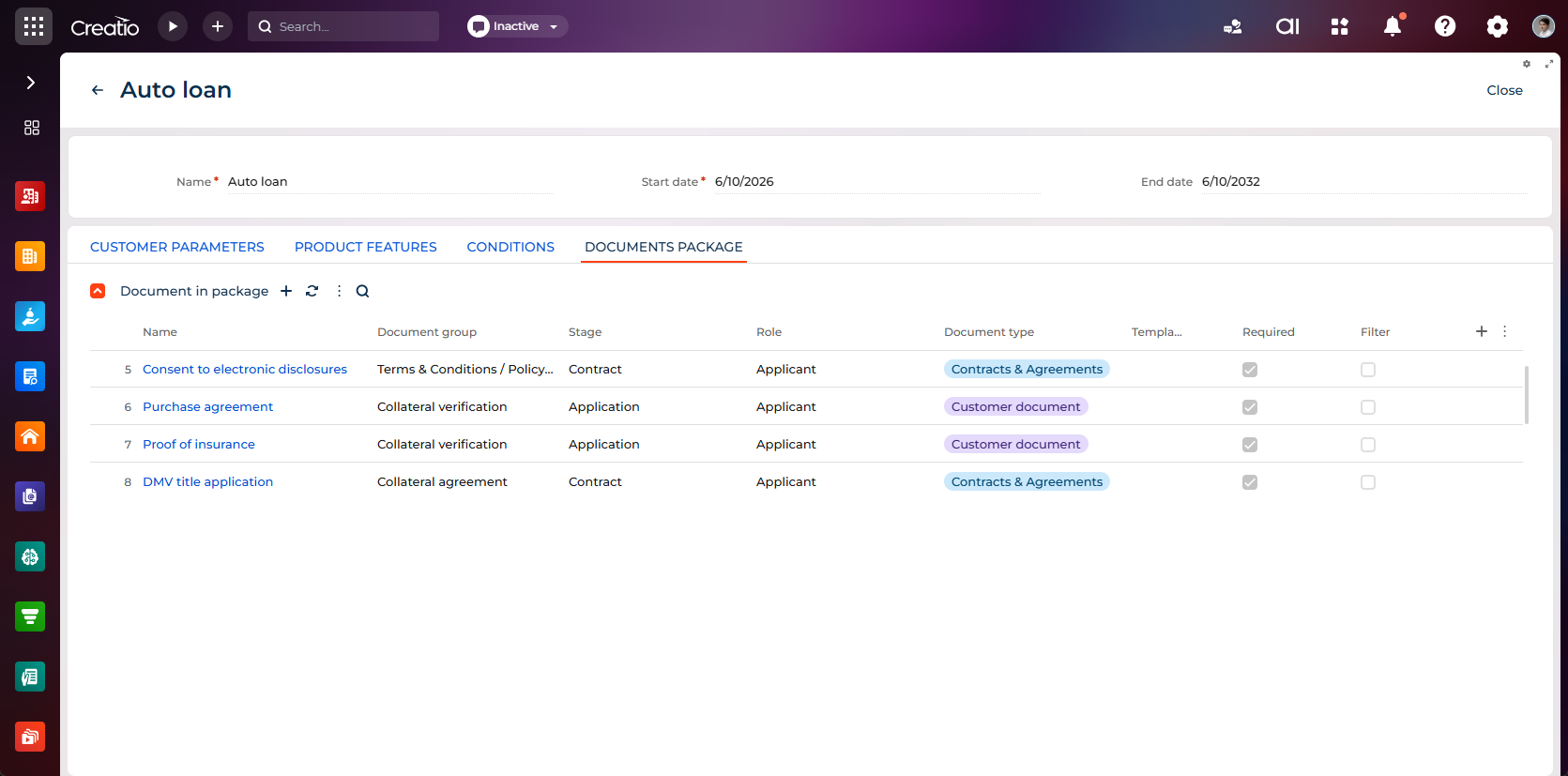
-
Add conditions that control when Creatio generates the document (optional).
Click Add condition and define rules based on application data or related entities. Creatio generates the document only if data meets all conditions.
-
Click Save.
As a result, the product will include a configured package of documents. During the application or opportunity flow, Creatio generates the documents at the stage you specified and adds them to the Required documents or Contracts & Agreements list. Learn more about end-to-end configuration: Required document setup examples.