Manage apps
Use the Application Hub section to manage Creatio apps and add-ons. In Creatio, apps are function blocks that solve business problems. For example, an app can be a set of request management tools. An app can consist of one or more content packages. Packages are added automatically when you create a new app.
The Application Hub section lets you:
- View the index of installed apps. Each app tile displays the app version and developer.
- Create and set up a custom app manually. Read more >>>
- Create and set up a custom app using AI. Read more >>>
- Install Marketplace apps for permanent or trial use. Read more >>>
- Install previously created and configured apps from file. Read more >>>
- Deploy apps. Read more >>>
- Download apps. Read more >>>
- Update apps from Marketplace. Read more >>>
- Uninstall apps. Read more >>>
Create an app manually
You can create apps of any complexity in a single place using the Application Hub, which lets you streamline the development process as much as possible. Apps can include:
- sections that are displayed as navigation menu items and comprise various custom UI elements
- various pages, for example, lists, form pages, dashboards
- business processes
- custom REST and SOAP service integrations
- other schema types that are a part of Creatio configuration, for example, objects, data bindings, SQL scripts, etc.
Before you create an app, set your maintainer name to the "Publisher" (Maintainer code) system setting. We do not recommend developing an app using the "Customer" maintainer because such apps can become editable on development environments regardless of your intentions.
To create a new app manually:
-
Click
 in the top right → Application management → Application Hub.
-
Click New application (Fig. 1). This opens a window.
Fig. 1 Add an app 
-
Select a new app template based on your business goals (Fig. 2):
- Records & business processes. Contains Freedom UI section schemas. The Freedom UI section is displayed in a separate workplace. When you create a new app in Application Hub, it starts with one default section. Creatio generates a list page and form page for this section. Since version 8.3.2, Creatio also generates a mobile list page and a mobile form page. When you add sections to your app, Creatio creates these pages for each new section. To skip the mobile pages, clear the Create pages for the mobile app checkbox. Learn more: Add a Freedom UI section.
- Custom. An empty template that contains a package with no schemas. We recommend using Freedom UI Mobile Designer only for newly created apps. Avoid adding mobile pages to apps that were created earlier.
For example, select "Records & business processes" to automatically set up a section with list and form pages, including mobile pages in Creatio 8.3.2 and later.
noteIf you want to install an existing app, select "Install from file" or "Marketplace powered." Also, you can select "Customer 360" and "Case Management" to install these apps quickly if you do not have them.
Fig. 2 Select an app template 
-
Click Select to confirm the template. This opens a window.
-
Specify the app properties. You can review or change it whenever you need. Learn more about the app properties in a separate article: Set up the app properties.
-
Select the app icon by clicking the arrows or using the scroll wheel.
-
Select the app icon color.
-
Enter the app name in the PLEASE NAME YOUR APPLICATION field. The app name must be unique. This is a required field.
-
Edit the app code if needed.
noteApp content includes source code that contains macros. When you create an app, Creatio sets the macros to app property values.
-
-
Select Link to an existing object to use an existing object in the app and transfer your previous customizations to Freedom UI. Otherwise, Creatio adds a new object for the app.
-
Click Create (Fig. 3).
Fig. 3 App properties 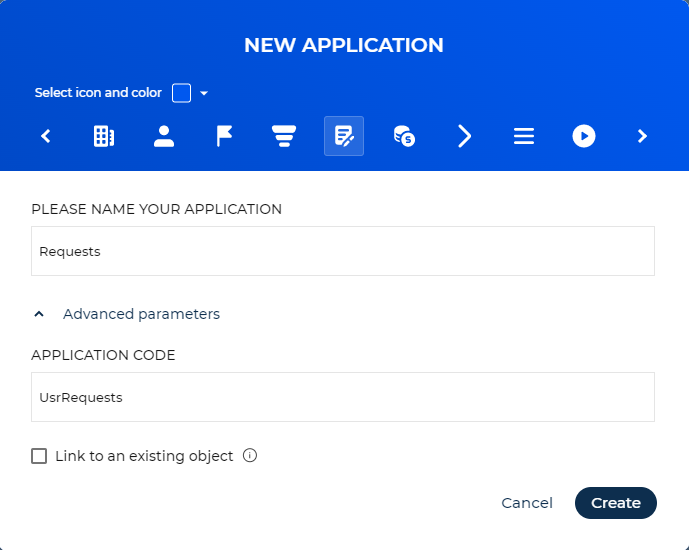
As a result, Creatio will add the app to the Application Hub section (Fig. 4). The app will contain the elements included in the template. The app starts with one default section. Creatio generates a list page and a form page for this section. Since version 8.3.2, Creatio also generates a mobile list page and a mobile form page. You might need to add new sections to workplaces before users can start working with the app. The new app starts from version 1.0.0. Learn more: App versioning.
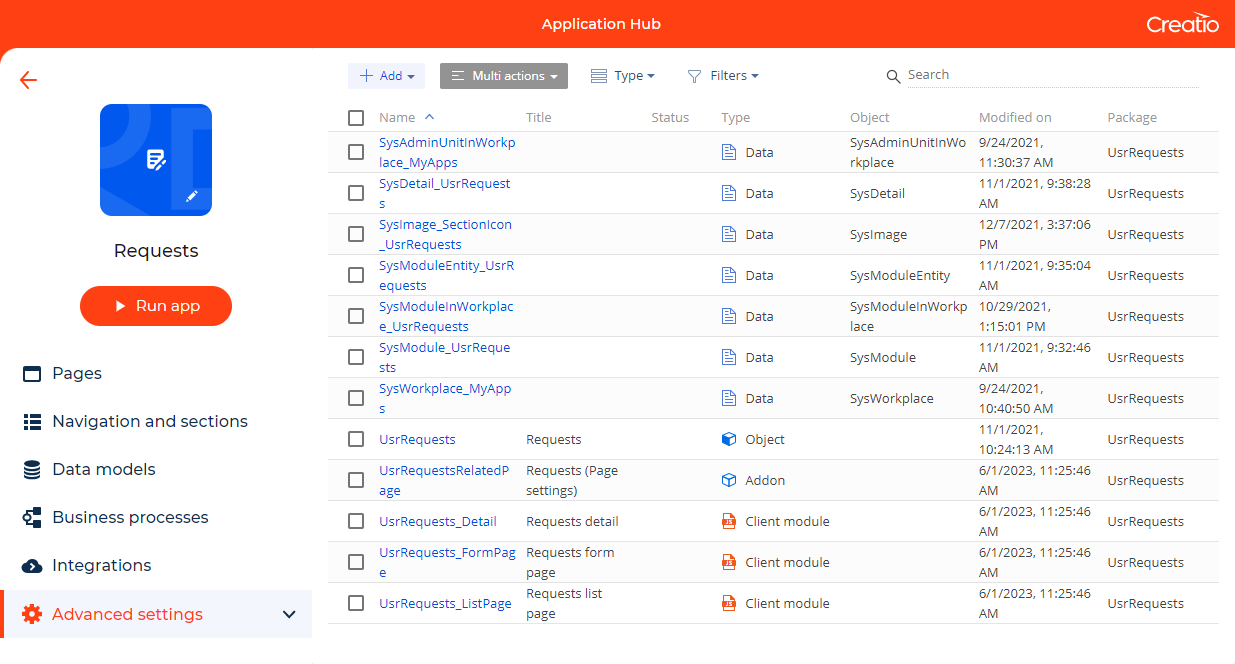
To view the results or test the app in operation, click Run app. You can also use this option to preview the improvements you make to the app.
Since Creatio version 8.1.2, you can edit the self-developed app on other environments if the maintainer of the environment and maintainer of the app or package match and the "Allow to edit your own apps from an archive" (CanEditOwnAppsFromArchive code) system setting is turned on.
Create an app using AI
You can accelerate Creatio app development drastically using AI. Enter the app description and the AI will create an app, including objects, pages, sections, and columns.
This functionality is available out of the box in Creatio cloud.
To create a new app using AI:
-
Click
in the top right → Application management → Application Hub. -
Click New application. This opens a window.
-
Select AI generated → Select. This opens a window (Fig. 5).
Fig. 5 Create an app using AI 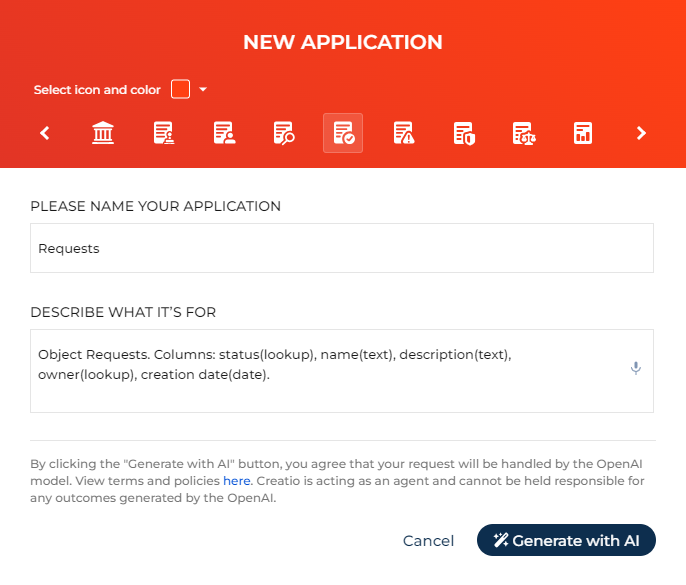
-
Specify the app properties. You can review or change it whenever you need. Learn more about the app properties in a separate article: Set up the app properties.
- Select the app icon by clicking the arrows or using the scroll wheel. OpenAI does not use the icon as part of the app generation.
- Select the app icon color. OpenAI does not use the color as part of the app generation.
- Enter the app name in the PLEASE NAME YOUR APPLICATION field. OpenAI uses this value as the name of the app and the main app section.
-
Describe the app structure in the DESCRIBE WHAT IT'S FOR field. OpenAI generates the app in the language of the prompt. Learn more about making the most effective prompts: AI prompt guidelines.
-
Click Generate with AI.
-
Wait until OpenAI finishes generating the app.
As a result, OpenAI will create a new app based on your prompts. You will be able to customize it further similarly to any other app. The generated app will include the following:
- demo data
- dynamic cases
- progress bars on form pages
- customizable mini page for adding lookup and expanded list records
AI prompt guidelines
OpenAI generates apps based on any prompt, but the results might not always be close to your business vision. Follow these guidelines to ensure the result fulfills your business goals as much as possible:
- Describe only the app structure in the prompt, i.e., objects, lookup objects, sections, pages, and fields. Avoid marketing text, internal jargon, or functionality unrelated to the app structure, for example, Jira integration.
- Describe the app structure thoroughly and explicitly if you want to get precise results. AI can add details, for example, fields, to the app if your prompt is short or vague.
- Describe the data model if you want to have the most control over the results.
For example: An application for selling travel packages. I need to track: travel package name, stage, customer's full name, phone number, email, number of adults, number of children over 3 years old, destination, trip start date, trip end date, number of nights, estimated budget. Also, add the table of preferences (field: preferences(text)) and table of recommended hotels (column: hotel name(text)) for each travel package.
Install an app from Marketplace
We do not recommend performing operations that require Creatio compilation (for example, installing applications or extensions, generating source code, or configuring UI or business logic) while another compilation-related operation is already in progress.
Creatio validates whether an app is compatible with the Creatio version. Learn more: Pre-installation checks.
-
Click
in the top right → Application management → Application Hub. -
Click New application (Fig. 6). This opens a window.
Fig. 6 Add an app 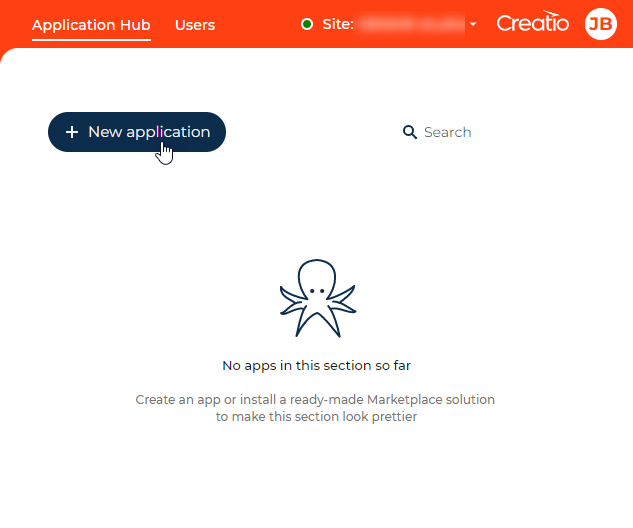
-
Select Marketplace powered → Select. Creatio redirects you to the Creatio Marketplace website.
-
Log in under your credentials. If you do not have an account, sign up and log in to your account.
-
Select the app to install and look through its characteristics and support conditions. Click Install if the app requirements match your Creatio configuration. Creatio redirects you to the app installation window in the Application Hub.
-
Click Install on the window. The installation might take several minutes to finish. Wait for the process to complete before taking any further action.
An app can only be installed into the environment that has a compatible version and all needed dependencies. Creatio does not install incompatible apps into the environment and displays a message with a description of the reason.
If Creatio installs several apps at once, for example, apps from the same installation file or dependencies that Creatio installs automatically, Creatio can skip the apps whose newer versions are already installed in the environment. In this case, the installation window displays Applications skipped with the following message: "Some applications won't be installed because newer versions are already available in this environment." The window also displays the installed version and the version in the installation file for each skipped app. In other cases, if a newer version of the app is already installed, Creatio displays the Version downgrade warning. If you continue the installation, the installed apps might be downgraded. These rules do not apply to apps whose version in the installation file is the technical "0.0.0" version, also specified as "0" or "0.0." Creatio always reinstalls such apps regardless of the installed version and does not display the Version downgrade warning for them.
As a result, Creatio will add the app to the Application Hub section. Creatio automatically resets the caches of the installed apps after a successful installation, the same way as the Run app button does. You can use the apps right away without resetting the cache manually. Creatio does not open the apps.
To view the results or test the app in operation, open the app and click Run app.
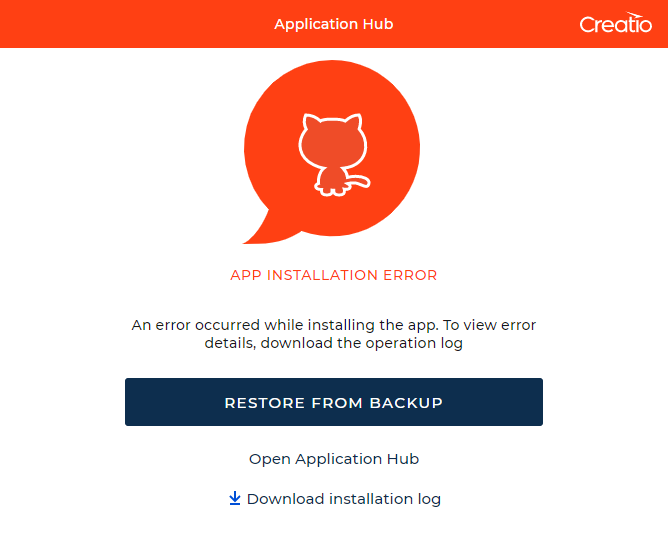
If something goes wrong during the installation, you can always download the installation log and restore your Creatio configuration to the state before the app was installed in a single click.
Install an app from a file
We do not recommend performing operations that require Creatio compilation (for example, installing applications or extensions, generating source code, or configuring UI or business logic) while another compilation-related operation is already in progress.
You can also install an app from a *.zip or *.gz file. This method can be more convenient for Creatio on-site users who have limited access to external requests. Creatio validates whether an app is compatible with the Creatio version. An app can only be installed into the environment that has a compatible version and contains all required dependencies. If you have multiple environments configured and want to transfer an app, make sure the target environment meets the version requirements. Learn more: Pre-installation checks.
To install an app from a file:
-
Open the needed app → Packages tab → download the Marketplace app files.
-
Click
in the top right → Application management → Application Hub. -
Click New application. This opens a window.
-
Select Install from file → Select. This opens the installation page.
-
Click Select file and specify the app file path. Once you select the file, Creatio validates the environment for dependencies and version compatibility and opens a window with the results.
-
Click Install. If the app is already installed, the button is Update. If the file contains several apps or Creatio needs to install missing dependencies, the button is Install all.
If Creatio installs several apps at once, for example, apps from the same installation file or dependencies that Creatio installs automatically, Creatio can skip the apps whose newer versions are already installed in the environment. In this case, the installation window displays Applications skipped with the following message: "Some applications won't be installed because newer versions are already available in this environment." The window also displays the installed version and the version in the installation file for each skipped app. In other cases, if a newer version of the app is already installed, Creatio displays the Version downgrade warning. If you continue the installation, the installed apps might be downgraded. These rules do not apply to apps whose version in the installation file is the technical "0.0.0" version, also specified as "0" or "0.0." Creatio always reinstalls such apps regardless of the installed version and does not display the Version downgrade warning for them.
As a result, Creatio will add the app to the Application Hub section. Creatio automatically resets the caches of the installed apps after a successful installation, the same way as the Run app button does. You can use the apps right away without resetting the cache manually. Creatio does not open the apps.
Pre-installation checks
Before Creatio installs an app from Marketplace or a file, Creatio runs the following checks. If the app fails a check, Creatio blocks the installation. The exceptions are missing dependencies, which Creatio installs automatically, and compilation errors, which Creatio only warns you about.
Check | Description |
|---|---|
File integrity | Creatio checks the integrity of the installation file before any other check. If the file is invalid or corrupted, Creatio displays an error message and stops the installation. Download the file again and reupload it. |
Missing dependencies | Creatio checks whether the environment contains the apps that the installed apps require. If required apps are missing or have unsupported versions, Creatio displays the Detected missing application dependencies window and installs or updates the dependencies from the app catalog automatically. |
Creatio version | Creatio checks whether the app and the dependencies to install are compatible with the Creatio version of the environment. If they are not, Creatio displays the Incompatible platform version window that contains the Creatio version to update to. If the dependencies require Creatio versions that cannot be used together, Creatio displays the Conflicting platform requirements window. If several apps in the installation file require Creatio versions that cannot be used together, Creatio displays the Conflicting Creatio versions window. |
Version conflicts among apps | If the installation file contains several apps, Creatio checks whether their version requirements for each other and for dependencies are compatible. If they are not, Creatio displays the Conflicting application versions window that lists the conflicting apps. |
App content | Creatio checks whether the configuration elements of the app, for example, objects, Freedom UI pages, add-ons, and Sub-agents, reference parent schemas that exist in the environment. For data bindings, Creatio checks whether the corresponding objects exist in the environment. If a parent schema or an object is missing, Creatio displays the Pre-installation check failed window that lists the issues. Out of the box, Creatio runs this check only if the "Environment type" ( |
Compilation errors | Creatio checks whether the latest compilation of the environment completed with errors. If it did, Creatio displays the Detected compilation errors warning that includes a link to the Configuration section. Compilation errors might prevent a successful installation, so we recommend fixing them and compiling Creatio before you install the app. You can still install the app by clicking Install anyway if the app passes all other checks. Users with permission to the "Can manage configuration elements" ( |
Install an app into an environment that uses a balancer
We do not recommend performing operations that require Creatio compilation (for example, installing applications or extensions, generating source code, or configuring UI or business logic) while another compilation-related operation is already in progress.
If you use a load balancer to ensure fault tolerance of your Creatio application, the install process for apps differs. Install an app from a file into one Creatio instance, then transfer settings to other instances. Learn more in a separate article: Compile an app on a web farm.
Deploy an app
You can transfer apps between trial Creatio environments in the Application Hub without downloading apps. For example, this is useful for setting up demo websites and conducting presentations.
To transfer an app:
-
Click
in the top right → Application management → Application Hub. -
Click the
 button in the bottom right of the app icon → "Deploy" (Fig. 8).
Fig. 8 Deploy the app 
-
Select the target site → Deploy.
Fig. 9 Deployment parameters 
As a result, Creatio will add the app to the Application Hub section of the target website.
If something goes wrong during the installation, you can always download the installation log and restore your Creatio configuration in a single click.
Download an app
You can download custom and Marketplace apps as archives to transfer them to different environments. To download an app:
-
Click
in the top right → Application management → Application Hub. -
Click the
button in the bottom right of the app icon → "Export" (Fig. 10) and wait for the process to complete.Fig. 10 Download an app 
As a result, the browser downloads the *.zip archive that contains all the app files to your machine.
When you download an app, Creatio saves any data you entered into the app as well as the following app properties:
- icon
- color
- name
- description
- app code
- developer
- default app page
- app version
- required Creatio version
- app dependencies
Creatio applies this data when you install the app into a different environment. If you install an app from an archive without app descriptor, Creatio creates an app automatically. An app name and code are based on the *.zip or *.gz archive name, the date specified in the app name is the archive downloading date.
Update an app from Marketplace
Development and pre-production environments of Creatio in the cloud can notify system administrators (users who belong to the "System administrators" role) about new versions of installed Marketplace apps.
Out of the box, the "Check Marketplace apps update availability" business process checks for updates of installed Marketplace apps daily. You can change how often to check for updates by editing the process.
If an update exists, Creatio displays the following notifications:
-
system message in the Notification panel (Fig. 11)
Fig. 11 System message in the Notification panel 
-
Update icon on the app tile in the Application Hub (Fig. 12)
Fig. 12 Update icon on the app tile in the Application Hub 
-
Update button in the Application Designer (Fig. 13)
Fig. 13 Update button in the Application Designer 
You can enable notifications for production environments deployed in the cloud or on-site with access to external networks. To do this, enable the AppsFeatures.CheckApplicationUpdates additional feature for a production environment. Instructions: Change the status of an additional feature for all users (developer documentation).
Before you update a Marketplace app on a production environment, make sure the Marketplace app can be updated successfully on a pre-production environment.
To update a Marketplace app:
-
Open the app update page. You can do it in several ways:
- Click the system message in the Notification panel
- Open the Application Hub section → button in the bottom right of the app icon → Update
- Open the app page in the Application Designer → Update
This opens the App update window in the Application Hub section (Fig. 14).
-
Click Update and wait for the process to complete.

As a result, Creatio will update the app in the Application Hub section.
If something goes wrong during the update, you can always download the installation log and restore your Creatio configuration to the state before the update was installed in a single click.
Delete an app
You can delete custom and Marketplace apps. To delete an app:
-
Click
in the top right → Application management → Application Hub. -
Click the
button in the bottom right of the app icon → "Delete" (Fig. 15) and wait for the process to complete.Fig. 15 Delete an app 