Required document overview
Before a lender can approve an application, it must collect a complete and valid set of documents from the customer. When the package is incomplete, decisions stall, auditors raise findings, and bank employees have to work out for themselves what to ask. Creatio assembles the document package for each request automatically from the selected product and application data, links documents the customer has already provided, and blocks a request from moving forward while mandatory documents are still missing.
Required documents let you do the following:
- Skip the manual work of assembling a document package. Creatio builds it from the product and the application conditions.
- Meet compliance requirements. Creatio enforces mandatory documentation at each stage of the application or the opportunity.
- Avoid asking customers for paperwork they have already submitted. Creatio reuses their active documents.
- Set up a single product that requests different documents depending on the product parameters and the application data.
Configure required documents in the product details.
Document usage
Creatio tracks documents throughout the customer request process:
- On the application form.
- In the application.
- In commercial sales opportunities.
Application forms
The application form collects the customer's official identification documents. For an individual, these are documents such as a passport, ID card, residence permit, or driver's license. For a legal entity, these are documents such as a certificate of incorporation or an EIN confirmation. Creatio does not generate identity documents automatically, because users always collect them from the customer directly. Identity documents use the same object model as required documents and follow the same reuse logic.
Creatio does not let a request move forward until its mandatory documentation is complete, which keeps missing paperwork from surfacing at a later stage. The bank employee must add at least one identity document before submitting the application form. Identity documents confirm the applicant's identity and are mandatory for regulatory compliance.
Applications
During application processing, documents appear in the following expanded lists:
- Identity documents — collect identity documents at the "Customer details" stage, separately from the other expansion panels.
- Required documents — configure required documents in the product details. Creatio generates them at the "Product details" stage based on the selected product and its conditions. These are the documents the customer must provide to confirm eligibility, for example, proof of funds, income verification, credit bureau consent. The underwriter reviews and manages them on the Documents tab of the application page at the underwriting stage.
- Documents for signing — configure documents for signing in the product details. Creatio generates them at the "Agreement & Signature" stage based on the selected product and its conditions. These are the documents the customer must sign as part of the agreement, for example, account opening agreement, privacy policy, consent to electronic disclosures.
Creatio does not let an application move forward until its mandatory documentation is complete:
-
Identity documents — the user must add at least one identity document at the "Customer details" stage. Identity documents confirm the applicant's identity and are mandatory for regulatory compliance.
Fig. 1 Identity document on the application page 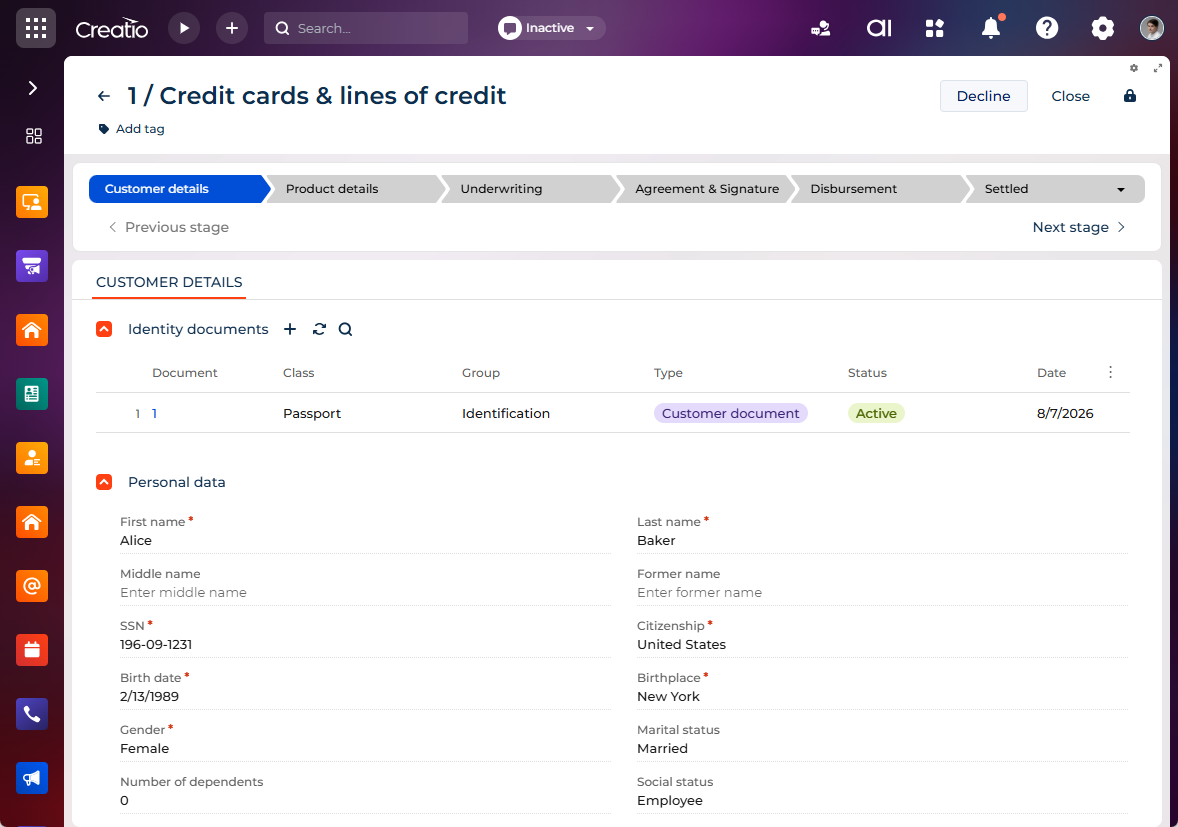
-
Required documents — the user must provide every document that has the Required checkbox selected. This guarantees that Creatio always collects the supporting evidence on which a decision depends, for example, proof of income or proof of funds.
Fig. 2 Required documents on the application page 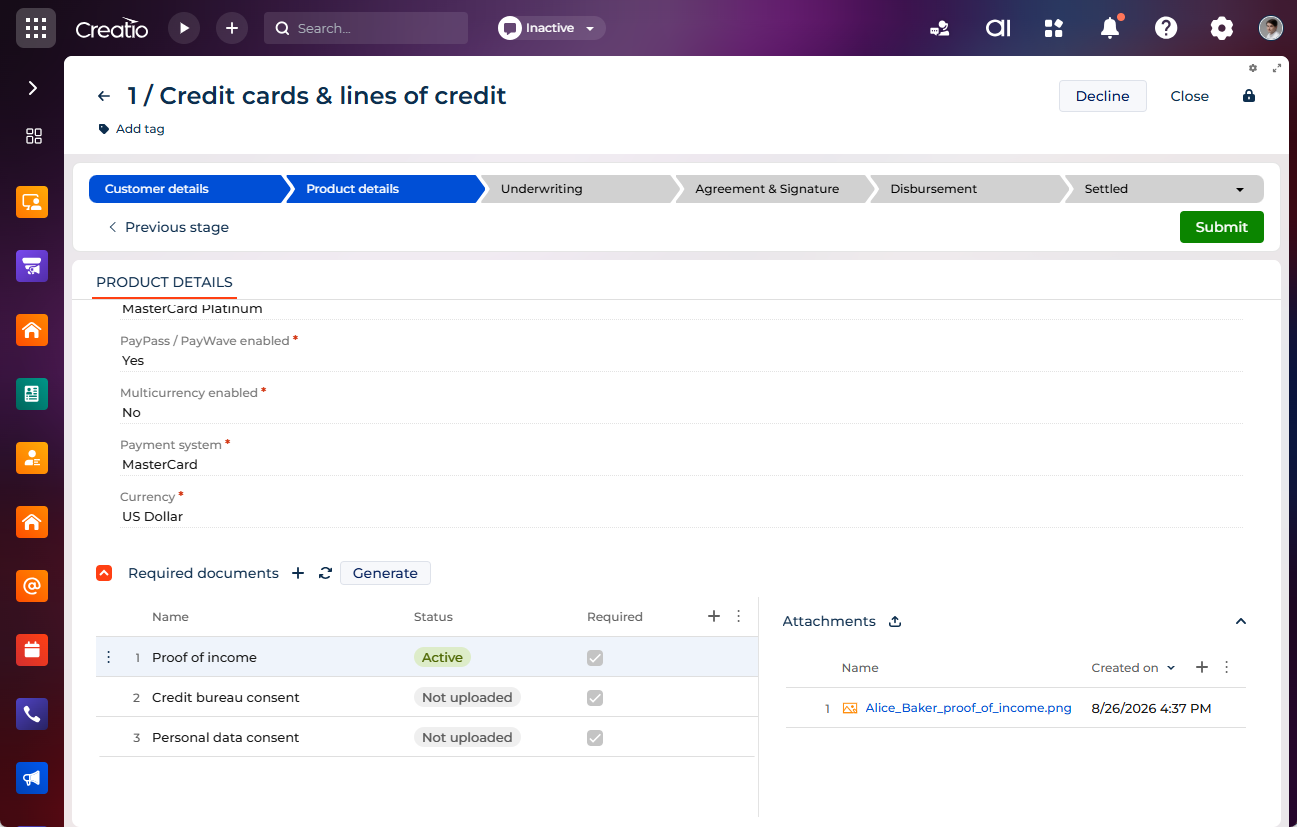
-
Documents for signing — the customer must sign every document that has the Required checkbox selected. This makes the agreement legally complete.
Fig. 3 Documents for signing on the application page 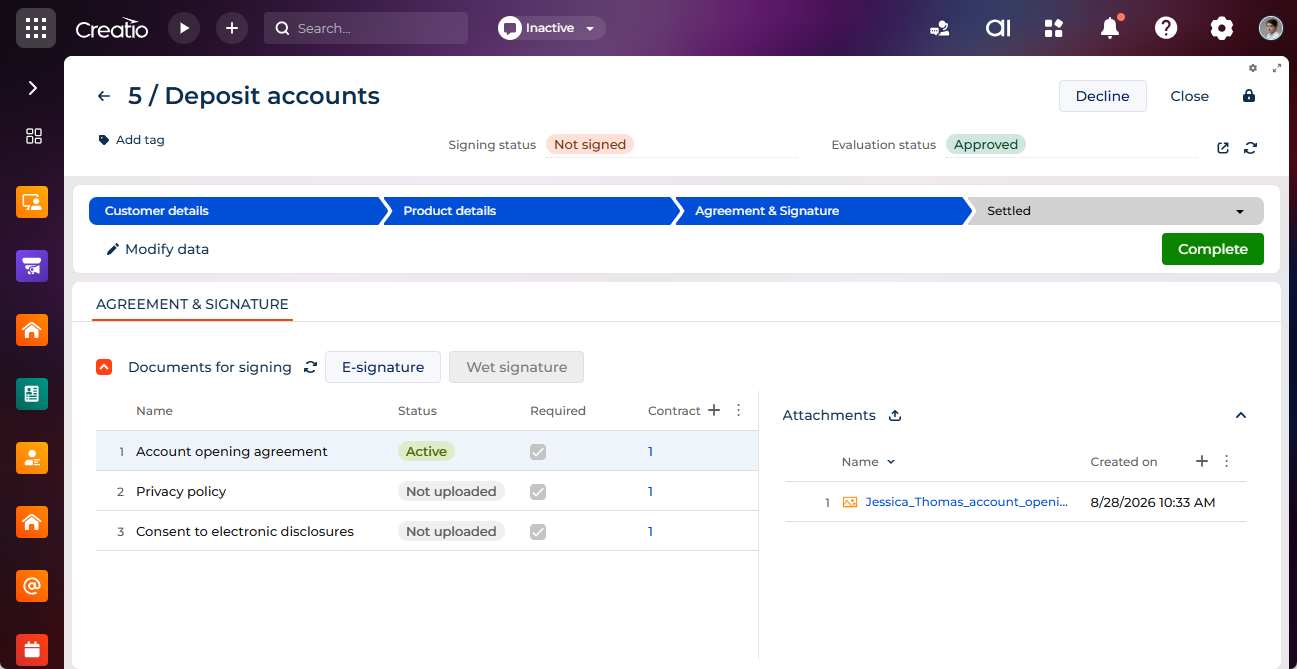
Opportunities
On a commercial opportunity, documents appear on the Documents tab in the following expanded lists:
-
Required documents — configure required documents in the product details. Creatio generates them as soon as a sales rep selects a product on the opportunity. These are the documents the customer must provide to confirm eligibility, for example, personal data consent, income statement (P&L), business plan. The sales rep reviews and manages them directly on the opportunity.
Fig. 4 Required documents on the opportunity page 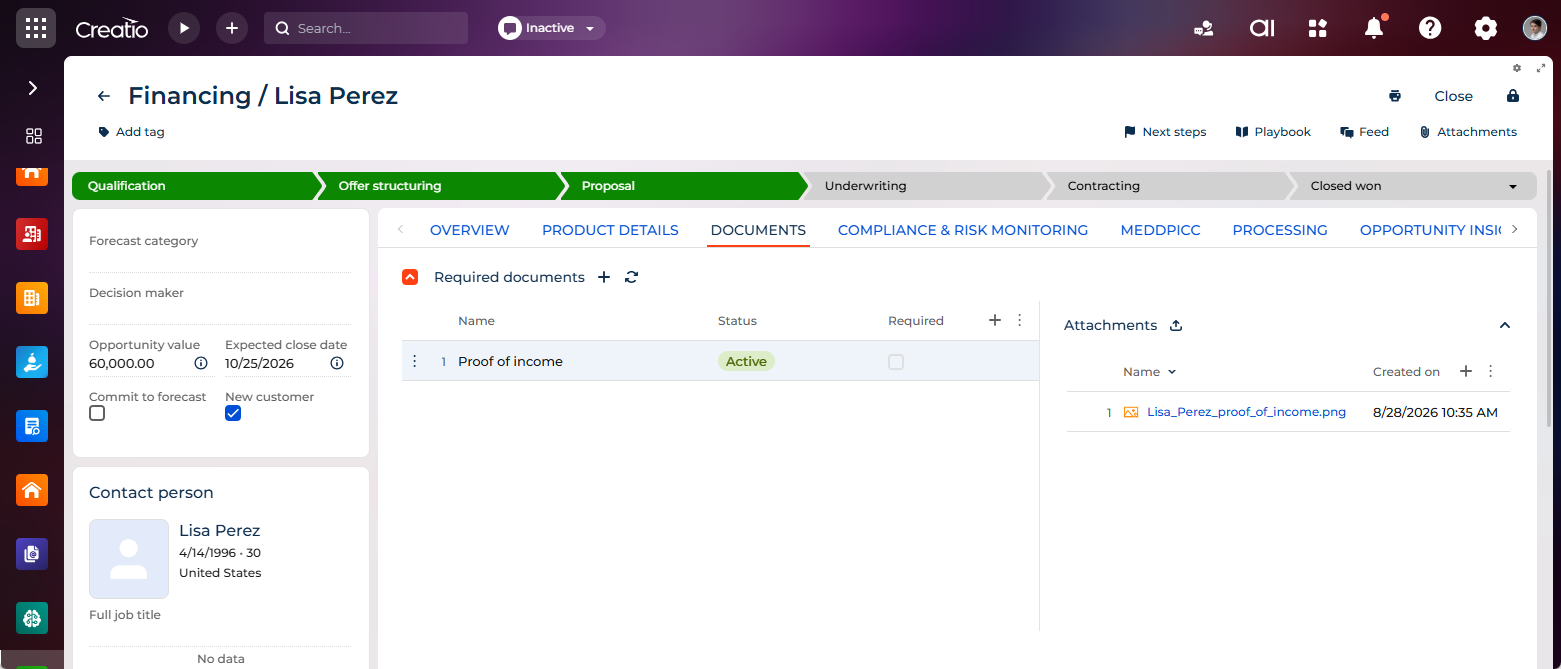
-
Documents for signing — Creatio does not generate documents for signing on the opportunity. The tab shows the signing documents that Creatio generated in the linked application.
Fig. 5 Documents for signing on the opportunity page 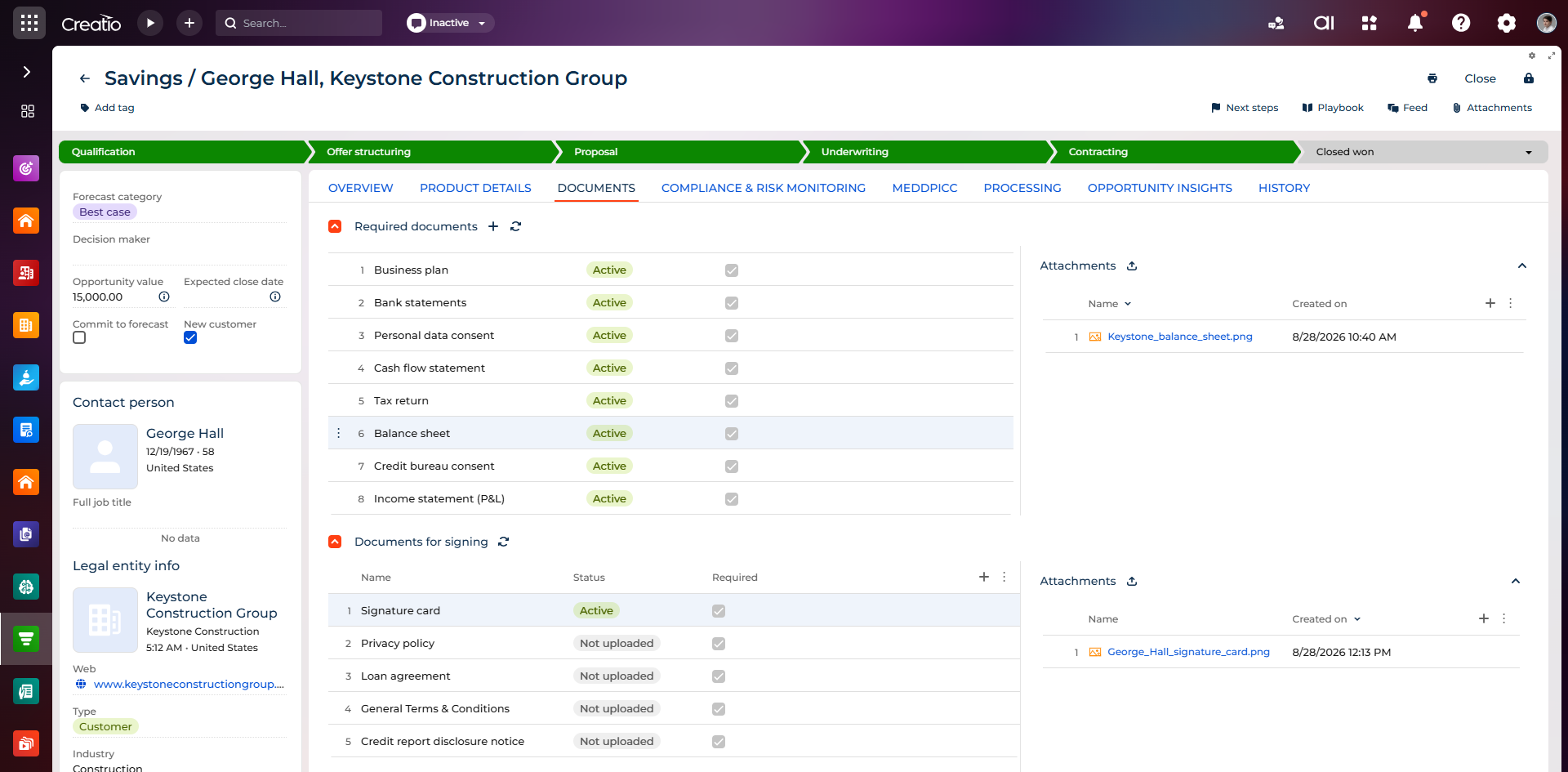
Creatio does not let an opportunity move forward until its mandatory documentation is complete. The sales rep must provide every document that has the Required checkbox selected before the opportunity can move to the "Underwriting" stage.
Reuse existing documents
To save time for both customers and managers, Creatio links documents the customer has already provided to a new request instead of asking for duplicates.
- Document class setting — you can mark a document class as reusable with the Reusable for new applications checkbox in the Document classes lookup.
- Automatic linking — when Creatio generates a new required document, it searches for an "Active" document of the same class linked to the customer. If Creatio finds a document, it links the document to the new application.
- Restrictions — a customer can have only one document of each class. Creatio also runs additional checks that prevent duplicate active documents of the same class during application processing.