10.1 Unlimited release notes
At Creatio, we are committed to empowering our customers with industry-leading product innovations for workflow automation, no-code development, and modern CRM. Today we are advancing new forms of innovation with Creatio version 10.1 Unlimited, featuring the following new capabilities and enhancements.
A comprehensive overview of technical changes and enhancements can be found in the 10.1 Unlimited changelog.
The update guide for the on-site applications is available in a separate article.
Creatio products and apps
Creatio AI app development toolkit
Expanded AI coding agent capabilities. You can now build a larger part of an app from natural-language requests instead of configuring elements manually in the Freedom UI Designer and sections of the System Designer, because AI coding agents in the Creatio AI app development toolkit now cover UI and other app data. The toolkit supports the following scenarios:
- Workplaces. Create a workplace, update or delete an existing workplace, add sections to a workplace and remove them, move a section from one workplace to another, and grant, change, or remove workplace visibility for specified roles. The agent also creates and updates data bindings, so the workplace configuration data is transferred with the package.
- Desktops and home pages. Create Freedom UI desktops and home pages.
- Dashboards. Create a dashboard and set its visibility for specified roles or users. You can create a dashboard just by describing it key features – what it’s for, who will use it and what role they have. The agent can suggest what to include. If you already know what you need, you can specify the types of elements you want to add and what they must do. The agent will help you create them.
- Widgets. Add and configure charts, list widgets, comparison metrics, and calculated metrics on a page.
- Page-level and object-level business rules. Create business rules that use conditions based on a system setting value or a data source, and read, edit, or delete existing page-level and object-level business rules.
AI-generated pivot tables. You can now add cross-tabulated analytics to Freedom UI pages faster by describing the result in natural language instead of configuring the widget manually in the Freedom UI Designer or Dashboard Designer. The Creatio AI app development toolkit now publishes the full authoring contract for the pivot table, which enables a coding agent to create and configure the widget on a dashboard, form page, list page, or home page. Based on your request, the agent sets the widget title, selects the data object, including custom objects, defines row and column groupings in the requested order, and adds one or more value columns that use the count, sum, min, max, or avg aggregate function. The agent also supports calculated fields defined by a formula, date grouping by day, week, month, or month and year, static filters, and filtering by page data, where a form page filters by the current record and a dashboard filters by the dashboard context. Subtotals and grand totals are applied automatically where the widget supports them.
Out-of-the-box analytics for generated apps. You can now start working with analytics immediately after an app is generated instead of building dashboards manually, because applications created using the Creatio AI app development toolkit now come with usable analytics out of the box. The coding agents always propose analytics for a new app and generates the following kinds of dashboards:
- section dashboards intended for the roles that work with a specific section
- app-level dashboards with overall indicators placed on the workplace home page of the app
If the app has no workplace yet, the coding agent creates it. Widgets are based on the data model of the app, can also reference out-of-the-box objects, for example, activities and contacts, and include metrics, charts, and lists. Generated dashboards are available to all employees, and their access rights are included in the app package, so analytics remains available after you transfer the app between environments.
Common features
Contact Center
File drafts in Agent Inbox panel. You can now switch between chats without losing attached files while working as a contact center agent. Files attached in the Agent Inbox panel are saved as a draft of the specific chat and uploaded in the background while you continue working in other conversations. The files are still in place when you return to the chat or reload the page.
Chat translation improvements. You can now control translated content fully in the Agent Inbox panel of the Contact Center app and keep translations available for review after the conversation ends. Specifically, Creatio provides the following capabilities:
- Permanently stored translations, making completed conversations readable in the translation language. Both versions of every message are now retained with no time limit on the chat page in the Chats section, which lets supervisors and auditors review, compare, and analyze closed chats.
- Manual translation of outgoing messages, letting agents check and correct a translation before the customer receives it. Agents can now translate an entered message using the
 button in the message editor, edit the result, and send it once it reads correctly.
 - Original wording of outgoing messages, extending the switch between the original and the translated text to the agent's own messages. The translated text that the customer received is displayed out of the box, and the Show original button next to the message reveals the wording the agent entered. Switching affects only the displayed version, not the message that was sent.
WhatsApp Chat Channel
Native WhatsApp Meta Cloud API channel. You can now connect a WhatsApp Business account to Creatio directly through the Meta Cloud API and handle WhatsApp conversations in the Agent Inbox panel of the Contact Center app. Add the channel in the Customer communication hub section. Creatio opens the Meta sign-up flow, and once you confirm your business account and phone number, the channel is created and starts receiving messages. The WhatsApp channel that works through Twilio remains available and supported, and a customer who wrote to you through it is recognized as the same contact in the new channel. The new channel includes the following key features:
- Exchange messages, images, and files with customers.
- Track every outgoing message with "Sending," "Sent," "Delivered," "Read," and "Failed" delivery statuses, and see the reason when a message is not delivered.
- Route incoming conversations to a chat queue, with the contact matched or created automatically by phone number, and the full history of previous conversations available to the agent.
Agents reply with free-form messages, which WhatsApp permits within the messaging window, the 24 hours that follow the last message from the customer.
The channel is delivered as part of the WhatsApp Chat Channel app, available in Creatio Sales, Creatio Service, Bank.AI and deprecated Bank Customer Journey and compatible with Creatio 10.1 and later. On a product that does not include the app, for example, Creatio Business Studio, installing it also installs the Contact Center app automatically.
Learn more: Set up the WhatsApp channel via Meta Cloud API.
Creatio Sales
Opportunity details in Sales forecasts. You can now review an opportunity's key details, activity, and communication history faster without leaving the Sales forecasts section. Drill down from a forecast metric to open the opportunity list, then click the opportunity name to view a compact summary of the record. The summary includes the following tabs:
- Summary: displays the main fields of the opportunity, for example, Owner, Stage, Forecast category, together with the Days in stage and Days in funnel metrics.
- Activity: displays activity counts for the opportunity, for example, total touches, meetings held, emails sent, and email replies.
- Timeline: displays the communication history and linked records of the opportunity in chronological order and supports the out-of-the-box month grouping, sorting, filtering, search, and commenting capabilities.
Forecast hierarchies section. You can now find and maintain forecast hierarchies in one place by managing them in the dedicated Forecast hierarchies section of the "Sales Forecasts" workplace, without opening or creating a forecast. The section provides the following capabilities:
- List of hierarchies: view all hierarchies available in Creatio and sort, filter, and search them by name.
- Hierarchy management: view, create, and edit a hierarchy and its structure directly in the section.
- Shared records: use the same hierarchies that forecasts use. A new hierarchy becomes available immediately when you configure a forecast, and edits are reflected everywhere the hierarchy is already in use.
- Confirmation on impactful edits: when you edit a hierarchy tied to a forecast that has existing submissions, Creatio displays a warning that lists the affected forecasts and asks you to confirm before the change is applied.
The section is available to administrators only, following the same access model as the Sales forecasts configuration section. Other users can neither see the section nor open it directly.
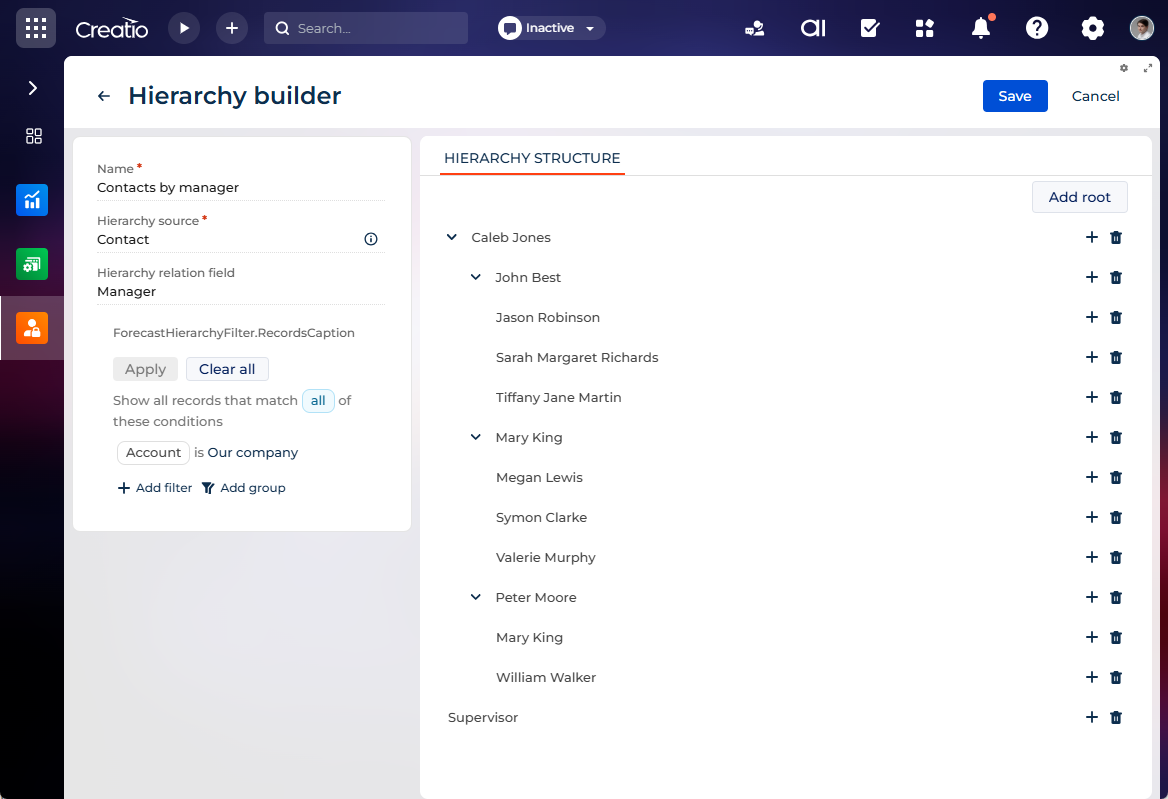
Filters for forecast hierarchies. You can now ensure that only relevant records take part in forecasting by narrowing the records included in a forecast hierarchy. To do this, add filter conditions based on the columns of the source object in the settings area of the hierarchy builder. Filters work regardless of how the hierarchy was built, manually from scratch or automatically by a parent column. When you apply a filter, Creatio rebuilds the hierarchy using only the matching records and keeps the parent-child relationships between the records that remain. The filter belongs to the hierarchy, therefore it applies to every forecast that uses the hierarchy. Creatio saves the filter with the hierarchy and reapplies it automatically the next time you open or recalculate the hierarchy.
Configurable forecast submission values. It is now possible to ensure consistent and reliable submissions to forecast cells by controlling which value users can submit in a forecast and whether they can edit it.
Manage the reference column for submitted values in the Reference column for submissions field of the forecast column on the Layout tab of the Sales forecasts configuration section. A submission always uses the latest value from the source column. If you do not specify the reference column, the form works as before and uses an editable value from the clicked cell.
Restrict the permissions on the Permissions tab of the Sales forecasts configuration section.
Live updates in the Sales Forecasts app. You can now collaborate on a forecast sheet in the Sales forecasts section with your team and see forecast numbers update in real time. When anyone edits a forecast cell, submits a forecast, or changes a Creatio record that feeds the forecast, everyone who views the same sheet sees the new value within about a second. Creatio updates the value in place, without a manual refresh, a loading mask, or the loss of expanded branches and scroll position. Updates apply to any period in any year, not only the current period, therefore a change to a past or future deal is reflected immediately. Creatio recalculates only the affected numbers, which keeps the sheet fast and accurate. Live update is enabled out of the box.
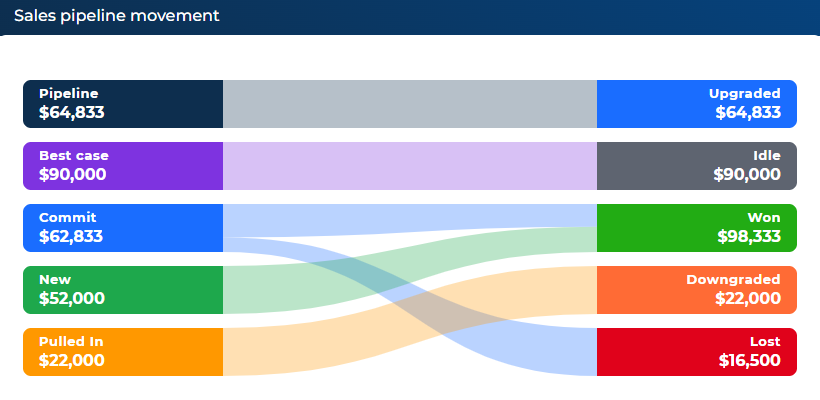
Sales pipeline movement widget on the pipeline analytics page. You can now analyze how opportunities move across your pipeline without switching pages or reconfiguring filters. The "Sales pipeline movement" (Sankey) widget is available on the pipeline analytics page of the Opportunities section. To take advantage of this functionality, register and enable the EnablePipelineAnalytics additional feature. Learn more: Implement a custom additional feature, Manage an existing additional feature.
Creatio Marketing
Email Marketing
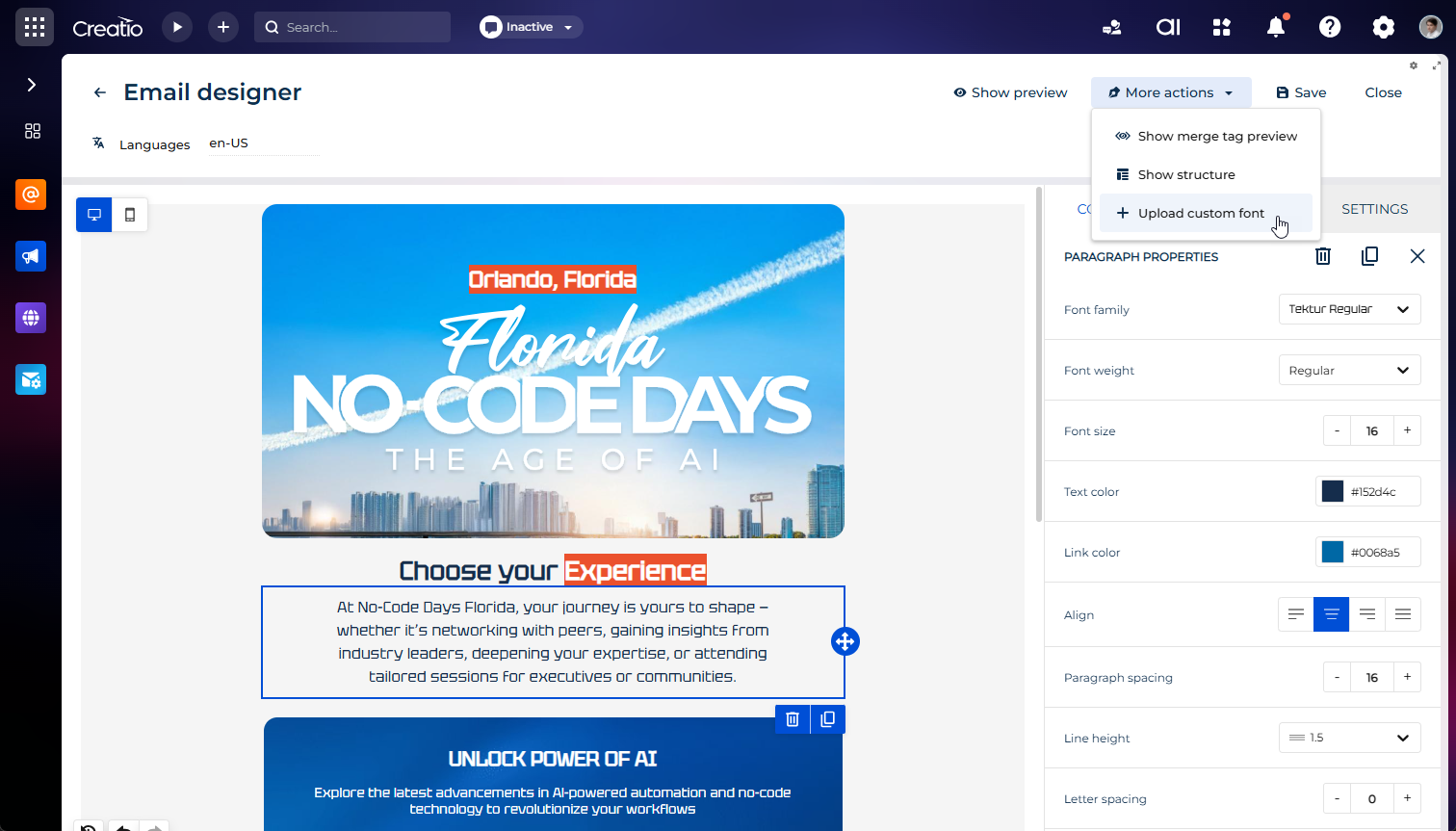
Custom fonts in marketing emails. You can now keep bulk emails consistent with your brand by using your own font instead of choosing only from the out-of-the-box font list. Click "Upload custom font" in the More details button in the design settings of a bulk email, enter the font name, attach the font file, and select a fallback font. Creatio then makes the font available to everyone in your instance, both as the default font of an email and in the font picker of individual text blocks. The fallback font keeps your emails readable in email clients that do not render web fonts.
Reply-to address for bulk emails. It is now possible to route recipient replies to a monitored mailbox instead of the address you send from, which is often unmonitored. Fill out the Reply-to address fields on the Design content tab of a bulk email, and recipients who click Reply write to that address while your sender name and sender email stay unchanged. The reply-to address does not have to belong to a validated sender domain. Leave the fields empty to keep the current behavior.
Migration to the new email subscription model. It is now possible to move your existing subscription data to the new subscription model if your website still uses the legacy model. An administrator runs a "Bulk Email Subscription Migration" business process that keeps every contact's current choice intact:
- Anyone who unsubscribed stays unsubscribed.
- Contacts excluded through the global email opt-out become unsubscribed from all bulk emails.
- Your custom bulk email types are matched to the corresponding subscription types.
Bulk emails keep going out while the migration runs. When the transfer completes cleanly, Creatio switches your website to the new subscription model and hides the legacy subscription banner on the contact page. If any records fail, your website stays on the legacy model and you can run the process again. A repeat run adds only what is missing and creates no duplicates. The migration requires the "Marketing" workplace to use Freedom UI. On Classic UI, Creatio stops the run and makes no changes.
Marketing Campaigns
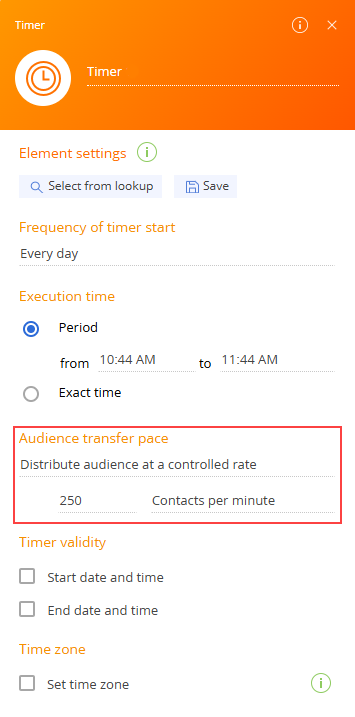
Audience delivery pace control. You can now prevent delivery spikes and manage system load in large-scale campaign scenarios by controlling the rate at which campaign participants advance past the Timer element in Campaign Designer. Use the new Audience transfer pace setting block to release all participants at once, distribute them evenly across the configured time period, or set an explicit delivery rate of contacts per minute or per hour. The even distribution option is available in period execution mode only.
Segmentation
Segment update schedule. It is now possible to keep your audience refreshed exactly when you need it, without any extra steps, by choosing how a segment is populated directly from the segment page using the Population mode field. Select "Static list" to trigger an update on demand, or switch to "Scheduled" to set a specific day and time for automatic refresh, for example, every day at 6:00 AM. The schedule is saved with the segment and restored on every reload.
Automatic refresh for scheduled segments. You can now rely on accurate membership data without any manual action, because Creatio refreshes segments set to "Scheduled" mode automatically on a configurable interval. A background job identifies stale segments and re-evaluates their entry and exit rules. If a segment is already being updated or a cycle is still running, Creatio safely skips it and continues with the next segment.
End user experience
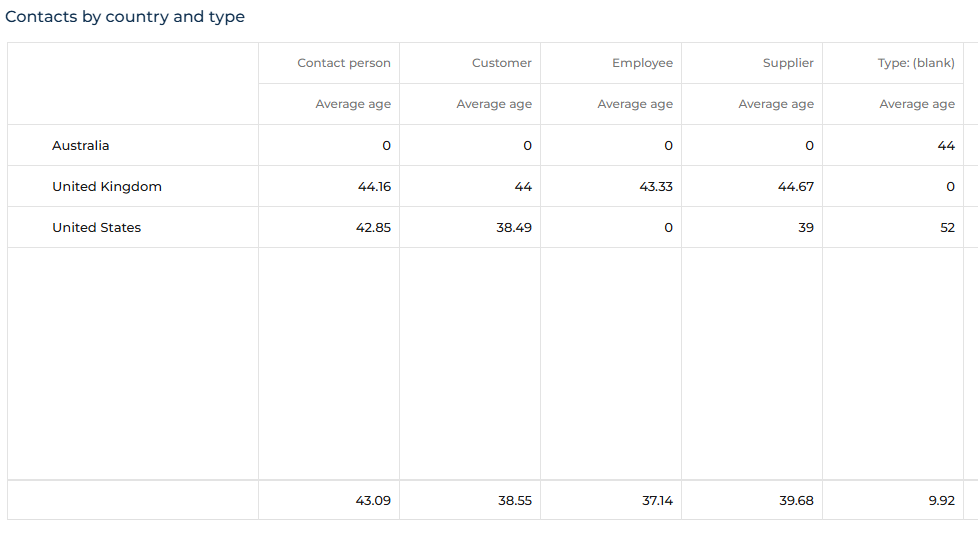
Pivot table in Freedom UI. You can now analyze cross-tabulated business data directly on Freedom UI pages using the pivot table, which is available to all users out of the box and without any changes. Add the widget to a dashboard, form page, list page, or home page in the Freedom UI Designer and Dashboard Designer, then define row groupings, column groupings, and value cells with aggregate functions to build the cross-tab analytics you need. This release adds the following capabilities:
- Apply filter by page data. Connect a pivot table on a dashboard to the page data so the widget reflects the current page context.
- Calculated column. Configure a column using a formula with the Add calculated field button in the setup area.
- Related object columns. Use columns of connected objects, including backward references, in rows, columns, and value cells to aggregate related records without extra setup.
- Date grouping. Group a date column by day, week, month, or month and year to view aggregated values for the period you need.
- Design-time preview. See the structure of the pivot table on the canvas as you configure it, with the preview updating as you change the setup, so you can validate the layout before saving.
New Email Template Designer. You can now build templates for service and transactional emails, for example, the emails you send from the message composer, business processes, and cases, in a visual drag-and-drop designer instead of the legacy HTML editor. It is the same designer that Email Marketing uses for bulk emails. The CrtTemplateDesigner app is available in all product builds, including Creatio Business Studio, when upgrading to version 10.1 Unlimited. Open the new Message templates section, available in the same workplaces as the Email templates section, click New and select "Email template," specify the template name and the source object, then assemble the email from rows and content blocks: headings, paragraphs, lists, images, buttons, dividers, spacers, videos, icons, menus, social links, GIFs and stickers, and custom HTML, with separate desktop and mobile views and a preview.
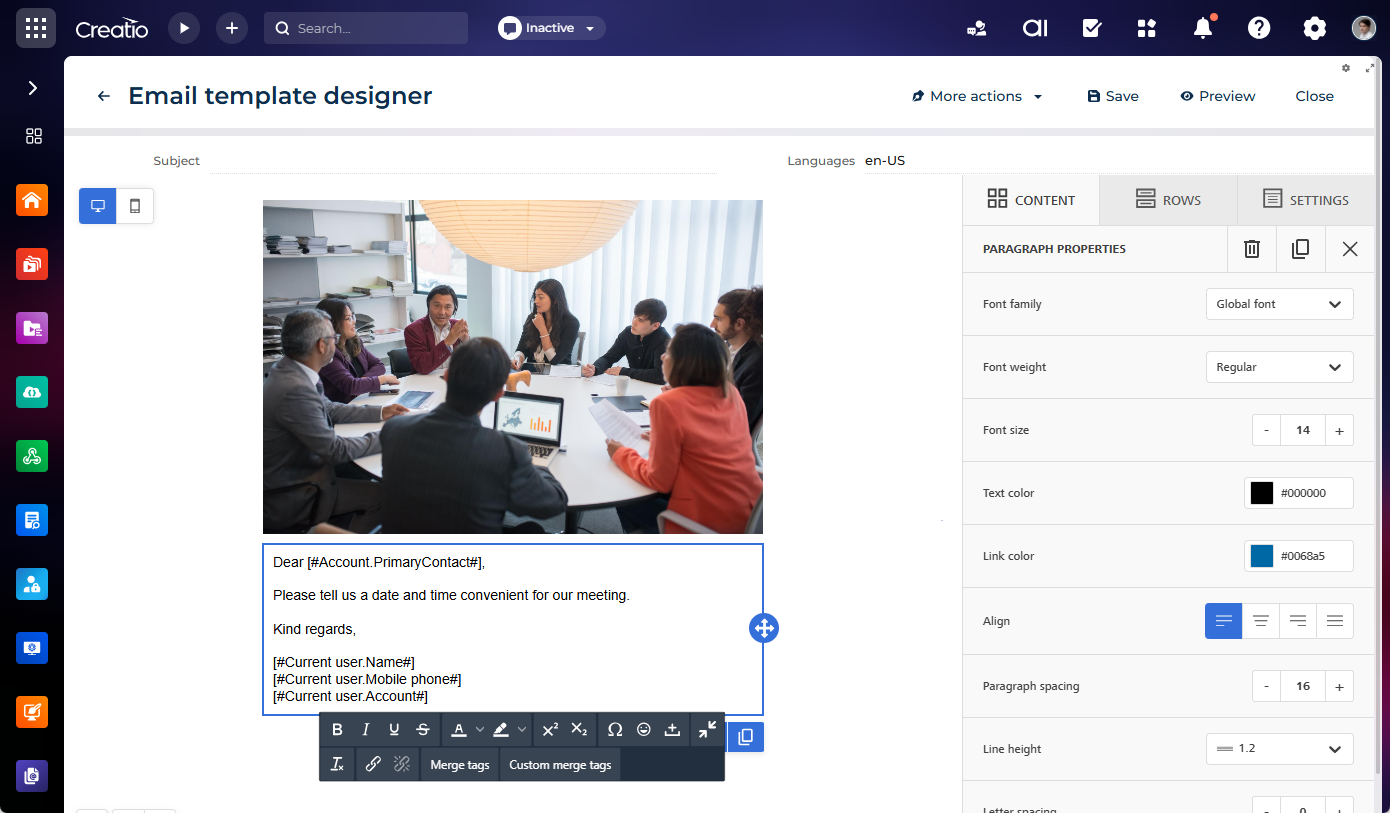
The designer supports the following:
- Personalization with merge tags. Insert standard macros from the Merge tags menu or, if the template has a source object, pick any field of that object and its related objects with custom merge tags. Creatio populates the values when the email is sent.
- Multilingual templates. Add languages in Multilingual settings and author a separate subject and body for each of them. A new language version starts as a copy of the default language. Recipients receive the version in their language, and the default language is used when no other languages match.
- Conditional content. Attach display conditions to rows, that is, filters over the template's source record, for example, "Contact is filled in," so that a single template adapts to the record instead of maintaining several near-identical templates. Rows whose condition is not met are removed from the email entirely, without empty labels or leftover macros. Out of the box, a template can have up to 4 conditions.
- Saved rows. Save any row as a named reusable block in a category and insert it into other templates from the Rows tab. Edit or delete saved rows in one place.
- All templates in one section. The Message templates section lists the new email templates together with chat, push notification, and legacy email templates. Templates created in the HTML Classic UI editor still open in the classic editor.
Templates created in the new designer are used the same way as before: select them in the message composer or in the Send email process element.
Attachments from other sections in the email composer. You can now attach files that are already stored in Creatio, for example, documents or contracts, to an email directly from the composer instead of downloading them and uploading them again. An administrator configures one or more attachment sources on the Message composer component in the Freedom UI Designer by selecting the section whose files can be attached. The  button then offers "Attach from [section]" for each source in addition to "Upload attachment." Select multiple files at once, and Creatio attaches them when the email is sent.
Recipient search in the message composer. You can now get the same complete recipient results faster, because Creatio searches recipients in the To, CC, and BCC fields the same way as global search. The search covers names with accented characters, and every email address of a matching contact or account is offered. Administrators can limit the search to specific objects, for example, contacts only.
To take advantage of this functionality, register and enable the EmailRecipientsSearchV2 additional feature. Learn more: Implement a custom additional feature, Manage an existing additional feature.
Freedom UI filters for folders. You can now set up folder filters in the Freedom UI filter editor, which makes filter setup consistent across Creatio. Folders now use this editor out of the box in every section that supports them, replacing the legacy filter editor. Learn more: Advanced filters.
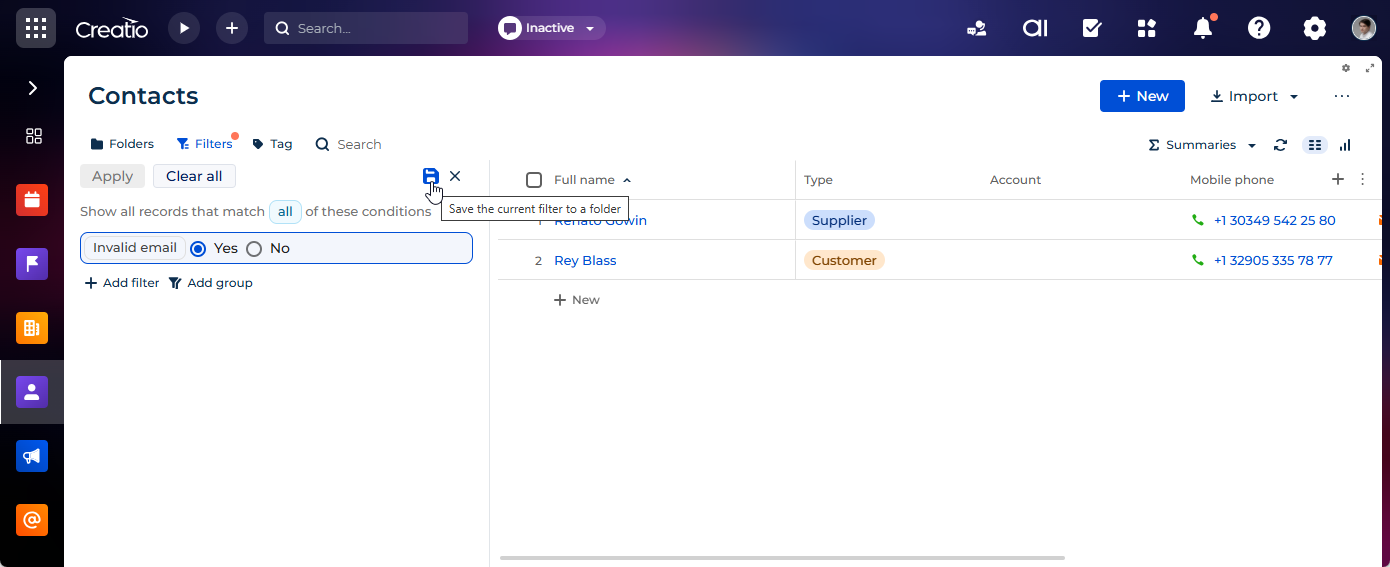
Save a filter as a folder. You can now reuse a filter you built at runtime instead of setting it up again by saving it as a folder directly from the Filters toggle panel. Use the  button to save either the entire filter or a single filter group, enter a folder name, and the new folder appears in the folder tree with its filter applied right away. The saved folder keeps the original structure of the filter, including AND/OR groups, nested groups, operators, values, presets, and conditions you turned off. Section pages that inherit the "List page" (
ListPageV3Template code) schema of the "Client module" type support the action out of the box. On other pages, a no-code creator connects the Filters component to a folder tree using the Which folder the filter can be saved to? parameter in the Freedom UI Designer setup area. The action is not available for conditions inside related records or aggregations, and a new folder is visible only to the user who created it.
Resizable Filters toggle panel. You can now work with large filters more comfortably by dragging the right border of the filter panel to the width you need. Creatio saves the width for you in the user profile separately for each user and each page, so every section reopens at the width you set, without affecting other users or the page layout configured in the Freedom UI Designer. Resizing is not available for a filter placed in a container. The minimum width of the Filters toggle panel is 130 px. While the border is dragged, the maximum width is limited by the edge of the container. For RTL locales, the resizable border is mirrored to the opposite side of the panel.
Temporarily disabled filter conditions. You can now try out variations of a complex filter without rebuilding it each time, because the Filters toggle panel supports switching individual conditions off instead of deleting them. Point to a condition, group, or predefined filter preset and select the checkbox that appears to exclude it from the results while keeping it visible in the panel, then select it again to bring it back. Disabled conditions are shown in a different color. Presets can be switched off only as a whole, and inside a group you can switch off either the entire group or individual conditions and nested groups. A no-code creator must set whether this option is available on a page in the Allow disabling conditions parameter of the Filters component in the Freedom UI Designer.
No-code customization
Creatio Business Studio
Immediate app readiness after installation. It is now possible to use newly installed or updated apps immediately without resetting the cache manually. Creatio automatically runs the backend cache-clearing logic used by the Run app button in the Application Designer for all installed apps right after a successful installation, without you going to any app.
Freedom UI Designer
RTL rendering in Freedom UI Designer. You can now see pages closer to their runtime appearance out of the box without any manual setup, because Creatio displays the designer canvas in right-to-left (RTL) layout for users who work in RTL mode. The Freedom UI Mobile Designer canvas is displayed in left-to-right layout, because mobile pages are not rendered in RTL mode at runtime.
Page preview in Freedom UI Designer. You can now verify page layout and behavior before publishing without additional setup, because the Preview button is available in the Freedom UI Designer out of the box. The updated preview also covers pages that are not saved yet, including completely new pages and pages that replace existing pages, and correctly displays configured components without reloading the page.
Pre-filled recipients in the message composer. It is now possible to set up the message composer so that the To, CC, and BCC fields are populated automatically, for example, with the contact's email address from the page or with a department mailbox that must always be copied. To do this, select the component in the Freedom UI Designer, expand Recipients pre-fill in its parameters, and pick the source fields for To, CC, and BCC from the page data. Only email fields are offered, and you can select multiple source fields. No code is needed. When you reply to a message from the timeline, its recipients are preserved.
Sales pipeline movement widget. It is now possible to visualize how deals flow across key sales entities wherever it fits your workflow, without custom development, by using the new "Sales pipeline movement" (Sankey) widget in the Freedom UI Designer and Dashboard Designer. The widget requires the Lead and Opportunity Management and Sales Forecasts apps to be installed. To take advantage of this functionality, register and enable the ShowDesignerDemoItems additional feature. Learn more: Implement a custom additional feature, Manage an existing additional feature.
Integrations
Webinar attendance from Microsoft Teams. You can now see who actually attended a webinar held as a Microsoft Teams meeting. After the meeting ends, Creatio retrieves the attendance report from Microsoft Graph and updates the event audience. Participants who joined with the email address of an audience contact are marked as participated, the rest as did not participate. The Participants expanded list on the General info tab of the meeting page shows whether each participant attended and how long they stayed. The organizer's calendar must be synchronized through Graph API, and the Microsoft 365 administrator must grant the OnlineMeetingArtifact.Read.All permission.
To take advantage of this functionality, register and enable the MeetingAttendanceSync additional feature. Learn more: Implement a custom additional feature, Manage an existing additional feature.
Email synchronization by sent date. It is now possible to avoid loading old emails that were moved or edited on the mail server. With the new mode, an email whose sent date is earlier than the start of the synchronization period is not loaded.
To take advantage of this functionality, register and enable the SyncEmailsBySentDate additional feature. Learn more: Implement a custom additional feature, Manage an existing additional feature.
Nested arrays in web service calls. You can now integrate with services that expect nested data without additional development by passing nested array structures to external services directly from a business process using the Call web service element. Set up a request parameter as an array of arrays, and Creatio includes the complete structure in the request.
Administration
Custom login page logo for .NET builds. It is now possible to configure a custom logo on the login page in .NET builds, bringing this capability to parity with .NET Framework builds.
User matching rules for SSO. You can now onboard existing users to SSO without preparing their identities in advance and without duplicate accounts appearing when you add a second identity provider. Creatio matches an incoming SSO user to an existing user record using the rules of the OIDC user matching rules expanded list in the Single Sign On configuration section of the System Designer. The rules map the claims of the identity provider token to the columns of the "System administration object" (SysAdminUnit code) object. Out of the box, Creatio matches the email claim to the user name and email. Administrators can add, edit, reorder, and delete the rules as well as set the order in which Creatio evaluates them.
Multiple identity providers for one user. You can now enable a single Creatio user to sign in through more than one OpenID Connect identity provider without creating duplicate accounts. For example, this is useful when you migrate from one identity provider to another, since employees can keep signing in through both until the previous provider is deprecated. It is also useful when you combine corporate SSO with Creatio ID SSO so that the same user can also reach the Creatio ALM ecosystem. Creatio links existing users to the new model on their first sign-in after the update, therefore you do not need to prepare their identities in advance.
User matching rules for SSO without JIT provisioning. You can now keep full control over who has access to Creatio while still using SSO. When JIT provisioning is turned off, Creatio matches an incoming SSO user to an existing user record using the rules of the OIDC user matching rules expanded list in the Single Sign On configuration section of the System Designer. The rules map identity provider token claims to the columns of the "System administration object" (SysAdminUnit code) object. Only employees for whom an administrator created a user can sign in, and Creatio neither creates nor updates user records from the identity provider. The functionality is available for OpenID Connect providers.
Desktop setup in System Designer. It is now possible to configure desktops regardless of your license because desktop management moved to the dedicated Desktop setup section of the System Designer, separate from the Appearance setup section. Access to the Appearance setup page is licensed and unavailable for the Growth subscription plan, so this change keeps desktop configuration available to all users. The desktop configuration options themselves remain unchanged.
Unified theme management. It is now possible to review, configure, and clean up all custom themes in your environment from a single Themes expanded list on the Theming tab of the Appearance setup section of the System Designer without searching through file content of active packages. The list displays every custom theme along with its name, whether it is enabled for users, whether it is the default theme, and its source package. You can rename a theme, enable or disable it for users, as well as mark it as the default theme. Only one theme can be the default theme at a time. If you disable a theme for users, Creatio removes it from the Theme field on the Basic settings tab of the user profile page. Any user whose personal theme is disabled switches to the default theme automatically, or to "Freedom" if no default theme is set. All actions on the tab are managed by the "Can manage themes" (CanManageThemes code) system operation. Out of the box, only users that have the "System administrators" organizational role can execute the action.
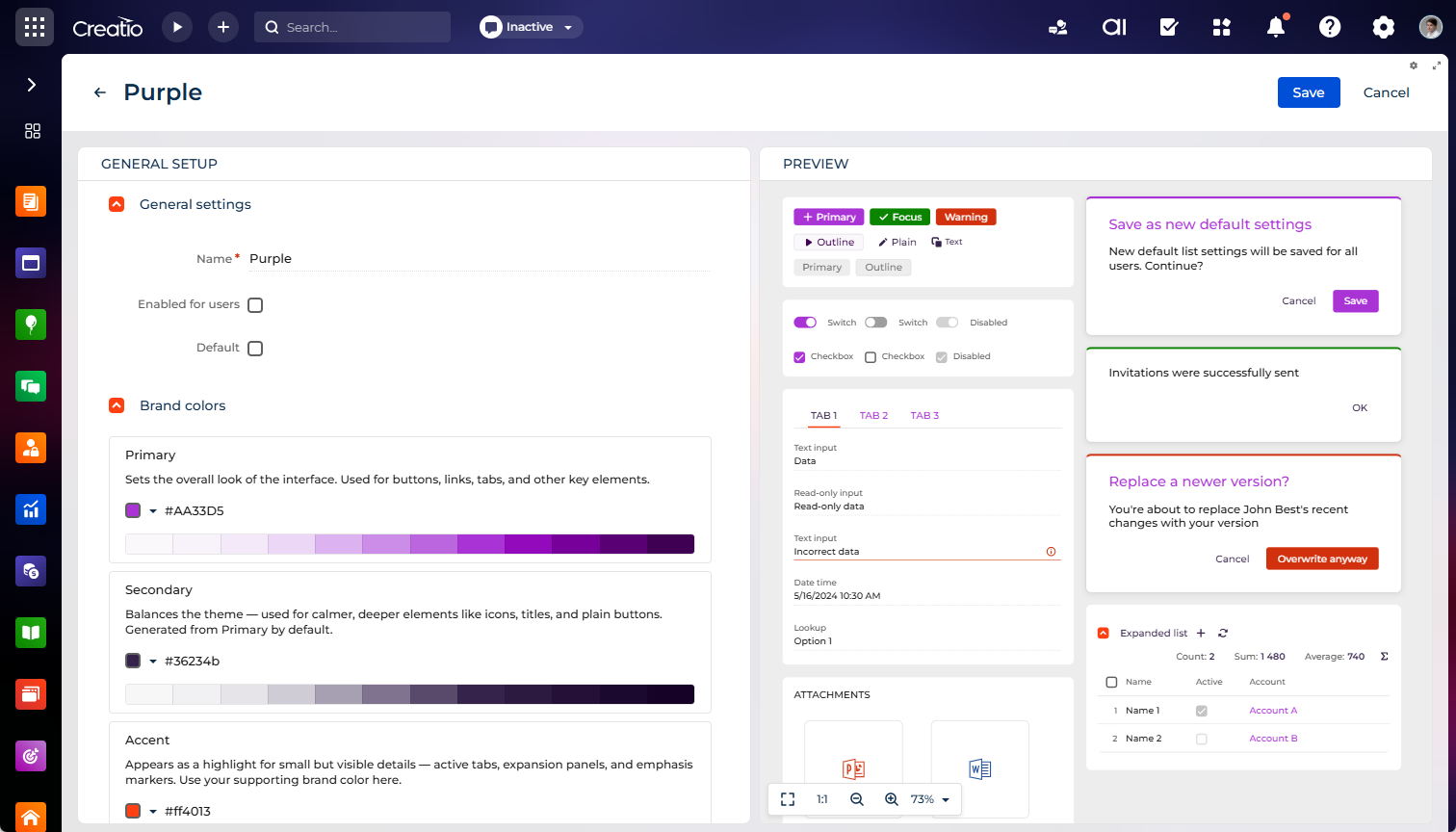
No-code Theme Designer. You can now create and edit themes visually without coding using the new Theme Designer, available directly from the Themes expanded list on the Theming tab of the Appearance setup section. The designer consists of a setup area and a live preview. The setup area includes the same options available in the Themes expanded list, for example, theme name, availability for users, and default status, as well as the following color groups:
- brand colors that define your custom theme
- system colors that you can also adjust but are recommended to leave at their default values for consistency
When you change the base color of a palette, the designer generates the full palette that Freedom UI components use across different shades automatically. The preview shows how your theme looks on popular components and is updated instantly as you adjust colors.
MSAL mobile sign-in provider for Microsoft Entra ID. You can now provide a seamless sign-in experience in Creatio Mobile for employees who work on Microsoft Intune-managed devices and previously had to sign in manually. To do this, add the MSAL Mobile sign-in via Entra Id provider in the Single Sign On configuration section of the System Designer and fill out the values taken from the Creatio Mobile app registration in the Microsoft Entra ID portal: Application (client) ID, Directory (tenant) ID, Identity provider URL, Discovery URL, and the audience values. Register this provider in addition to the provider you use for web SSO.
Creatio stores the mobile provider independently from your existing Microsoft Entra ID and OpenID providers. Adding it does not affect the current SSO configurations, and it is not offered among the sign-in options on the Creatio login page in a browser. User matching rules, JIT user provisioning, as well as claims and field matching rules are common to all registered providers and apply to this provider as well. Creatio validates the tenant, client, and audience values of the received token and rejects sign-in attempts that fail validation. The provider is supported for cloud and on-site deployments, including access to Creatio through Microsoft Application Proxy.
AI Agent access to Creatio files. You can now enable a connected AI agent to analyze Creatio files as part of troubleshooting tasks, for example, investigating installation or compilation issues, without retrieving the files manually. Creatio provides a tool that enables the agent to read the text content of a file stored in Creatio by its ID, for example, an installation log attached to a configuration activity log record. The tool is available through the Creatio MCP tool publishing mechanism, so any AI agent connected via MCP can use it.
Change visibility for replaced schemas in the configuration activity log. It is now possible to distinguish changes of the "Object" and "Client module" type schemas from replacement-related changes quickly when auditing configuration history without opening the schema itself. Each configuration activity log record for a created, updated, or deleted schema now includes the Replaced checkbox. Creatio selects the checkbox automatically if the affected "Object" or "Client module" type schema is a replacement of another schema.
Change comparison for "Data" type schemas. You can now review exactly what changed in "Data" type schemas using the Change details tab on the log page in the Configuration activity log section. The details are recorded regardless of the logged source of the change, for example, app creation in Application Hub, package installation, app installation, or section creation. Creatio builds the comparison from the current and immediate previous version of the same schema, similarly to other schema types. If no previous version exists or required data cannot be found, Creatio indicates that the comparison is unavailable instead of showing an error.
Configurable backups for the configuration activity log. You can now control backup behavior for the configuration activity log directly in Creatio without editing the "Web.config" file on the server.
Package change comparison in the configuration activity log. You can now review what changed in a package similarly to how you already review schema changes by using the Change details tab on the log page in the Configuration activity log section. Creatio builds the comparison from the current and immediate previous version of the same package. If no previous version exists or required data cannot be found, Creatio indicates that the comparison is unavailable instead of showing an error.
AI-generated explanation of changes in the configuration activity log. It is now possible to understand what changed in a schema without reading the raw code diff manually thanks to a human-readable AI-generated explanation available directly from the configuration activity log record. To generate the explanation, click Explain with AI on the page of a record that has comparable changed files. Once the explanation is ready, Creatio adds it to the record description. You can regenerate the explanation at any time. Every explanation includes a note that it is AI-generated and must be verified, as well as a note about reduced coverage if Creatio could not analyze every changed file.
Creatio generates the explanation using the GPT-5.6 Luna model. The functionality is available for users registered in Creatio AI Studio, on environments where AI Twin is configured.
Creatio Mobile
Creatio Mobile app on Microsoft Intune-managed Android devices. You can now cover more devices for employees who work on corporate devices managed with Microsoft Intune using Creatio Mobile for Intune, a separate version of the Creatio Mobile app. Creatio Mobile for Intune is now available for Android in Google Play in addition to the iOS version in the App Store. This enables employees to work in Creatio on managed Android devices under the same Intune policies.
Advanced customization
Multiple custom chat channels. You can now connect several custom messengers to Creatio when developing an integration. Each custom channel has its own name that Creatio uses to route messages. Previously, all custom channels shared a single identifier, so you could set up only one. Existing integrations continue to work without changes. Learn more: Implement a custom channel provider.
Beta testing of new features
The features below are available for beta testing in Creatio version 10.1 Unlimited. If you have any feedback, contact us at: beta@creatio.com. All feedback is appreciated.
Sending through an SMTP relay without a password. You can now send emails through a corporate SMTP relay that accepts messages without authentication. Select the Anonymous authentication checkbox in the synchronization settings of an IMAP/SMTP mailbox that does not use OAuth, and Creatio skips authentication when it sends emails from that mailbox. Incoming mail synchronization still requires credentials.
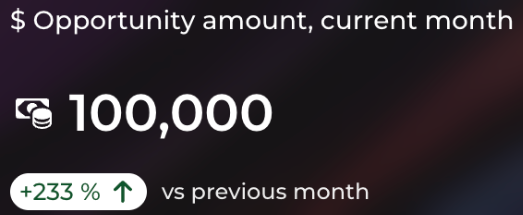
Metric comparison and trend indicator. It is now possible to analyze performance changes by configuring metrics that include comparison logic. Comparison is not limited to time-based periods. You can compare metrics across different time frames or between entirely different business indicators, unlocking more advanced analytical scenarios. A built-in trend indicator highlights how a key metric changes relative to the selected comparison value. It supports both percentage and absolute difference calculations, clearly indicating increase, decrease, or no change. Define a comparison value and configure page-data and preconfigured filters for both the main value and the comparison value without custom implementation, ensuring consistent and accurate data representation at runtime.
A built-in trend indicator displays the change of a key metric compared to a selected comparison period, supporting percentage and absolute difference calculations and reflecting increase, decrease, or no change states. The indicator provides a quick visual representation of metric dynamics without requiring analysis of underlying data and is available across all composable apps where the metric is used.
For example, this is useful in the following cases:
- Lead generation. Track the number of new leads this week vs. last week with a clear trend indicator.
- Conversion rate. Monitor changes in opportunity-to-deal conversion rates across periods.
- Customer support. Compare average resolution time vs. the previous period to spot efficiency improvements.
To take advantage of this functionality, register and enable the ShowMetricWithComparison additional feature. Learn more: Implement a custom additional feature, Manage an existing additional feature.
Personal WhatsApp channels. You can now enable employees to keep communicating with customers from their own WhatsApp numbers while the company retains full visibility into these conversations by connecting personal WhatsApp numbers as part of the WhatsApp channel that works through the Meta Cloud API. This is based on Coexistence, the WhatsApp capability that lets the same number work in the WhatsApp Business app and in the WhatsApp Business Platform simultaneously. The employee continues to talk to customers from their phone exactly as before, and the same conversation becomes available in Creatio. Connect a personal channel the same way as any other WhatsApp channel. Conversations of a personal channel are assigned directly to that employee instead of being distributed across a team, so the customer keeps talking to the person they already know, while the company retains the full history of the communication. The functionality is delivered as part of the WhatsApp Chat Channel app.
To take advantage of this functionality, register and enable the CrtWhatsAppConnectorApp.EnablePersonalChannelType additional feature. Learn more: Implement a custom additional feature, Onboarding WhatsApp Business app users (Coexistence).
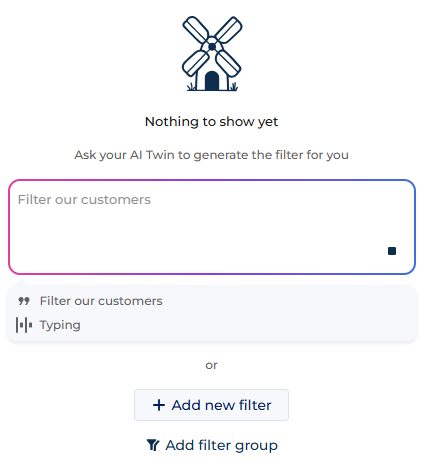
AI-generated filters. It is now possible to build filters faster by describing what you want to filter in plain language without knowing the object model or the data structure. The AI panel is displayed in the Filters toggle panel out of the box. Enter your request and click Send. AI Twin builds the filter and displays it in the panel. You can refine the result without rewriting the filter from scratch by adjusting individual conditions manually or sending a follow-up request in the AI panel, for example, "Now add the filter by US." If you prefer to build the filter condition by condition from the start, click the Add new filter button.
The functionality is available everywhere the new Filters component is used, for example, in lists, folders, and segments. The functionality is available for users registered in Creatio AI Studio, on environments where AI Twin is configured.