Set up Filters components
Use the Filters component to let users build complex record filters directly on a Freedom UI page. Users can also save a filter as a dynamic folder to reuse it later. Learn more: Let users save filters as folders.
To set up the Filters component, add two components to the page: the Filters panel, which stores and applies the conditions, and the Filters menu, which is the button users click to open and close the panel. You also need to connect the list on the page to the Filters panel so that the list refreshes when the user applies a filter.
Set up the Filters component
Add the Filters component to the Accounts list page so that users can filter accounts directly on the page.
-
Open the Accounts list page in Freedom UI Designer.
-
Open the Components tab.
-
Drag a Filters component onto the canvas.
-
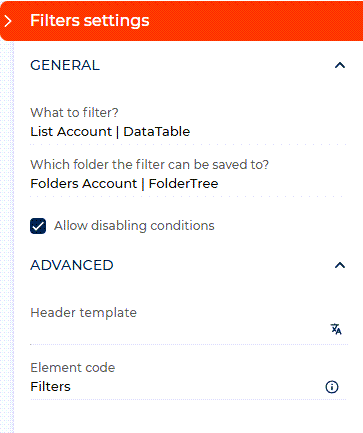
Open the Filters component setup area and select the list whose records the filter must apply to in the What to filter? parameter. The parameter displays the list components of the page, for example, "List Account | DataTable."
For Creatio 10.0
Select the object whose records the filter must apply to in the What to filter? parameter, for example, Account.
-
Drag a Filters menu component onto the canvas.
-
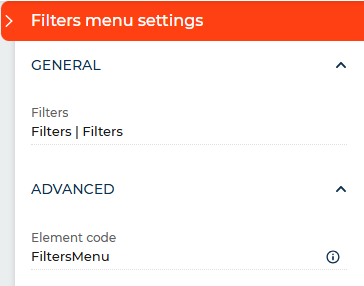
Open the Filters menu setup area and select the Filters panel in the Filters parameter.
The Filters menu must be linked to a Filters panel. If the link is empty, the menu button is inactive at runtime.
-
Save the page.
As a result, users can build and apply complex record filters directly on the page. The filter panel opens and closes using the menu button. The panel state is saved per user and restored the next time the page is opened.
Customize the filter panel header
By default, the filter panel displays a standard header above the root condition group. You can replace it with any text that better fits the page context. The header supports the {menuOperator} macro, which renders as the logical operator toggle — all or any — that users can click to switch between operators. If you omit the macro, Creatio appends it at the end of the header text automatically.
For example, entering "All contacts that match {menuOperator} of these conditions" displays the header with a clickable operator between "match" and "of these conditions."
- Open the Filters component setup area.
- Enter the needed text in the Header template parameter under the Advanced section. Include
{menuOperator}where you want the operator toggle to appear. - Save the page.
As a result, the filter panel displays the custom text above the root condition group.
Let users turn filter conditions on and off
This functionality is available for Creatio 10.1 and later.
Users can temporarily turn off a filter condition or a condition group without deleting it. To do this, they clear the checkbox next to the condition or group in the filter panel. Learn more: Turn filter conditions on and off.
-
Open the Filters component setup area.
-
Select the Allow disabling conditions checkbox to show the checkboxes next to the conditions and groups. Out of the box, the checkbox is selected.
To hide the checkboxes, clear Allow disabling conditions.
-
Save the page.
As a result, users can turn filter conditions and groups on and off in the filter panel.
Let users save filters as folders
This functionality is available for Creatio 10.1 and later.
Connect the Filters component to a folder tree on the page to let users save a filter or a condition group as a dynamic folder. When the connection is set up, users see the Save to folder button in the filter panel. Learn more: Save a filter as a folder.
List pages based on the out-of-the-box list page template already have this connection. Set it up manually if you added the Filters component to a page yourself.
- Open the Filters component setup area.
- Select the folder tree in the Which folder the filter can be saved to? parameter. The list includes only the Folders components that filter the same object as the Filters component.
- Save the page.
As a result, users can save filters from the filter panel as dynamic folders. Creatio adds a saved folder to the top level of the selected folder tree.
See also
Overview of Freedom UI Designer and its elements