Set up OAuth authentication for Microsoft Office 365 via Graph API
This functionality is available for Creatio 8.3.4 and later.
Use Microsoft Graph API to synchronize and send Microsoft 365 emails in Creatio. In Creatio 8.3.4, Graph API handles email synchronization and sending. Calendar synchronization for the same mailbox works in hybrid mode: email synchronization runs via Graph API while calendar synchronization continues to use EWS API.
If users synchronize calendars, keep the existing Microsoft 365/EWS OAuth permissions and configuration.
Before you begin, make sure you have the following:
- a Microsoft 365 tenant
- administrator access to Microsoft Entra admin center
- administrator permissions in Creatio
- Creatio website URL
- Microsoft 365 mailbox you can use to test the setup
If you are migrating existing mailboxes from EWS to Graph API, reuse the existing Microsoft Entra app registration whenever possible. This helps avoid unnecessary user re-authorization. Learn more about mailbox migration: Migrate mailboxes between Exchange (EWS) and Microsoft 365 (Graph API).
In general, the setup procedure for Graph API is as follows:
- Create parameters in Microsoft Entra. Read more >>>.
- Enter the parameters in Creatio. Read more >>>.
- Allow application-level access (optional). Read more >>>
1. Create parameters in Microsoft Entra
-
Log in to the Microsoft Entra admin center as an administrator.
-
Go to All services → App registrations (Fig. 1).
Fig. 1 Go to app registrations 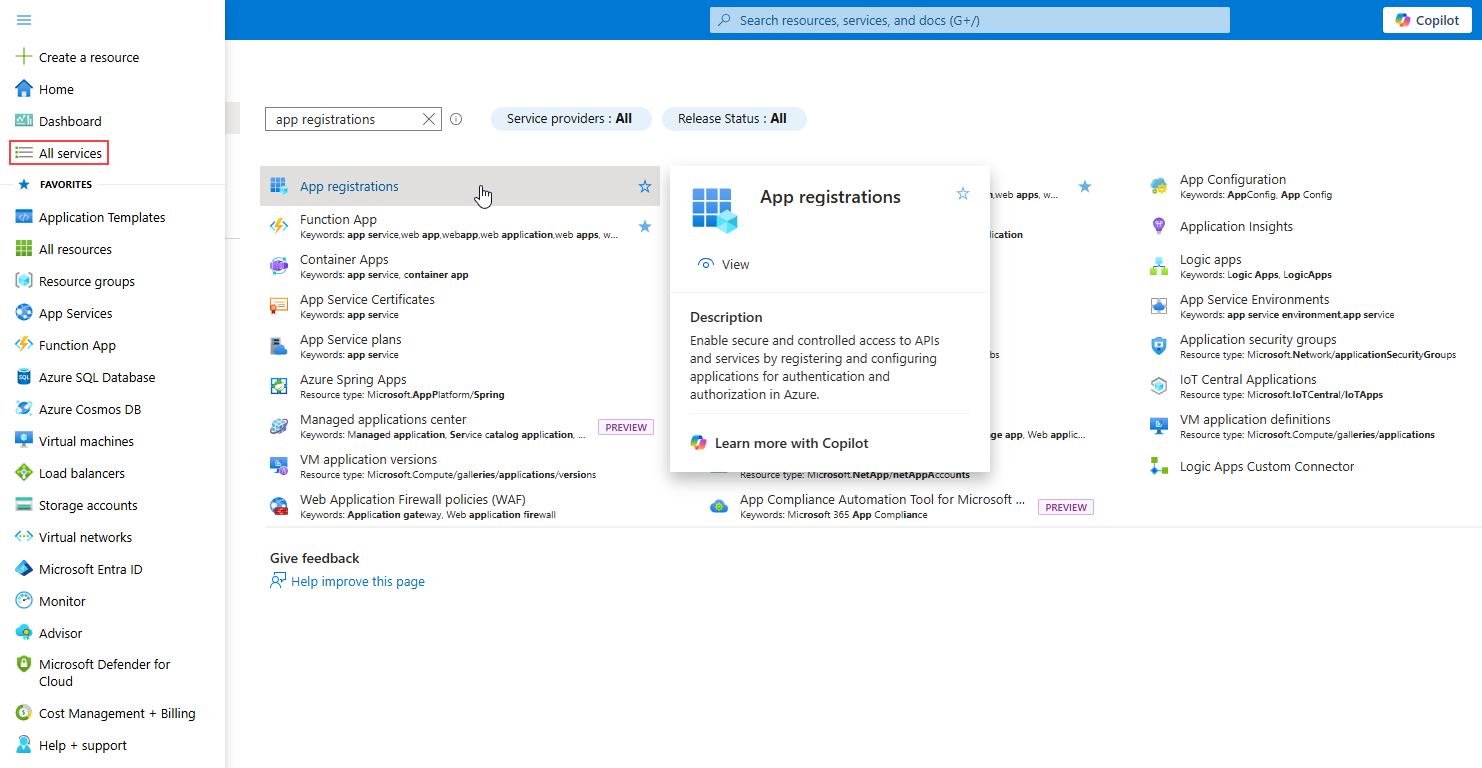
-
Click New registration (Fig. 2).
Fig. 2 Create an app registration 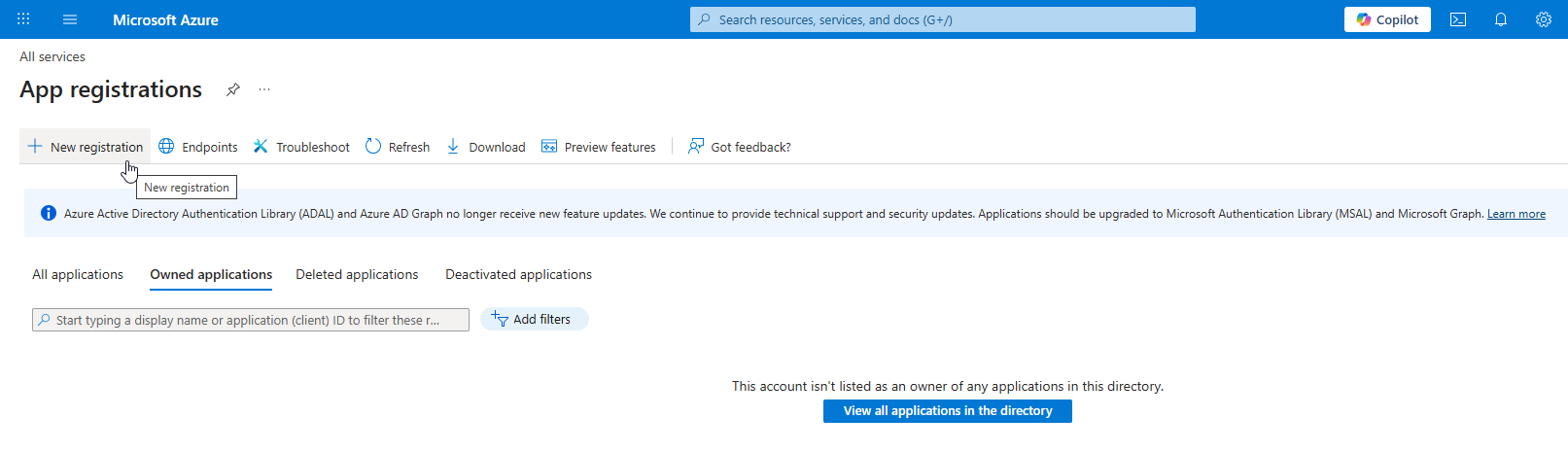
-
Enter the application name in the Name field, for example, "Creatio" (Fig. 3).
Fig. 3 Register an app 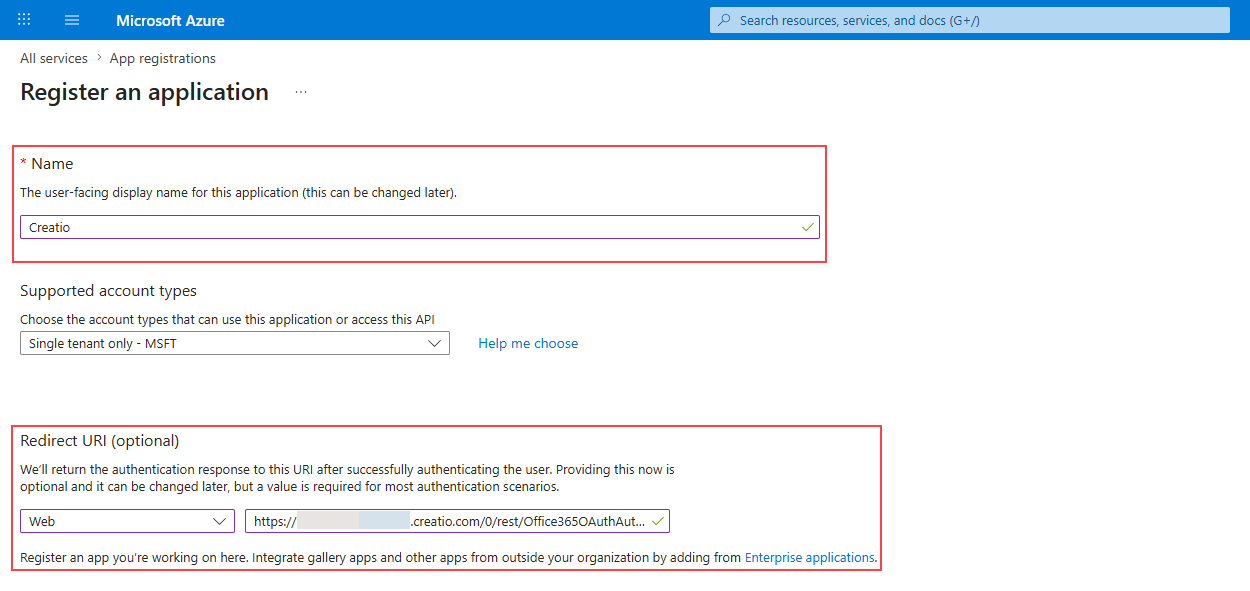
-
Select "Single tenant only - MSFT" in the Supported account types field.
-
Select Web in the Redirect URI (optional) block.
-
Add a Web redirect URI to the Redirect URI (optional) block using this template:
https://[your_site].creatio.com/0/rest/Office365OAuthAuthenticator/ProcessAuthenticationCode -
Click Register.
-
Go to Manage → API permissions → Add a permission → Microsoft Graph (Fig. 4).
Fig. 4 Add a permission 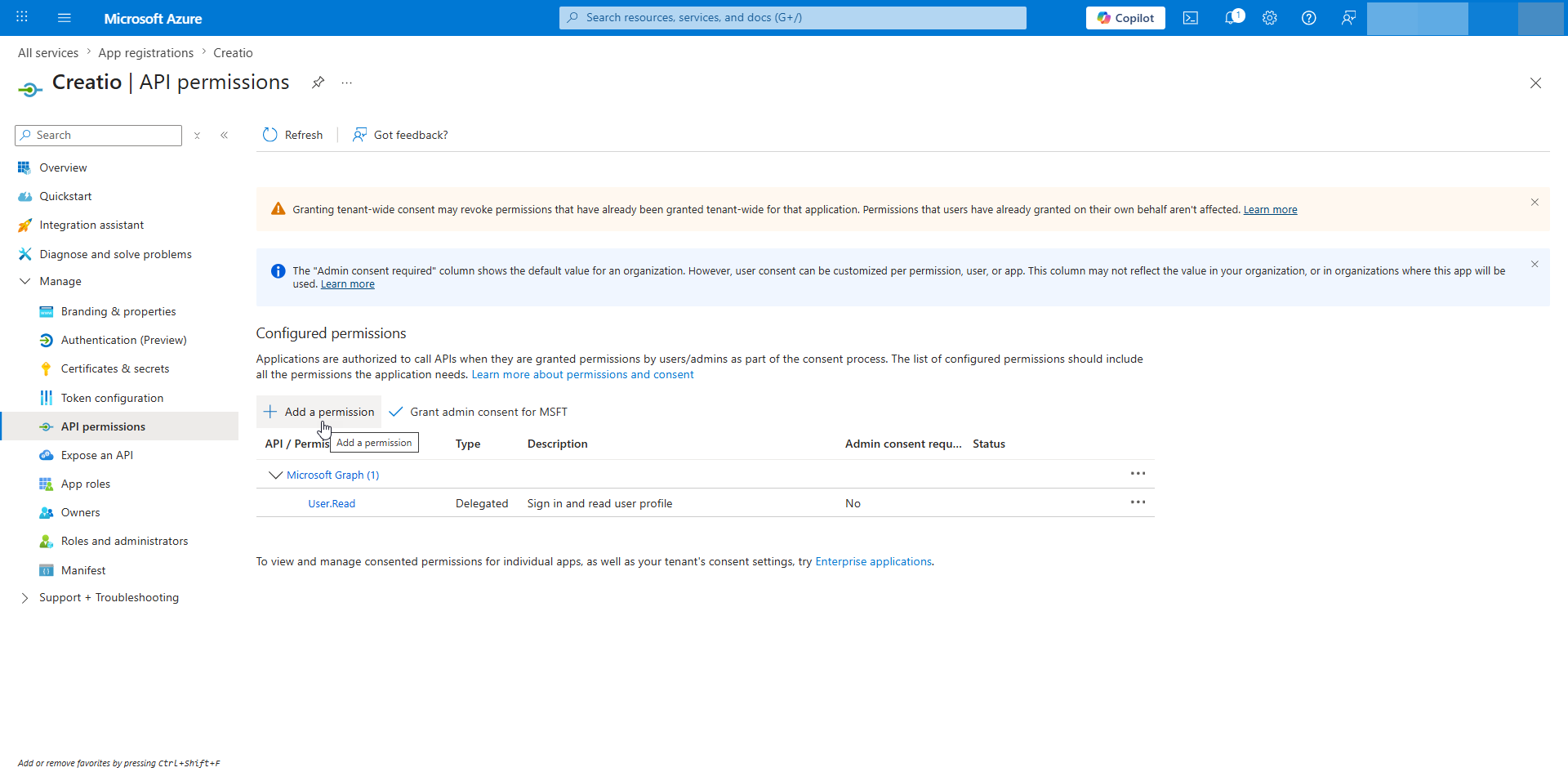
-
Select Delegated permissions.
-
Add the permissions required for email synchronization and sending:
Permission
Type
Description
User.ReadDelegated
Enables users to sign in and lets Creatio read the signed-in user's basic profile.
Mail.ReadWriteDelegated
Lets Creatio read and update the signed-in user's mailbox. Required for email synchronization and mailbox item updates, for example categories or drafts.
Mail.SendDelegated
Lets Creatio send email as the signed-in user.
If users need to work with shared or delegated mailboxes, add these delegated permissions as well:
Permission
Type
Description
Mail.ReadWrite.SharedDelegated
Lets Creatio read and update mail in shared or delegated mailboxes available to the signed-in user.
Mail.Send.SharedDelegated
Lets Creatio send mail on behalf of users or shared mailboxes available to the signed-in user.
User.ReadBasic.AllDelegated
Lets Creatio read basic profile data for other users in the tenant. Required when Creatio needs to find another user's mailbox identity for shared or delegated mailbox scenarios.
noteUser.ReadBasic.Allis required only for shared or delegated mailbox scenarios. If users work only with their own mailboxes, omit the shared and delegated mailbox permissions. -
Click Grant admin consent for the tenant.
-
Open Overview and copy the following values (Fig. 5):
- Application (client) ID
- Directory (tenant) ID
Fig. 5 App overview 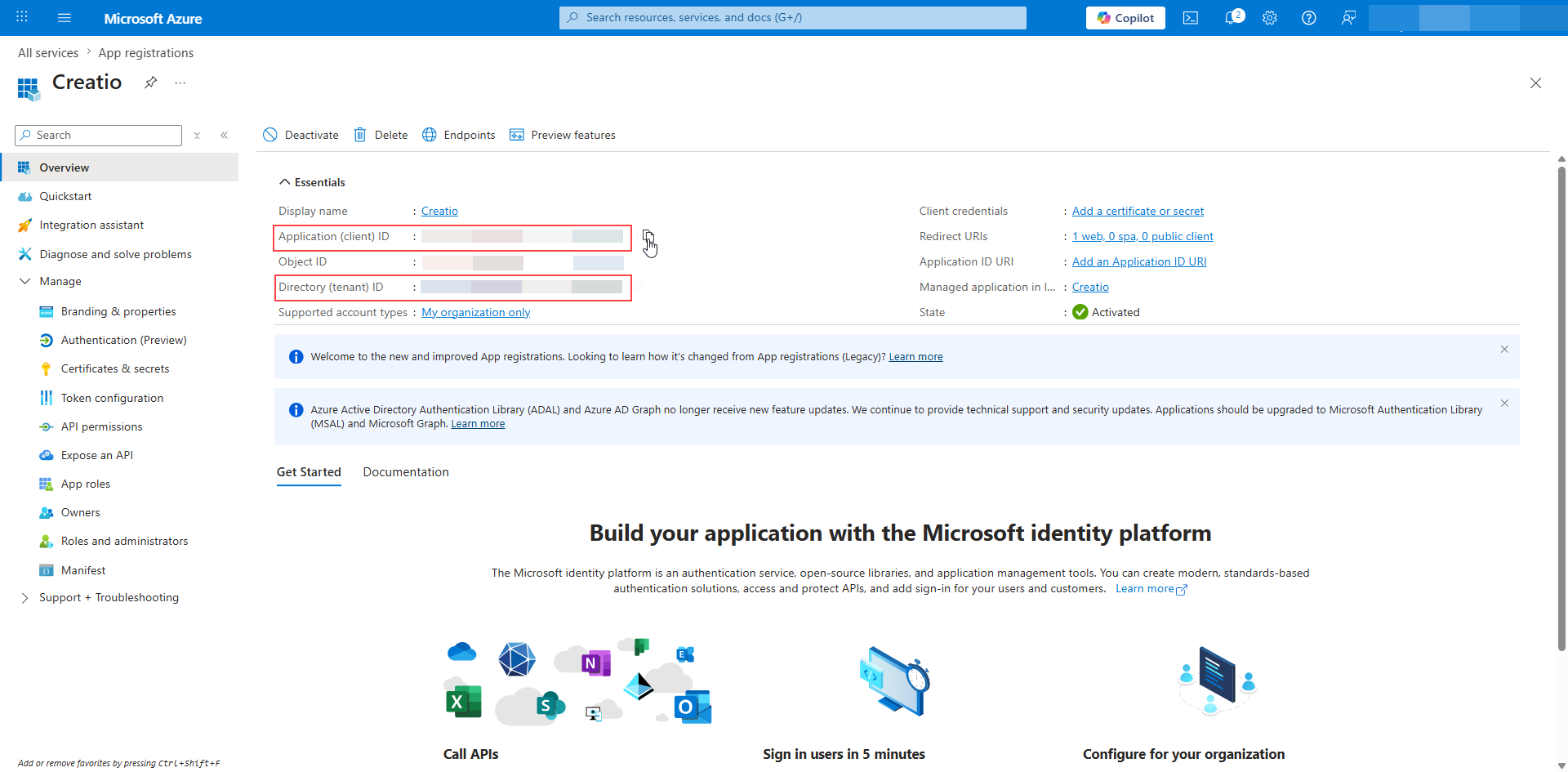
-
Open Certificates & secrets → New client secret (Fig. 6).
Fig. 6 New client secret 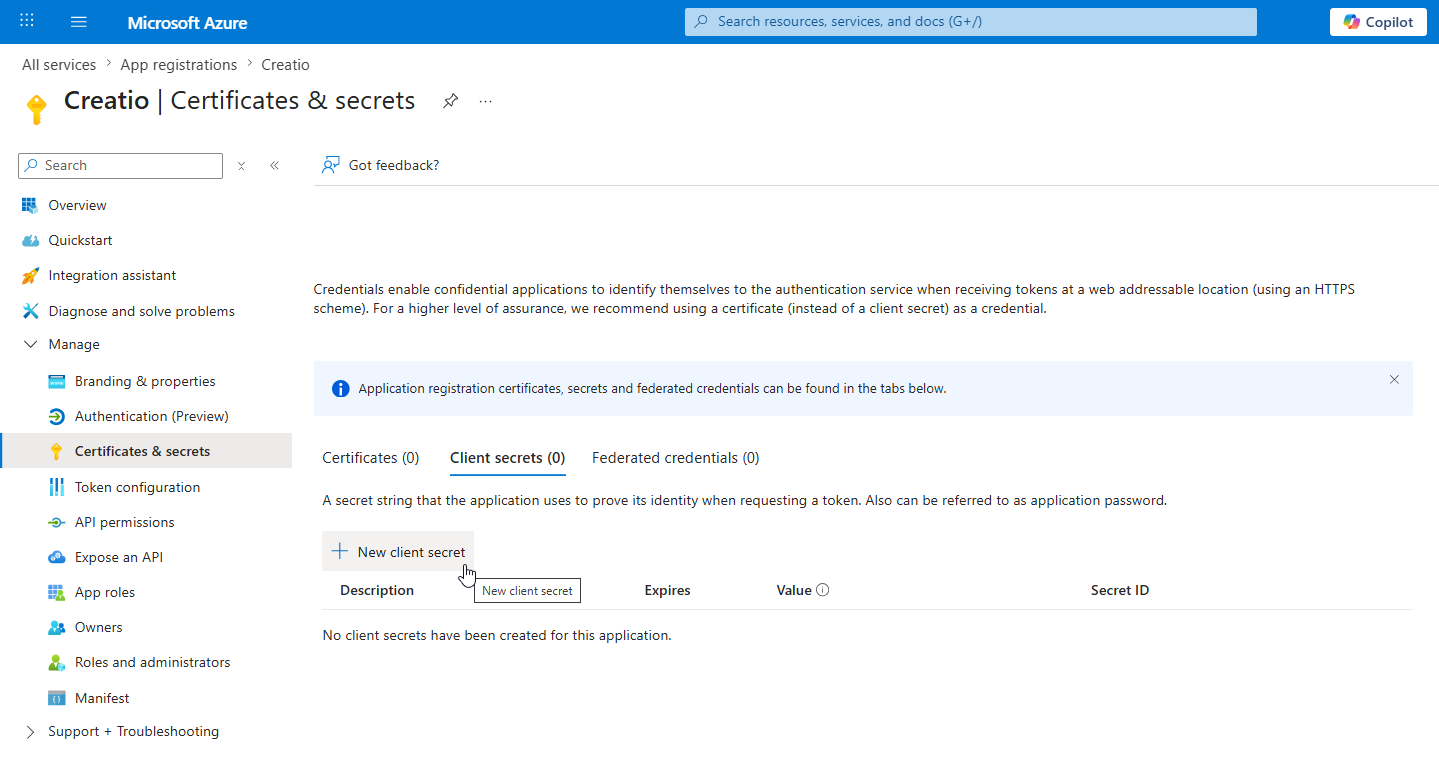
-
Enter an arbitrary description in the Description field.
-
Select the expiration date for the client secret in the Expires field.
-
Click Add.
-
Copy the secret value (Fig. 7). You will not be able to view it again later.
Fig. 7 Copy client secret 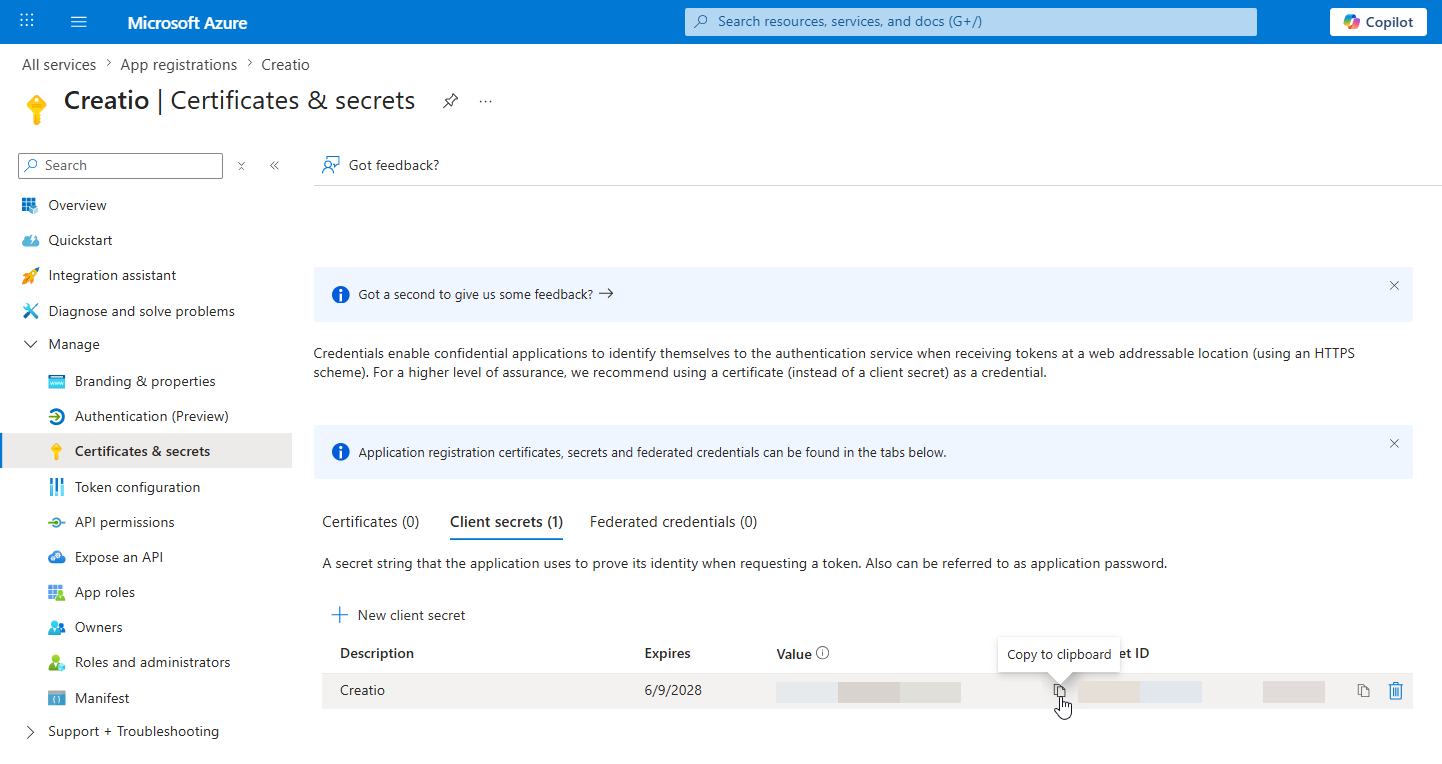
2. Enter the parameters in Creatio
-
Open the communication panel.
-
Click
 →
→  → Manage service providers.
 -
Click Add.
-
Go to the Service type field → "Office 365 (Graph API)" (Fig. 8)
Fig. 8 Add service 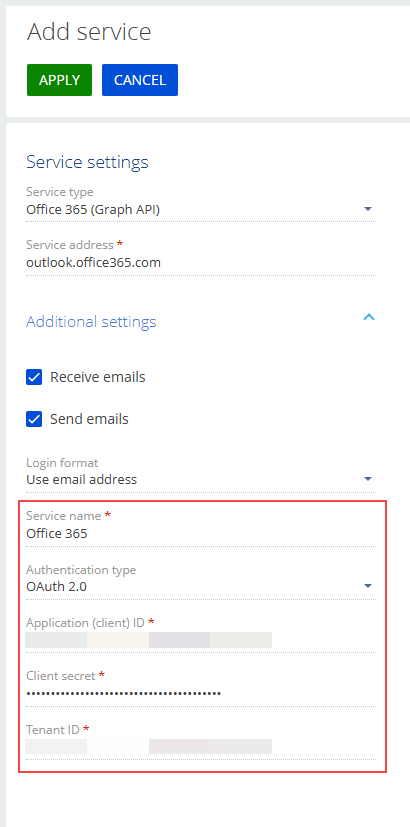
-
Select Receive emails if users must download emails from Microsoft 365 to Creatio.
-
Select Send emails if users must send emails from Creatio through Microsoft 365.
-
Fill out the following fields:
- Application (client) ID
- Client secret
- Tenant ID
-
Click Apply.
-
Add or update a mailbox and complete the OAuth authorization flow.
As a result, Creatio will be able to synchronize and send emails using Microsoft Graph API. Users will be able to connect their Microsoft 365 mailboxes using delegated authorization.
3. Allow application-level access (optional)
Use application-level access only if your organization needs Creatio to access mailboxes as an application rather than through individual delegated mailbox authorization. Application-level access requires a separate setup flow. Learn more: Set up application-level access for Microsoft Office 365 via Graph API.
Migration from EWS to Graph API
When preparing for migration, reuse the existing Microsoft Entra app registration and add Graph API permissions to it whenever possible. If you use a different app registration, users might need to authorize again. Learn more about mailbox migration: Migrate mailboxes between Exchange (EWS) and Microsoft 365 (Graph API)
Troubleshooting
Tenant ID is missing
For Office 365 (Graph API), Tenant ID is required. Copy it from Directory (tenant) ID in Microsoft Entra.
Users are asked to authorize again after migration
Check whether the same Microsoft Entra app registration was used. If a different app registration was used, existing tokens cannot be reused.
Email works in EWS but not in Graph API
Ensure that Microsoft Graph permissions were added and admin consent was granted. EWS and Graph access tokens are not interchangeable.
Calendar does not use Graph API
This is expected. Calendar synchronization in 8.3.4 uses hybrid mode and continues through EWS API.
Application-level access is too broad
Use Exchange Online Application RBAC to limit which mailboxes the application can access.
See also
Set up application-level access for Microsoft Office 365 via Graph API
Migrate mailboxes between Exchange (EWS) and Microsoft 365 (Graph API)