Store app data
Creatio has started transfer to composable architecture and introduced a composable app level. A Freedom UI app can consist of one or more packages. A package is a collection of app elements that implements a particular block of functionality.
Current app package
A package was the only way to transfer changes between environments in Creatio version 7.18.5 or earlier. All implemented customizations were saved to a package that was specified in the "Current package" ("CurrentPackageId" code) system setting. The app is the main way to transfer changes between environments. This lets you streamline customization, because all changes as well as information about relationships with other apps are automatically saved in the app. Creatio stores Freedom UI app data based on the current app package. A current app package is the package that stores app elements created or modified using the Application Hub. Creatio sets the current app package the first time you open an app or modify any element in the app. Each app has a current app package.
If you go back to customizing the app after some time, Creatio saves changes made using the Application Hub to the app package, and changes made using the UI and Creatio IDE to a different package. To avoid errors when saving and transferring changes, make all possible changes in the Application Designer of the app. Keep an eye on packages where your changes are saved. If changes are saved to an unintended package, ensure they are moved to the appropriate package in the Configuration section.
Creatio marks a package as a current app package as follows:
- If an app has one unlocked package, Creatio marks this package as the current app package.
- If an app has multiple unlocked packages, Creatio marks an arbitrary package as the current app package.
- If an app does not have an unlocked package, for example, a base product app or Marketplace app, Creatio creates a new package automatically when you first modify the app, for example, save a replacing schema, and marks this package as the current app package. Creatio generates the name of the package based on the app code.
If you create a package in an app or add an existing package to an app that does not have an unlocked current app package, Creatio marks this package as the current app package automatically. The Application Designer marks the current app package using  in the list of app packages.
Change the current app package
You can change the current app package that stores customizations. To do this:
- Open the Package settings tab in the Application Designer. To do this, click
 in the top right → "Application management" → "Application Hub" → click icon of your app → "Package settings."
 - Set the package as current. To do this, click
 next to the needed package → "Set as current package."
As a result, all changes executed using the Application Designer will be saved to the new current app package.
You can set only an unlocked package as the current app package.
If you delete a current app package using the Creatio IDE, Creatio locks this action and displays an error.
When you change the current app package, you might need to move functionality between packages. This changes dependencies between packages and can create cyclic dependency chains. Make sure that dependencies do not cause errors. Learn more: Cyclic connection chains in package hierarchy.
Move the functionality between packages
- Find the app package on the Package settings tab in the Application Designer.
- Open the Configuration section. To do this, click in the top right → "Admin area" → "Advanced settings."
- Select the needed package from the package list.
- Find the schema that causes the cyclic chain in the package contents.
- Move the schema to another package. To do this, click → "Move to another package." This opens a box.
- Select the package that you found on step 1 in the box and save the changes.
Primary app package
A primary app package is the package that stores app properties in the app-descriptor.json file. Each app has one app-descriptor.json file. Other packages of the app can contain additional app-descriptor-extension.json files. By default, Creatio marks the package added when you create an app as the primary app package. For example, the "UsrRequests" package is primary package for the Requests app.
You can modify the app properties if the primary app package is unlocked. Creatio generates a new app-descriptor.json file only when you add a package to an app that has no packages or install packages that do not contain the app-descriptor.json file.
You can change the primary app package for apps that comprise multiple packages. This moves the app-descriptor.json file to the new primary app package. Change the primary app package using a lookup. To do this:
-
Open the Lookups section. To do this, click
in the top right → "System setup" → "Lookups." -
Add a new lookup. To do this, click New lookup on the Lookups section toolbar and fill out the lookup properties:
Property
Property value
Name
An arbitrary name. For example, "App package."
Object
Package in installed application
-
Save the changes.
-
Open the App package lookup.
-
Add a filter "Installed application = [Name of the app to change the primary app package]."
-
Clear or select the Primary checkbox depending on your business goals.
As a result, the app-descriptor.json file that contains updated app properties will be generated in the new primary app package. The app-descriptor.json file will be removed from the previous unlocked primary package.
You can set only an unlocked package as primary. If the package to set as primary is locked, Creatio does not generate the app-descriptor.json file.
Create a package in an app
- Open the Package settings tab in the Application Designer. To do this, click in the top right → "Application management" → "Application Hub" → click icon of your app → "Package settings."
- Create a package. To do this, click
 → "Create new package." This opens the Package window.
 - Fill out the package properties and save the changes.
As a result, the package will be added to the app. If the app does not have an unlocked current app package, Creatio marks the new package as the current app package.
Add an existing package to an app
- Open the Package settings tab in the Application Designer. To do this, click in the top right → "Application management" → "Application Hub" → click icon of your app → "Package settings."
- Select the package to add. To do this, click → "Add existing packages" → select the package.
As a result, the package will be added to the app.
You can add a package that meets the following requirements:
- The package is unlocked.
- The package is not a primary app package of another app.
- The package is not included in the current app.
If the app does not have an unlocked current app package, Creatio marks the added package as the current app package.
Exclude a package from an app
You can exclude a package from an app without deleting the package from the environment. You can exclude only unlocked packages. To do this:
- Open the Package settings tab in the Application Designer. To do this, click in the top right → "Application management" → "Application Hub" → click icon of your Freedom UI app → "Package settings."
- Select the package to exclude. To do this, click → "Exclude from application."
As a result:
- The package will be excluded from an app without being deleted from the environment. All package connections will remain as is.
- The package will be excluded from the app-descriptor.json file.
- The excluded package will be displayed in the Configuration section. If needed, you can return the package to the app. Read more >>>
- If you exclude a single open-for-modification package, Creatio will create a new app package the next time you customize the app.
- Creatio will not export an excluded package as part of the app export. If your app has connections to the excluded package, this might cause errors in app functionality.
Ways to store Freedom UI app data
You can modify an app using the following tools:
- Freedom UI Designer. Use it to modify the structure of a Freedom UI app.
- Creatio UI. Use it to modify data connected to a Freedom UI app.
- Creatio IDE. Use it to implement additional functionality that cannot be implemented using Freedom UI Designer. For example, package install scripts.
The way Creatio stores data is based on the tool you use to modify the Freedom UI app.
Store app data modified using the Freedom UI Designer
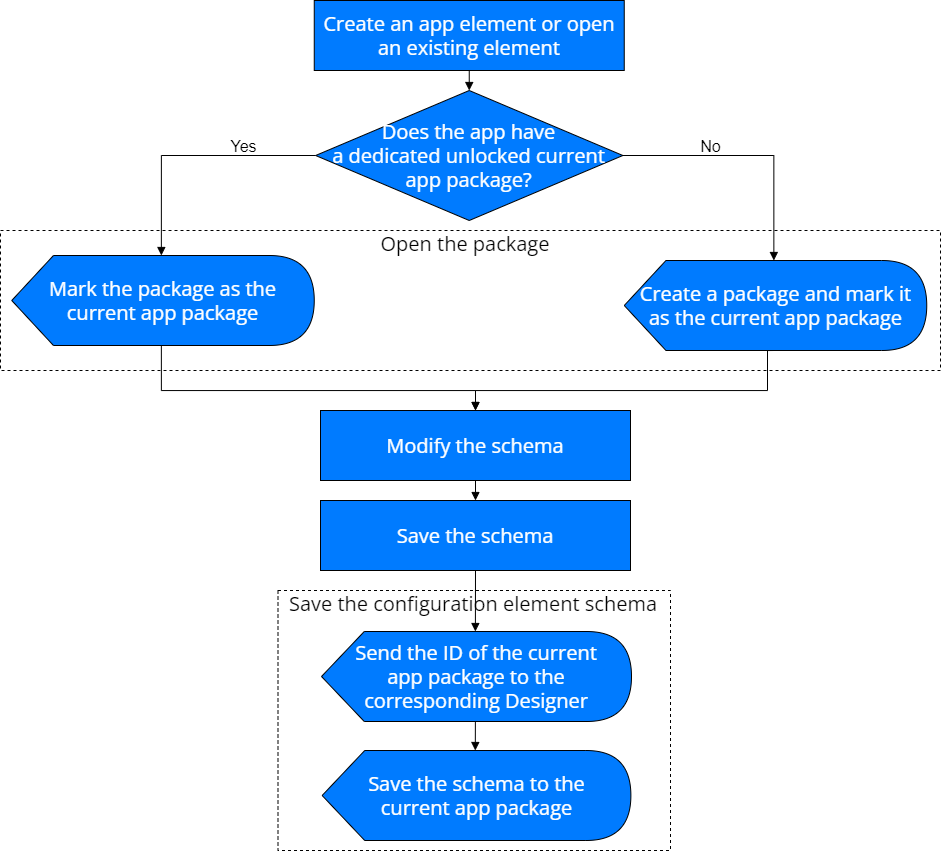
The mechanism that stores app data modified using the Freedom UI Designer works as follows (Fig. 1):
Store app data modified using Creatio UI
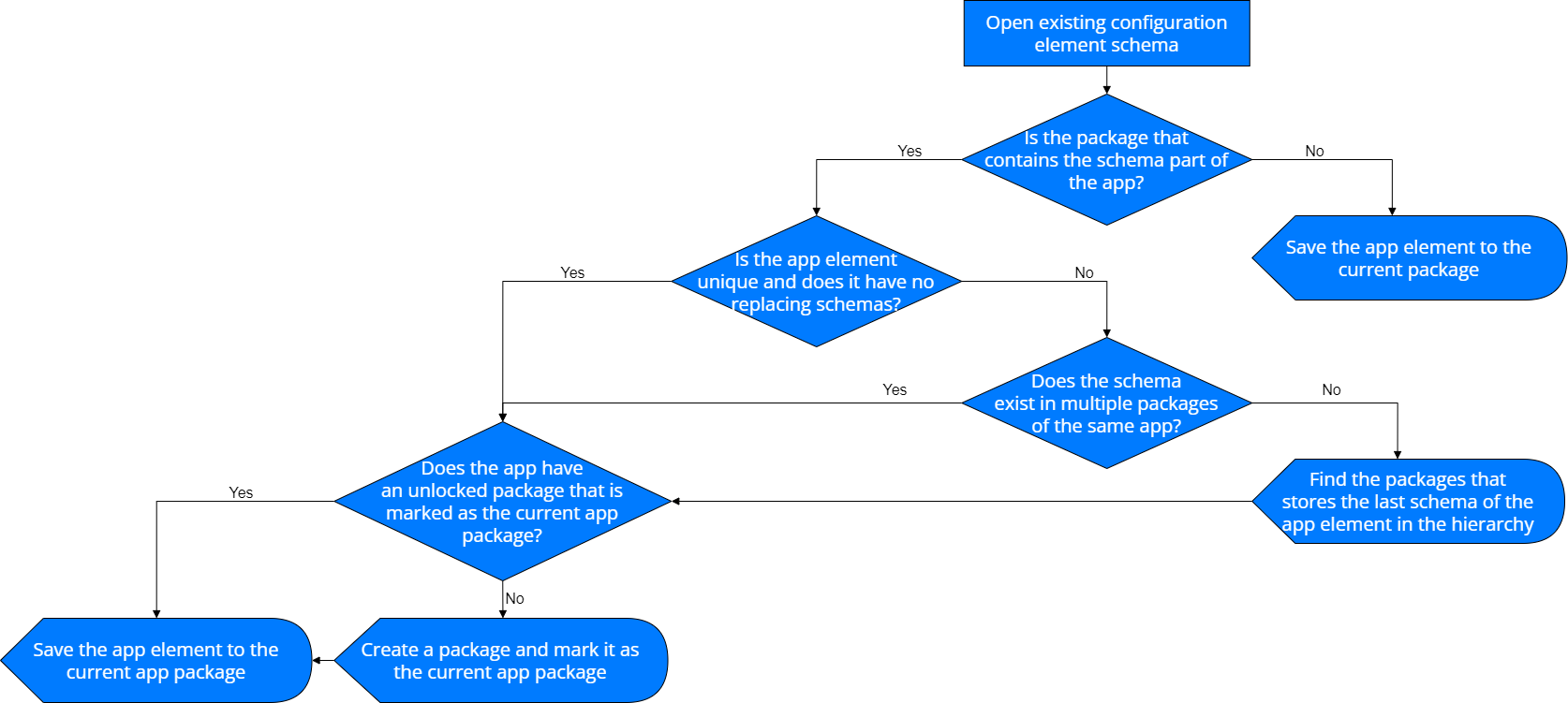
The mechanism that stores app data modified using the Creatio UI works as follows (Fig. 2):
Store app data modified using the Creatio IDE
The mechanism that stores app data modified using the Creatio IDE works as follows (Fig. 3):
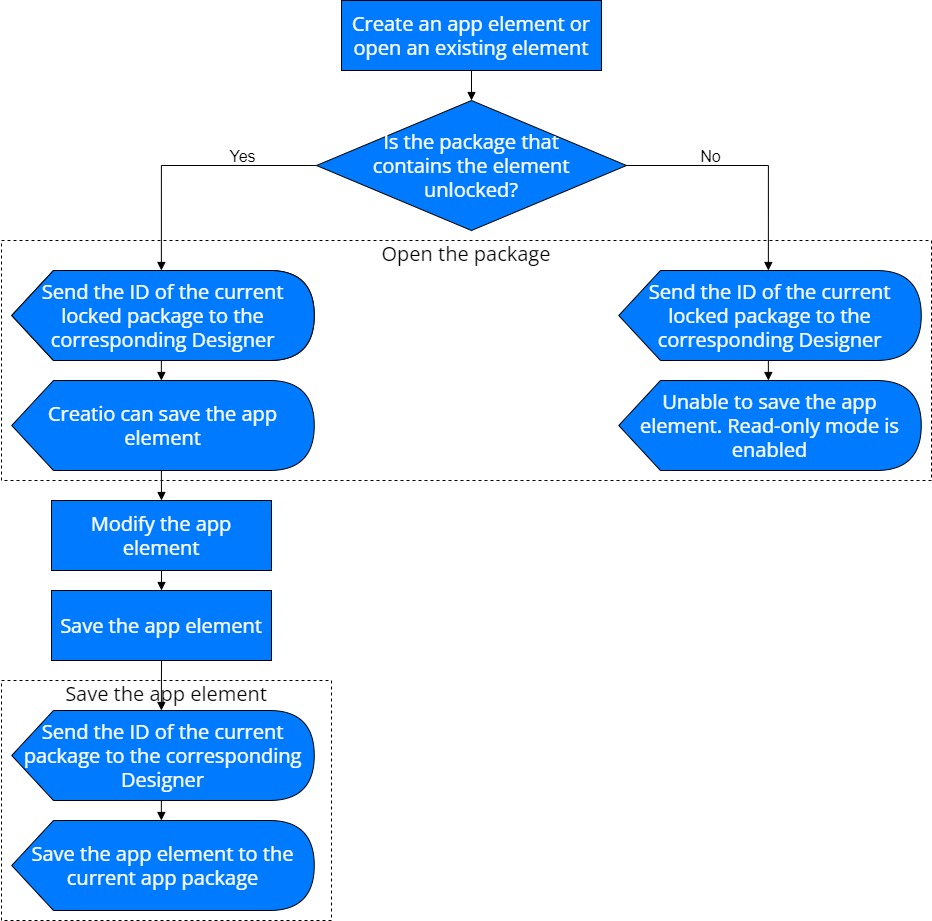
I. e., when you create or modify an app element, Creatio stores the element in the package where the schema was opened.