Set up a knowledge source for Creatio.ai agents
Give Creatio.ai agents and sub-agents access to your company's documents and Creatio records so they answer questions based on your own data. To do this, create a knowledge source in the Creatio.ai Knowledge Library app, index it, and connect it to an agent or sub-agent.
Before you start, make sure that:
- The Creatio.ai Knowledge Library app is installed. The app is available in Creatio 8.3.3 and later. Install it from the Creatio Marketplace.
- The "Knowledge Service URL" (
KnowledgeServiceUrlcode) system setting specifies the base URL of the external knowledge microservice. Out of the box, the value is empty.
The setup includes the following steps:
- Create a knowledge source. Use a file-based knowledge source for documents or a section-based knowledge source for Creatio records. Required.
- Connect the knowledge source to an agent or sub-agent. Required.
- Add knowledge source instructions to the prompt. Recommended.
- Verify retrieval. Recommended.
1. Create a knowledge source
Create a file-based knowledge source
Use a file-based knowledge source for documents. Creatio supports *.pdf, *.txt, *.md, *.json, *.docx, and *.pptx files. It reads only the text content and ignores images inside documents.
-
Open the "AI Command Center" workplace → Creatio.ai knowledge library section.
-
Click New.
-
Fill out the knowledge source properties.
Property
Description
Name
Knowledge source name. For example, "Company Policy Guidelines."
Provider
Select "File Provider."
Connection
Select "File provider connection."
Description
Situations in which to use the knowledge source. The description helps other users understand its purpose. For example, "Company policy reference."
-
Click Save. Creatio displays the Attachments expanded list on the General information tab.
-
Upload the files to the Attachments expanded list. To do this, drop the files onto the list or click Upload.
-
Click Start indexing.
Fig. 1. File-based knowledge source 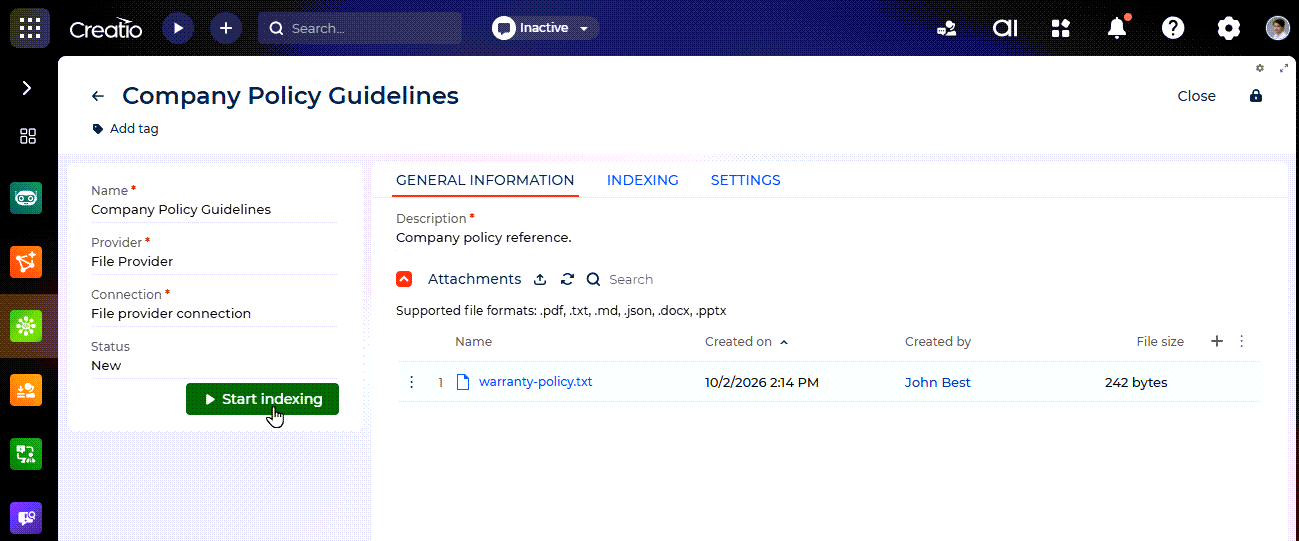
As a result, Creatio indexes the uploaded files and prepares their content for search by meaning. Creatio changes the Status field to "Indexing" and then to "Available" when indexing is complete. The Indexing tab shows the indexing sessions. To index the files again after you change them, click Reindex.
After indexing is complete, connect the knowledge source to an agent or sub-agent.
Create a section-based knowledge source
Use a section-based knowledge source for data that already exists in Creatio, such as products, cases, or accounts. Creatio uses the current records of the section, either all of them or only those in a dynamic folder. If you want to use only part of the records, make sure the section has a suitable dynamic folder. If it doesn't, create one before you start.
-
Open the "AI Command Center" workplace → Creatio.ai knowledge library section.
-
Click New.
-
Fill out the knowledge source properties.
Property
Description
Name
Knowledge source name. For example, "Products available in store."
Provider
Select "Section Provider."
Connection
Select "Section provider connection."
Description
Situations in which to use the knowledge source. The description helps other users understand its purpose. For example, "All products that are currently available in store."
-
Click Save. Creatio displays additional properties on the General information tab.
-
Select the section whose records to use in the Section field. For example, Products.
-
Select the records to use in the Scope field.
- "All records" to use all records of the section.
- "Dynamic folder" to use only the records of a dynamic folder. Select the dynamic folder in the Dynamic folder field that appears. For example, select the "Active products" dynamic folder to include only products in the current lineup.
A smaller and more relevant set of records makes the search faster and more accurate.
-
Add the columns that contain meaningful information. To do this, click
 in the Included columns expanded list and select the column in the Column name column. Repeat for each column. For example, add the "Name" column.
Creatio uses these columns both to find relevant records and to compose the answer.
-
Add columns of related objects (optional). To do this, click
in the Included reference columns expanded list, select the columns in the window that opens, and click Save. For example, add the "Description" column of the product brand. -
Click Save.
-
Click Start indexing.
Fig. 2. Section-based knowledge source 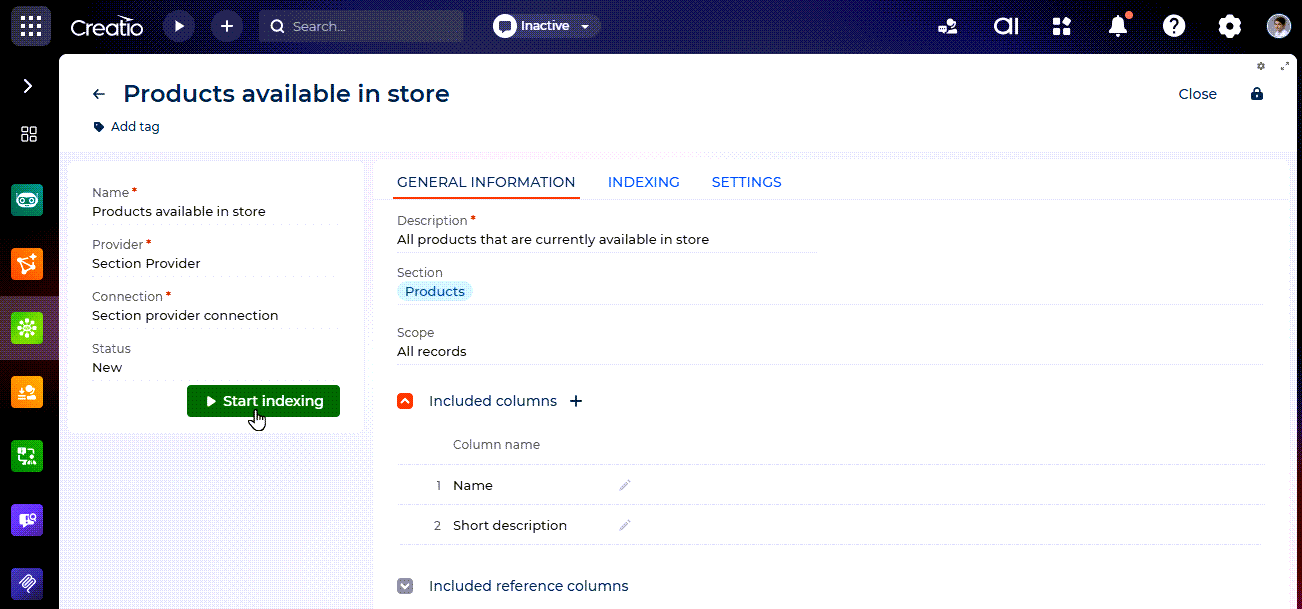
As a result, Creatio indexes the selected columns of the records in scope. Creatio changes the Status field to "Indexing" and then to "Available" when indexing is complete. The Indexing tab shows the indexing sessions. Agents receive information only from the records that the current user has permission to read.
2. Connect the knowledge source to an agent or sub-agent
A knowledge source takes effect only after you connect it to an agent or sub-agent. Learn more: Creatio.ai Knowledge Library overview. Learn more about agents and sub-agents: Develop Creatio.ai Agent, Develop Creatio.ai Sub-agent.
- Open the "AI Command Center" workplace → Creatio.ai agents section (for an agent) or Creatio.ai sub-agents section (for a sub-agent).
- Open the agent or sub-agent.
- Go to the Knowledge sources tab.
- Click in the Knowledge sources expanded list. This adds a row to the list.
- Select the knowledge source in the Knowledge Source column.
- Specify whether to show citations. Creatio selects the checkbox in the Citations column by default, so responses include the sources of the information. Clear the checkbox to hide the sources.
- Click Save all.
As a result, the agent or sub-agent searches the knowledge source when it composes responses. If citations are enabled, responses include references to the source files or records, with links and display names.
3. Add knowledge source instructions to the prompt
To make the agent use the knowledge source reliably, state this explicitly in the agent or sub-agent prompt. Require the agent to retrieve information from the knowledge source and prohibit it from making up information. For example:
Must request and use specific information from the attached knowledge source.
Cannot guess, make up information, or hallucinate.
Also describe the expected response format. For example, "Always respond in three lines: eligibility status, reason, and next step." Learn more about writing prompts: AI Sub-agent development recommendations.
4. Verify retrieval
- Open the Creatio.ai chat panel.
- Send a question that the connected agent or sub-agent should answer using the knowledge source. For example, "List laptops in stock under $800."
- Click Debug info.
- Find the
RetrieveKnwSourceContextentry in the debug output.
As a result, the RetrieveKnwSourceContext entry shows the information that Creatio retrieved from the knowledge source and passed to the agent. If the entry is missing or contains irrelevant data, check the scope and included columns of the knowledge source, make sure indexing is complete, and review the prompt instructions.