Creatio Mobile basics
Employees who work outside the office need customer data, schedules, and up-to-date information on their mobile devices. Creatio Mobile gives them access to Creatio data on iOS and Android devices, including when the Internet connection is unstable or unavailable.
Creatio Mobile does not store its own business logic. The app takes its structure, business logic, and UI from the main Creatio app and receives them during synchronization. As such, to customize Creatio Mobile for the processes of your company, you change the configuration in the main Creatio app rather than the app itself. To do this effectively, you need to understand how the app is built, how it receives configuration, and how it synchronizes data.
Creatio Mobile is available for download on the App Store and Google Play on mobile devices that meet the requirements. Learn more: System requirements for mobile devices.
Mobile app types
The implementation type of a mobile app determines its performance, whether it works without an Internet connection, and how easily it can be ported between mobile platforms. The following table lists the mobile app types.
Type | Description |
|---|---|
Native mobile app | An app developed for a particular mobile platform (iOS, Android). Installed from the app store. Such an app is developed using a high-level language and compiled into native OS code to ensure the best performance. It cannot be transferred among mobile platforms easily. |
Mobile web app | A specialized website adapted to specific mobile devices. The app is platform-independent. This requires a constant network connection, as the app is physically hosted not on the mobile device but on a dedicated server. |
Hybrid app | A mobile app wrapped in a native container. Installed from the app store. Such an app is developed using HTML5, CSS, and JavaScript. These apps are easy to transfer among mobile platforms, but have slightly lower performance compared to native apps. |
Creatio Mobile combines the advantages of these types. Like a native app, it is installed from the app store and stores data on the device. Unlike a mobile web app, it does not require a constant network connection. Like a hybrid app, it uses a single codebase for iOS and Android.
Creatio Mobile architecture
Implementation
The main framework of Creatio Mobile is Flutter. Learn more: Flutter documentation (official vendor documentation). Some functionality still uses the Apache Cordova hybrid framework during the transition to Flutter. As such, Creatio Mobile consists of the following parts:
- Flutter part. Includes Freedom UI pages of Creatio Mobile.
- Classic UI part. Includes Classic UI pages of Creatio Mobile. This part is based on Apache Cordova and uses JavaScript classes of the
Terrasoftnamespace.
The part your customization belongs to determines the tools and features you can use. For example, the page life cycle and WKWebView features described below apply only to the Classic UI part.
Flutter has the following features:
- Performance of apps developed using this framework is close to native apps (native-like).
- The mobile apps developed using this framework have the advantages of hybrid apps when it comes to using common code for iOS and Android mobile platforms.
Flutter also has the following benefits:
- A large number of widgets to build the UI.
- Access to the mobile device programming interface (API) that interacts with the database, file system, and mobile device sensors, for example, the camera.
Flutter provides the UI and access to device features, while the app logic is implemented in the app core. The core of Creatio Mobile is a set of libraries (Creatio libs). The connection between Flutter and the mobile app core is implemented using plugins developed in Java (Android) or Objective-C (iOS). The main part of the library code is implemented in Java and is cross-platform. Cross-platform functionality is ensured using the J2ObjC utility that converts Java code into Objective-C code. Learn more: What J2ObjC is (official vendor documentation).
The libraries let you execute the following actions:
- Perform synchronization by communicating with the Creatio application server.
- Work with the file system.
- Work with metadata received upon synchronization, etc.
The libraries process metadata that defines what the app shows and how it works. Metadata is configuration files the app retrieves as part of synchronization with the Creatio application server and stores locally in the device file system.
Metadata includes the following:
- Creatio Mobile manifest.
- Schemas that extend the app capabilities.
- Settings of sections that the Mobile Application Wizard creates.
The manifest properties are divided into the following groups: application interface properties (sections, main menu, custom images), data and business logic properties (imported data and its custom processing logic), and synchronization properties (parameters of data synchronization with Creatio). Learn more: Mobile app manifest basics.
Workflow
Since the app receives metadata from the main Creatio app, the app workflow is built around synchronization. The main Creatio app stores all settings and data needed for the mobile app, and the app libraries retrieve them from the Creatio application server.
After you install the app on the mobile device and set the connection parameters to the Creatio application server, the app receives metadata (app structure, system data) and data from the server.
The advantage of this workflow is compatibility with all existing Creatio products. Every Creatio product and every main Creatio app can provide its own mobile app settings, business logic, and UI to the same Creatio Mobile app. Users only install the app and synchronize it with the main Creatio app. Learn more: Install mobile app.
Operation modes
How the app exchanges data with the Creatio application server depends on its operation mode. The operation mode determines when the app needs an Internet connection and how it synchronizes with the Creatio application server. Creatio Mobile supports the following operation modes:
- Online. The app works directly with the Creatio application server and receives configuration changes in real time.
- Hybrid. The app switches to this mode automatically if a stable connection is unavailable.
- Offline. The app stores data on the mobile device and synchronizes with the Creatio application server manually.
Learn more: Mobile operation modes.
To change the operation mode for the current user, the user needs permission to change the system setting.
To change the operation mode for the current user:
-
Click
 → System setup → System settings.
-
Open the "Mobile application operation mode" (
MobileApplicationModecode) system setting. -
Fill out the system setting properties.
Property
Value
Default value
Online or offline
Save value for current user
Select the checkbox.
-
Save the changes.
As a result, Creatio Mobile works in the selected operation mode for the user who saved the system setting value.
To change the operation mode for all users:
-
Click
→ System setup → System settings. -
Open the "Mobile application operation mode" (
MobileApplicationModecode) system setting. -
Fill out the system setting properties.
Property
Value
Default value
Online or offline
Save value for current user
Clear the checkbox.
-
Save the changes.
As a result, Creatio Mobile works in the selected operation mode for all users.
Synchronization
Synchronization with the Creatio application server performs different tasks based on the app operation mode:
- Online mode. Synchronization is only needed to receive configuration changes.
- Hybrid and offline modes. Synchronization is needed to receive updates and send or receive changed or new data.
The app uses the DataService web service to synchronize with the Creatio application server. Learn more: DataService basics.
The following figure shows the general synchronization workflow.
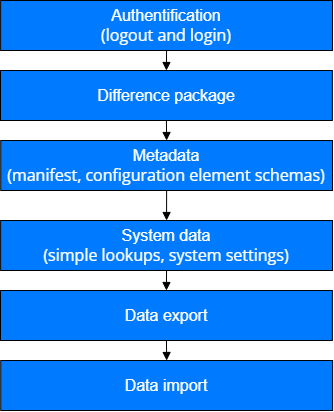
During synchronization, Creatio Mobile executes the following steps:
- Performs authentication. The server destroys the current active session.
- Requests data from the server to generate a difference.
- Analyzes this data and requests modified or new configuration schemas.
- Retrieves system data after the schemas are loaded. System data includes cached lookups (also known as simple lookups), system settings, etc.
- Exchanges data with the server.
- Actualizes data if this functionality is enabled.
Data actualization is an optional last step of the synchronization. The app compares data available on the server with local data. If a difference is found, the app downloads missing data or deletes outdated data. This mechanism resolves issues that can occur when redistributing access permissions or deleting data from the server.
To enable data actualization:
- Open the mobile app manifest. To do this, add the schemas that configure the manifest. Learn more: Add the schemas that configure manifest and page settings of Creatio Mobile section.
- Go to the
SyncOptionsschema section →ModelDataImportConfig. - Set the
IsAdministratedByRightsproperty to "true."
As a result, the app compares server data with local data at the end of each synchronization and downloads missing data or deletes outdated data.
Batch data export
By default, the mobile app sends each change to data one by one. Thus, one change makes at least one request to the server. If the number of changes is large, executing such requests can take time.
The app lets you send data in batch mode, which accelerates data upload to the server significantly.
To enable the batch mode of data sending:
- Open the mobile app manifest. To do this, add the schemas that configure the manifest. Learn more: Add the schemas that configure manifest and page settings of Creatio Mobile section.
- Move to the
SyncOptionsschema section. - Set the
UseBatchExportproperty to "true."
As a result, the app groups all user changes into multiple batch requests by operation type. The available operation types are insert, update, and delete.
Background configuration update
Creatio Mobile implements a synchronization mechanism for the app structure that can work automatically in the background. To manage this process, use the "Update checks frequency" (MobileAppCheckUpdatePeriod code) system setting. This setting sets the time in hours after which the mobile app can request configuration changes from Creatio. If the value is set to "0," the app always downloads configuration updates when they appear.
The app runs the structure synchronization in the background if the following conditions are met:
- The background synchronization is not running at the moment.
- More time has passed since the structure was last synchronized than the time specified in the "Update checks frequency" (
MobileAppCheckUpdatePeriodcode) system setting. - The device launches or activates the app, that is, the app was previously minimized or you access it from another app.
If changes are received during the structure update, the app is restarted automatically to apply them when you minimize the app or move to another app. Background synchronization works differently on Android and iOS. Learn more: Platform-specific features.
Automatic resolution of synchronization conflicts
During synchronization of a mobile app that runs in offline mode, the Creatio application server cannot save the transferred data in the following cases:
- A record was merged with another duplicate record in Creatio and, therefore, no longer exists.
- A record was removed from Creatio.
The app resolves every conflict automatically. In hybrid and offline modes, Creatio Mobile writes conflict details to the synchronization log.
Merged duplicates
The following figure shows the procedure to resolve conflicts caused by records deleted from Creatio due to duplicate merging.
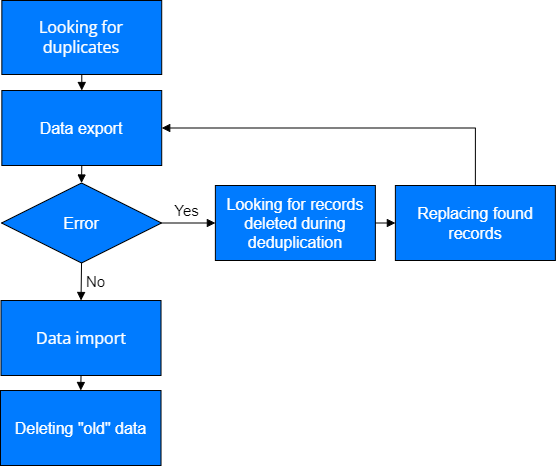
During the synchronization, the app first retrieves from the server data about the records merged since the last synchronization, that is, which records were deleted and which records replaced them. If no errors occur during the export, the app executes the import. If the "Foreign Key Exception" error or the "Item Not Found Exception" error occurs, the app resolves the conflict as follows:
- Searches the exported data for columns that contain the old record.
- Replaces the old record in the found columns with the new record into which data was merged.
- Sends the record to the server again.
When the import finishes and information about merged duplicates becomes available, the app deletes the old records locally.
Record not found
When the server returns an error that it cannot find the record the user modified, the app executes the following steps:
- Checks if the record exists in the list of records deleted as part of the duplicate merge.
- Deletes the record locally if the record is not in the list of deleted records.
- Removes information about this record from the synchronization log.
Thus, the app considers this conflict resolved and continues data export.
Page life cycle
The page life cycle applies to Classic UI pages of Creatio Mobile. The time from loading a page into the memory of a mobile device to its final unload from memory is called the page life cycle. Creatio Mobile generates page events at each life cycle stage. Handle the events to extend the page functionality.
A phone screen can display only a single page, while a tablet screen can display a single page in portrait mode and two pages in landscape mode. As such, page unloading works differently on phones and tablets. The following table lists the stages in the life cycle of mobile app pages and their events.
Stage | Description | Events |
|---|---|---|
Page opening | Occurs when you open a page for the first time. The app loads the scripts needed for the page work, initializes the controller, and creates the view. |
|
Page closing | Occurs when you click the Back button or move to another section. Creatio removes the page view from the object model and removes the controller from device memory. If you click the Back button, Creatio deletes the last page. If you move to another section, Creatio deletes previously opened pages. |
|
Page unloading | Occurs when you move to another page in the same section. The current page becomes inactive but remains in memory. On a tablet, the page can remain visible on the screen. For example, if you open a page from the list, the list page remains visible. On a phone, the list page becomes invisible. |
|
Return to a page | Occurs when you click the Back button to return to a previously unloaded page. |
|
The app can use only one page instance. Therefore, if you open two identical pages one by one, the launch event handler is executed again when you return to the first page.
Platform-specific features
Creatio Mobile works differently on Android and iOS. The differences affect background synchronization and, on iOS, the development of custom functionality.
Android
Background mode on the Android platform is implemented using a parallel running service. This approach ensures that a running synchronization is guaranteed to finish even if you manually unload the app from the device memory.
The Classic UI part of Creatio Mobile uses the Cordova 5.1.1 framework on Android.
iOS
On the iOS platform, the app works in the main webView, while the background synchronization uses the second webView. This ensures that the user can continue working with the app while the structure synchronization is in progress. Unlike the Android platform, the synchronization can be interrupted when you unload the app manually or if the iOS platform unloads it.
On iOS, the Classic UI part of Creatio Mobile uses WKWebView instead of UIWebView. As such, the app uses the Cordova 6.1.1 framework on iOS and supports only iOS 15 and later. The WKWebView and inappbrowser features described below apply only to the Classic UI part of the app. The Flutter part of the app does not use them.
Because of this, take into account the following WKWebView features:
- Do not use absolute paths for resources, scripts, iframe containers, etc.
- Do not use cross-domain URLs for resources, scripts, iframe containers, etc.
- Avoid using an iframe.
WKWebView keeps localStorage data.
Learn more: Cordova documentation (official vendor documentation).
If you need to insert a link to a local file into the page, convert the path using the Terrasoft.util.toUrlScheme() method.
this.element.setStyle(
    'background-image',
    'url("' + Terrasoft.util.toUrlScheme(value) + '")'
);
The following examples show incorrect and correct links.
- Correct link
- Incorrect link
app://localhost/_app_file_/var/mobile/Containers/Data/Application/DE283C57-94BE-4116-980A-020C271D9871/Documents/BPMonline700/Downloads/afc78721-ed5f-439e-9a24-69bf56d32610/afc78721-ed5f-439e-9a24-69bf56d32610
file:///var/mobile/Containers/Data/Application/DE283C57-94BE-4116-980A-020C271D9871/Documents/BPMonline700/Downloads/afc78721-ed5f-439e-9a24-69bf56d32610/afc78721-ed5f-439e-9a24-69bf56d32610
The inappbrowser plugin works similarly to WKWebView. Take into account the following plugin features when you open a website using the plugin:
-
Inside the website, all paths to resources must be relative and located inside the website root folder.
<img src="images/2.jpg"> -
Do not use cross-domain URLs for resources, scripts, iframe containers, etc.
<img src="https://example.com/img/logo.gif"><img src="file:///var/mobile/Containers/Data/Application/DE283C57-94BE-4116-980A-020C271D9871/Documents/BPMonline700/Downloads/afc78721-ed5f-439e-9a24-69bf56d32610/pic.jpg"> -
To open the website itself, set the absolute path to its start page.
cordova.InAppBrowser.open("file:///var/mobile/Containers/Data/Application/DE..9871/Documents/BPMonline700/Downloads/afc78721-ed5f-439e-9a24-69bf56d32610/index.html", "_blank");
See also
Resources
Creatio Mobile app (App Store)
Creatio Mobile app (Google Play)
Flutter documentation (official vendor documentation)
What J2ObjC is (official vendor documentation)