Develop the Marketplace app
Develop a Marketplace app to enhance Creatio functionality. Share it with other users on the Creatio Marketplace. You can try out the main features of Creatio for 14 days with the trial version. Developing a Marketplace app follows the same process as a Creatio app. Learn more: Delivery management process.
To develop the Marketplace app, complete the following steps.
1. Deploy the development environment
Deploy a Creatio development environment in one of the following ways:
- Cloud: request a Creatio development environment of any base Creatio product using the Creatio Marketplace Console. Select the product that is compatible with your Marketplace app.
- On-site: deploy a development Creatio environment on your local servers.
Learn more about the advantages and limitations of deployment options: Deployment options.
Request the cloud-deployed development environment
You can request two free development environments deployed in the cloud with different Creatio products.
To request the cloud-deployed development environment:
-
Log in to the Success Portal.
-
Open the Marketplace listings section.
-
Go to the Development environments tab → Development environments expanded list.
-
Click
 . This opens a new page.
 -
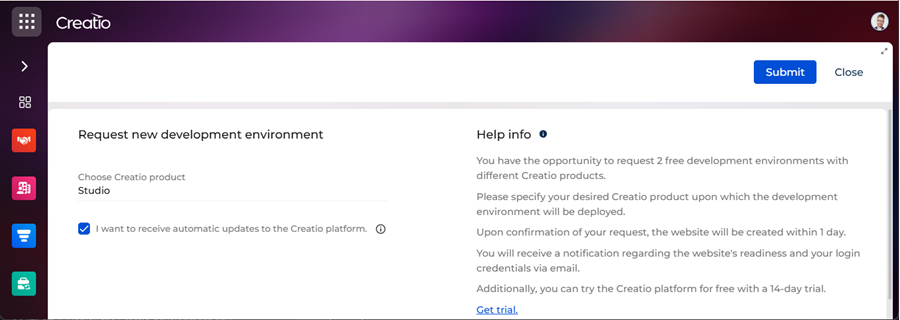
Fill out the properties of the development environment.
Property
Description
Choose Creatio product
Select the base Creatio product used as the development environment to develop the Marketplace app.
I want to receive automatic updates to the Creatio platform
Select the checkbox to enable automatic updates for your development environment after each Creatio release.
The figure below shows an example of the development environment properties.
-
Click Submit.
As a result:
-
The request for a cloud-deployed development environment will be sent.
-
The "Status" column in the Development environments expanded list of the Marketplace listings section will be set to "Creating."
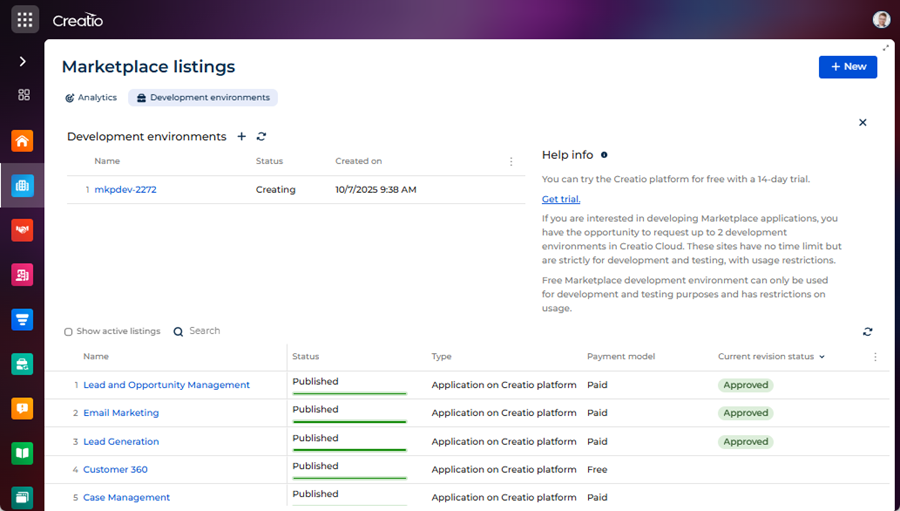
After the request is confirmed:
- The development environment will be deployed in the cloud within one business day.
- A notification about instance readiness and your login credentials will be sent to your email.
- The "Status" column in the Development environments expanded list of the Marketplace listings section will be set to "In use."
Deploy the development environment on-site
- Contact Creatio support to retrieve the binary files of the Creatio platform.
- Follow the instructions: General Creatio deployment procedure (user documentation).
2. Set up the development environment
- Specify the developer prefix and maintainer in the public profile. Learn more: Development tab.
- Change the "Prefix for schemas and packages name" (
SchemaNamePrefixcode) system setting. Use the prefix specified in the Developer prefix property on the Development tab of the public profile page. Developing an app using the "Usr" prefix is prohibited. Learn more: Description of system settings (user documentation). - Change the "Publisher" (
Maintainercode) system setting. Use the maintainer specified in the Developer maintainer property on the Development tab of the public profile page. Developing an app using the "Customer" maintainer is prohibited. Learn more: Description of system settings (user documentation).
3. Develop the functionality of the Marketplace app
-
Review the public roadmap to align your ideas with our upcoming features. This helps to avoid developing functionality that will soon be available.
-
Create an app. Instructions: Create an app manually (user documentation).
-
Ensure you specify the required Creatio version. Instructions: Specify the required Creatio version (user documentation).
-
Ensure you set app dependencies. Instructions: Set dependencies (user documentation).
-
Develop the app using the development tools and key software design principles. Focus on the DRY (Don't repeat yourself) principle. Creatio architecture implements the DRY principle through app dependencies. Learn more: Don't repeat yourself (Wikipedia), Development tools, Marketplace app development.
The Marketplace app can be an improvement of any base Creatio product. The number and structure of Marketplace app packages depend on the complexity of the implemented functionality. For example, to call a third-party service from a record page, replace one or more configuration schemas. Then, group them in a dedicated user-made package. Learn more: Packages basics. To add a Creatio section, use the Application Designer that implements multiple configuration schemas automatically. Learn more: Create an app manually (user documentation).
-
Ensure the app properties meet the Requirements for app properties.
As a result, the app is ready for testing and further publication. Instructions: Test the Marketplace app, Manage Marketplace listings.
See also
General Creatio deployment procedure (user documentation)
Manage apps (user documentation)
Set up the app properties (user documentation)
Requirements for Marketplace app
Resources
Official Creatio Marketplace website
Official Success Portal website
Public roadmap (Creatio Knowledge Hub)
Don't repeat yourself (Wikipedia)