Set up periods for processing email responses
By default, Creatio automatically processes email response data once per several minutes. We recommend that you stop parsing email responses for the time of integration sessions between Creatio and third-party systems to avoid data deadlocks. You can stop parsing every day at a specified time.
- Open the Bulk emails section from the left navigation panel.
- Click the Actions button in the top-right area of the section and select Bulk email settings.
For Classic UI
- In the Emails section, select Bulk email settings in the Actions menu.
- On the opened page, select the Response parsing settings tab.
-
On the email settings page, go to the Responses parsing settings tab.
-
Specify the preferred time frame in the From and To fields of the Time period to stop parsing bulk email responses block (Fig. 1).
Fig. 1 The Responses parsing settings tab 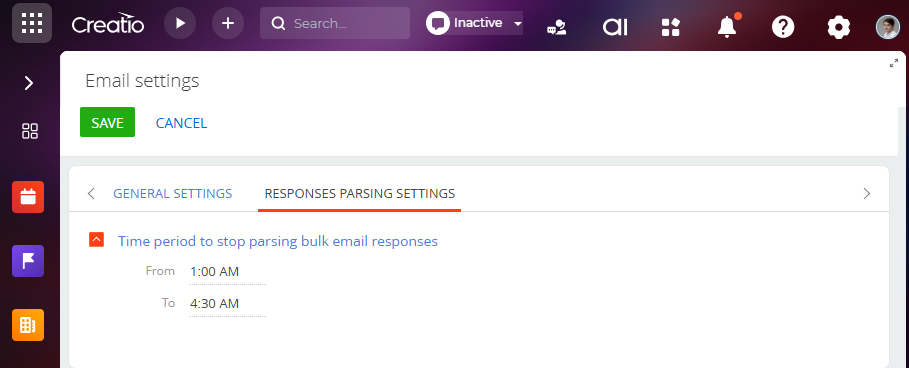
-
Save the changes.
As a result, the response parsing will stop daily within the specified time frame. The changes apply as soon as you save the settings. For example, if you set the period from 1:00 to 4:00 AM, the parsing will resume at 4:01 AM.
Response parsing time frames are displayed in the current user's time zone. The parsing process will stop according to the time zone of the user specified in the System operations user (SystemUser) system setting. The Supervisor user is specified in this system setting by default.
Specify the time zone of a user in the user profile. The list of available time zones is configured in the Time zones lookup.
If you leave the From and To fields unpopulated or populate only one value, the response parsing process will work continuously.
See also
Set up an unsubscribe link in emails