Form product details
In Creatio, a set of product details comprises the complete profile of a product and outlines the rules and properties that govern how it is offered to customers. These details consist of:
- Customer parameters: requirements that the customer must meet to be able to purchase the product. Customer parameters include age limitations, working experience, etc.
- Product features: static parameters that characterize the product. Product features include product currency, early repayment, etc.
- Documents package: the list of documents that the customer must provide to purchase the product. For example, if a customer needs to provide an internal passport, an extract from a salary account, or other documents to purchase a banking product.
Each record on the Product details expanded list is a separate set of conditions. A product can have multiple sets of conditions that have different terms, but only one can be active at a time.
Set up customer parameters
Set up the following customer parameters:
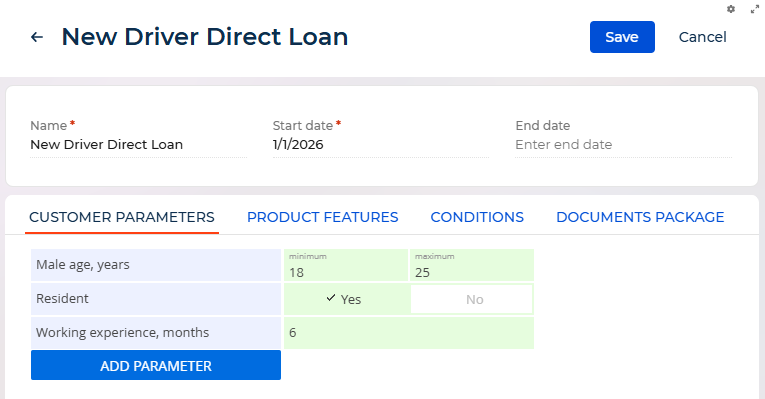
- Age: 18 to 25 years.
- Residency status: resident.
- Employment status: has been employed for no less than 6 months.
To specify the customer parameters:
-
Go to the Products section, create a new product, or open the needed product page.
-
Click the
 button on the Product details expanded list (Fig. 1). This opens the Product details page.
Fig. 1 Add a product condition 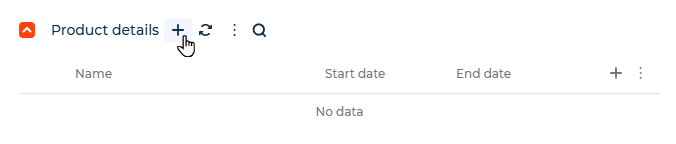
-
Enter the start and end dates for the product conditions on the Product details page.
-
Click the Add parameter button on the Customer parameters tab.
-
Select "Male age, years", for example, in the empty field (Fig 3.).
Fig. 3 Selecting characteristics 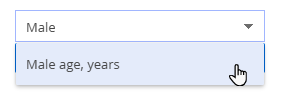
As a result, the Male age, years field will appear on the Customer parameters tab.
-
Change the view of the value entry field to enter values:
- Pint to the selected value.
- Click
 .
. - Select Value range (minimum/maximum) (Fig. 4).
Fig. 4 Change the field view 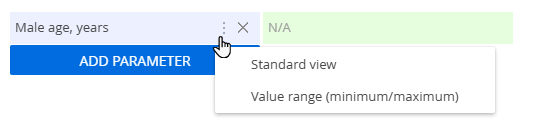
- Enter the required range of values (Fig. 5).
Fig. 5 Specify a value range 
-
Click the Add parameter button. Select the Resident parameter, for example, and set the value to "Yes" (Fig. 6).
Fig. 6 Specify a Boolean value 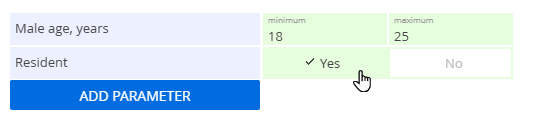
-
Click the Add parameter button. Select "Working experience, months" and specify "6" in the field that appears to the right, for example (Fig 7).
Fig. 7 Specify a fixed numeric value 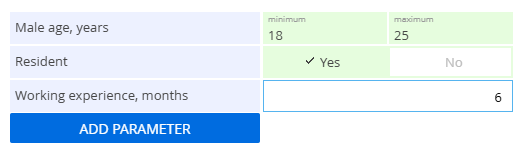
-
Save changes.
As a result, the specified customer parameters (Fig. 8) will be applied when matching products to applications.
Set up product features
Use the Product features tab to set up the static characteristics of a product (Fig. 9).
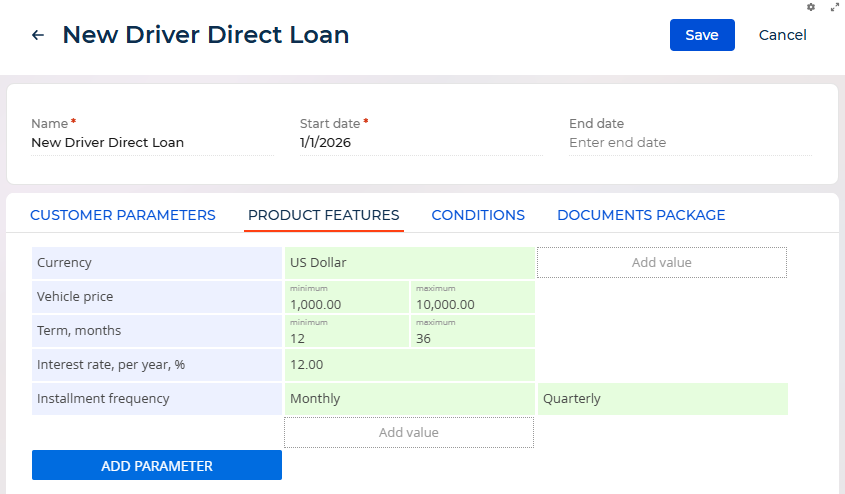
For example, product features can include repayment conditions, currency, repayment schedule, etc.
Creating a list of product features is identical to creating a list of the customer’s parameters as described above.