Create new lookups
The procedure for adding custom lookups depends on whether Creatio already contains an object which needs to be linked to the lookup or not.
- If the lookup object does not yet exist, it will be created and registered automatically by the Freedom UI Designer when you add a new lookup to a Dropdown field and save your changes. In this case, you may need to go to the Lookups section and populate the lookup with records.
- If the lookup object already exists, you need to register a corresponding new lookup in the Lookups section to be able to manage its records.
Creating lookups in the Freedom UI Designer
A lookup is created automatically when you add a custom lookup to a Dropdown field in the Freedom UI Designer.
The Requests custom section has been configured in Creatio. Add a field displaying the request type to the request page. The field will be populated from a lookup.
To implement the case:
-
Open the request form page in the Freedom UI Designer.
-
Drag a Dropdown field to the canvas and open the field setup area.
-
Click the
 button next to the Lookup parameter and specify the title and code of the lookup you want to create, for example, Request types.
-
Save the changes.
As a result, the created lookup will automatically be registered in Creatio. Learn more: Set up a Dropdown field.
After that, you need to populate the lookup and specify the request types. To do this:
-
Open system designer by clicking the
 button in the left top corner of the application and select the Lookups link in the System setup block.
-
Find the created Request types lookup via the quick filter by title and open its content.
-
To create the request types in the lookup, click the New button (Fig. 2).
Fig. 2 The Request types lookup population 
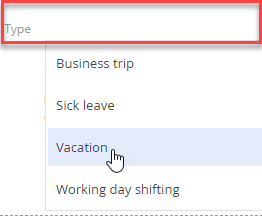
As a result, you will be able to use the lookup information from the created Request types lookup when populating the Type field on the request page (Fig. 3).
Adding a lookup based on an existing object
To register a lookup for an existing object in Creatio, do the following:
-
Open system designer by clicking the
 button in the left top corner of the application and select Lookups in the System setup block.
-
Click the New lookup button and specify the lookup name and the object containing the lookup data structure (Fig. 1).
Fig. 1– Registering a lookup for the existing object 
Detailed information about the lookup properties is available in a separate article.
As a result, the lookup will be registered and populated with the data in correspondence with the object structure.