Work with territories
Use the Territory Management app to create, manage, and analyze territories and their related business data. Territories support hierarchical organization and recursive aggregation of metrics, enabling parent territories to display aggregated values from all subordinate territories as well as their own data.
View and navigate the territory hierarchy
-
Open the Territory management section.
-
Review the hierarchical structure of territories.
-
Select a territory to view its aggregated metrics and related accounts.
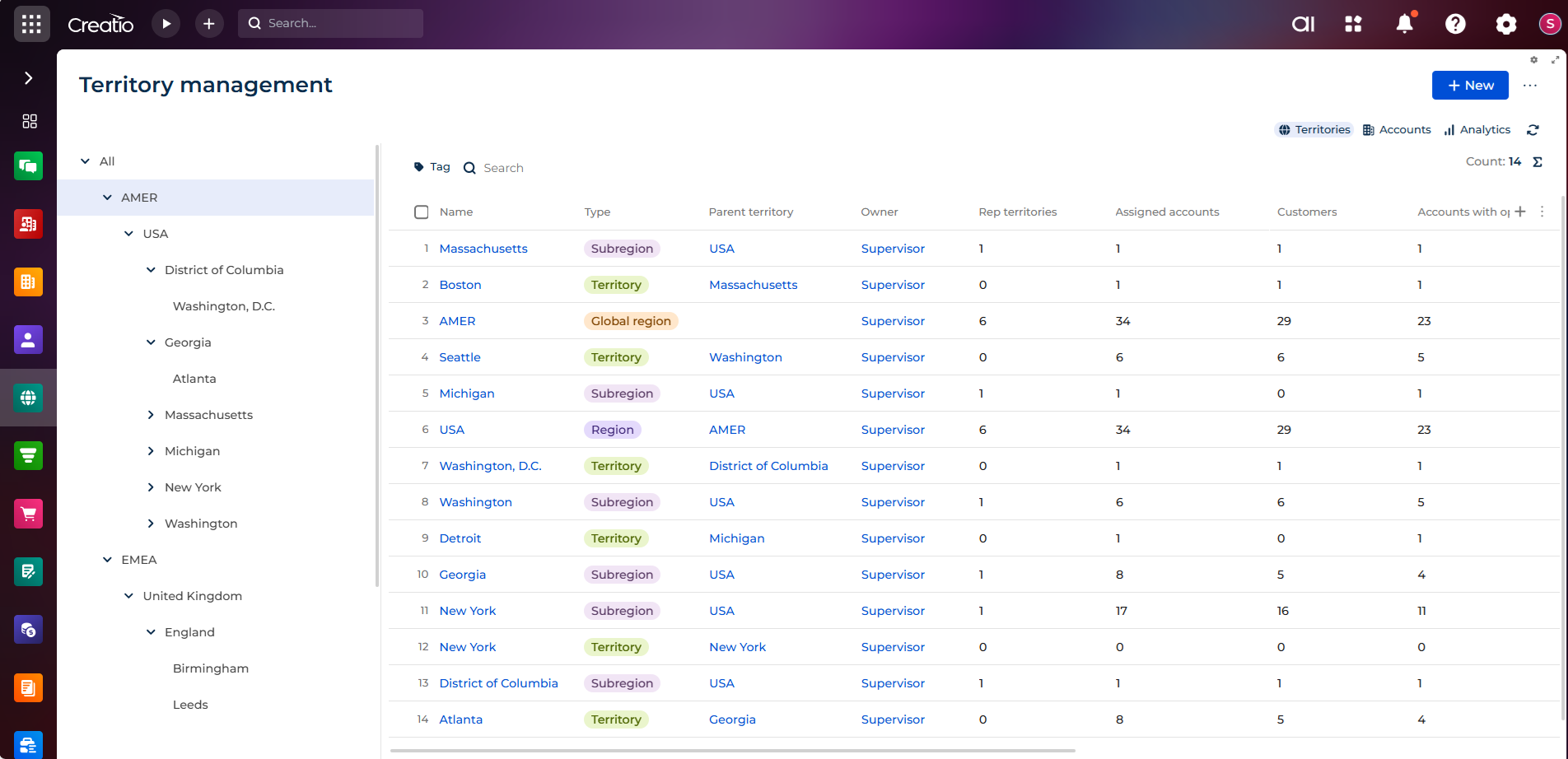
Selecting a parent territory displays records and metrics aggregated from all its child territories. This allows for consistent analysis when navigating between different hierarchy levels.
Analyze territory metrics recursively
Territory metrics are calculated recursively and include data from subordinate territories.
You can review indicators such as:
- assigned accounts
- unallotted accounts
- accounts that have open pipeline
- open pipeline value
- open leads
- open opportunities.
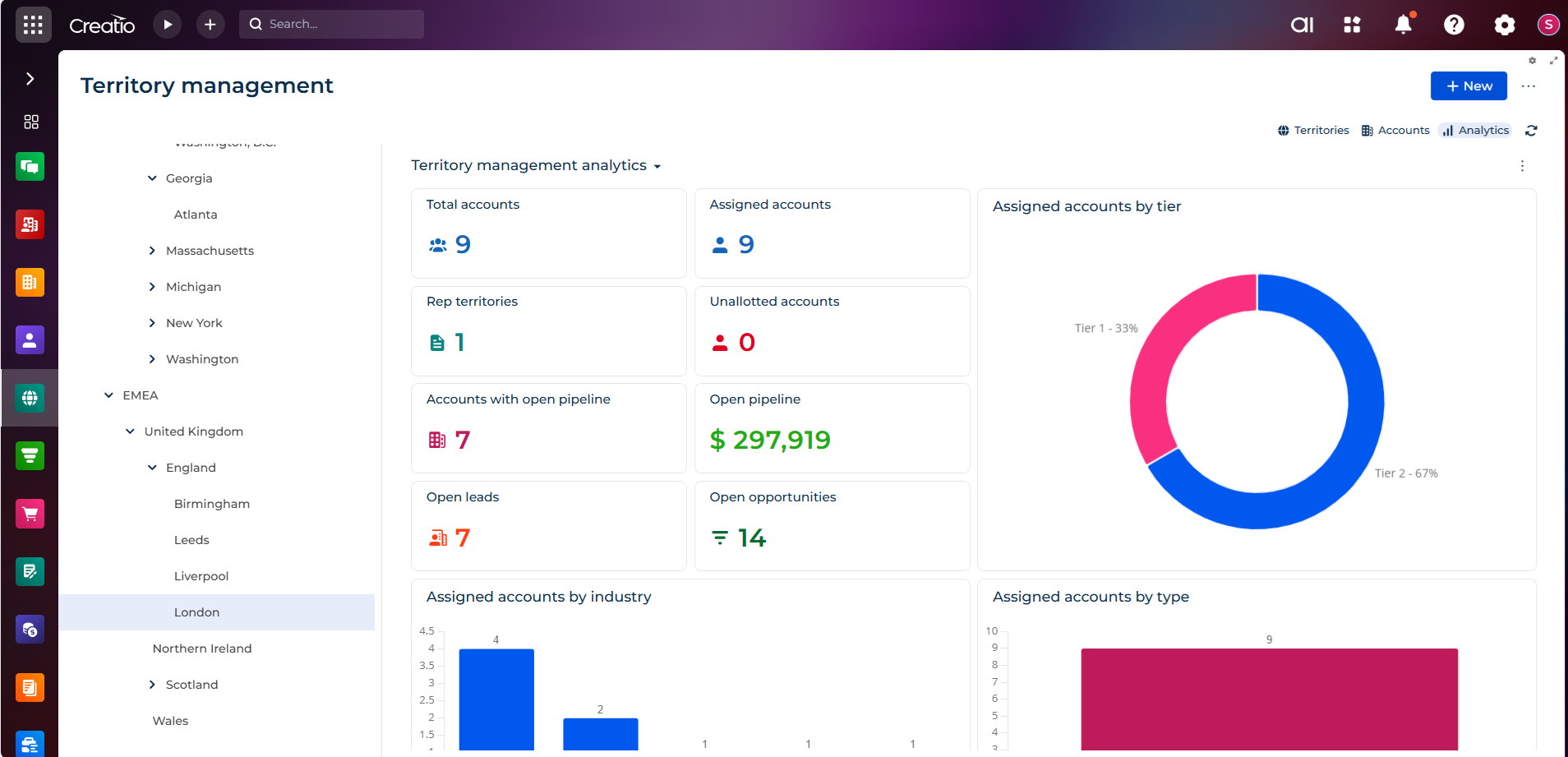
Widgets support drill-down navigation to lower hierarchy levels directly from the analytics view.
Review accounts, leads, and opportunities
-
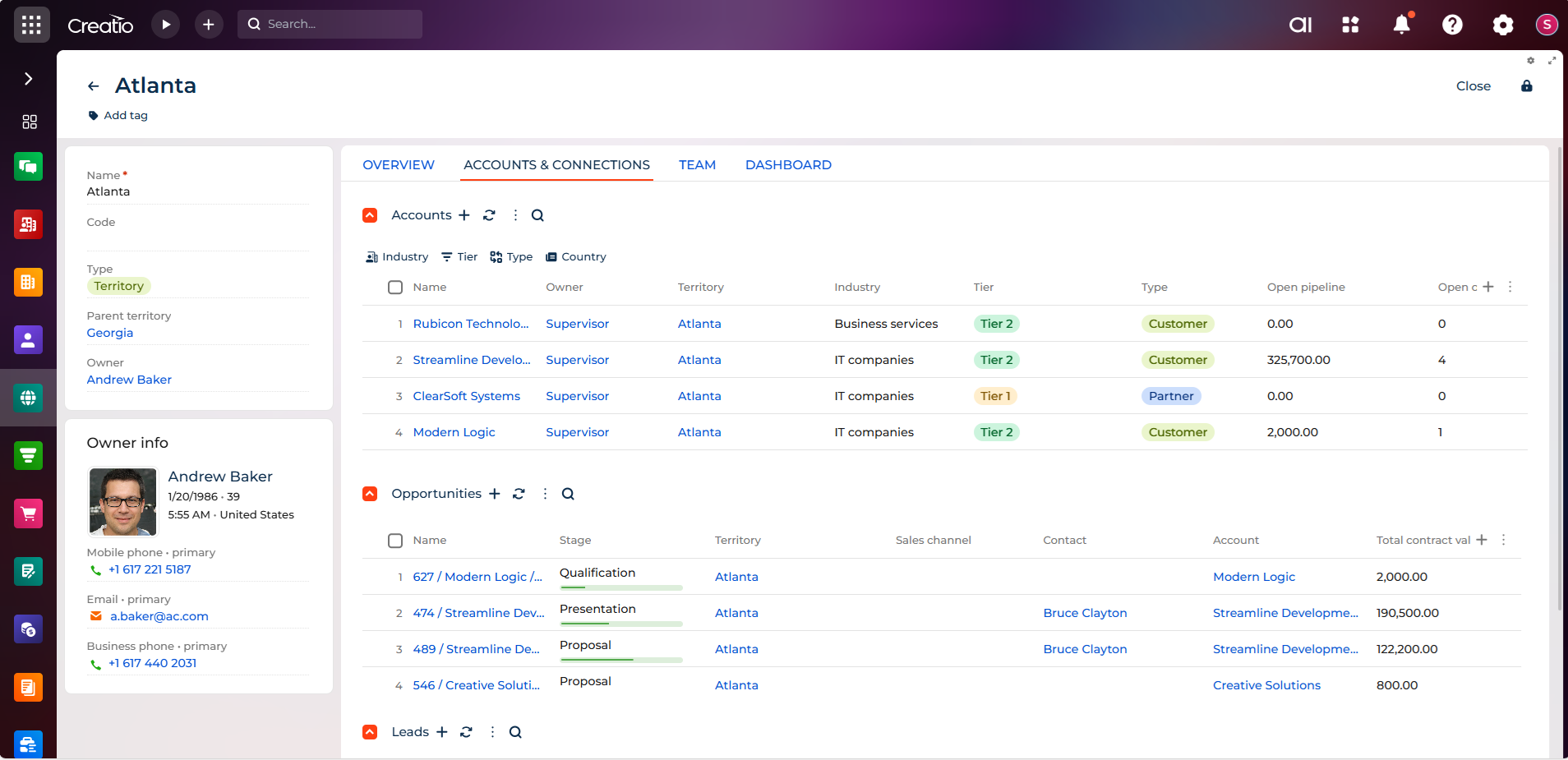
Open a territory and select the Accounts & connections tab.
-
Review all accounts assigned to the selected territory and its child territories if they are available.
-
Scroll to Leads or Opportunities expanded lists to review related records.
Use territory dashboards
-
Open the Dashboard tab on the territory form page.
-
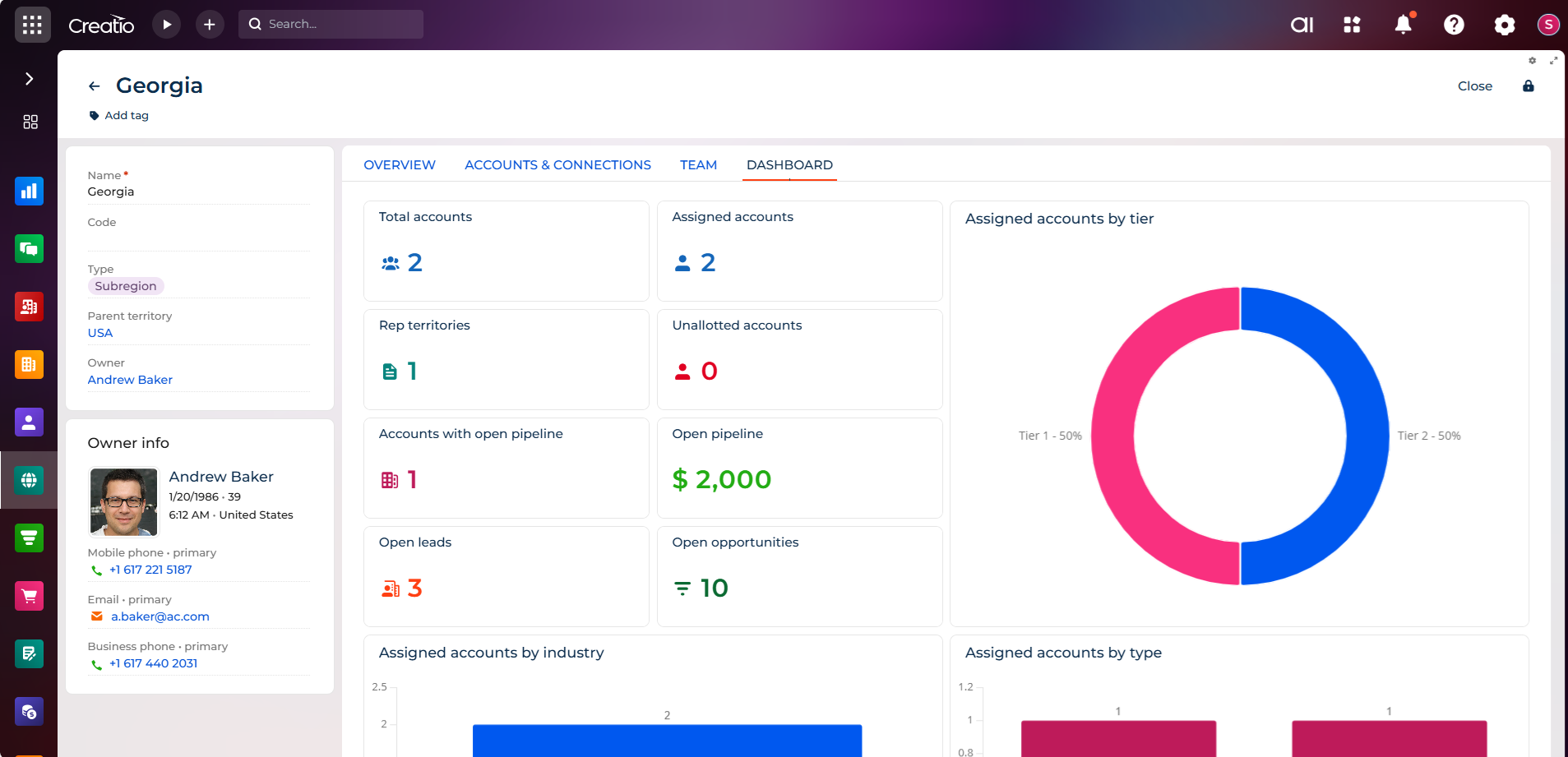
Review visualized metrics, including account distribution and pipeline indicators.
-
Drill down from dashboard widgets to explore data at lower hierarchy levels.
Review subordinate territories
If a territory has child territories, the Subordinate territories expanded list on the territory page displays the following:
- direct child territories,
- owners,
- assigned accounts,
- customers,
- pipeline metrics.
Reassign territories in bulk
Use bulk reassignment to update territory associations for multiple accounts.
-
Open the Accounts section and select multiple records.
-
Click Assign territory.
Fig. 5 Bulk territory reassignment 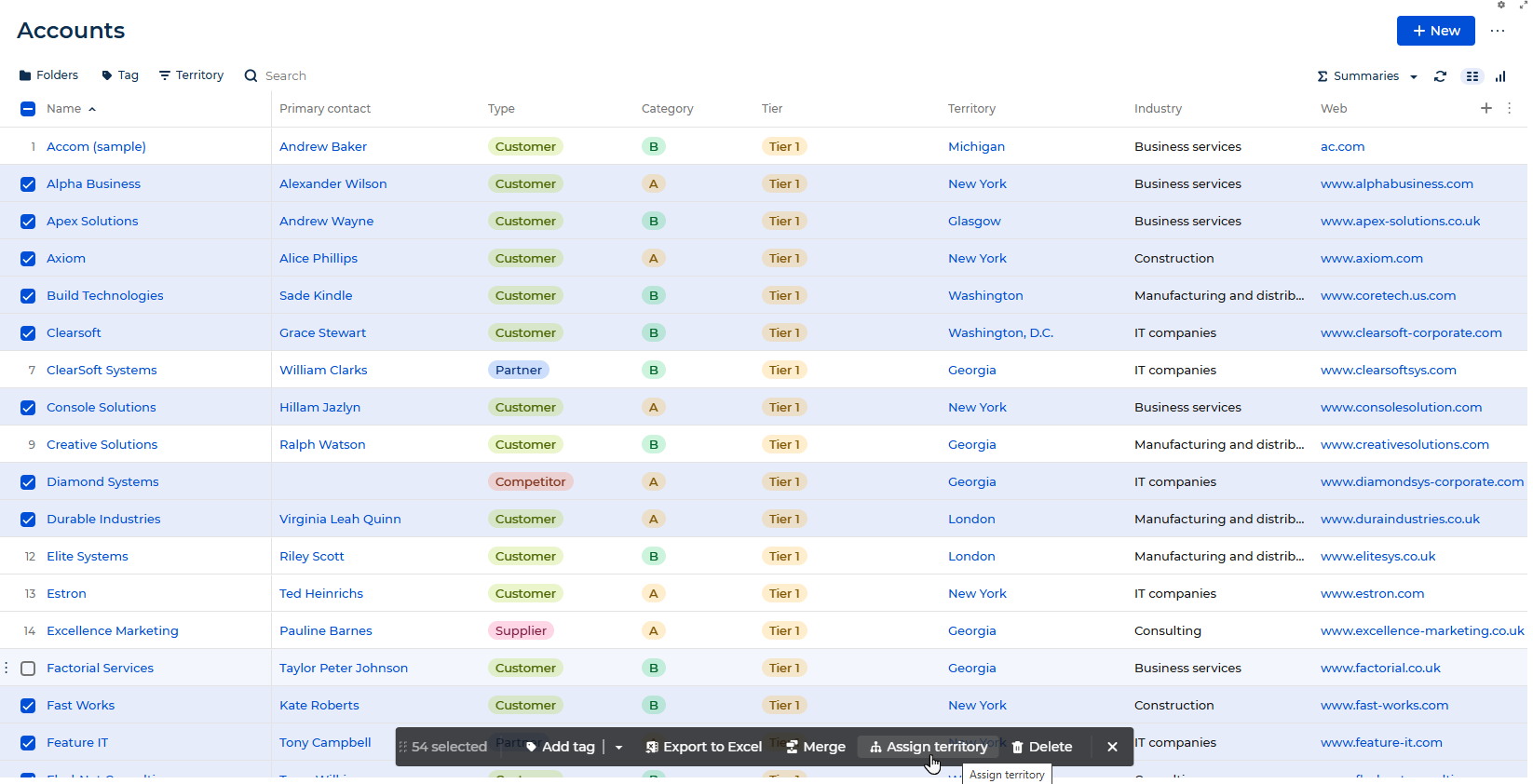
-
Review the preview step, which displays key indicators and affected territories.
Fig. 6 Bulk territory reassignment confirmation step 1 
-
Select the target territory and complete the reassignment. Optionally, include related open leads and opportunities in the reassignment.
Fig. 7 Bulk territory reassignment confirmation step 2 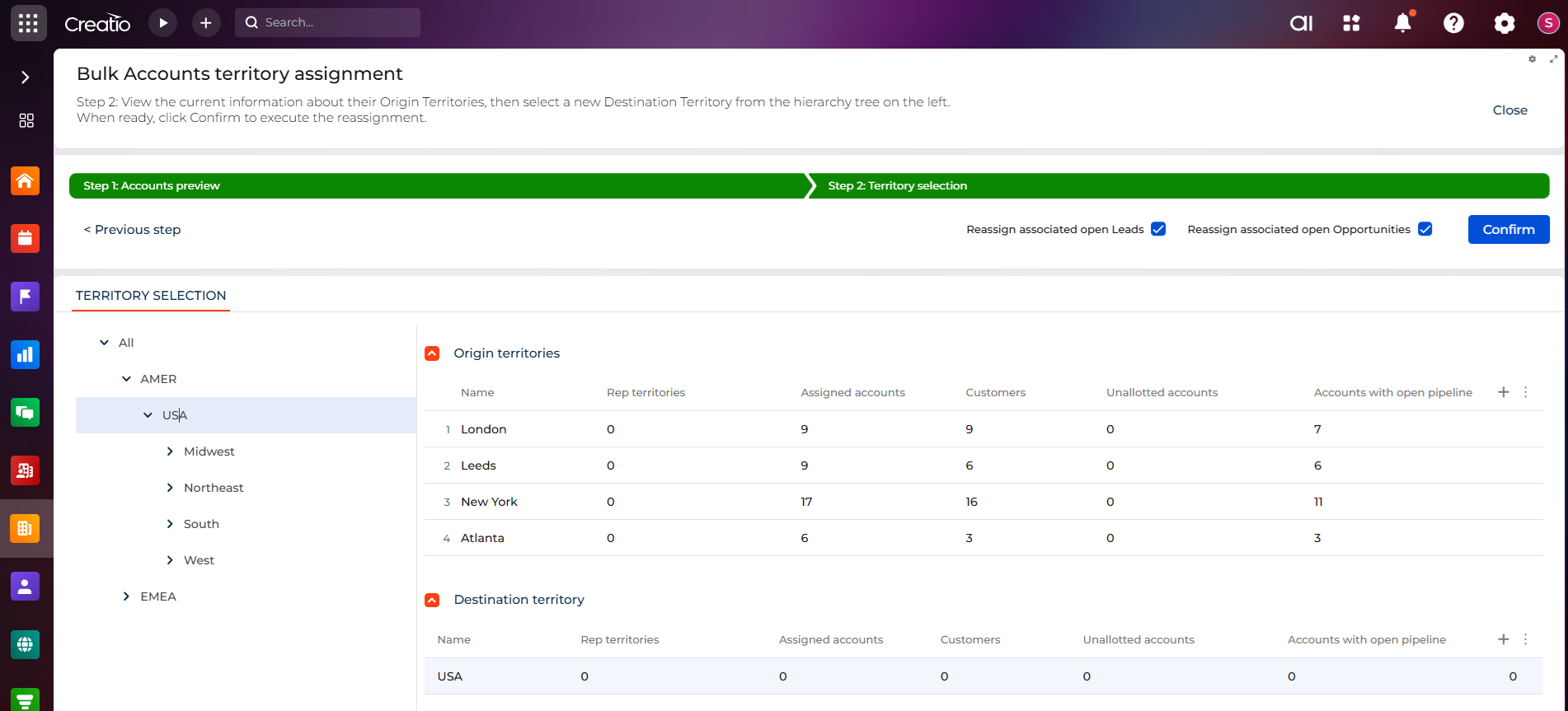
As a result, territories will be structured consistently, and business entities will be assigned and analyzed across the hierarchy using recursive aggregation.