ALM Portal
The Creatio ALM Portal is a centralized tool designed to streamline work with multiple Creatio instances. It provides self-service actions for environment management, real-time monitoring capabilities, and a unified workspace for collaboration across projects.
Use the ALM Portal to manage and monitor environments while developing and testing apps of any complexity in the Application Designer. You can access the ALM Portal at studio.creatio.com.
This tool enables efficient team collaboration during application setup and testing. Every team member can view the active environments and access implemented solutions in real time.
Once you complete your registration with the ALM Portal, you will have a user account and an organization account.
The ALM Portal functionality varies depending on your Creatio deployment. The trial websites have access to the full ALM Portal functionality described in this article. Creatio cloud users need to contact Creatio support: support@creatio.com to enable the complete ALM Portal Cloud feature set. In Creatio on-site, the ALM Portal displays the applications of a specific environment only, without the ability to switch between environments, invite users, deploy apps, or manage the profile.
-
A user account is required to log in to the ALM Portal and environments.
-
An organization account is required to share apps and collaborate on them with coworkers. By default, every new user who registers on their own (as opposed to following an invite link in the email) has an organization account. To collaborate in the ALM Portal, invite team members. Set the team member permissions using the following roles:
- Administrator has full access to company environments and permissions to manage them. In addition to the edit privileges, an administrator can invite other users for collaboration or remove users from the organization. An organization can have more than one administrator, but at least one administrator is required.
- Developer has full access to development and testing environments, as well as trials ordered by the organization’s employees. An organization can have more than one developer.
If one of the administrators deletes their user account, other team members can continue working on the apps of the organization. The last remaining administrator user cannot be deleted from an organization.
Invite team members
-
Click Add user in the Users menu (Fig. 1).
Fig. 1 Open the Users menu in the ALM Portal 
-
Click Add user. This opens the user invitation page.
-
Enter the email and role of the user to invite for collaboration and click Invite on the page.
Fig. 2 Invite a user 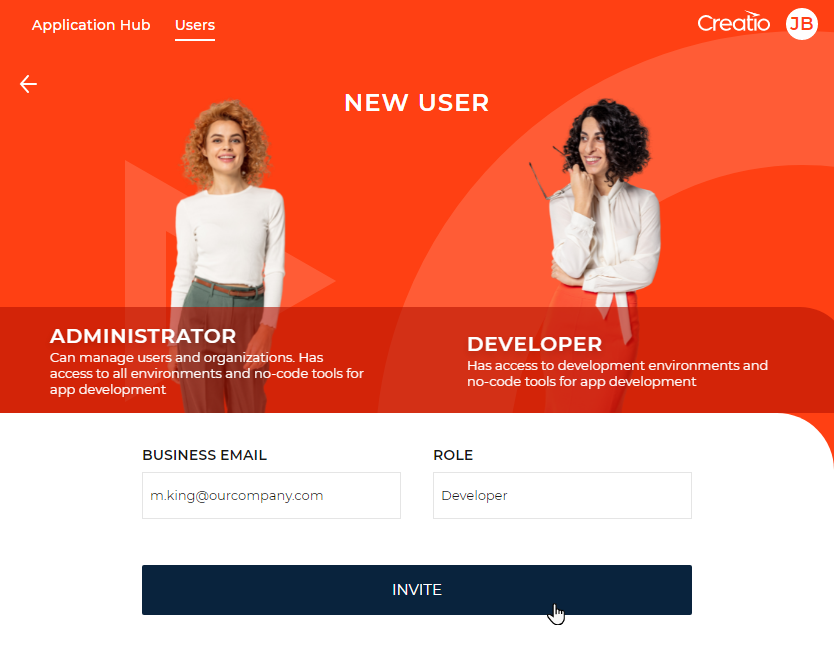
As a result, Creatio will send an ALM Portal invite to the specified email address. The invited user will appear in the Users menu with the specified role and "Invited" status.
If the user accepts the invitation and signs up, their status changes to "Active."
You can only invite users that do not have an ALM Portal account yet.
You can manage users in the Users menu if you have administrator permissions.
If the user status is "Invited," you can cancel or resend the invite, as well as edit the user data, such as their role. To select an action, point to the row that has the relevant user, click  , and select the needed item.
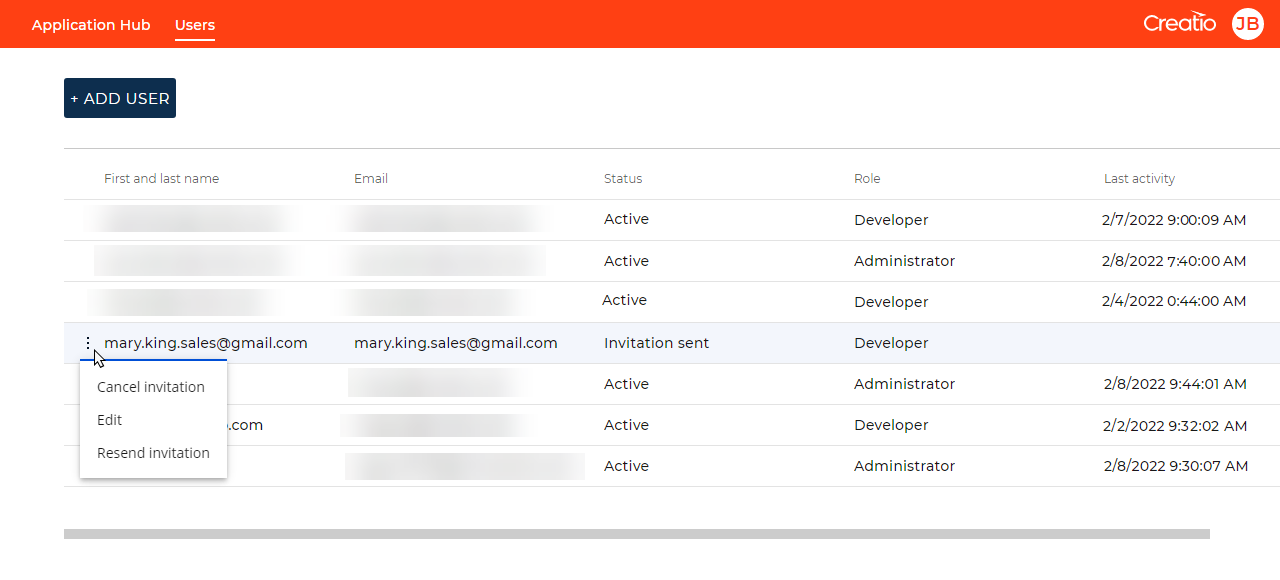
If you want to edit user data, select Edit. This opens a page.
Enter new data and click Save on the page that opens.
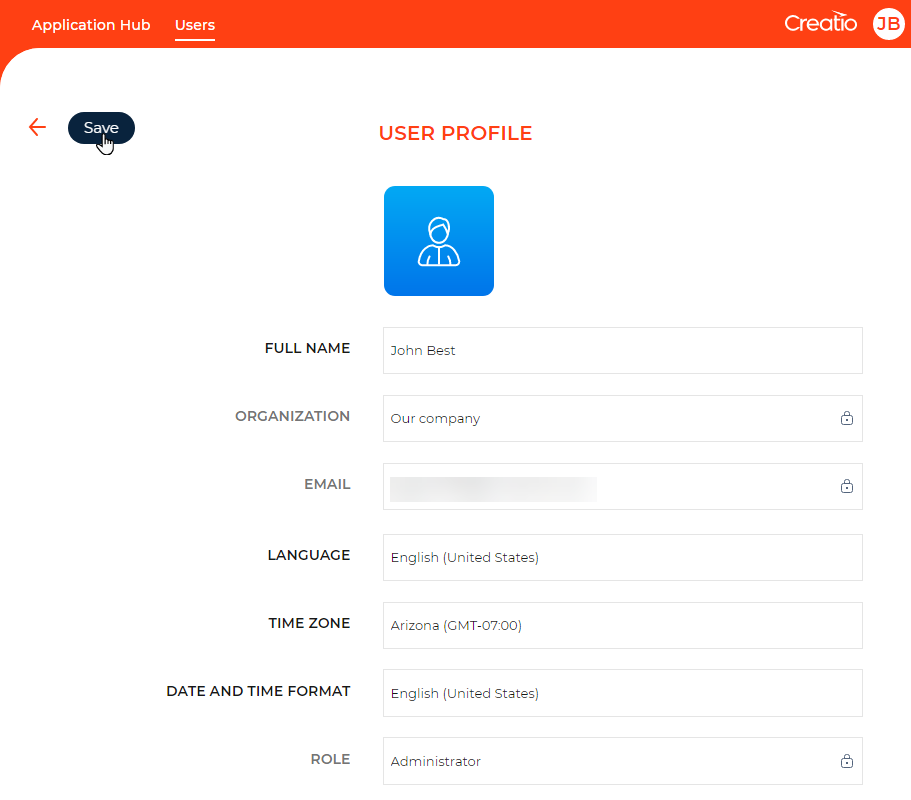
You can activate or edit the profile of inactive users in the button menu.
Select an operating environment
The ALM Portal contains a unified library of your company’s environments. Use the library to organize website customization efforts.
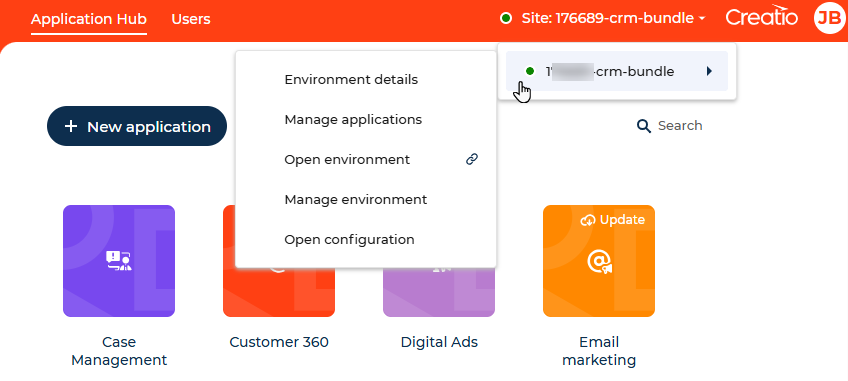
To view the list of available environments, click the menu in the top right (Fig. 5).

The list of environments displays both current cloud environments of your company and trials ordered by the organization participants. Creatio displays the current status of each environment using the icon to the left of the environment.
You can switch between the environments of your organization without repeated log in. This is achieved with Creatio ID functionality based on the SSO mechanism. After you sign up with the ALM Portal, you can open any website of your organization so long as you have permissions to access the website. When you log in to the website, Creatio automatically adds a user account linked to the main account in the ALM Portal.
You can select the environment and proceed to manage its apps, the environment itself, or open the configuration (Fig. 6).
Extend a trial environment
You can extend the validity of your trial environment directly from the ALM Portal. This lets you get more time to explore Creatio without ordering a new trial or losing the setup you have already done. It is possible to both extend an active trial and reactivate a trial that ended.
You can extend or reactivate each trial up to 3 times. When you trigger the action for the third time, Creatio notifies you that this is the last available extension. After you use all three extensions, the action becomes unavailable.
To extend or reactivate a trial:
- Select the required trial environment → Environment details. This opens a page.
- Go to the Instant actions tab → Extend trial.
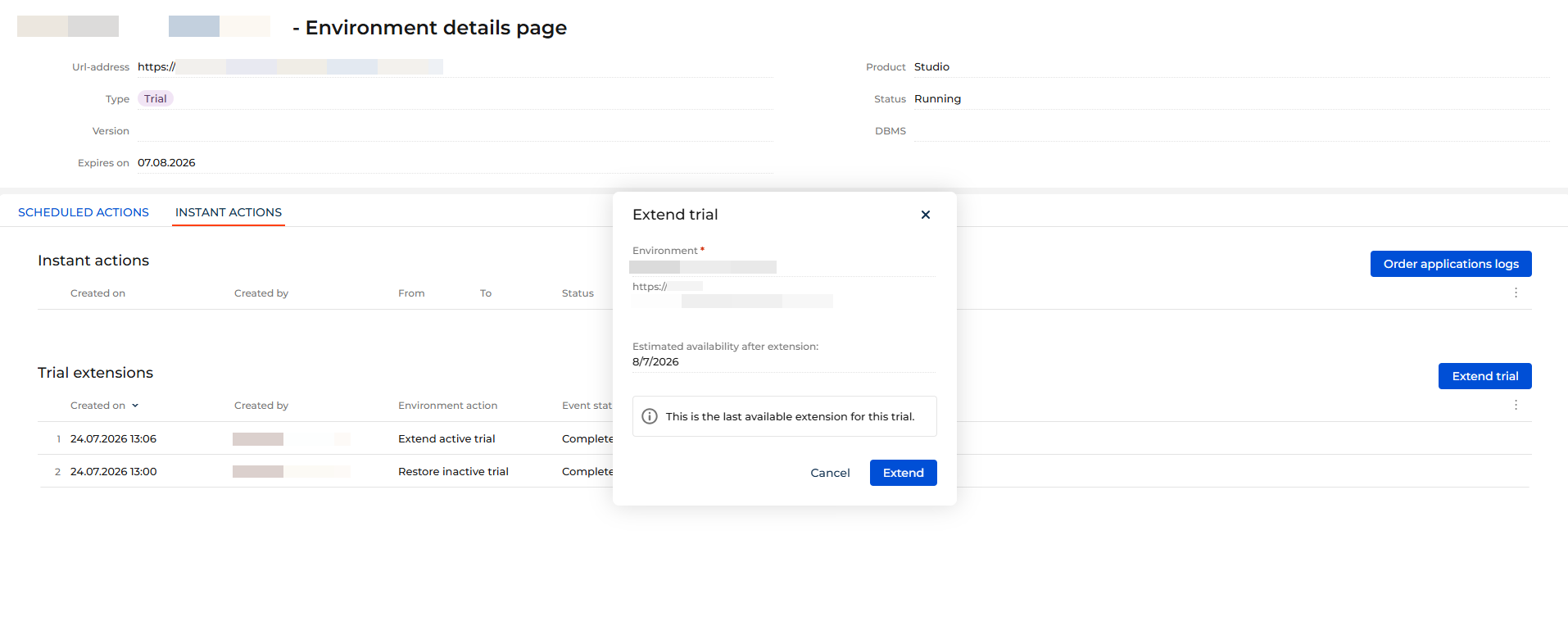
As a result, Creatio will extend the trial validity for 14 days from the moment you trigger the action. If the trial ended, Creatio will reactivate it for the same period.
Request application logs for the environment
You can request application logs for a specific environment directly from the ALM Portal. This helps track system events, investigate errors, and review performance activity within a defined time range.
To request application logs:
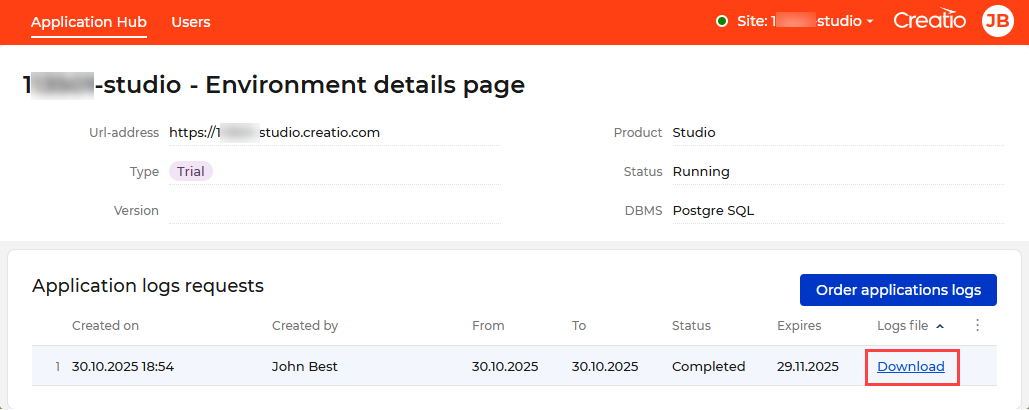
- Select the required environment → Environment details. This opens the environment details page where you can check the most important information about the environment and perform self-service actions, like getting application logs.
- Click Order application logs.
- Click Order to submit the request.
As a result, the request will appear in the Application logs requests expanded list, where you can track its creation date, creator, range, and status. Fetching logs is an asynchronous action and can take nearly 15 minutes. Once the logs are ready, the link for logs download will appear and the status of your request will change to "Completed." Additionally, you will get an email notification.
Request a site backup for the environment
You can request an additional site backup for a specific environment directly from the ALM Portal. This lets you create a backup yourself instead of contacting Creatio support, which removes unnecessary delays. You can run the backup immediately or schedule it for a later time. This action is available to all ALM Portal users.
To request a site backup:
-
Select the required environment → Environment details. This opens the environment details page where you can review key environment information and perform self-service actions.
-
Click Request site backup.
-
Select the backup execution time in the Schedule time field.
Out of the box, this field is set to the current date and time, meaning the backup is run immediately. To run the backup later, select a future date and time.
-
Click Schedule to confirm the request.
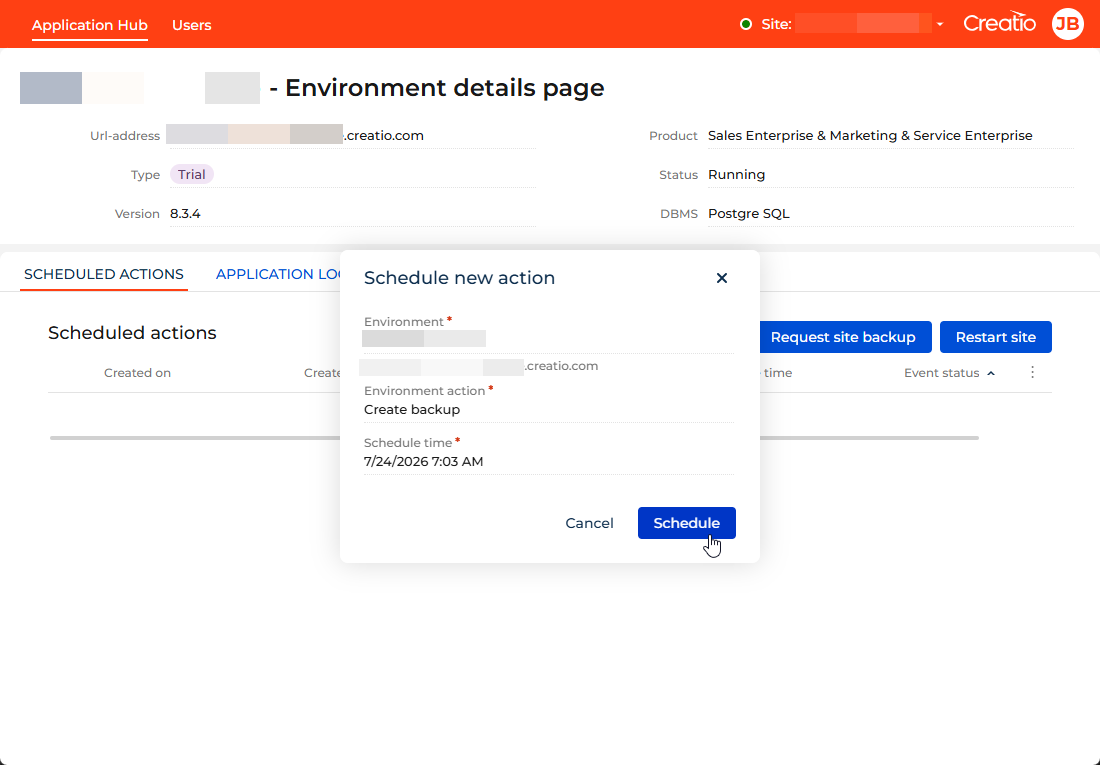
As a result, the request will appear on the Scheduled actions tab, where you can track its trigger date, who triggered it, and its status. A backup scheduled for a future time keeps the "Scheduled" status until it runs. An immediate backup starts with the "Preparing" status. Once the backup is complete, the status changes to "Completed," and you will get an email notification. If the backup does not succeed, the status changes to "Failed."
Restart the site for the environment
You can restart the site for a specific environment directly from the ALM Portal. It is possible to run the restart immediately or schedule it for a later time. This action is available to ALM Portal administrators only.
Restarting the site makes the environment temporarily unavailable to users. Schedule the restart for a low-activity period when possible.
To restart the site:
-
Select the required environment → Environment details. This opens the environment details page where you can review key environment information and perform self-service actions.
-
Click Restart site.
-
Select the restart execution time in the Schedule time field.
Out of the box, this field is set to the current date and time, meaning the restart is run immediately. To run the restart later, select a future date and time.
-
Click Schedule to confirm the request.
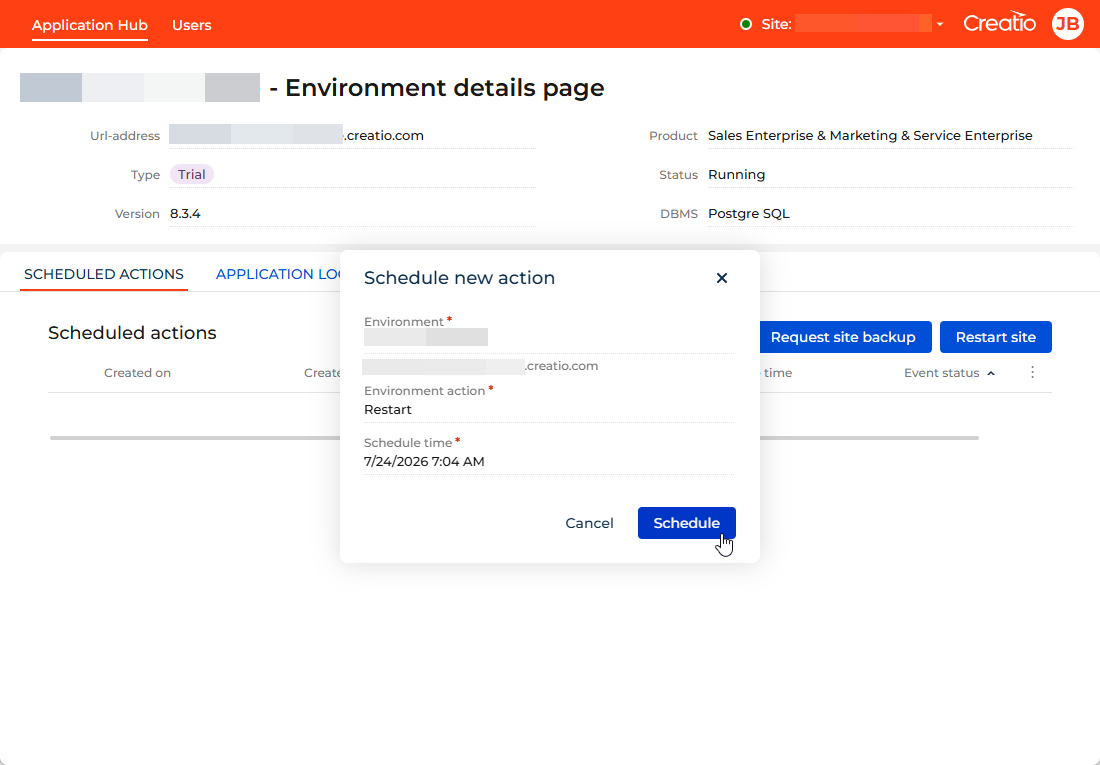
As a result, the request will appear on the Scheduled actions tab, where you can track its trigger date, who triggered it, and its status. A restart scheduled for a future time keeps the "Scheduled" status until it runs. An immediate restart starts with the "Preparing" status. Once the restart is complete, the status changes to "Completed," and you will get an email notification. If the restart does not succeed, the status changes to "Failed."
Check environment health
You can monitor your organization and its cloud environments using Health center inside the ALM Portal. It provides a quick overview of subscription-related usage, environment availability status, and alerts that record availability incidents.
For example, if users report that a production website is unavailable, you can use Health center to confirm the current environment status and review the related alert history.
Health center includes the following:
- Infrastructure performance metrics: use of resources by monitored environment.
- Alerts: current issues and historical incidents for monitored environments.
- Organization status: subscription and usage summary.
- Environments status: current availability state of monitored environments.
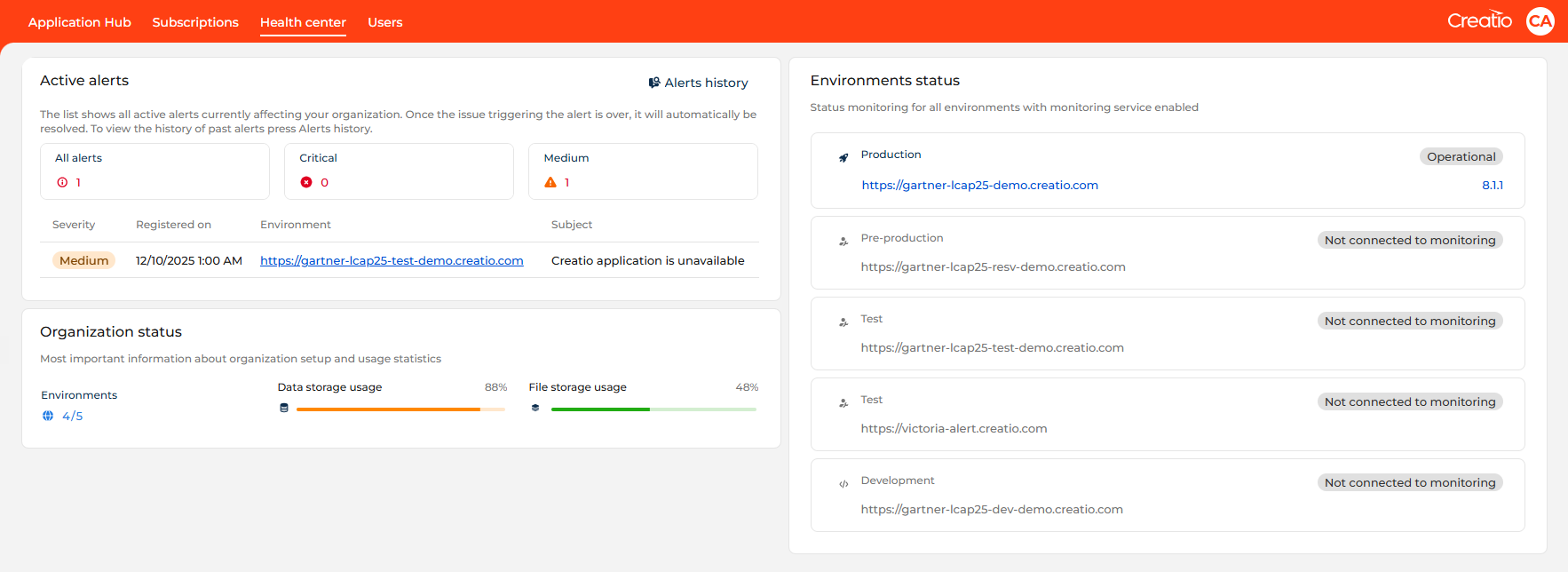
Infrastructure performance metrics
Use Infrastructure performance metrics in the Health center to review the server-side resource usage of your Creatio cloud environment over a specific period:
- application server load
- database server load
- database drive activity
- blocked database processes
This lets you assess the health and performance of your environments without contacting support.
Presented data has informational purpose only and is shown as approximate percentages of resource usage.
Infrastructure performance metrics are available for environments hosted on a dedicated block or web farm of Creatio Cloud. When you open the dashboard, a banner indicates which of these applies to the selected environment.
To open the dashboard:
- Open the Health center in the ALM Portal.
- Go to the environment you want to inspect → Server metrics.
As a result, the infrastructure performance metrics dashboard will open for the selected environment. You will be able to view data for multiple periods. To inspect a different environment, use the Environment field at the top. You can view only the environments that belong to your organization.
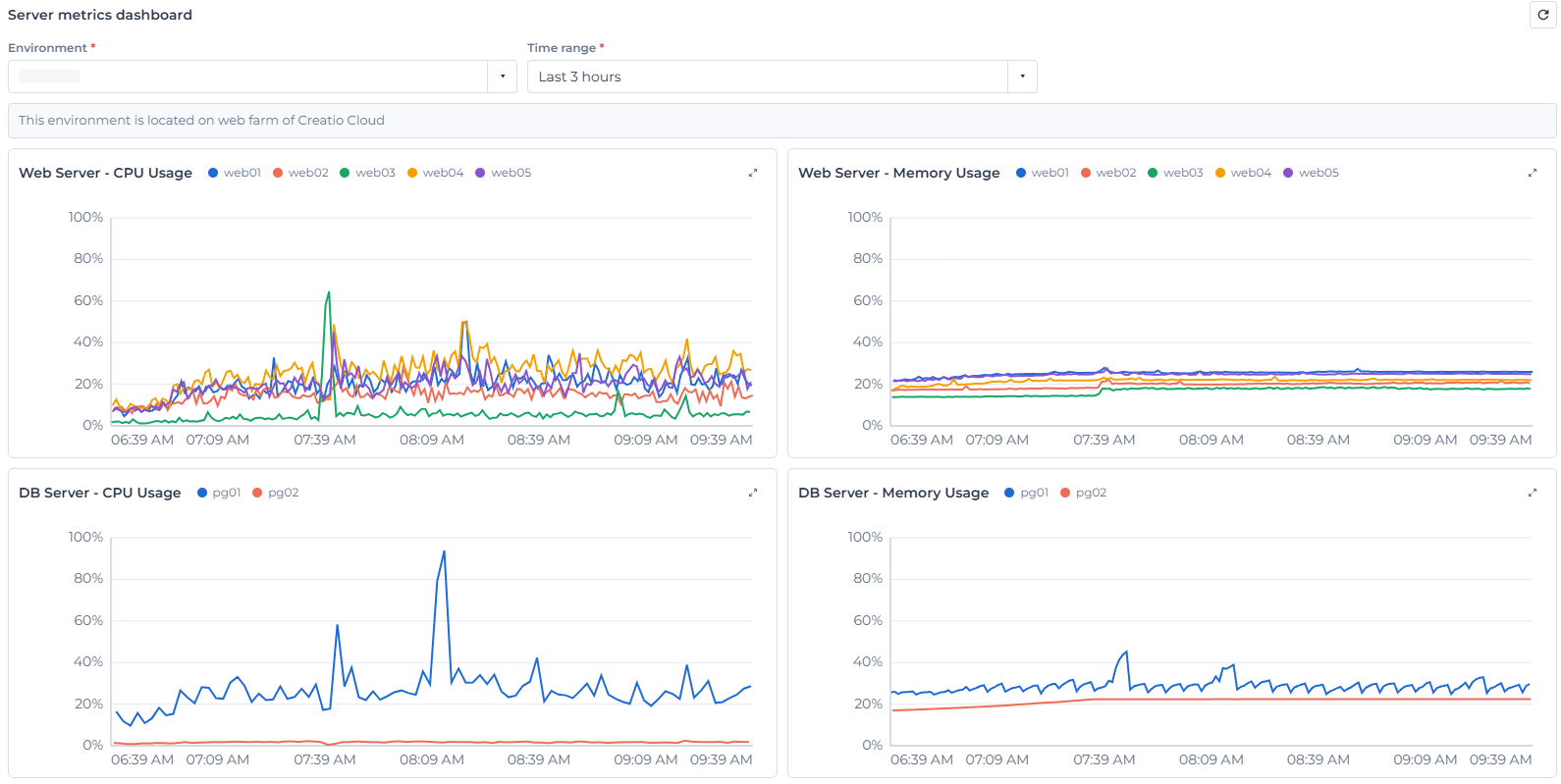
The dashboard shows a set of widgets. Each widget draws one line per server node over the selected period. Percentage metrics use a fixed 0–100% scale. Point to a widget to view the exact value and time.
The dashboard reads data directly from live monitoring and queries it on each request. Loading can take a few seconds for wide time ranges or multi-node environments.
Creatio redraws the widgets for the selected period. Shorter periods show detailed history, longer periods show hourly trends. Timestamps are shown in UTC.
Widget | Displayed value |
|---|---|
Web Server — CPU Usage | Processor load of the application server(s), in percent. |
Web Server — Memory Usage | Memory load of the application server(s), in percent. |
DB Server — CPU Usage | Processor load of the database server, in percent. |
DB Server — Memory Usage | Memory load of the database server, in percent. |
DB disk queue | Pending operations with the drive of the database server. |
DB disk IOPS | Transfers per second in the drive of the database server. |
DB disk latency | Average operation time in the drive of the database server. |
DB blocked processes/queries | Number of database processes currently waiting on others. A spike can indicate contention. |
If your environment runs on more than one application node (a web farm), each node is drawn as a separate line and an information banner appears above the widgets.
The dashboard might display the following states:
- "Select an environment" — no environment is selected yet.
- "No data" — the analytics is not collected for this environment. The state is shown per widget.
- "Error" — data could not be loaded. Try again or narrow the time range.
Alerts
The Alerts view lets you browse both active and resolved alerts to track incident history for monitored environments. You can view the alerts in the following ways:
- Active alerts list on the Health center dashboard. The list displays ongoing issues.
- Alerts history page that displays all issues. To open it, click the Alerts history button in the Active alerts list.
Alerts are generated only for environments that are connected to monitoring. Environments that are not monitored do not generate alerts.
Organization status
The Organization status widget summarizes your organization settings and current usage. Widget data matches what you can see in the Subscriptions dashboard of the ALM Portal and is based on your license agreement.
Presented data has informational purpose only. Creatio does not automatically enforce limits when they are reached or exceeded. If you exceed a subscription limit, contact your CSM to review subscription details and adjust the contract if needed.
Status monitoring
Status monitoring tracks the general availability of an environment, a Creatio application deployed in the cloud.
Status monitoring checks whether the environment responds via a dedicated backend endpoint. It does not measure the performance of individual UI components or detect functional issues inside the Creatio application.
Out of the box, only production environments are monitored. If needed, other environment types can be connected to monitoring. To do this, contact Creatio support: support@creatio.com.