Segments
Use segments to group and reuse your contacts. Setting up segments helps you reach the necessary contacts among your data. For example, you can create a "New customers" segment that filters contacts by the contact type ("Customer") and the record date ("Current month"). If you select a segment in a marketing campaign or filter, only the contacts that match the segment conditions are included. You can reuse the same segment across multiple campaigns and filters.
A contact can be included in one or more segments.
You can specify your own rules for the segment contents. Deleting a segment does not delete the contacts contained in it.
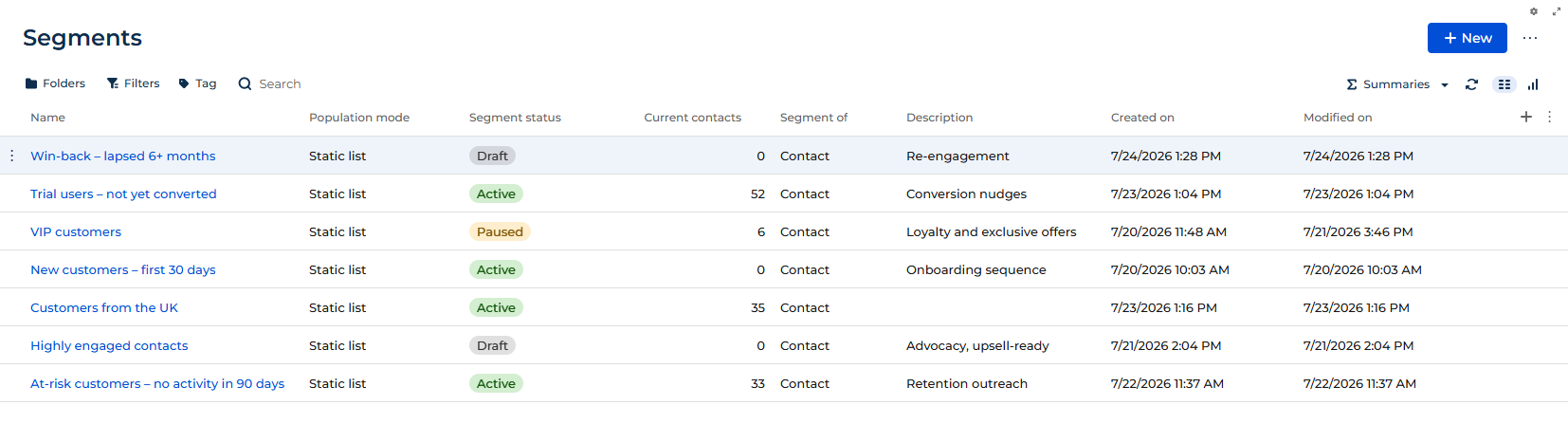
To open the Segments section, click the Segmentation app in the Application Hub, then click Run app. An administrator can also add the section to a workplace so that it is available in the navigation. Learn more: Add the Segments section to a workplace.
Entry rules and exit rules
Segment membership is defined by filter conditions that you configure on the segment form: entry rules and exit rules.
Entry rules define which contacts enter a segment. A segment contains only those contacts that match the specified entry conditions. For example, you can create a "New customers" segment for contacts filtered by the creation date. A contact is added to the segment on the next population run if it matches the entry filter. While you build the entry filter, the Matching contacts metric shows an approximate, predicted count of contacts that match the current conditions, and it updates as you edit the filter.
Exit rules control when a contact leaves a segment. You can choose one of the following exit strategies.
Exit strategy | Behavior |
|---|---|
"On specific conditions" (default) | Contacts leave the segment when they match a separate set of exit conditions that you configure with the exit filter. |
"No longer matches entry" | Contacts leave the moment they no longer match the entry filter. The exit is the inverse of the entry, so there is nothing separate to configure. It stays in sync as you edit the entry rules. |
"Never exits" | Contacts stay in the segment until you rebuild it from scratch when resuming a paused segment. |
Entry rules and exit rules are independent, so a contact can enter a segment on a strict condition and stay in it on a looser one.
A "Repeat buyers" segment uses stricter entry rules than exit rules.
- Entry rules: the contact type is "Customer" and the contact has more than 5 orders that have the "Delivered" status and were created last quarter.
- Exit rules: the contact type is "Customer" and the contact has 0 orders that have the "Delivered" status and were created last quarter.
A contact needs 5 delivered orders in the last quarter to become a repeat buyer and leaves the segment after a quarter that has no delivered orders at all.
Both the entry filter and the exit filter use the same conditions builder as any advanced filter in Creatio. Learn more: Set up filters.
Pre-defined filters
Pre-defined filters are ready-made conditions that Creatio marketing apps deliver out of the box. They cover campaign participation, lead capture source, event attendance, and segment membership, so you can add such a condition to the entry rules or the exit rules in a single step instead of assembling it from the underlying Creatio objects. Pre-defined filters are available in the Add new filter list of the entry filter and the exit filter, together with the contact columns.
Pre-defined filters | Delivered by |
|---|---|
"Currently in campaign flow," "Participated in campaign flow," "Reached campaign goal," "Never participated in any campaign" | Lead Generation, Email Marketing, Event management apps |
"Facebook submissions," "Submissions from Creatio landing pages," "Web page visitors" | Lead Generation app |
"Participated in events," "Registered for event but did not attend" | Event management app |
"Are in segment," "Are not in segment" | Segmentation app |
For example, the "Reached campaign goal" pre-defined filter adds a ready-made condition over campaign participation data. Add it to the entry rules to build a segment of the contacts that completed a campaign goal (Fig. 2).

Segment lifecycle
A segment moves through a lifecycle that you control with dedicated action buttons in the header, not by editing a status field. The user-facing status shows where the segment is in that lifecycle.
Status | Color | Description |
|---|---|---|
Draft | Gray | The segment has been created but not yet activated. Its membership may be empty. |
Active | Green | The segment is live and populated, and it is available for selection in marketing campaigns. |
Paused | Orange | The segment lifecycle is suspended. The segment does not refresh and is not available in marketing campaigns until you resume it. |
An active segment is read-only to protect the audience that campaigns rely on. To change the rules of an active segment, pause it first, edit the rules, then resume it. Learn more about the individual procedures: Set up and manage segments.
How population works
Population is the run that evaluates the rules and updates the segment membership. Understanding how it runs helps you read the contact counts you see afterward. Creatio populates a segment on demand, when you activate, resume, or manually repopulate it.
Creatio calculates the membership incrementally or with a full rebuild.
Incremental population is the default. Creatio evaluates the entry filter and processes only the difference: it adds new matches and removes members that now meet the exit rules. Contacts that are already in the segment and still match are left untouched. This is fast for large segments that change little between runs.
Full rebuild is available when you resume a paused segment and choose to start fresh. Creatio clears the current members, re-evaluates the entry filter, and re-adds everyone who qualifies. Contacts that were in the segment before and still match keep their original join date rather than being re-added as new. Use a full rebuild when the entry rules changed significantly while the segment was paused.
After each run, the Current contacts count reflects the number of contacts currently in the segment, and the Last time refreshed value in the Lifecycle panel records when the run completed.
Population status
While a segment is being populated, Creatio tracks a population status that is separate from the segment lifecycle status. It reflects what the engine is doing at a given moment and helps you interpret what you see on the segment form during and after a run.
Population status | What it means |
|---|---|
Draft | The segment has not been populated yet, so its membership may be empty. This is the starting state for every new segment. |
Calculating | Population is running right now. The entry filter is being evaluated and the membership is being updated. The "Processing data" banner on the segment form corresponds to this state. |
Queued | The population job has been submitted to the background scheduler and is waiting to be picked up. The segment moves to "Calculating" once the scheduler starts it. |
Populated | Population completed successfully. The membership reflects the latest run, and the segment can be queried in filters and campaigns as long as its segment status is also "Active." |
Error | Population failed because of a system or configuration issue. The segment cannot be used until the issue is resolved and the segment is populated successfully. |
The population status and the segment status are independent. A segment can be "Active" while its population status is "Calculating" or "Queued," for example, while a repopulation is in progress. Both must allow usage for the segment to be available in campaigns and filters.
Segment info tab
The Segment info tab of the segment page contains the properties of the segment record. You fill out the Name and Description fields, and Creatio maintains the rest of the values as the segment moves through its lifecycle.
Field | Description |
|---|---|
Name | The name of the segment. Must be unique across the Segments section. |
Description | The purpose of the segment or any other details that help your team reuse it. |
Exit strategy | The exit strategy selected on the Exit rules tab: "On specific conditions," "No longer matches entry," or "Never exits." |
Segment status | The lifecycle status of the segment: "Draft," "Active," or "Paused." |
Population status | The status of the latest population run. |
Current contacts | The number of contacts currently in the segment. Creatio updates the value after each population run. |
Updated | The date and time when the latest population run completed. |
Created | The date and time when the segment record was created. |
Contacts tab
The Contacts tab shows the audience that the latest population run produced. The Currently in segment expansion panel lists the contacts that are in the segment right now and displays the Full name, Email, Company, Job title, and Country columns (Fig. 3).
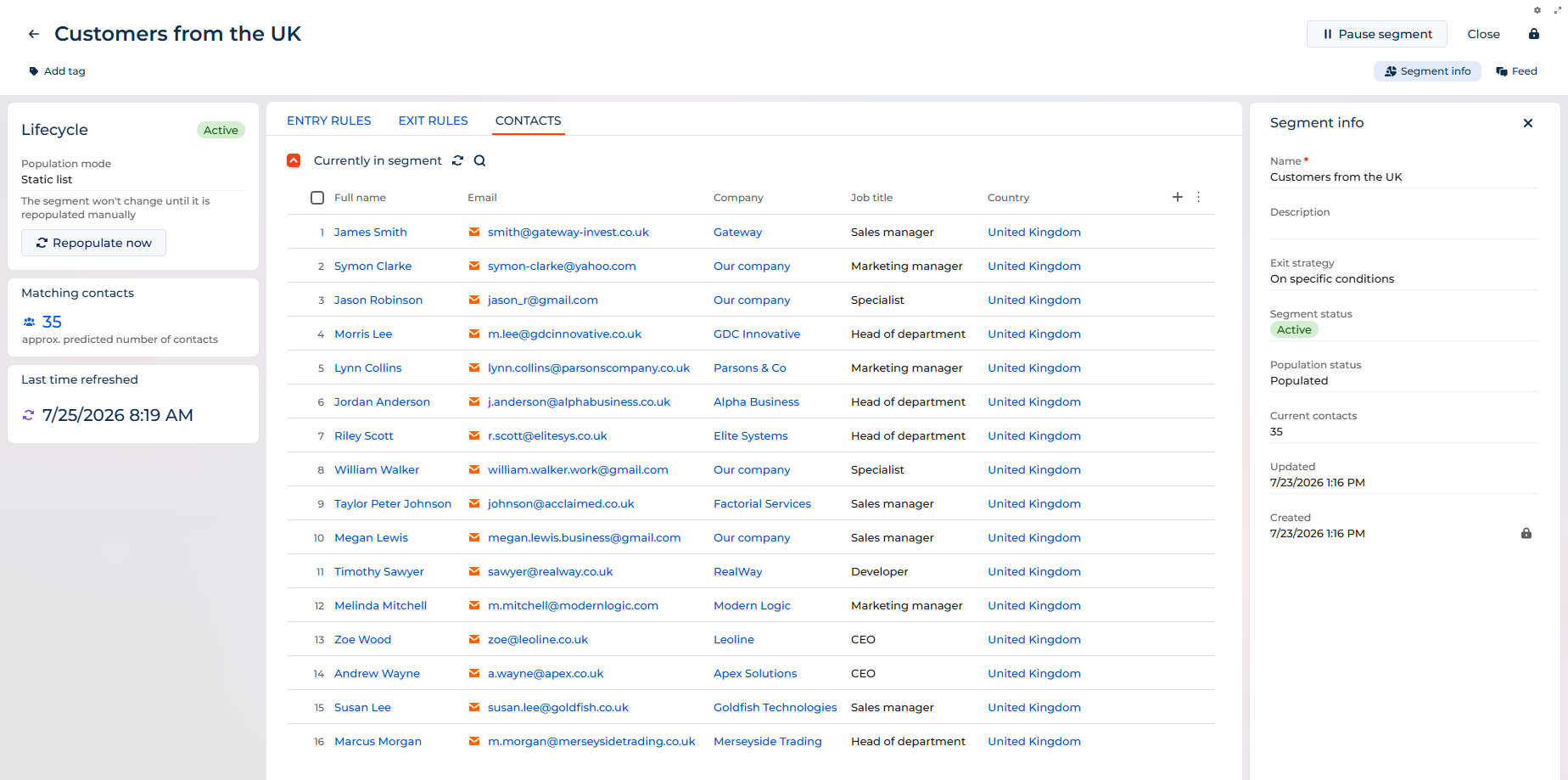
Use the list to check the audience before you use the segment in a campaign. Search the list, open or copy an individual contact, and select several contacts to run the Add tag, Remove tag, and Export to Excel bulk actions.
Using segments in campaigns and filters
A segment becomes useful once it is populated and available to the rest of Creatio.
- Active segments are available for selection in marketing campaigns. Draft and paused segments are not.
- Segments are available in standard Creatio filters across sections that support segment-based filtering, so you can filter records by whether a contact belongs to a given segment. A segment that is still a draft or is being recalculated returns no contacts to the filter.
Key considerations
- The current release supports contact segments only. The Segment of value is fixed to "Contacts."
- You cannot set the segment status by editing a field. Use the dedicated Activate segment, Pause segment, and Resume segment action buttons.
- The current release supports manual refresh only. Scheduled or automatic re-population is not available.
- Segment rules cannot be edited while the segment is active. Pause the segment first.
- Segment names must be unique across the Segments section.
- An administrator must add the Segments section to a workplace before it appears in the navigation. Learn more: Set up and manage segments.