Set up business rules for mobile pages
This functionality is available for mobile pages in Freedom UI since desktop app version 8.3.2 and later. For mobile pages in Classic UI, add business rules using low-code tools. Learn more: Mobile app business rules basics (developer documentation).
Business rules control the UI behavior and business logic of mobile pages in the Creatio Mobile app. You can specify conditions and actions to take when those conditions are met.
The Creatio Mobile app uses business rules on two levels. Object-level rules apply to every page that uses the corresponding object, including mobile pages. They work in the Creatio Mobile app both online and offline. Page-level rules apply only to the page for which you set them up. Set up page-level rules for a mobile page in Freedom UI Mobile Designer. Learn more about the actions available on each level: Set up business rules.
Before you set up business rules, set up the mobile page. Instructions: Set up mobile pages in Freedom UI Mobile Designer.
Set up a business rule for a mobile page
-
Click
 in the top right → Application Hub.
-
Open the app.
-
Open the mobile page.
-
Open the business rules setup page: click the
 button in the top left. Page-level rules of the mobile page are in the Page business rules group. Object-level rules are in the group named after the object, for example, Requests business rules (Fig. 1).
Fig. 1 Business rules of a mobile page 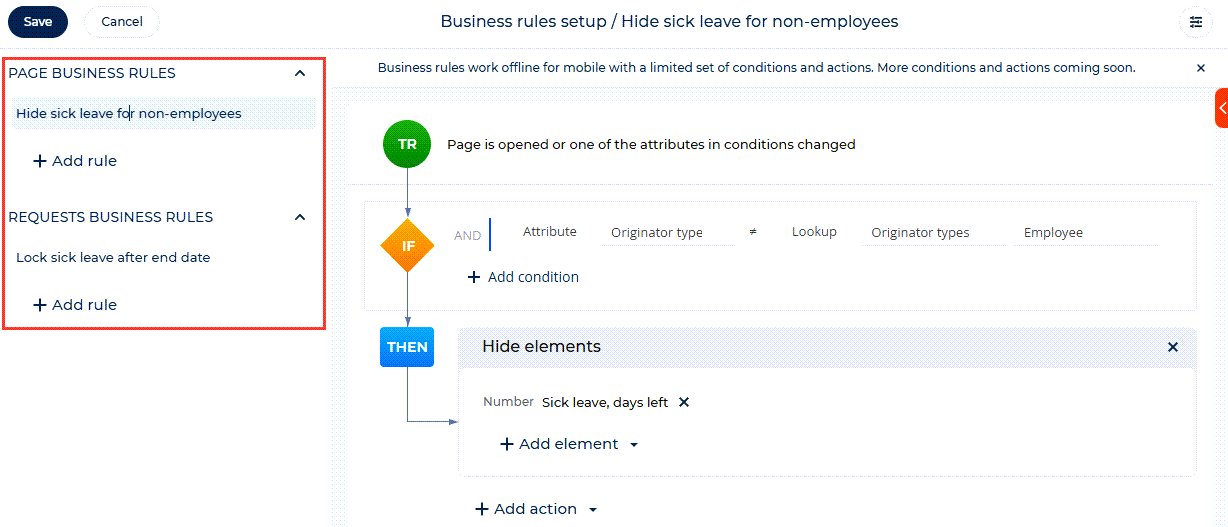
-
Click Add rule in the group to which to add the rule.
-
Set up the rule conditions and actions.
Conditions of a page-level rule use the attributes added to the mobile page. Conditions on "Integer" attributes support the following operators, including in offline mode: "is filled in," "is not filled in," "=," "≠," "<," "≤," ">," "≥."
-
Save the business rules.
-
Save the page.
As a result, Creatio applies the business rules to the mobile page. After synchronization, mobile users see the rule results in the Creatio Mobile app or in an emulator. Object-level rules that you set up here also apply to every Freedom UI page that uses the corresponding object, including desktop pages. Learn more about setting up rule conditions and actions: Set up business rules.
See also
Set up mobile pages in Freedom UI Mobile Designer
Overview of Freedom UI Mobile Designer and its elements
Mobile app business rules basics (developer documentation)