Set up mobile app workplaces
This functionality is available for Creatio 8.3.3 and later. If you use Creatio 8.3.2 or earlier, set up mobile app workplaces using the Classic UI. Learn more: Set up mobile app workplaces (Classic UI).
Configure workplaces for the Creatio mobile app directly in the Workplace setup section. This lets you define which sections mobile users can see, assign access by user group, and manage both web and mobile workplaces from a single place. Once configured, users can switch between mobile workplaces using swipe gestures without a full data resynchronization.
For new customers, mobile workplace setup is enabled out of the box. For existing customers on Creatio 8.3.3, enable the Mobile.UseSysWorkplaceForModuleRegistration additional feature to make it available. If your users are currently working with legacy mobile workplaces other than "Main workplace" (for example, "Field force workplace"), they need to switch their current workplace to "Main workplace" in the mobile app settings after you enable the feature. This is required for them to see the full list of sections. Learn more: Manage an existing additional feature.
Add a mobile app workplace
-
Click
 to open System Designer.
 -
Go to Set up view → Workplace setup.
-
Click New user workplace → General. This opens the workplace setup page.
Fig. 1 Mobile workplace setup page 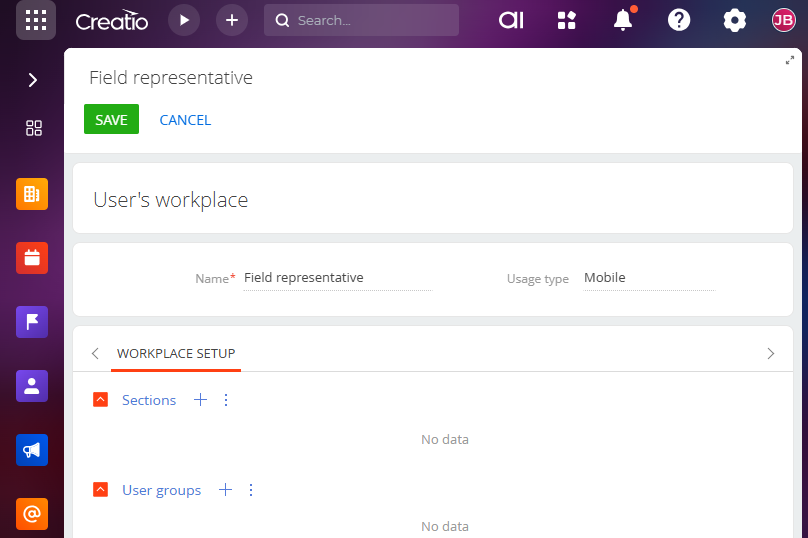
-
Enter the workplace name in the Name field.
-
Change the value in the Usage type field to "Mobile."
-
Save the changes.
As a result, Creatio will add a new mobile workplace. Proceed to add sections and assign user access.
Manage sections in the mobile workplace
-
Open the workplace and go to the Sections detail.
-
Click the
 button on the detail toolbar. This opens a window.
 -
Select the required sections → Select.
Fig. 2 Select sections for the mobile workplace 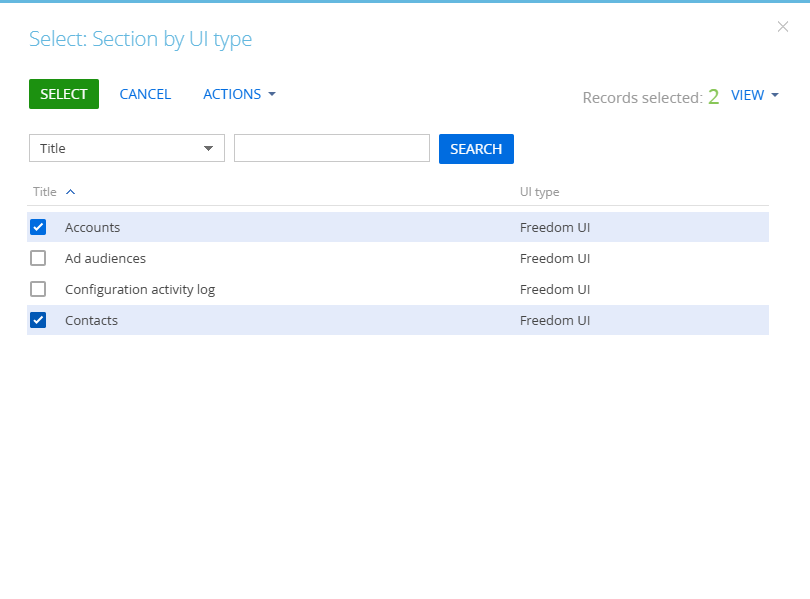
-
Save the changes.
-
To change the order in which sections appear in the mobile app, select a section record and click
 or
or  .
.Fig. 3 Reorder sections 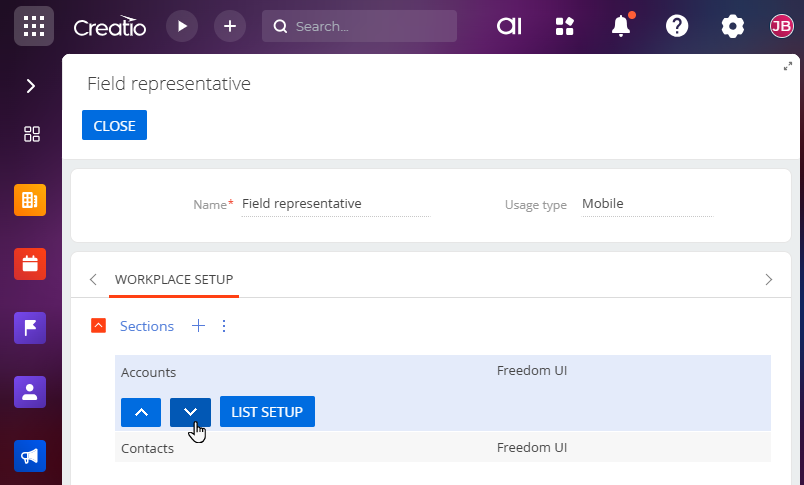
-
To remove a section, select the record → click
 → Delete → Save the changes.
As a result, Creatio will add the sections to the mobile workplace in the order you specified.
Set up user access to the mobile workplace
- Open the workplace and go to the User groups detail.
- Click the button. This opens a window.
- Select the roles or users that need access → Select.
- Save the changes.
As a result, all users of the selected roles will be able to see the mobile workplace in the Creatio mobile app after their next login.