Create an email using Creatio.ai
You can build emails faster by using Email Generation Agent as part of Creatio.ai. It can select the appropriate template, draft the element structure, apply the appropriate color palette, and fill out the email copy based on your prompt. All emails created using the agent include the linked unsubscribe button. Once an email is created, you can further tailor it to your business goals.
The agent uses an extensive template library available out of the box. It is not possible to edit the library. The agent can add placeholder images, but it does not generate or add any new custom images.
If needed, no-code creators can expand the agent by editing it and its AI Skills. Learn more: Develop Creatio.ai Agent, AI Skill development recommendations.
To create an email using Email Generation Agent:
- Click the
 button in the top right.
 - Enter the prompt, for example,
Create me an email for confirming the customer’s email address. Corporate color scheme is white and blue.
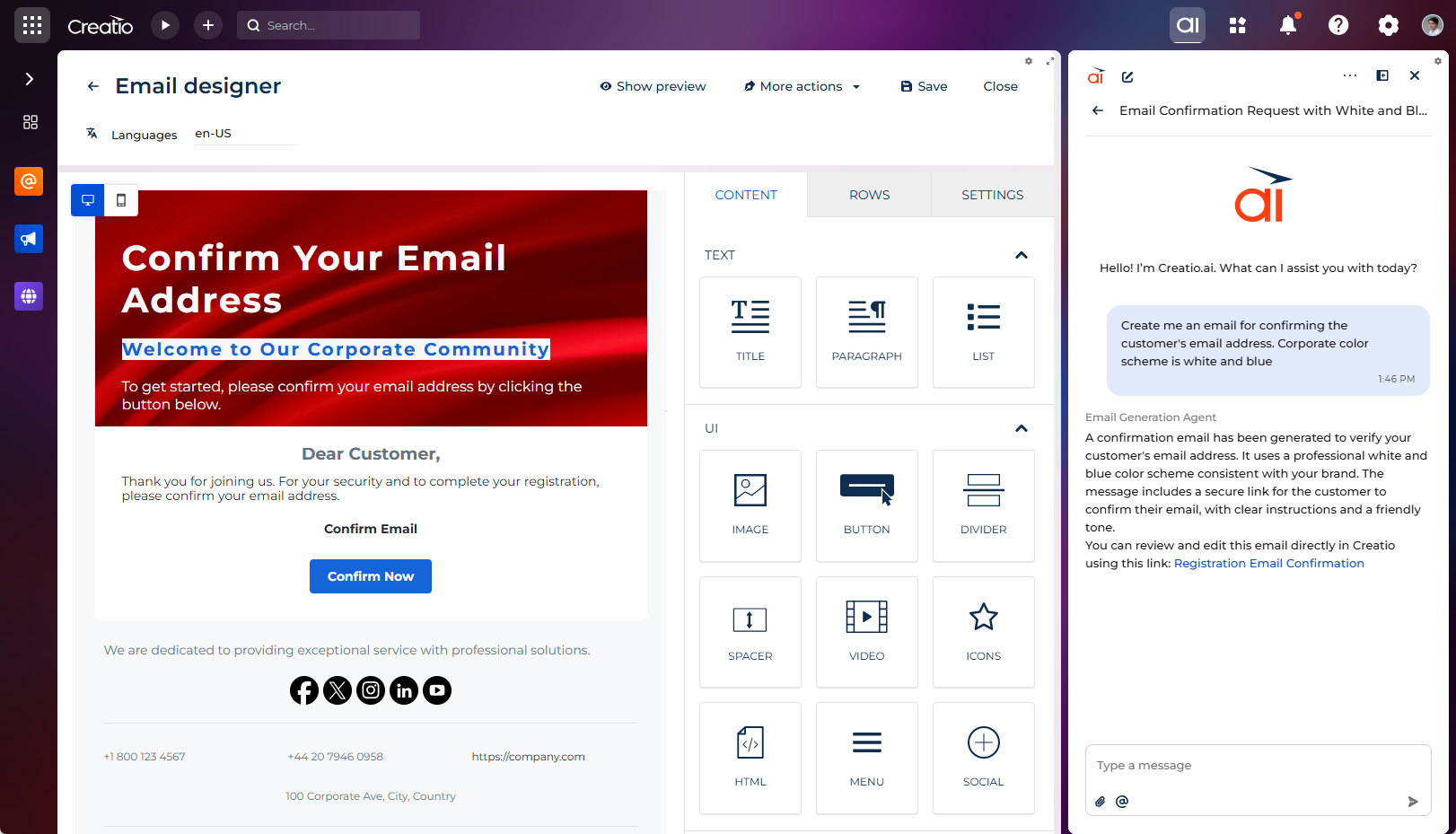
As a result, the agent will create a new email record and display the link to it. You can proceed to edit the email further similar to any other emails.
Prompt examples
In general, we recommend specifying the email type, its structure, copy, and color scheme in your prompts. View different examples below.
Help me create a simple welcome email for users right after they sign up, keeping it short and non-promotional.
Create an email to apologize to customers for an issue they experienced and reassure them that it’s being addressed. Use coffee colors.
Сreate an email announcing the new AI-assisted Smart Templates that automatically suggest field mappings and pre-fill routine sections to cut setup time by ~30%. Keep the tone practical (no hype), and explain: who gets it first (all Pro and Enterprise workspaces starting March 1), where to find it (Email Builder ▶ Templates ▶ Smart), what it changes in their workflow (fewer manual edits; reusable blocks; auto-validated placeholders), and how to opt out or give feedback (Settings ▶ Labs; feedback form link placeholder). Include a brief before/after example and a plain CTA to "Try Smart Templates."
Help me create an email sharing recent company news (see below) in a neutral, informational tone with no sales messaging. Use green colors.

Company news:
Bank has always been committed to providing exceptional customer experiences. The company prioritizes staying close to its customers, understanding them, and proactively responding to their shifting expectations.
When the bank experienced limitations in scaling customer onboarding due to manual processes and disjointed technologies, Bank started searching for innovative ways to manage operations.
By improving customer service through various banking services, the company intended to accelerate market growth. Bank decided to reimagine its IT infrastructure drastically and make the customer experience the starting point for workflow designs. The company opted for Creatio’s no-code/ low-code platform for workflow automation to support its digital transformation strategy.