Set up bulk emails on-site
Set up your email service integration with Creatio for sending bulk emails. All cloud email service settings for bulk emails are consolidated on the bulk email setup page in the Bulk emails section. You can use it to edit general settings of sending bulk emails and receiving responses, sender domains as well as to monitor the connection status.
Integrate the Creatio cloud email service (Freedom UI)
To check integration with cloud email service:
-
Go to Bulk emails section →
 → Bulk email settings (Fig. 1).
Fig. 1 Open the bulk email settings page 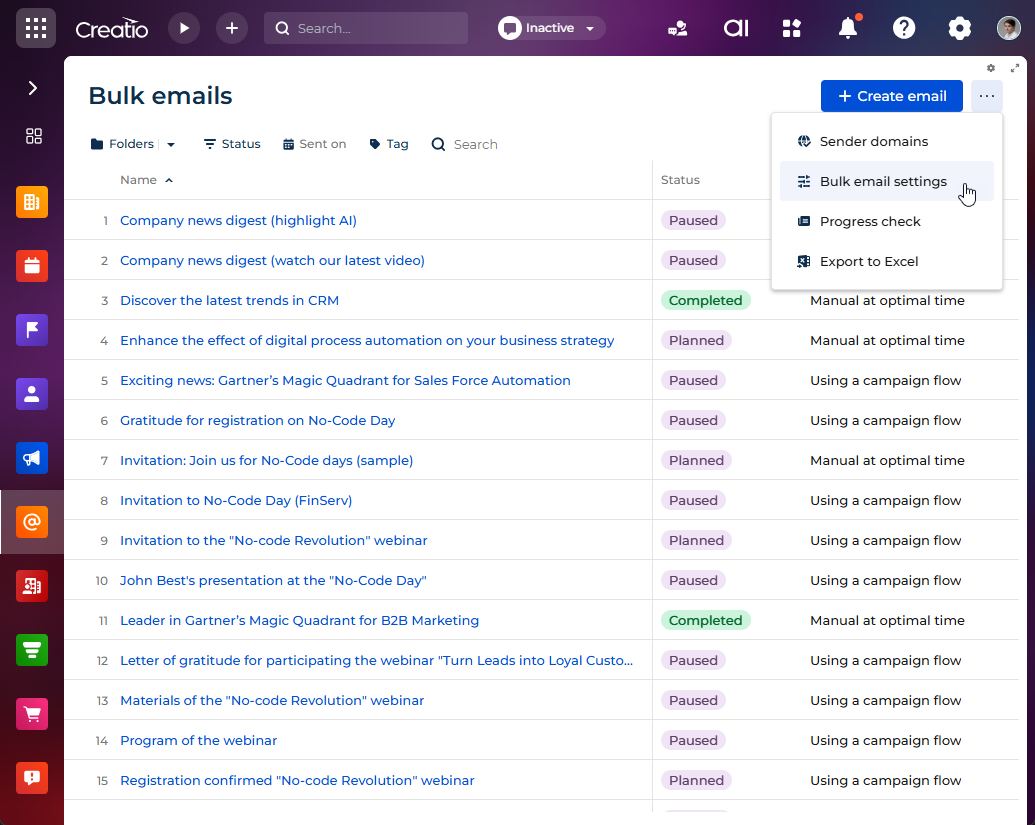
-
Fill out the fields on the General settings tab.
- Specify the bulk email cloud service address in the Creatio cloud services connection URL field. Use the following format:
https://url_address.com. - Specify your personal access key to the bulk email service in the API key field.
- Specify the domain address of your Creatio application in the Domain to receive responses field. Use the following format:
http://www.yourdomain.com. POST requests are always over port 443 regardless of the port over which Creatio is available. We recommend checking the connection to port 443 after you complete the setup. To do this, open the Creatio cloud services connection URL in thehttps://url_address.comformat in the browser. A blank page must open. If the page will not open, check whether the port is opened correctly. - Specify the authentication key for receiving responses in the Auth key field.
- Specify the bulk email cloud service address in the Creatio cloud services connection URL field. Use the following format:
-
Save the changes.
Contact support@creatio.com to change your bulk email service provider or to obtain the API key and the Auth key as well as the URL to bulk email cloud services after installing product licenses.
As a result, Creatio will populate the Email provider field with the name of your email service provider after you fill out the API key and Creatio cloud services connection URL fields.
Integrate the Creatio cloud email service (Classic UI)
To check integration with cloud email service:
-
Go to the Email section → Actions → Bulk email settings (Fig. 2).
Fig. 2 Open the bulk email setting page 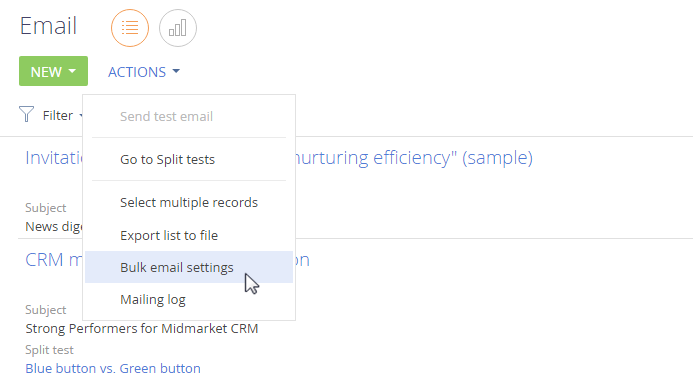
-
Fill out the fields on the General settings tab.
- Specify the bulk email cloud service address in the Creatio cloud services connection URL field. Use the following format:
https://url_address.com. - Specify your personal access key to the bulk email service in the API key field.
- Specify the domain address of your Creatio application in the Domain to receive responses field. Use the following format:
http://www.yourdomain.com. POST requests are always over port 443 regardless of the port over which Creatio is available. We recommend checking the connection to port 443 after you complete the setup. To do this, open the Creatio cloud services connection URL in thehttps://url_address.comformat in the browser. A blank page must open. If the page will not open, check whether the port is opened correctly. - Specify the authentication key for receiving responses in the Auth key field.
- Specify the bulk email cloud service address in the Creatio cloud services connection URL field. Use the following format:
-
Save the changes.
Contact support@creatio.com to change your bulk email service provider or to obtain the API key and the Auth key as well as the URL to bulk email cloud services after installing product licenses.
As a result, Creatio will populate the Email provider field with the name of your email service provider after you fill out the API key and Creatio cloud services connection URL fields.
Configure sender domain list (Freedom UI and Classic UI)
For the sender name to be displayed correctly in the bulk email and to avoid unauthorized bulk emails sent on your behalf, take the following steps:
- Go to Bulk emails section → → Bulk email settings (Fig. 1).
- Specify the list of your domains in the Default ESP email field.
- Save the changes.
- Verify each domain by using specific SPF, DKIM, and DMARK records. Learn more: Validate a sender domain for marketing emails.
Only custom email domains can be verified. Public domains, for example, gmail.com, yahoo.com, etc., cannot be verified. We do not recommend using public domains for bulk emails. Such emails have a high risk of being marked as spam and ruining the reputation of the sender IP address.
Additional settings for integration with bulk email service (Freedom UI and Classic UI)
Set up one of Creatio access options for Creatio cloud email service to ensure bulk emails work correctly:
- In the server firewall, permit receiving POST requests from the Internet to the domain where Creatio is deployed:
http://www.yourdomain.com. - In the server firewall, permit receiving POST requests from a specific web service. For example, if the application is deployed on
http://www.yourdomain.com, then the following address must be accessible:http://www.yourdomain.com/0/ServiceModel/CESWebhooksService.svc/HandleWebHooks.
You do not need to set up processing of unsubscribe requests and to check if the Creatio application server can receive GET-requests. Creatio will process unsubscribe queries automatically.
If you access Creatio over HTTPS, the application server must have an active certificate installed. In case the data transfer protocol or application address is changed, make the appropriate changes on the bulk email setup page.
We do not recommend using IP address allowlists to limit access to open ports because the Creatio cloud email Service might send analytical information about responses from different IP addresses. If the whitelist does not contain the IP address from which the analytical information is sent, such data will be lost.
When using denylists, we recommend checking that the received IP addresses are not on this list.