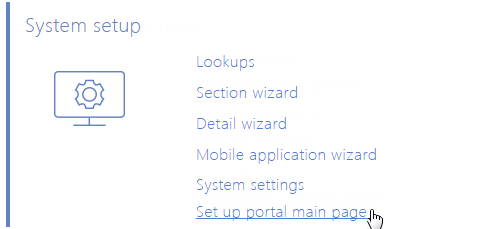
 button at the top right corner of the application. Then click the [Set up portal main page] link in the [System setup] block (Fig. 161).
How to set up the self-service portal main page
Setting up the main page of the self-service portal is performed by the system administrator in the main application.
To configure the page, open the system designer by clicking the button at the top right corner of the application. Then click the [Set up portal main page] link in the [System setup] block (Fig. 161).
Fig. 161 Switching to main portal page setup
Note
You can set up the portal main page only if you have the right to perform the "Access to portal main page setup module" system operation (CanManagePortalMainPage). To set up system operation permissions, use the [Operations permissions] section.
Setting up the portal main page is similar to setting up section analytics.
Setting up several tabs of the portal main page
On the bpm’online self-service portal, you can set up several tabs on the main page in the same manner as you set up dashboard tabs in the [Analytics] view. Besides that:
• If you set up only one tab, the tab area will not be displayed on the main page.
• If you set up several tabs, the main page will contain the tab area displaying the titles of the corresponding page tabs. In this area, the user can switch to the needed tab by clicking on its title (Fig. 162).
Fig. 162 Switching between the portal main page tabs

By default, all portal users are granted the permission to read a new panel on the portal main page. If necessary, you can change the access rights settings in the [Objects permissions] section.
Important things to remember when setting up the portal main page.
When configuring the main page of the self-service portal, the portal user access rights must be taken into account. In bpm’online customer service, the portal user access rights are limited and comply with the “least access“ principle which means that the user is prohibited to perform any action that he/she doesn't have a permission to.
If the main page contains the information that the user doesn't have the permission to read, this information will not be display on the portal. For example, if you supplement the main portal page with a chart displaying the data from the [Contacts] section.
So, when you configure the portal main page:
• Firstly, consider the default permissions that the portal user is granted. For example, you can set up the list of knowledge base articles that has been liked by the current portal user, so the list will be displayed on the portal main page.
• If you want to supplement the main portal page with the dashboards displaying the data that the user does not have a read permission for, set up the corresponding permissions in the [Object permissions] section.
Note
The list of the portal user default permissions is described in a separate article.
See also
• Self-service portal main page
• Widgets of the self-service portal main page