How to merge several companies into one holding/company group
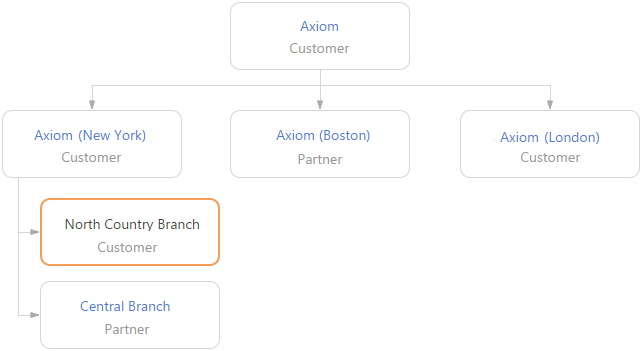
Make connections between the accounts in bpm’online to facilitate centralized communication and work flow between the accounts. Use the chart to manage relationships with the parent account and the account's affiliate companies.
To view the location of an account within the relationship structure, open the [Connected to] tab of the account page. The account you select on the scheme will be highlighted in orange (Fig. 95).
Click the  button to view the the account's relationships chart. Click the
  button to switch to the list view.
The chart only shows the “Holding company – Affiliate company” type connections of the account.
Note
You can change the type of the displayed connections using the “Parent account relationship type” system setting.
Let's create a holding company structure that includes subordinate accounts with branches. To do this:
1. Open the page of the holding account and go to the [Connected to] tab.
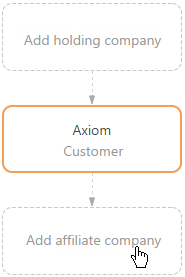
2. Click the [Add affiliate company] button (Fig. 96).
Fig. 96 Adding an affiliate company
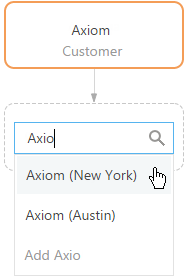
3. In the displayed field, enter the name of the affiliate company that you want to create a connection to. Select a company from the list (Fig. 97) or create a new one by clicking [New...].
Fig. 97 Connecting the holding company to the affiliate company
4. To add more affiliate companies, select the holding company in the chart and click the existing workplace, select it in the workplace list and click the “+” button (Fig. 98).
Fig. 98 Adding a second affiliate company
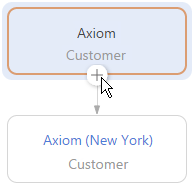
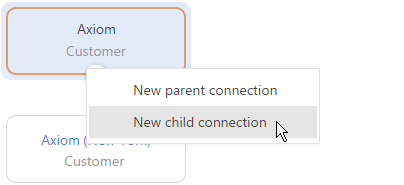
5. In the “+” button menu, select the [New child connection] item (Fig. 99).
Fig. 99 Selecting the connection type
6. In the displayed block, enter the name of the affiliate company.
7. In the similar way, add the affiliate company branches.
Note
To delete a connection between accounts, select the company connection you want to delete and click the “x” button.