The standard filter is used to search for records either in the section or on the details by the values specified in one or more columns. For example, to search for all companies of a specified type or activities that have a specified status and priority.
Contents
• Applying a standard filter for the section
• Applying multiple standard filters for the section
• Applying a standard filter for the detail
• Applying multiple standard filters for the detail
• Removing the filter panel from the detail
Applying a standard filter for the section
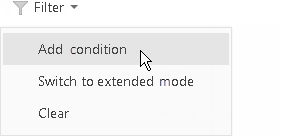
1. From the [Filter] menu, select the [Add condition] option (Fig. 31).
Fig. 31 Adding standard filter conditions for the section
2. In the appeared fields, specify a filter condition. Select a column which you want to search records by and specify the column value (fully or partially). To apply the filter conditions, click the  button (Fig. 32).
Fig. 32 Applying standard filter conditions for the section

As a result, the section list will display the records that match the applied filter condition.
Applying multiple standard filters for the section
You can apply more than one standard filter in a section. To add more filters, select the [Add condition] option from the [Filter] menu once again and specify a filter condition. Once several standard filters are applied, the list will contain only those records that match all filter conditions.
Applying a standard filter for the detail
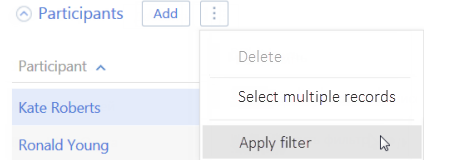
1. Select the [Apply filter] option from the  menu (Fig. 33).
Fig. 33 Adding standard filter conditions for the detail
2. In the appeared fields, specify a filter condition. Select a column which you want to search records by and specify the column value (fully or partially). To apply the filter conditions, click the  button (Fig. 34).
Fig. 34 Applying standard filter conditions for the detail

As a result, the detail list will display the records that match the applied filter condition.
Note
Applying filter condition is possible only for the details containing the list.
Applying multiple standard filters for the detail
You can apply more than one standard filter for the detail. To add more filters, click the  button and specify a filter condition. Once several standard filters are applied, the detail will contain only those records that match all filter conditions.
Removing the filter panel from the detail
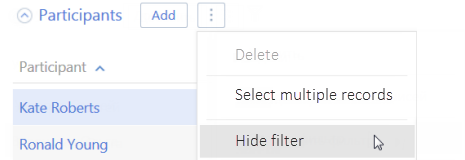
The filter panel will be automatically hidden after the page update. To hide the filter panel manually, select the [Hide filter] option in the  menu (Fig. 35).
Fig. 35 Hiding filter panel on the detail
Attention
This action is available if no other filter conditions are applied.
Note
You can expand and collapse the detail by using the  button preserving the filter conditions.
See also