How to set up an IMAP/SMTP email service provider
To add an IMAP/SMTP email service provider:
1.Got to the [Email] tab of the communication panel.
2.Select the [New account] option in the [Actions] menu.
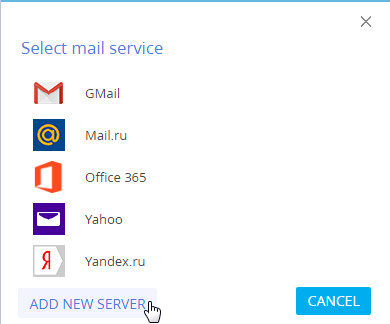
3.In the provider selection window, click the [Add provider] button (Fig. 377).
Fig. 377 Selecting an email provider
4.In the opened lookup window, select [IMAP / SMTP] from the [Add] button menu (Fig. 378).
Fig. 378 Adding a new email provider

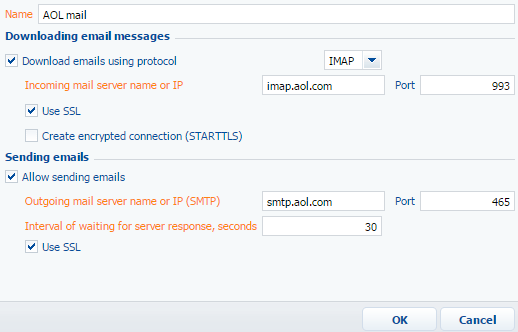
5.In the opened card (Fig. 379), enter the email service provider name, for example, “AOL mail”.
Fig. 379 The email provider page
6.Specify the email downloading parameters:
a.Select the [Download emails using protocol] checkbox. In the protocol field, the IMAP protocol is specified by default.
b.Specify the name or IP address of the incoming email server, for example, “imap.aol.com”.
c.Enter the port number to connect to the incoming mail server. To receive emails via IMAP by Gmail or Yahoo, port 993 is used.
d.If necessary, select the [Use SSL] or [Create encrypted connection (STARTTLS)] checkbox for secure connection.
7.Specify the email sending parameters:
a.Select the [Allow sending emails] checkbox.
b.Specify the name or IP address of the server for sending emails, for example, “smtp.aol.com”.
c.Enter the port number for connecting to the smtp-server. As a rule, the port 465 (if the server supports encryption), 587 or 25 is used.
d.Specify the response time from the email send server (by default, 40 seconds).
e.If necessary, select the [Use SSL] checkbox for secure connection.
8.Specify the login parameters:
a.Select the [Enter name manually] option, if a user must enter their email address and username manually.
b.Select the [Use email as username] option, if a portion of the email address before the “@” symbol should be used as a username. For example, for the “example@google.com” email address, the username is “example”.
c.Select the [Use email as login] option, if the full email address should be used a username, for example, example@google.com.
9.Select an image file in the [Logo] field to use as the provider logo if desired.
10.Save the page.
See also
•How to configure email accounts in bpm’online
Video tutorials