How to start a global duplicate search
A global search can be started manually or automatically.
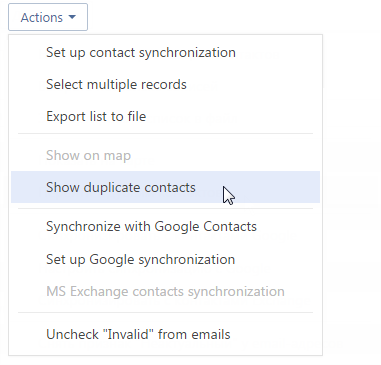
Manual duplicate search is performed using the [Show duplicate contacts] and [Show duplicate accounts] options in the [Actions] menu. After the search is complete, bpm'online displays a list of potential duplicates. After the search bpm'online displays a list of potential duplicates.
How to start a global duplicate search
1.Open the section that you need to check for duplicates.
2.Select the [Show duplicate accounts] or [Show duplicate contacts] option in the [Actions] menu (Fig. 102).
Fig. 102 Switching to the contact page using the section action menu
The duplicate contact or account page will be displayed. The page displays results of the previous duplicate search. You can process results of the previous duplicate search before starting a new one.
3.Select the [Run duplicate contacts search] or [Run duplicate accounts search] options in the [Actions] menu of the duplicate search page.
The duplicate search will be started in the corresponding section. If you close the duplicate search page, the search will run in the background.
After the duplicate search is finished, a system notification is displayed in the communication panel.
Open the link in the notification to view the results of the duplicate search. You can also open this page in several other ways:
Go to the section from which the duplicate search was started and select the [Show duplicate contacts] or [Show duplicate accounts] option from the [Actions] menu.
Open the system designer by clicking the  button, press the [Setup duplicates rules] link and select the [Show duplicate contacts] or [Show duplicate accounts] option from the [Actions] menu.
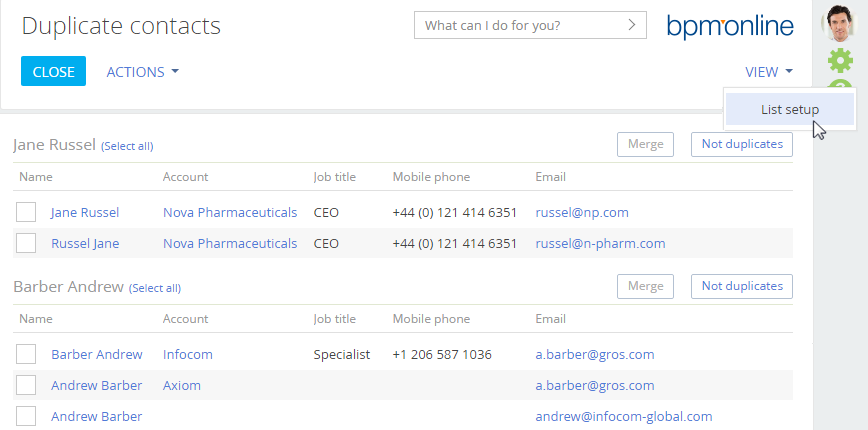
Duplicate records that were found based on the active duplicate rules are grouped by similarity (Fig. 103).
Note
The pre-configured rules for duplicate search are described in a separate article.
Fig. 103 Duplicate search results example in the [Contacts] section
Note
To set up columns displayed in the list of duplicates, click [View] and select [List setup].
You can merge each group of records into a single record or indicate that the records in the group are not duplicates. They will be added into the list of exceptions for the next duplicate search.
To merge duplicates:
1.Select the records that you consider to be duplicates.
Fig. 104 Selecting duplicates for merging

2.Click the [Merge] button.
All selected records in the group will be merged into one that contains all the unique data from the records. If same field contains different data for the selected records, bpm'online will prompt you to select which data needs to be saved. Read more
To add records to the list of exceptions, click the [Not duplicates] button for the group containing only unique records.
Fig. 105 Example of records which are not duplicates

As a result, bpm'online will not consider records in the group as potential duplicates for the next duplicate search.
See also
•How to search for duplicates when saving accounts and contacts,and leads
•How to set up rules and schedule for a global duplicate search