Finding and merging duplicates
In bpm’online sales, you can search for duplicates and eliminate them in order to better manage your customer database. This functionality is available in the [Accounts] and [Activities] sections.
When creating new records, the system automatically checks for duplicates. You can also schedule periodic duplicates searches for contacts and accounts.
For the [Accounts] section the search is done by values in the [Account name] and [Also known as] fields, as well as in the fields from the [Communication options] detail. For the [Contacts] section the duplicates search is done by values in the following fields: [Contact name], [Mobile phone], [Home phone], [Skype], and [Email]. The record is considered to be a duplicate in case the value at least in one of the mentioned fields is completely identical to the corresponding value in another record.
On the duplicates page you can perform the following actions for accounts and contacts:
• Launch a duplicate search and join or delete any the resulting duplicate records if found.
• Set up the parameters of the duplicates search.
Contents
• Starting the duplicates search
• Merging the duplicated records
Starting the duplicates search
1. Open the [Accounts]/[Contacts] section.
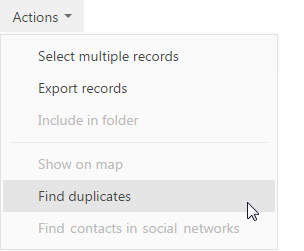
2. Select the [Find duplicates] command in the [Actions] menu (Fig. 76).
Fig. 76 Opening the duplicates search page
3. Click the [Start searching] button on the accounts/contacts duplicates page.
As a result, the system will start searching for duplicates. The information string will display the percentage of the processed records.
Once the duplicates search is completed, the accounts/contacts duplicates page will display all the duplicates found. Process these records: distinguish unique records from duplicates and remove the duplicates.
To analyze the records found:
1. Open the [Accounts]/[Contacts] section.
2. Select the [Find duplicates] command in the [Actions] menu.
3. On the duplicates page for accounts/contacts find the record that should be processed.
4. Click  to open the list of possible duplicates for this record.
5. Analyze whether these records duplicate the information in the root record (Fig. 77).
Fig. 77 Possible duplicates of the selected record

6. Process the possible duplicates of the root record:
Option 1. The subordinate record is not a duplicate
a. Select the root record and the subordinate one.
b. Click the [Not duplicates] button (Fig. 78).
Fig. 78 Indicating records as unique
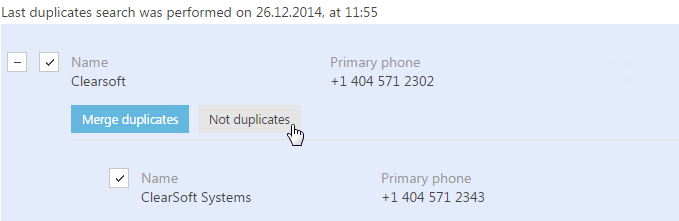
As a result, the selected subordinate record will be removed from the duplicates list and will no longer be used in searching for duplicates of the root record.
Option 2. The subordinate record is a duplicate
a. Select the root record and the subordinate one.
b. Click the [Merge duplicates] button.
c. Perform the duplicates merging.
As a result, the system will contain only one record. All objects that have been connected to the merged records will now be connected to this record. For example, if you are merging two accounts and there are a few tasks connected to the first account and some contacts connected to the second one, after you have merged these two accounts. The tasks from the first record and contacts from the second one will be combined in the resulting merged record.
Merging the duplicated records
1. Open the [Accounts]/[Contacts] section.
2. Select the [Find duplicates] command in the [Actions] menu.
3. On the duplicates page for accounts/contacts, select the records that should be merged.
4. Click the [Merge duplicates] button.
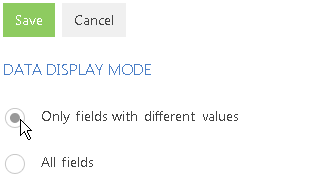
5. The duplicates merging page for accounts/contacts will open. Select the data display mode, for example, “Only fields with different values” (Fig. 79).
Fig. 79 Selecting the data display mode
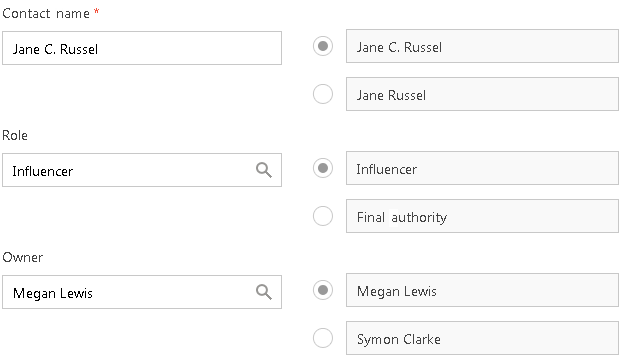
6. Use the  options on the right to select the values that should remain in the system after merging (Fig. 80).
Fig. 80 Selecting the resulting values
7. If necessary, edit the information in the [Communication options] and [Addresses] details.
8. Click the [Save] button to complete the merging of duplicates.