 button at the top right corner of the application. In the system designer, click the [Lookups] link.
1.Open the system designer, for example, by clicking the button at the top right corner of the application. In the system designer, click the [Lookups] link.
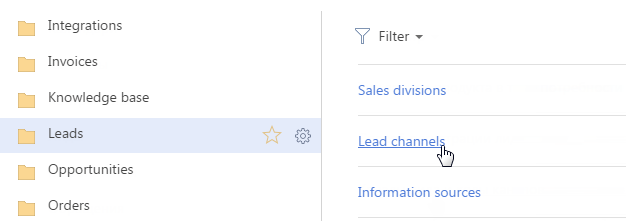
2.In the [Leads] field group, open the [Lead channels] lookup.
Fig. 130 Opening the [Lead channels] lookup
3.Add a new lookup record by clicking the [Add lead channel] button. In the displayed string, enter the channel name, for example “Partner sale” and click the  button on the toolbar (Fig. 131).
Fig. 131 Saving the new channel in the lookup

4.Click the  button on the toolbar to open the page of the record that you created.
5.On the [Lead channel code] tab, click the [Add] button. On the opened page, enter the “utm_medium” marks to be used to identify the selected channel, for example, “affiliate” (Fig. 132). Save the page.
Note
The rules of defining a lead source and channel are described in a separate article.
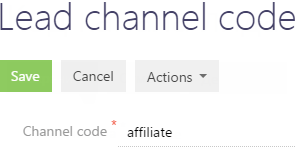
In the same way, you can add other values for the “utm_medium” marks to be used for the channel identification.
As a result, the channel will be saved in the lookup. It will be used to identify the channel during the lead tracking. In our case, when the “http://site.com/page?utm_medium=affiliate” redirection URL is received, the lead channel will be filled in with the “Partner sale” value.
See also
•How to add a website as a source
•How to identify the lead source and channel using the tracking feature