Creatio.ai skill permissions
In Creatio, you can set up permissions for Sub-agents. You can also transfer these permissions between environments using Creatio’s data binding mechanism.
Configure default execution permissions
Creatio assigns default execution permissions for all newly-made Sub-agents. You can edit them later if needed. To change which users or roles receive the default permissions, configure the Default schema operation right lookup. To do this:
-
Open the AI command center workplace → Creatio.ai skills.
-
Open the Default schema operation right lookup.
-
Click New. This adds a new lookup record. Fill out the fields of the record as follows:
Field
Value
Name
CopilotIntentSchemaManagerDescription
Arbitrary value
User/role
The user or role who must have default execution permissions for new Sub-agents
Operation type
7 (Execute)
-
Save the changes.
Configure execution permissions for an existing Sub-agent
If an Sub-agent has no permissions configured, Creatio grants default permissions when you install the Sub-agent for the first time.
You can modify the execution permissions for an existing Sub-agent directly from the skill list. To do this:
- Open the AI command center workplace → Creatio.ai skills.
- Open the relevant Sub-agent.
- Expand the Permission to execute expanded list → New. This opens a window.
- Select the needed role → Select.
- Save the changes.
Grant file upload permissions to external users
External users must be granted explicit permissions to upload files and run Sub-agents. To do this:
-
Make sure the "Can run Creatio.ai" (
CanRunCreatioAIcode) system operation permission is enabled for external users. Learn more: System operation permissions. -
Make sure external users have permission to use Sub-agent.
-
Update the following system settings to allow access for external users:
- "Maximum session file size, in MB" (
CreatioAIMaxSessionFileSizecode) - "Allowed file extensions" (
CreatioAIAllowedFileExtensionscode) - "Session file content size limit" (
CreatioAISessionFileContentSizeLimitcode)
Learn more: Manage system settings. Ensure these settings are reviewed and configured carefully to avoid granting excessive access to external users.
- "Maximum session file size, in MB" (
Transfer default permissions between environments
To transfer the default execution permissions, create data bindings for the SysSchemaDefOperationRight database table and transfer the package. To transfer execution permissions for existing Sub-agents, create bindings for the SysSchemaOperationRight database table and transfer the package. Learn more: Configuration elements of the Data type (developer documentation), Transfer packages (developer documentation).
Attach access permissions to Sub-agents for package export
If you need to export Sub-agent access permissions together with the Sub-agent package, take the following steps:
-
Click
 to open the System Designer.
 -
Go to the Admin area block → Advanced settings.
-
Select the target package in the left area. For example,
TestPackage. -
Click Add → Data.
-
Search for and select
SysSchemaOperationRightin the Object field. -
Set Name to a unique ID, for example,
SysSchemaOperationRight_myCustom. -
Open the Bound data tab.
-
Click Add → Schema unique identifier.
-
Open the skill page in a different tab and copy the GUID from the browser address bar (Fig. 1).
Fig. 1 GUID of an Sub-agent 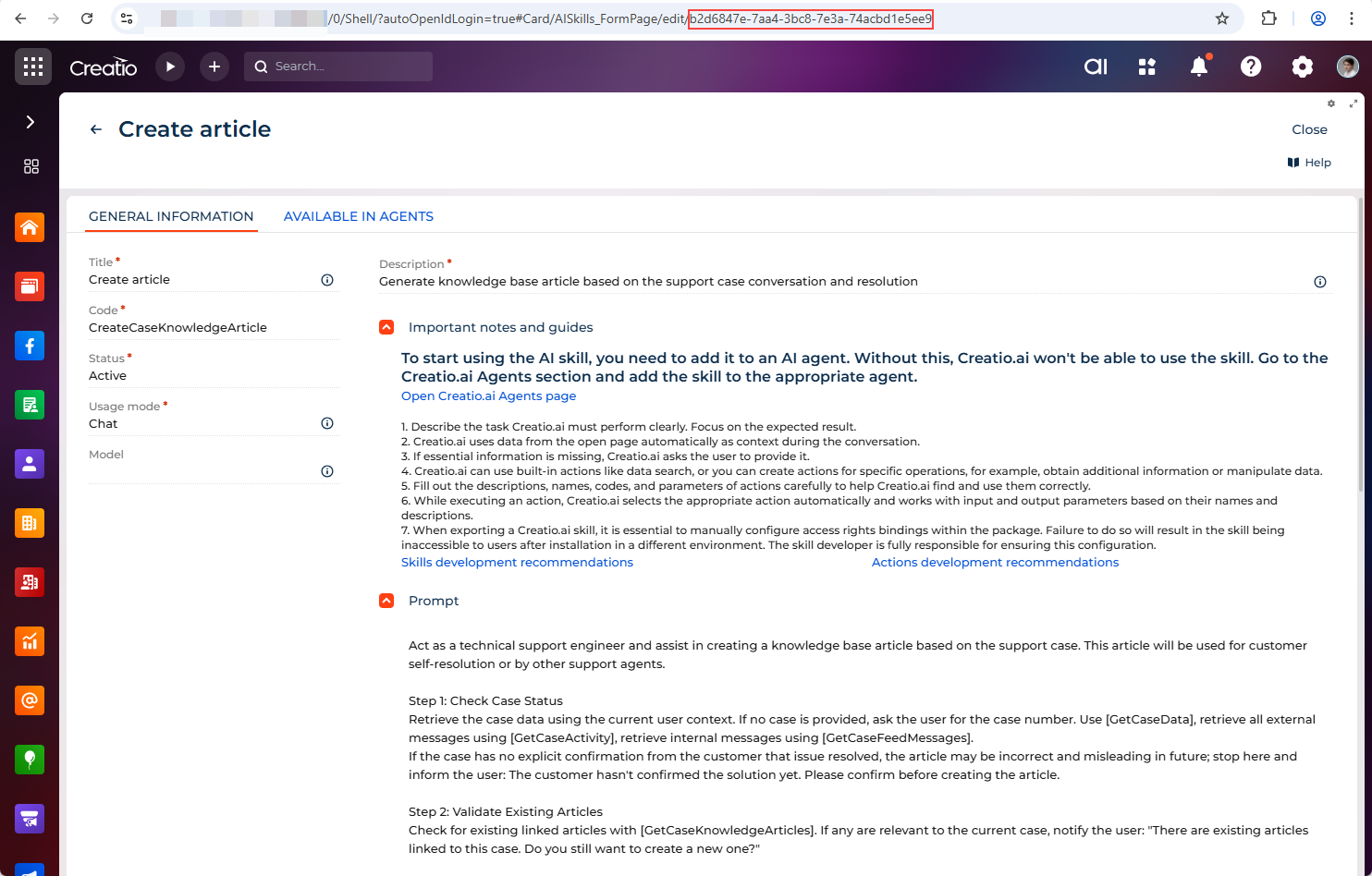
-
Return to the configuration screen, search by GUID, and select the skill.
-
Save the changes.
As a result, Creatio will add the data configuration item linked to your Sub-agent to the package.
See also
Configuration elements of the Data type (developer documentation)
Transfer packages (developer documentation)