Telephony integration basics
Creatio integrates with automatic telephone exchanges (Private Branch Exchange, PBX). This lets users make, receive, and process calls directly in Creatio, without switching to a separate phone application, and keep the full call history next to the related customer records. Users work with calls in the "Calls" sidebar of the communication panel and in the Calls section.
The "Calls" sidebar of the communication panel provides the following functions:
- Show incoming calls and identify the contact or account by the subscriber's phone number.
- Make calls from Creatio UI in one click.
- Manage calls: answer, place on hold, end, or transfer a call.
- Show call history to connect calls to Creatio records and follow up on calls.
Creatio stores all incoming and outgoing calls in the Calls section. In this section, you can view when a call started and ended, how long it lasted, and which Creatio records are connected to the call. Learn more: Phone integration connectors (user documentation).
By default, Creatio in the cloud lets users call each other in the browser without a PBX or any additional software.
Creatio uses different architectural mechanisms depending on the integrated phone system and the specifics of its API. The API also affects the available phone integration functions. For example, call playback is not available for all phone systems, and among PBX integrations, only Webitel provides a web phone. Regardless of the integration mechanism, the "Calls" sidebar of the communication panel looks the same for all Creatio users.
Ways to integrate Creatio with a phone system
Creatio supports the following ways to integrate with a phone system:
- First party integration. Each user has a separate integration connection. Creatio handles phone system events as part of that connection.
- Third party integration. Creatio uses a single connection to the phone system server to handle phone system events for all users. An intermediate Creatio Messaging Service (CMS) link distributes information streams to all users.
The integration way depends on the phone connector, not on the developer's choice. The table below lists the out-of-the-box phone connectors and their integration ways.
Integration way | Phone connectors |
|---|---|
First party integration | Webitel, Cisco Finesse |
Third party integration | Asterisk, Avaya, CallWay, CTIOS, Infinity, TAPI |
First party integration using the JavaScript adapter
When you integrate using the JavaScript adapter on the client side, Creatio works with the phone system directly from a web browser. Creatio interacts with the phone system and the JavaScript library, usually supplied by the phone system manufacturer, through the phone system API. The library broadcasts events and accepts execution commands using JavaScript. In this integration, the Creatio page interacts with the application server for authentication using the HTTP(S) protocol.
The diagram below shows the interaction between the structural elements of the phone integration when integrating using the JavaScript adapter.
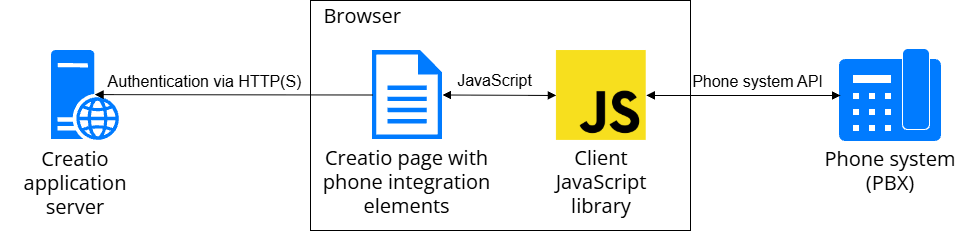
You can use this integration method with a first party phone system API, for example, Webitel or Cisco Finesse. The Webitel connector uses WebSocket as the connection protocol, while the Cisco Finesse connector uses long-polling HTTP queries. Learn more: WebSocket, long polling (Wikipedia).
The first party integration method does not require any additional nodes, such as CMS. The "Calls" sidebar of the communication panel uses an integration library to connect directly to the phone system server API from a browser on the user's PC.
For incoming calls, the phone system server passes the new call start event and call parameters through WebSocket to the client integration library. When the library receives the new call event, it generates the RingStarted event and passes it to the application page.
For outgoing calls, the client integration library generates the call start command and passes it through WebSocket to the phone system server.
Third party integration using CMS
When you integrate using CMS on the server side, all phone integration events pass through CMS. CMS interacts with the phone system through the manufacturer's library, and the library interacts with the phone system through the API. CMS also interacts with the Creatio application server using HTTP(S) to run queries that save call information to the database. CMS passes events to and receives commands from the client application via WebSocket. The Creatio page interacts with the application server for authentication using HTTP(S).
The diagram below shows the interaction between the structural elements of the phone integration when integrating using CMS.
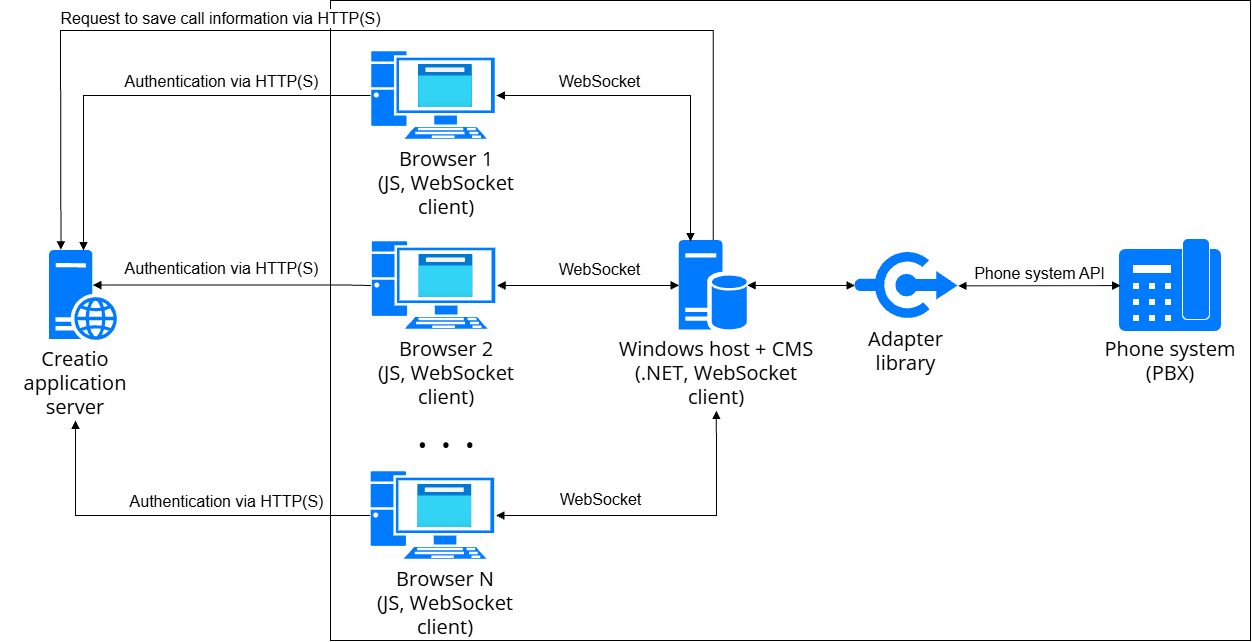
This integration method applies to third party phone system APIs, for example, TAPI or TSAPI. This integration method requires CMS, a Windows proxy service that works with the phone system adapter library. CMS is a universal host for the libraries of third party phone connectors: Asterisk, Avaya, CallWay, CTIOS, Infinity, and TAPI. When CMS receives client messages, it automatically connects the required Creatio library and starts the connection to the phone system. CMS is a functional wrapper for phone integration connectors that do not support client integration for working with phone functions in browsers (event generation and handling, data transfer). The user's PC uses the following connections:
- HTTP(S) connection to the Creatio application server. The user logs in to the telephony session on the CMS host through the application server.
- WebSocket connection for working directly with phone integration.
For incoming calls, the phone system passes the new call start event and call parameters through the adapter library. When CMS receives the new call event, it generates the RingStarted event and passes it to the client.
For outgoing calls, the client generates a call start command and passes it via WebSocket to CMS. CMS generates an outgoing call message for the phone system.
Interaction between the phone connectors and Creatio
All connectors interact with the configuration through the CtiModel class. The class handles the events received from the connector.
Each connector is implemented on the client side as a provider class that inherits the Terrasoft.BaseCtiProvider class. When a user logs in, the CtiProviderInitializer module loads the provider module specified in the system setting of the integration library and calls its init method. During the connector operation, the provider handles the phone system events and generates the connector events described in the Terrasoft.BaseCtiProvider class. To manage calls, the provider implements the abstract methods of the Terrasoft.BaseCtiProvider class. Learn more about connector-specific implementation: Asterisk integration basics, Webitel integration basics.
The diagram below shows the interaction between phone connectors and Creatio.

The table below lists the events that the CtiModel class supports.
Event | Description |
|---|---|
initialized | Triggered on completion of provider initialization. |
disconnected | Triggered on provider disconnection. |
callStarted | Triggered at the start of a new call. |
callFinished | Triggered after call completion. |
commutationStarted | Triggered after establishing a call connection. |
callBusy | Triggered on changing call status to "busy" (TAPI only). |
hold | Triggered after placing a call on hold. |
unhold | Triggered after resuming a call. |
error | Triggered on errors. |
lineStateChanged | Triggered after changing available operations for a line or a call. |
agentStateChanged | Triggered on changing the agent status. |
activeCallSnapshot | Triggered on updating the list of active calls. |
callSaved | Triggered after creating or updating a call in the database. |
rawMessage | Generic provider event. Triggered on any provider event. |
currentCallChanged | Triggered on changing the main call. For example, the primary call ends during a consultation. |
callCentreStateChanged | Triggered if an agent enters or exits Call center mode. |
callInfoChanged | Triggered on modifying call data identified by the database ID. |
dtmfEntered | Triggered if DTMF signals are sent to the phone line. |
webRtcStarted | Triggered on a WebRTC session start. |
webRtcVideoStarted | Triggered on a WebRTC video stream session start. |
webRtcDestroyed | Triggered on a WebRTC session end. |
Phone connector license check
All out-of-the-box phone connectors require a phone connector license. Since version 10.1, connectors that work through CMS check the license. If the connector is enabled but the license is missing or expired, Creatio shows the reason in the "Calls" sidebar of the communication panel. The browser console logs the "There is no phone connector license or it has expired" message, and the connector stops reconnecting. This lets administrators of Creatio on-site and in the cloud see right away that telephony does not work because of licensing, without investigating CMS logs.
To restore telephony, add or renew the phone connector license, then refresh the page to reconnect. Learn more: Licensing (user documentation).
Server stack traces do not reach the browser console. To get them for incident analysis, register the LogTelephonyStackTrace additional feature and enable it for all users. Creatio then writes the full exception text, including server stack frames, to the raw message log. The browser console message does not change. Learn more: Add a custom additional feature in the front-end, Change the status of an additional feature for all users.
See also
Phone integration connectors (user documentation)
Licensing (user documentation)