Static content bundling service
Fast page loading keeps users productive and improves their experience with Creatio. To display the Creatio UI, the browser loads static content, i.e., *.js and *.css files located in the Creatio file system. *.js files can include code of "Client module" type schemas or other JavaScript data. If the browser must initially load a large amount of static content, pages take longer to open. The static content bundling service reduces the size and number of static files, so Creatio pages load faster. Out of the box, Creatio retrieves client content from pre-generated static files, i.e., the UseStaticFileContent flag in the "Web.config" file (for .NET Framework) or "Terrasoft.WebHost.dll.config" file (for .NET) is set to "true." Learn more about features of static content: Packages file content basics. If you use Creatio in the cloud, the static content bundling service is deployed out of the box.
The following table lists the ways Creatio reduces page loading time.
Way | Description |
|---|---|
Minification | Reduces the size of *.css, *.js, and *.html files. This implies removal of commented out code as well as superfluous line breaks, leading and trailing spaces. This reduces the size of the original file by 10-20%. |
Bundling, i.e., generating bundled files | Optimizes the performance by combining the static files of the same type into a single bundled file. Reduces the number of requests. |
Static content bundling service executes both minification and bundling. Most web applications are delivered with minified and bundled files. Since the Creatio configuration and static content can change during the life cycle, the service runs minification and bundling automatically when necessary.
Architecture of static content bundling service
The following table lists the bundling service elements.
Element | Description |
|---|---|
ContentService | The service that minifies and bundles Creatio files. Deployed independently of Creatio. |
ContentWatcher | A utility that interacts with Creatio files and |
To improve performance, Creatio generates minified bundled files out of the box.
The following figure shows the bundling service flowchart.
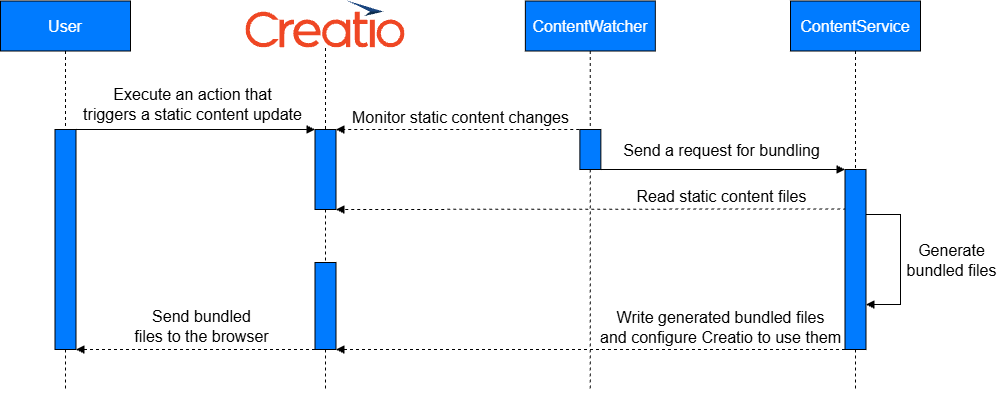
The following figure shows the bundling service workflow.
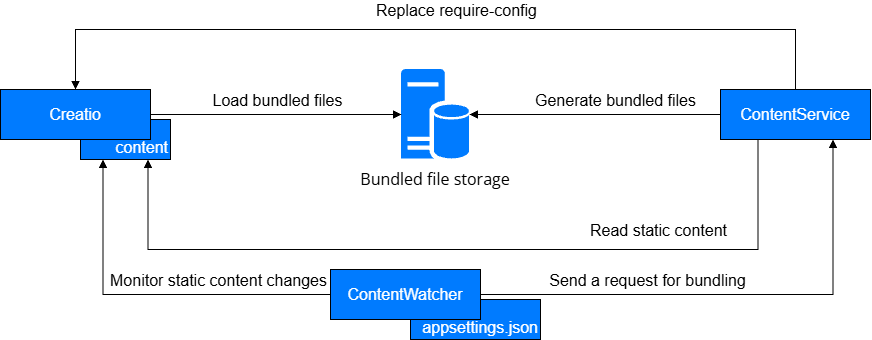
ContentService
ContentService can be paired with ContentWatcher or work independently. If the ContentService works independently, access the endpoints manually or using a third-party automation, for example, when deploying or updating Creatio. Learn more: ContentService endpoints.
The bundling service does not require a change in the ContentService configuration to work correctly. Out of the box, the bundling service is configured optimally, but you can change the settings to boost performance or enable additional functionality. Learn more: ContentService settings.
ContentWatcher
ContentWatcher works as follows:
- Watches for changes to the "_MetaInfo.json" file that Creatio changes when static content is updated.
- Sends a notification to
ContentServiceabout a pending bundling and passes the appropriate parameters to the service.
ContentWatcher can track changes to any file, send a notification to any URL, and monitor multiple Creatio instances. To orchestrate Creatio, ContentWatcher, and ContentService correctly, configure ContentWatcher. Learn more: ContentWatcher settings.
Interaction between bundling service elements and Creatio
The following figure shows the interaction diagram of ContentService, ContentWatcher and Creatio that uses common settings and is deployed using the default configuration.
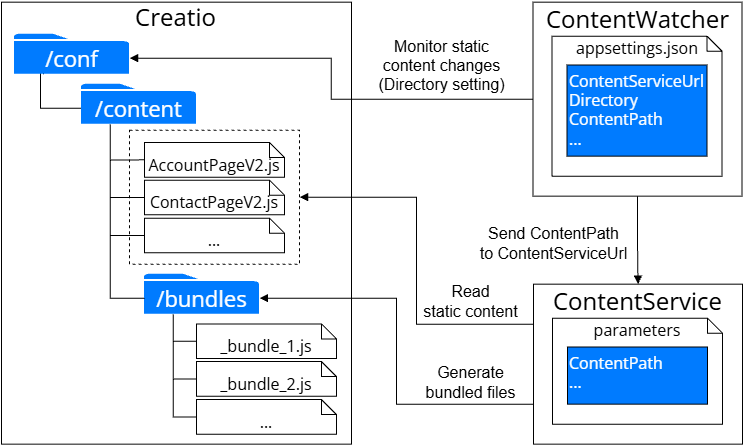
Deploy the static content bundling service
Deploy the static content bundling service using Docker. Learn more: official vendor documentation (Docker).
1. Perform preliminary setup
-
Deploy a physical or virtual server on a Linux machine. We recommend using stable versions of Debian or Ubuntu. The server serves as the host machine for the bundling service elements.
-
Install Docker. Instructions: Install Docker (user documentation).
-
Provide the server access to files in the "/conf" directory of the current Creatio instance. Skip this step if you deploy the bundling service on the same server as Creatio. If you use a dedicated server to deploy the bundling service:
- Obtain read and write access to the "/conf" directory.
- Make the "/conf" directory available on the server dedicated to deploying the bundling service, for example, over a network using the NFS protocol.
2. Install bundling service elements
The installation procedure differs depending on whether the server that hosts the bundling service has internet connection.
Install bundling service elements for a server that has internet connection
-
Contact Creatio support to obtain the following:
- Read access to the private Creatio image repository (
https://registry.creatio.com). - Tags of the latest versions of the bundling service elements (
content-serviceandcontent-watcher). - Configuration files of the bundling service.
- Read access to the private Creatio image repository (
-
Run the
docker login https://registry.creatio.com -u={Login} -p={Password}command to log in to the private Creatio image repository.Where:
{Login}is the user login to the private Creatio image repository.{Password}is the user password to the private Creatio image repository.
Install bundling service elements for a server that has no internet connection
-
Contact Creatio support to obtain the following:
- *.tar archives that include Docker images of the latest versions of the bundling service elements (
content-serviceandcontent-watcher). - Configuration files of the bundling service.
- *.tar archives that include Docker images of the latest versions of the bundling service elements (
-
Place the obtained archives on the server where the bundling service is deployed.
-
Run the following commands to upload Docker images from the file system on the server to the local Docker cache.
docker load -i content-service.tardocker load -i content-watcher.tarIf you use an internal storage of Docker images, upload archives to the storage.
As a result, the bundling service elements will be ready for deployment.
- If the server has internet connection, Docker will download the elements from the private Creatio image repository automatically.
- If the server has no internet connection, Docker will use the elements from the local Docker cache.
3. Set up the bundling service
-
Place the configuration files of the bundling service into an arbitrary directory on the server, for example, "/opt/services." Creatio support provides the configuration files when you request access to the bundling service elements. Make sure the directory includes the following configuration files.
Configuration file
Description
etc/content-watcher/appsettings.json
Configuration of the
ContentWatcherutility.docker-compose.yml
Configuration of the Docker Compose utility.
.env
A list of environment variables to launch the bundling service elements.
-
Specify the following variables in the ".env" file.
Variable
Description
DOCKER_REGISTRY
Path to the registry of Docker images. If you deploy the bundling service from local cache, leave the variable blank.
DOCKER_TAG_SERVICE,
DOCKER_TAG_WATCHERVersions (tags) of the
content-serviceandcontent-watcherimages provided by Creatio support. We recommend specifying the latest version of thecontent-serviceimage.ContentPath
Path to the "/conf" directory on the server that hosts the bundling service. Docker Compose makes this directory available in the container.
-
Specify the following settings in the "etc/content-watcher/appsettings.json" file.
Setting
Description
ContentServiceUrl
ContentServiceendpoint to call whenContentWatcherdetects changes. The endpoint pattern is as follows:{ContentService Url}/process-content.ContentWorkers
Setting block for each Creatio instance that
ContentWatcherserves. SpecifyName,Directory, andContentWorkerArgumentsfor each instance.If
ContentWatcherandContentServiceare deployed on Linux (including Docker) and the Creatio file system is shared withContentWatcherandContentService, specify the paths to the directories where the Creatio file system is available in the container in theDirectoryandContentPathsettings. For example, if the "/conf" directory of the Creatio instance is built-in into a container in the "/app/content/" path, specify "/app/content/" in theDirectorysetting and "/app/content/content" in theContentPathsetting. Learn more about other settings: ContentWatcher settings.The following example shows the "appsettings.json" file for Creatio on-site.
"appsettings.json"{"ContentServiceUrl": "http://host.docker.internal:5001/process-content","ConfigurationRefreshInterval": "86400000","DefaultFileFilter": "_MetaInfo.json","FileEventWatcher": {"RetryFileWatchingDelay": "180000","MaxFileWatchingRetries": "20"},"ContentWorkers": [{"Name": "{Website name}","Directory": "/path_to_creatio_conf_directory/","ContentWorkerArguments": {"key": "ContentPath","value": "/path_to_creatio_conf_directory/content"}}]}
4. Download the required Docker images
Take this step only if you deploy the bundling service using the private Creatio image repository.
To download the required Docker images:
- Go to the directory that includes the configuration files of the bundling service, for example, "/opt/services."
- Run the
docker-compose pullcommand.
5. Launch the bundling service elements
- Go to the directory that includes the configuration files of the bundling service.
- Run the
docker-compose up -dcommand to launch the bundling service elements. - Run the
docker pscommand to view the names of the bundling service containers. - Run the
docker logs {Container}command to make sure the bundling service elements are launched successfully and view the logs.{Container}is the name of the Docker container you received in the previous step.
6. Make sure the bundling service is deployed successfully
-
Make sure the bundling service is set up correctly.
- Run the
docker pscommand and make sure thecontent-serviceandcontent-watchercontainers have the "Up" status. - Make sure the
ContentPathvariable in the ".env" file includes the path to the "/conf" directory of the Creatio instance. - Make sure the
ContentServiceUrlsetting in the "appsettings.json" file includes the address and port whereContentServiceis launched. - Make sure the
DirectoryandContentPathsettings in the "appsettings.json" file include the paths to the "/conf" and "/conf/content" directories in the container.
- Run the
-
Make sure the bundling service is ready to accept requests to generate bundled files in one of the following ways:
- Send a
GETrequest to the{Server IP}:{Bundling service port}URL, for example, "1.2.3.4:5001." - Enter the
{Server IP}:{Bundling service port}URL in the browser address bar.
Where:
{Server IP}is the IP address of the server that includes the installed service.{Bundling service port}is the port whereContentServiceis launched. By default, 5001.
If the bundling service is ready to accept requests to generate bundled files, you receive the "Service is running. Go to /start page to use web interface" response.
- Send a
-
Make sure the static content of the Creatio instance is bundled correctly.
-
Log in to Creatio.
-
Save an arbitrary "Client module" type schema in the Configuration section, even without any changes.
-
Run the
docker logs {Container}command for thecontent-servicecontainer and verify the logs include the following record to make sure the bundling service starts to generate bundled files.INFO|ContentService.Web.API.ContentProcessingRequestHandler|Content processing (/process-content) is running for path /app/content/content... -
Run the
docker logs {Container}command for thecontent-servicecontainer and verify the logs include the following record to make sure the process that generates bundled files is completed.INFO|ContentService.Web.API.ContentProcessingRequestHandler|Content processing (/process-content) finished in 12345ms for path /app/content/content -
Verify that the Network tab in browser debugging tools includes the "/conf/content/bundles/" requests whose *.js files have the "_bundle" prefix, for example, "/conf/content/bundles/_bundle_123.js," to make sure Creatio loads bundled files instead of static files.
-
See also
Static content bundling service
Deploy the Creatio .NET application server on Linux (user documentation)
Resources
Official vendor documentation (Docker)