Set up an iFrame component
This functionality is available for Creatio 8.3.3 and later.
Use iFrame components to embed external or dynamic content directly into Freedom UI pages without custom development. This lets users view and interact with external services, custom HTML, or internal tools without switching between systems.
Set up iFrame content
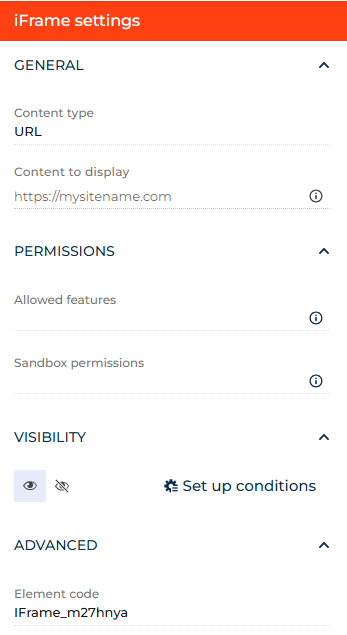
-
Open the form page in Freedom UI Designer.
-
Drag the iFrame component to the canvas.
-
Click
 to open the iFrame settings area.
 -
Go to the General block.
-
Select the source type in the Content type field. Available options are "URL" and "HTML".
-
Specify the Content to display parameter:
- For the "URL" content source, select a column that stores a link or enter a URL (for example,
https://mysitename.com). - For the "HTML" content source, select a column that stores HTML.
To display URL content correctly, make sure the external source meets the following requirements:
- The source allows embedding in an iFrame.
- The link uses the HTTPS protocol.
- The source domain is on the trusted sources list of your Content Security Policy (CSP). Typically, you need at least the
connect-srcandframe-srcCSP directives. Learn more: Set up content security policy.
- For the "URL" content source, select a column that stores a link or enter a URL (for example,
-
Save the changes.
As a result, the iFrame will display the configured content on the Freedom UI page at runtime.
Set up iFrame permissions
The iFrame component includes a Permissions block that controls how embedded content behaves. By default, no permissions are granted to keep a secure baseline configuration. Enable only the features that your use case requires.
-
Select the iFrame component on the canvas.
-
Click
to open the iFrame settings area. -
Go to the Permissions block.
-
Fill out the Allowed features field.
This enables specific browser capabilities for the embedded content, such as camera, microphone, or fullscreen mode.
-
Fill out the Sandbox permissions field.
This removes specific sandbox restrictions from the embedded content. Grant only the permissions the embedded content requires.
-
Save the changes.
As a result, the iFrame will apply only the permissions you specified. Other sandbox restrictions remain active.
Learn more: Permissions-Policy header (MDN documentation), iFrame sandbox attribute (MDN documentation).
Troubleshoot common problems
Even when the iFrame component is set up correctly, embedded content may not display or may behave unexpectedly. Usually, the cause is a security restriction, a configuration gap, or a missing permission.
The placeholder shown inside the iFrame at runtime and the errors logged in the browser console usually point to the underlying cause. The table below lists common problems and how to resolve them.
Problem | Description | Solution |
|---|---|---|
Source does not allow embedding | The target site blocks rendering inside an iFrame through HTTP headers, such as | Use a different embeddable source. |
Component is not set up | The iFrame is on the page, but no content is displayed and the "Nothing to show yet" placeholder appears at runtime. The component is missing required configuration. | Open the iFrame settings area and make sure the Content type and Content to display fields are filled out. |
Content is blocked by Content Security Policy | The "Content Unavailable" placeholder is displayed at runtime, or the browser console shows a "Content is blocked" error. The source domain is not on the trusted sources list of your Content Security Policy. |
If the error does not disappear after adding the directive, repeat these steps. CSP directives are blocked one at a time, so a new entry may appear in the Violations log after each fix. Learn more: Set up content security policy. |
iFrame permissions are missing | Embedded content loads, but specific features such as fullscreen, camera, microphone, or geolocation do not work. The iFrame is missing the required permissions. Different sources require different combinations of permissions. Refer to the documentation of the embedded service or check the browser console errors. | Common cases include:
After updating the permissions, save the page and reload the runtime page to apply the changes. |
 → Security → Content Security Policy.