Creatio IDE overview
Creatio platform includes an integrated development environment (IDE) available in the Configuration section. Creatio IDE provides tools to develop, customize, and maintain platform configurations. It is used to work with structural platform elements such as schemas and packages.
Set up permissions to the Configuration section
Access to the Configuration section is managed by system operations. Users without the required permissions cannot open the Configuration section and receive a standard access restriction notification. Out of the box, only users that have the "System administrators" role have access to the required system operations. Creatio lets you configure access permissions to system operations for users or user groups. Learn more: System operation permissions (user documentation).
To set up permissions to the Configuration section:
- Click
 in the top right → Users and administration → Operation permissions.
 - Select the Can manage configuration elements (
CanManageSolutioncode) system operation. - Click
 in the Operation permission detail. This opens the Select: System administration object window.
 - Select the checkbox for user/role to grant access to the Configuration section.
As a result:
- The record will appear on the Operation permission detail.
- The Access level column of the record will be set to "Yes."
- Users that have the specified role will have access to the Configuration section.
Open the Configuration section
The Configuration section can be accessed in the following ways:
-
Using System Designer. To do this, click
 in the top right → Admin area → Advanced settings.
 -
Using the browser URL.
URL slug
URL example
.NET Framework
.NET
/ClientApp/#/WorkspaceExplorer
http://mycreatio.com/0/ClientApp/#/WorkspaceExplorerhttp://mycreatio.com/ClientApp/#/WorkspaceExplorer/we
http://mycreatio.com/0/wehttp://mycreatio.com/we/conf
http://mycreatio.com/0/confhttp://mycreatio.com/conf/dev
http://mycreatio.com/0/devhttp://mycreatio.com/dev
As a result, Creatio opens the Configuration section in a new tab.
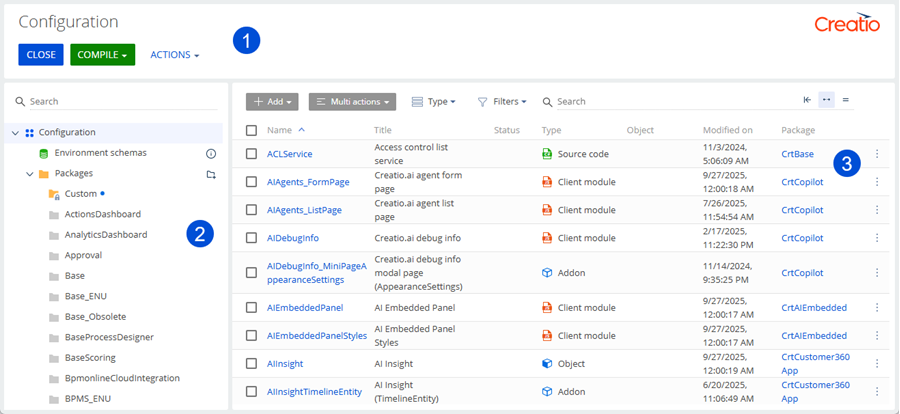
- Toolbar (1)
- Configuration workspace (2)
- Main workspace (3)
Learn how to work with the Configuration section below.
Toolbar (1)
Toolbar (1) displays:
- Actions button to access additional configuration options. Learn more: Operations with packages in Creatio IDE, Operations with schemas in Creatio IDE.
- Compile button to compile the configuration. Instructions: Compile the configuration.
- Close button to close the Configuration section.
Configuration workspace (2)
Configuration workspace (2) displays:
- Environment schemas group.
- Packages directory that includes the list of Creatio packages. The packages are displayed in alphabetical order. Regardless of sorting, Creatio displays the modified packages at the top of the Packages directory and marks them using
 .
.
Each package in the Packages directory has the package menu that lets you access additional actions with packages. Learn more: Operations with packages in Creatio IDE.
Main workspace (3)
Main workspace (3) displays:
-
UI elements to work with section list.
-
Section list that includes schemas in alphabetical order.
- If you select the Configuration group, section list displays all configuration and environment schemas.
- If you select the Environment schemas group, section list displays all environment schemas.
- If you select the Packages directory, section list displays the schemas of all packages.
- If you select a different package in the Packages directory, section list displays the schemas of the selected package.
Regardless of sorting, Creatio displays the modified schemas at the top of the section list and marks them using
 next to the schema name. The section list includes the columns listed in the table below.
Column
Description
Name
Custom schema name starts with the prefix specified in the "Prefix for object name" (
SchemaNamePrefixcode) system setting. Out of the box, "Usr." When a schema is created, the prefix specified in the system setting is added automatically. Creatio checks for the prefix and whether it matches the system setting value when saving the schema properties. If the prefix is missing or does not match, the user receives a corresponding notification.Title
The schema title
Status
The schema status. Learn more: Filter configuration schemas by status.
Type
The schema type. Learn more: Filter the schemas by type.
Object
The object to which the bound package data is connected. The column is populated for "Data" type schema only.
Modified on
The modification date of the schema
Package
The name of the package that includes the schema. The column is populated for configuration schemas only.
Clear IndexedDB browser cache storage for all users
This functionality is available for Creatio 8.3.2 and later.
Since version 8.3.2, Creatio supports centralized clearing of IndexedDB browser cache storage for all users. This helps resolve issues caused by outdated or corrupted cached data across user sessions and ensures consistent platform performance. This operation affects only IndexedDB data and does not clear other browser caches.
To clear IndexedDB browser cache storage for all users:
- Go to the section toolbar → Actions → Cache management.
- Click Clear IndexedDB cache for all users. This opens a mini page to confirm the action.
- Click Clear. This action removes data from the IndexedDB cache storage for all users.
As a result, the IndexedDB cache storage will be cleared for all users, which helps resolve issues caused by outdated or corrupted cached data. After clearing, some pages might load slower temporarily at first while the cache is rebuilt.
See also
System operation permissions (user documentation)
Operations with packages in Creatio IDE
Operations with schemas in Creatio IDE