Manage user licenses
Licenses must be issued for each new Creatio user. Only licensed users can log in to Creatio and access the corresponding functionality. For example, users who were not issued a "marketing creatio product cloud" license, will not be able to use functions that are specific to Creatio Marketing, such as the Bulk emails and the Campaigns sections.
Before distributing licenses, ensure that the user role has permission to the "Manage user licenses" (CanManageLicUsers code) system operation. Out of the box, only users that have the "Creatio Maintenance," "Developer," "Administrator," "System administrators" role can execute the action. Learn more: System operation permissions.
To enable licensing a user account, Creatio must have available licenses that were not distributed among other users.
Set up licensing in the License manager section (Fig. 1).
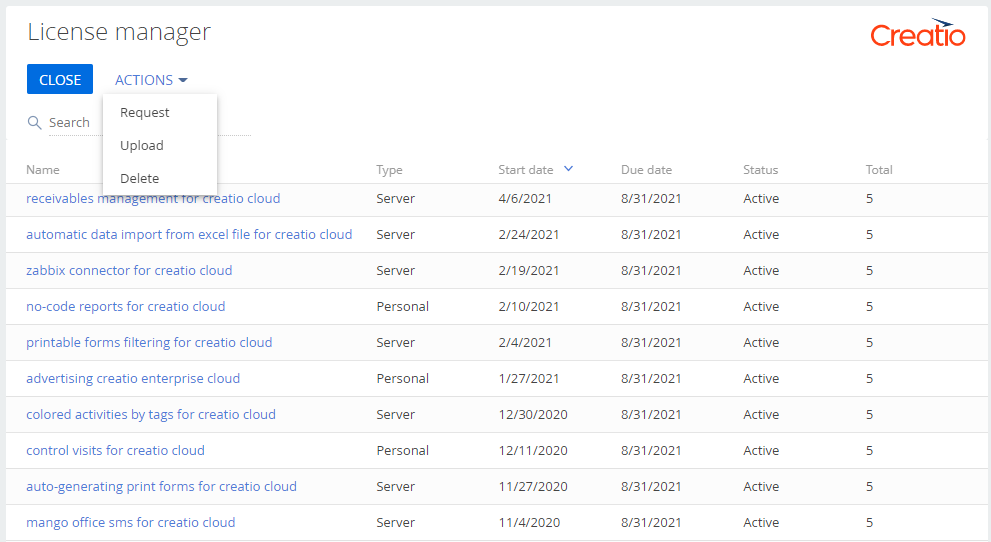
If the licenses expire, the license manager page opens for a user that has the "System administrators" role automatically when they log in to Creatio.
General procedure to license Creatio:
- Add licenses to Creatio. Read more >>>
- Distribute the available licenses among the users. Read more >>>
When working with Creatio, it can be necessary to manage user licenses, e.g., to distribute licenses to a new employee or recall licenses from a resigned employee. You can use the Users section as well as License manager section for this purpose.
Add licenses to Creatio
The licensing process is similar for all types of licenses used in Creatio.
When purchasing licenses, extending available licenses, and updating Creatio on-site:
- Generate a license request file and send it to Creatio support.
- The support team sends a file for you to upload to Creatio.
This procedure is also required when updating Creatio on-site.
Generate a license request
-
Click
 in the top right → Users and administration → License manager.
 -
Click Actions → Request.
-
Enter the company ID for licensing. Creatio provides the ID after the purchase. Alternatively, request it from Creatio support.
-
Click Generate a license request file (Fig. 2). This generates a *.tlr license request file.
Fig. 2 Generate a license request 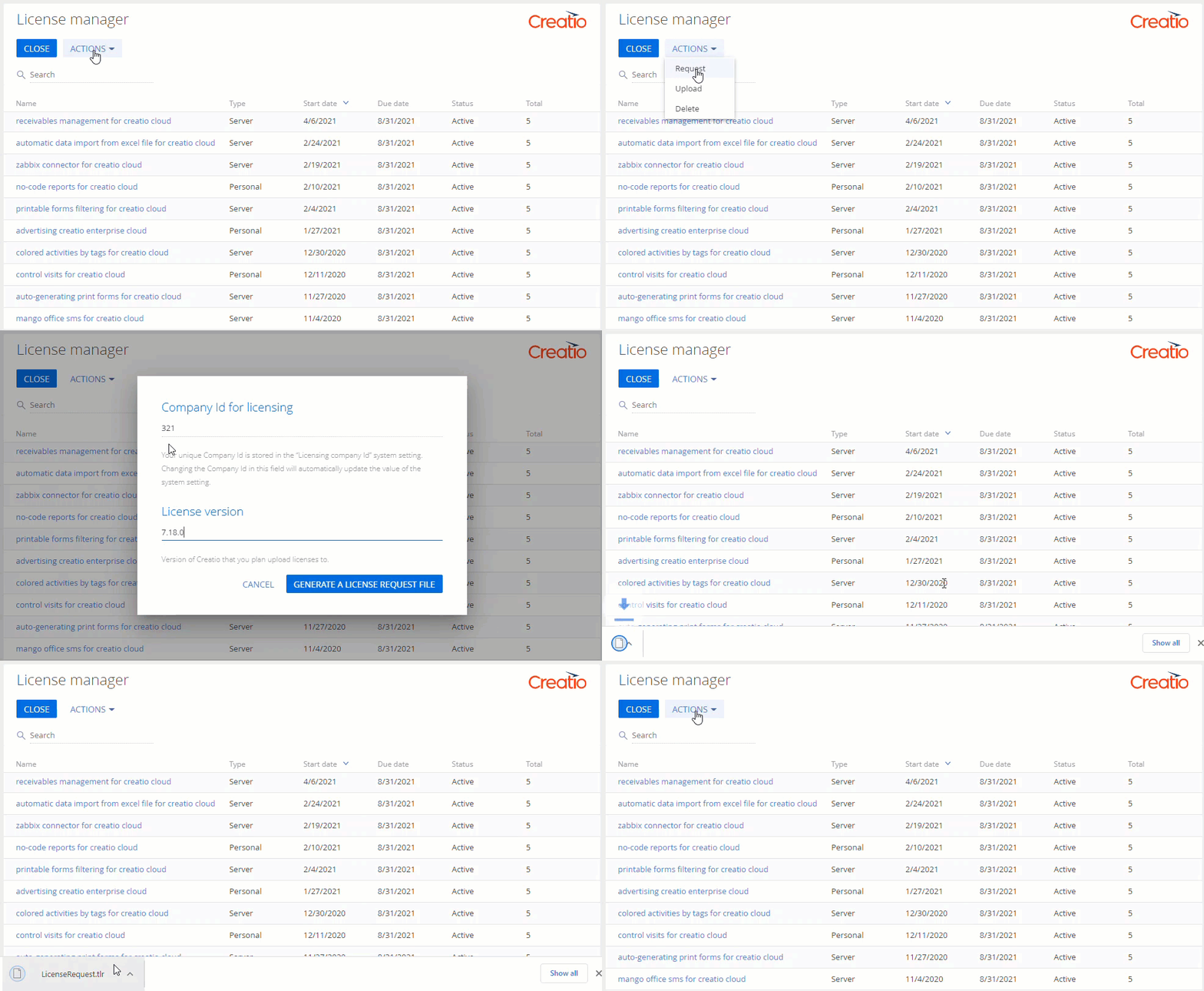
-
Fill out the License version field using the Creatio version to which you are going to update.
-
Send the license request file to Creatio support. In response, the support team sends you a file that contains the information about purchased licenses.
You can also request licenses from the Users section by clicking Request licenses in the Actions menu (Fig. 3).
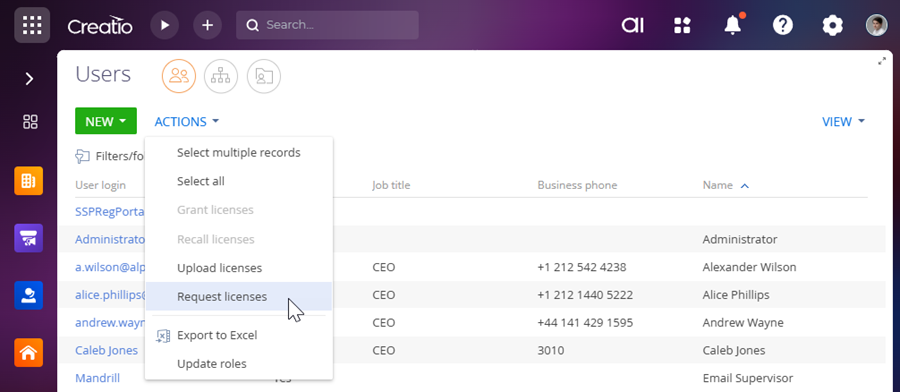
As a result, the license request will be sent to Creatio support.
Upload licenses to Creatio
-
Click
in the top right → Users and administration → License manager. -
Click Actions → Upload (Fig. 4).
Fig. 4 Upload a license file to Creatio 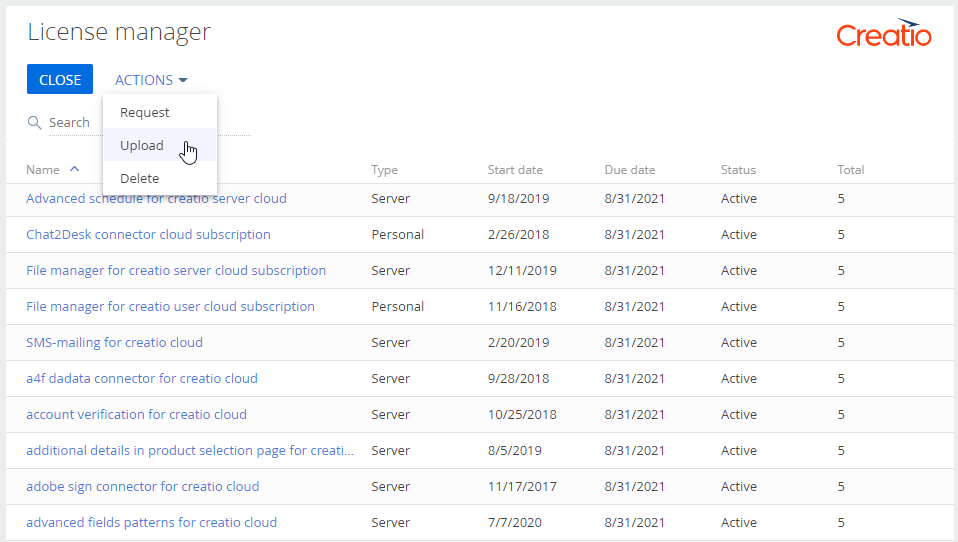
-
Specify the path to the license file you saved earlier.
You can also upload licenses from the Users section by clicking Upload licenses in the Actions menu (Fig. 5).
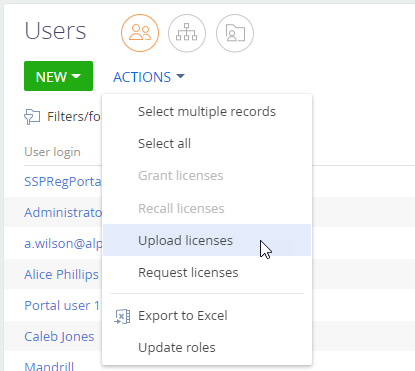
As a result, the new licenses will be uploaded to Creatio. The total license number might increase, and the available licenses will be extended.
Ways to redistribute licenses
Creatio supports multiple ways to redistribute licenses. All ways use the same license redistribution rules.
Choose the appropriate way based on the business goals listed in the table below.
Business goal | Way of license redistribution | Use cases |
|---|---|---|
Manually grant or revoke licenses for specific users without automation | Manual redistribution |
|
Automatically grant or revoke licenses according to license sets assigned to user roles | Role-based redistribution |
|
Creatio supports manual and role-based license redistribution and provides tools to automate role-based redistribution. Learn more: Automate role-based license redistribution (developer documentation).
Redistribute licenses manually
To enable new employees to log in or use specific functions, their user accounts must be licensed. A system administrator can redistribute the available licenses at any time. Use this way when manual redistribution is required, for example, when you need to grant or recall licenses for specific users without involving any automation. The number of active and available licenses is displayed on the product licensing page and depends on the license type.
Redistribute licenses manually in the License manager or Users sections.
Redistribute licenses manually for multiple users
To redistribute licenses to multiple user accounts at once:
- Click in the top right → Users and administration → Users.
- Click Actions → Select multiple records.
- Select the needed users in the list.
- Click Actions → select Grant licenses or Recall licenses depending on your business goals. This opens the Select: Licensed configuration window.
- Select the required records.
- Click Select.
As a result, the selected licenses will be redistributed for the selected user accounts.
Redistribute licenses manually for a single user
-
Click
in the top right → Users and administration → Users. -
Select the user to whom the license must be redistributed.
-
Go to the Licenses tab.
-
Select licenses (Fig. 6).
Fig. 6 Select products for licensing 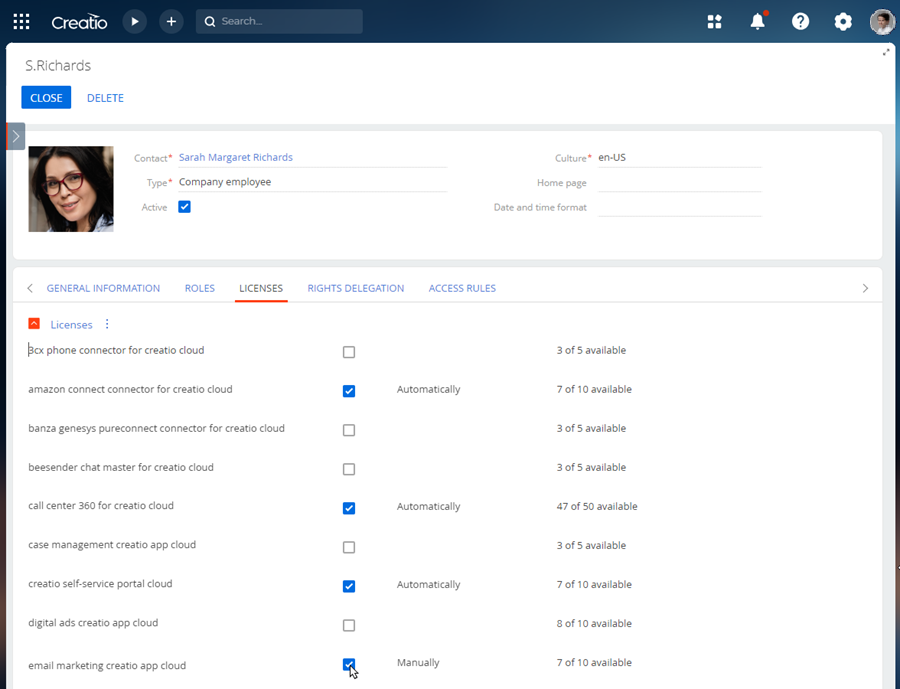
Similarly, you can recall the licenses.
-
Click Save.
As a result, the selected licenses will be redistributed for the user account.
Redistribute licenses based on user roles
This functionality is available for Creatio 8.1.3 and later.
Creatio supports a role-based license redistribution to speed up the issuance of licenses to users. Out of the box, role-based license redistribution works for Creatio instances during LDAP synchronization or Single Sign-On provisioning as well as invitation to the portal organization and self-registration on the portal so long as the roles external users receive contain the corresponding licenses. You can also configure it to trigger when user roles change.
Roles inherit licenses through the full hierarchy in the company's organizational structure. For example, if you have a "Support" organizational role that has "1st-line support", "2nd-line support" and "3rd-line support" child roles, then all users who do not belong directly to the "Support" role but are included in one of the child roles are provided with licenses from the "Support" and "All employees" organizational roles.
Before triggering role-based license redistribution, ensure that:
-
The role of the user on whose behalf to redistribute the licenses has permission to the "Manage user licenses" (
CanManageLicUserscode) system operation. Out of the box, only users that have the "Creatio Maintenance," "Developer," "Administrator," "System administrators" role can execute the action. Learn more: System operation permissions. -
The
UseRoleBasedLicenseDistributionadditional feature is enabled. Out of the box, registered and enabled. -
The "Turn on role-based license redistribution after manual changes to user roles" (
RedistributeLicensesOnRoleChangescode) system setting is set to "true." When "true," Creatio automatically recalculates user licenses after role changes or updates to role-bound licenses. Out of the box, "false." For LDAP or SSO–based role updates, this setting is not required. -
Licenses are distributed to the user roles. Otherwise, distribute licenses to the user roles manually. To do this:
- Click in the top right → Users and administration → Organizational roles or Functional roles.
- Select the user role for which licenses must be redistributed.
- Open the Licenses tab.
- Click
 on the Licenses to distribute with roles expansion panel.
 - Select licenses to be distributed to user role.
- Click Select.
- Click
As a result, selected licenses will be bound to the role and automatically redistributed for all users included in the role during the LDAP synchronization process or JIT provisioning via SSO. If the user is excluded from the role in LDAP or SSO, the licenses will be removed accordingly.
Similarly, you can recall the licenses.
Redistribute licenses for all active users based on assigned roles
To trigger role-based license redistribution without waiting for users to re-login via LDAP or SSO:
-
Click
in the top right → Users and administration → Organizational roles or Functional roles. -
Click
 → Redistribute licenses for all roles (Fig. 7).
Fig. 7 Redistribute licenses for all roles 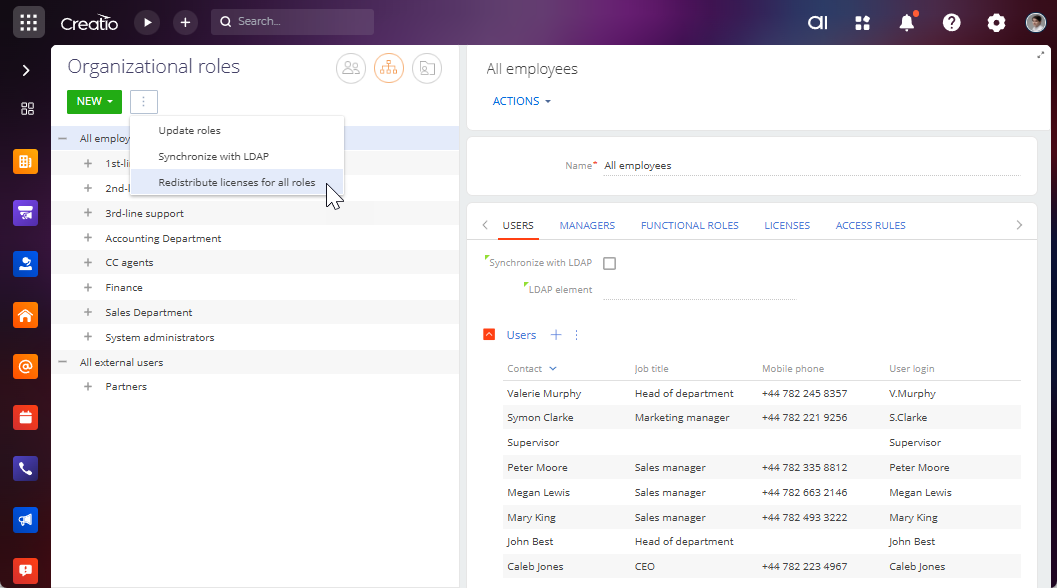
-
Specify whether to keep or remove manually granted licenses.
-
Click OK.
As a result, the selected licenses will be redistributed for all active users, and Creatio will display a system message in the System messages sidebar on the notification panel. If you do not recall user licenses that provide access to the product as part of redistribution, the redistribution process does not affect users in Creatio.
Redistribute licenses for users based on assigned roles
To trigger role-based license redistribution without waiting for users to re-login via LDAP or SSO:
-
Click
in the top right → Users and administration → Organizational roles or Functional roles. -
Select the user role to whom the license must be redistributed.
-
Click Actions → Redistribute licenses for the role (Fig. 8).
Fig. 8 Redistribute licenses for the role 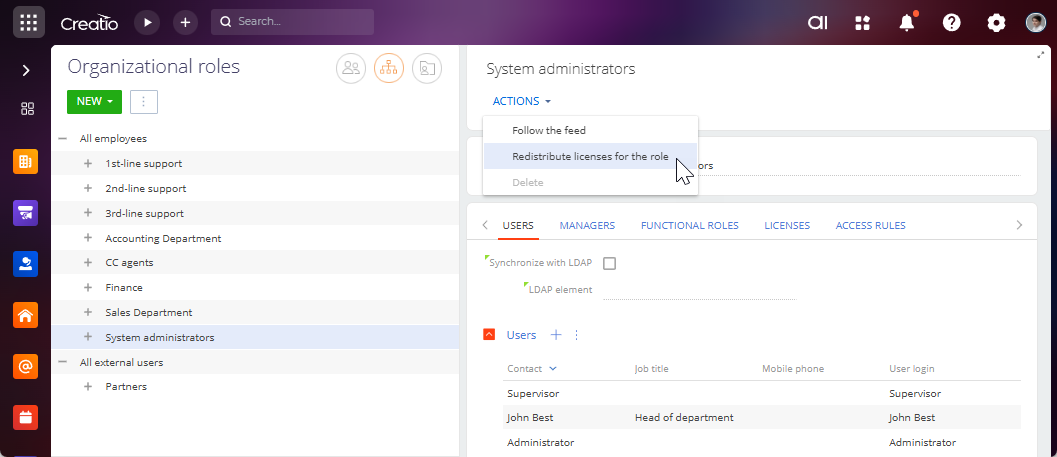
-
Specify whether to keep or remove manually granted licenses.
-
Click OK.
-
Repeat steps 2-5 for all the roles to redistribute licenses.
As a result, the selected licenses will be redistributed for all the users within selected roles, and Creatio will display a system message in the System messages sidebar on the notification panel. If you do not recall user licenses that provide access to the product as part of redistribution, the redistribution process does not affect users in Creatio.
Redistribute licenses for a single user based on assigned roles
To trigger role-based license redistribution without waiting for users to re-login via LDAP or SSO:
-
Click
in the top right → Users and administration → Users. -
Select the user to whom the license must be redistributed.
-
Open the Licenses tab.
-
Click
 → Redistribute licenses based on roles (Fig. 9).
Fig. 9 Redistribute licenses based on roles 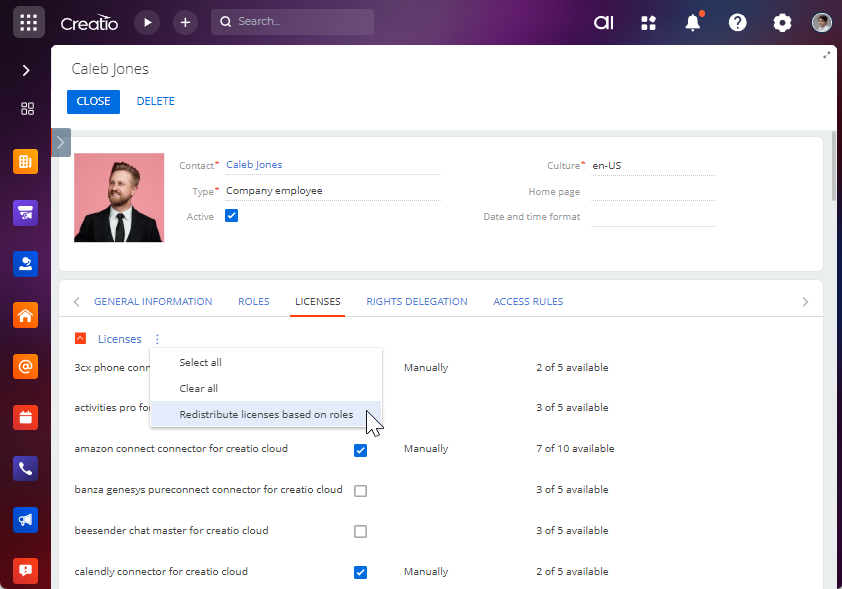
-
Specify whether to keep or remove manually granted licenses.
-
Click OK.
-
Repeat steps 2-6 for other users to redistribute licenses.
As a result, the licenses will be redistributed for the selected Creatio user. If you do not recall user licenses that provide access to the product as part of redistribution, the redistribution process does not affect users in Creatio.
Delete licenses from Creatio
Sometimes, deleting licenses is required. For example, if you need to switch Creatio to the demo mode.
To delete licenses from Creatio:
-
Click
in the top right → Users and administration → License manager. -
Click Actions → Delete (Fig. 10).
Fig. 10 Deleting licenses 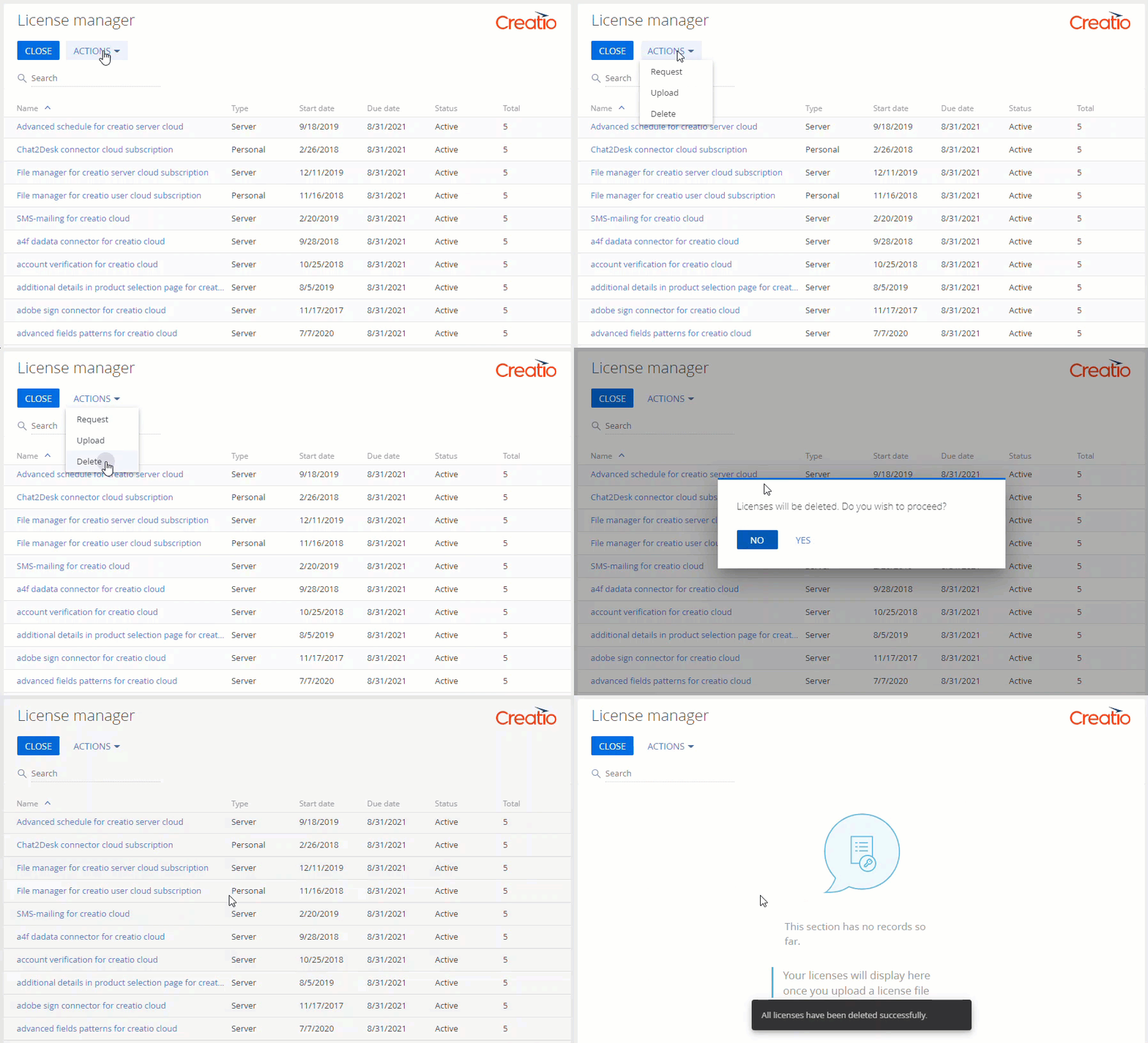
As a result, Creatio will delete all licenses.
See also
Automate role-based license redistribution (developer documentation)
Workflow of role-based license redistribution (developer documentation)