Deploy Microsoft SQL database (Windows)
Deploy Creatio on Microsoft SQL Server to enable database hosting on Windows-based infrastructure.
Using Microsoft SQL Always On availability groups is a recommended method of setting up a high availability configuration. Learn more about Microsoft SQL Always On: What is an Always On availability group? (official Microsoft documentation).
The general database deployment procedure for Microsoft SQL is as follows:
- Install Microsoft SQL Server Management Studio. Read more >>>
- Create Microsoft SQL users. Read more >>>
- Create and restore the database. Read more >>>
1. Install Microsoft SQL Server Management Studio
Install Microsoft SQL Server Management Studio on the database server. Learn more: Install SQL Server Management Studio (official Microsoft documentation).
Perform further steps using Microsoft SQL Server Management Studio.
2. Create Microsoft SQL users
Create the following database users for Microsoft SQL deployment:
- A superuser who has maximum access privileges on the database server level. This user restores the Creatio database from a backup file and assigns access permissions.
- A regular user who has limited permissions. This user becomes the owner of the restored database and is used in Creatio database connection strings during runtime.
Learn more about creating users and access permissions: Create a database user (official Microsoft documentation).
3. Create and restore the database
To restore the Creatio database from a backup file:
-
Connect to Microsoft SQL Server Management Studio as a superuser.
-
Right-click the Databases node → select Restore Database... (Fig. 1). This opens the Restore Database window.
Fig. 1 Select database restore 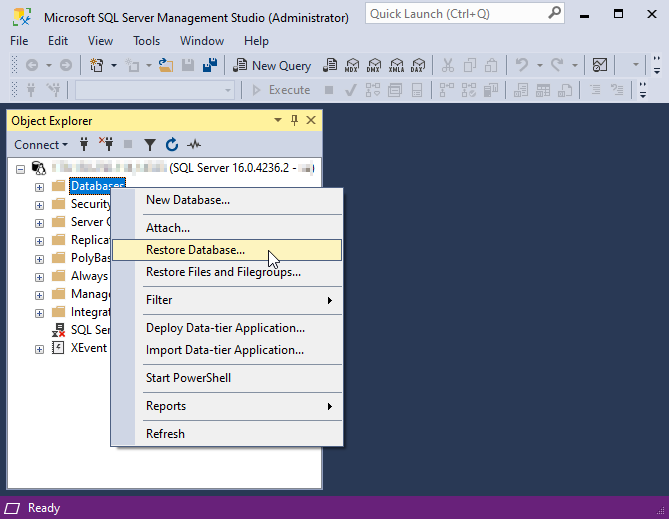
-
Fill out the parameters of the database restoration:
-
Select the Device option → click ... → specify the path to the database backup file. The database backup file is supplied together with Creatio installation files and is located in the "db" directory. This populates the Database field in the Source section automatically (Fig. 2). The file browser accesses files located on the database server, not on your local machine.
-
Change the database name in the Database field in the Destination section (optional).
Fig. 2 Select database backup 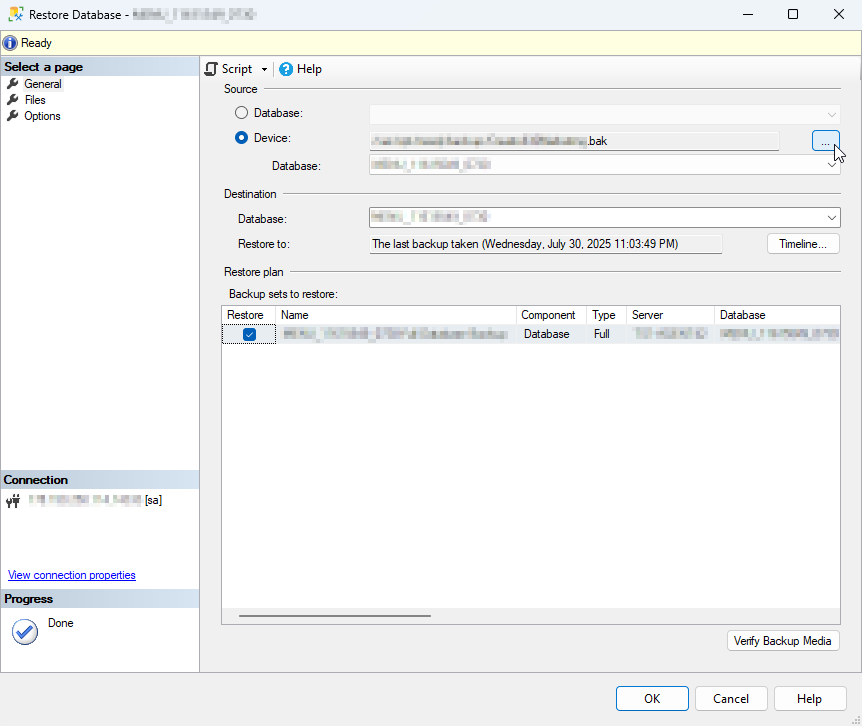
-
-
Create a directory on the database server where the Creatio database will be restored. SQL Server is not permitted to create directories, so you must create them beforehand.
-
Specify paths to the directory you created:
-
Go to the Files page.
-
In the Restore database files as section, select the Relocate all files to folder checkbox.
-
Specify paths to the directories where SQL Management Studio will save the "TSOnline_Data" and "TSOnline_Log" files (Fig. 3).
Fig. 3 Specify the names and paths to TSOnline_Data and TSOnline_Log files 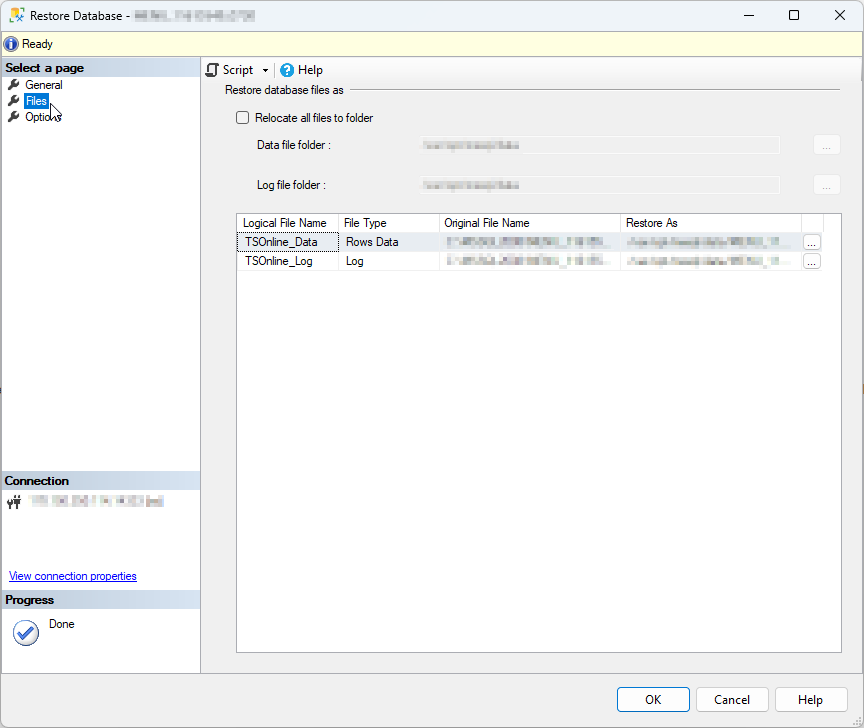
-
-
Click OK. The operation might take some time.
-
Enable connection for the regular Microsoft SQL user whom Creatio uses to access the database.
-
Select the Security node → click + → right-click Logins → select New Login... (Fig. 4).
Fig. 4 Select New login 
-
Specify the login name → select SQL Server authentication option → set a password.
-
Click OK.
-
Select the Databases node → click + → select the restored Creatio database → click + → select the Security node → click +.
-
Right-click Users → select New User.... This opens the Database User - New window.
-
Select "SQL user with login" in the User type field → specify the user name in the User name field → specify the login you created in the Login name field.
-
Go to the Membership page → select
db_ownercheckbox. This grants the user full access to the restored Creatio database. -
Click OK.
-
As a result, the Creatio database will be restored and a user account will be configured for Creatio to connect to the database.
See also
General setup procedure for data caching server (Redis)
Set up Creatio application server on IIS
System requirements calculator for Creatio on-site
SQL Server technical documentation (official Microsoft documentation)
SQL Server Management Studio (SSMS) (official Microsoft documentation)