Creatio.ai skill permissions
In Creatio, you can set up permissions for AI Skills. You can also transfer these permissions between environments using Creatio’s data binding mechanism.
Configure default execution permissions
Creatio assigns default execution permissions for all newly-made AI Skills. You can edit them later if needed. To change which users or roles receive the default permissions, configure the Default schema operation right lookup. To do this:
-
Open the AI command center workplace → Creatio.ai skills.
-
Open the Default schema operation right lookup.
-
Click New. This adds a new lookup record. Fill out the fields of the record as follows:
Field
Value
Name
CopilotIntentSchemaManagerDescription
Arbitrary value
User/role
The user or role who must have default execution permissions for new AI Skills
Operation type
7 (Execute)
-
Save the changes.
Configure execution permissions for an existing AI Skill
If an AI Skill has no permissions configured, Creatio grants default permissions when you install the AI Skill for the first time.
You can modify the execution permissions for an existing AI Skill directly from the skill list. To do this:
- Open the AI command center workplace → Creatio.ai skills.
- Open the relevant AI Skill.
- Expand the Permission to execute expanded list → New. This opens a window.
- Select the needed role → Select.
- Save the changes.
Grant file upload permissions to external users
External users must be granted explicit permissions to upload files and run AI Skills. To do this:
-
Make sure the "Can run Creatio.ai" (
CanRunCreatioAIcode) system operation permission is enabled for external users. Learn more: System operation permissions. -
Make sure external users have permission to use AI Skill.
-
Update the following system settings to allow access for external users:
- "Maximum session file size, in MB" (
CreatioAIMaxSessionFileSizecode) - "Allowed file extensions" (
CreatioAIAllowedFileExtensionscode) - "Session file content size limit" (
CreatioAISessionFileContentSizeLimitcode)
Learn more: Manage system settings. Ensure these settings are reviewed and configured carefully to avoid granting excessive access to external users.
- "Maximum session file size, in MB" (
Transfer default permissions between environments
To transfer the default execution permissions, create data bindings for the SysSchemaDefOperationRight database table and transfer the package. To transfer execution permissions for existing AI Skills, create bindings for the SysSchemaOperationRight database table and transfer the package. Learn more: Configuration elements of the Data type (developer documentation), Transfer packages (developer documentation).
Attach access permissions to AI Skills for package export
If you need to export AI Skill access permissions together with the AI Skill package, take the following steps:
-
Click
 to open the System Designer.
 -
Go to the Admin area block → Advanced settings.
-
Select the target package in the left area. For example,
TestPackage. -
Click Add → Data.
-
Search for and select
SysSchemaOperationRightin the Object field. -
Set Name to a unique ID, for example,
SysSchemaOperationRight_myCustom. -
Open the Bound data tab.
-
Click Add → Schema unique identifier.
-
Open the skill page in a different tab and copy the GUID from the browser address bar (Fig. 1).
Fig. 1 GUID of an AI Skill 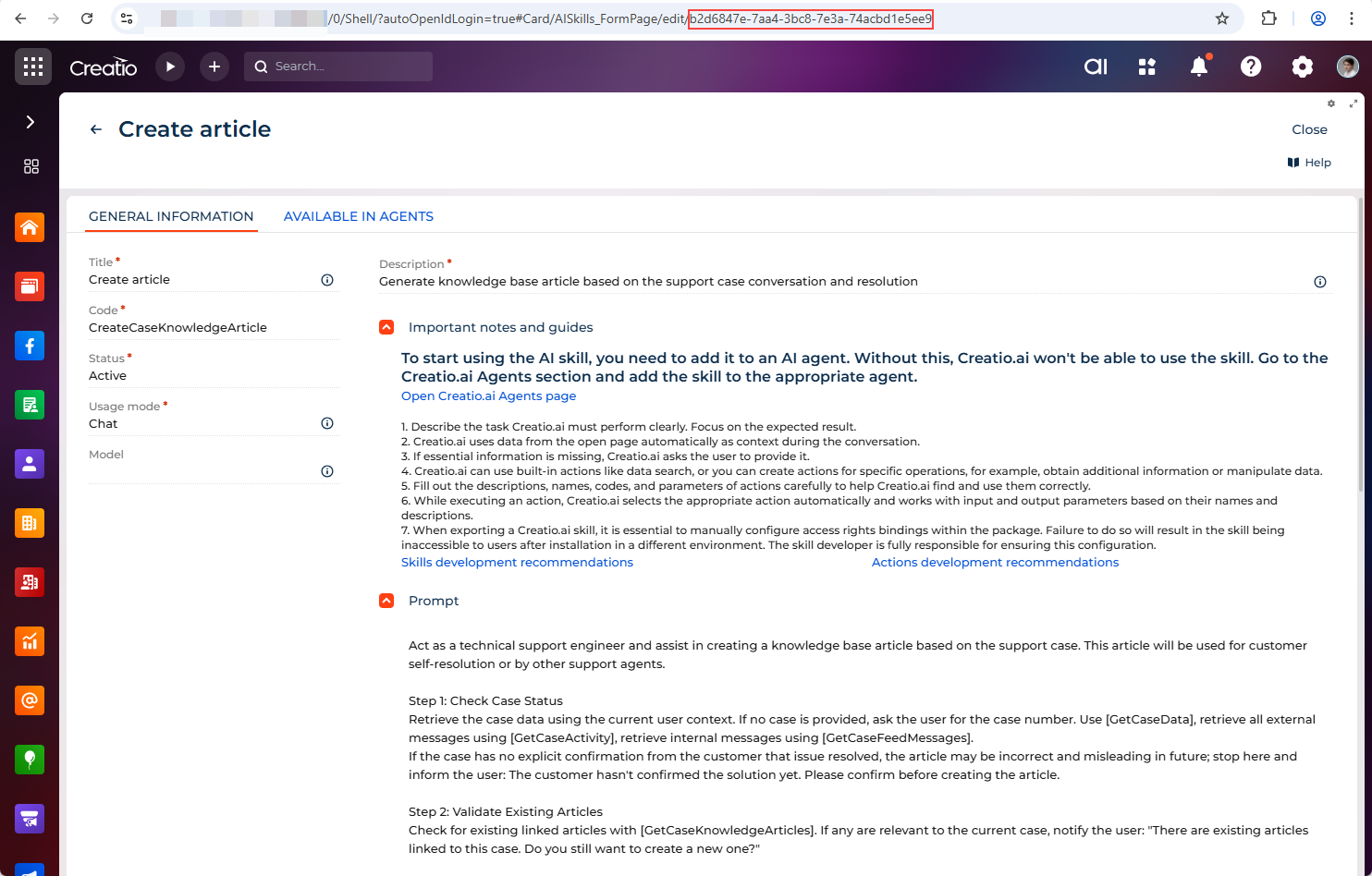
-
Return to the configuration screen, search by GUID, and select the skill.
-
Save the changes.
As a result, Creatio will add the data configuration item linked to your AI Skill to the package.
See also
Configuration elements of the Data type (developer documentation)
Transfer packages (developer documentation)