Send chat message process element
Use the Send chat message element to automatically notify customers through chat channels directly from a business process. This lets you set up proactive communication scenarios such as case updates, reminders, and scheduling notifications using out-of-the-box no-code tools in Process Designer.
Make sure at least one chat channel is configured in your Creatio instance before using this element. Learn more: Chat setup. Restrictions imposed by chat channels themselves, for example, the 24-hour rule in WhatsApp, apply to the process element as well.
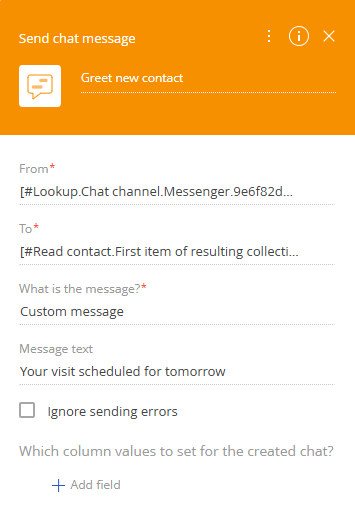
Specify the chat message parameters in the element setup area (Fig. 1).
-
Select the chat channel to use for sending the message in the From field.
-
Specify the recipient in the To field.
-
Select the message type in the What is the message? field.
- Select "Template-based message" to use a chat template, then select the template in the Message template field.
- Select "Custom message" to write the message text directly, then enter the text in the Message text field.
-
Select the Ignore sending errors checkbox if you want the process to continue when message sending fails. When selected, the process continues even if message sending fails, and the element returns execution status and error details as output parameters. When cleared, the process ends with an error and the failure details are recorded in the process log.
-
Configure the column values for the created chat record in the Which column values to set for the created chat? field. This links the chat to related records so the chat appears in their timelines and can act as a macro source for template-based messages.
As a result, the Send chat message element will be configured and will send a message automatically through the selected chat channel when the process reaches this step. The chat that contains the message will be created automatically and set to the "Completed" status. Customers will receive timely notifications without any custom development, and the chat record will be linked to the relevant records in their timelines. If a customer replies to the sent message, a new chat will be created and added to the chat queue. The agent that processes the chat will be able to see the sent message in the accepted chat and will have full context of previous communication.