Synchronize calendar with Microsoft Exchange and Microsoft 365
This functionality is available if you have the Productivity app installed.
Use the Calendar settings mini-page to set up the synchronization of Creatio activities with Microsoft Exchange or Microsoft 365 calendar (Fig. 1). You can open the page in multiple ways:
- Click
 → Edit email accounts in the communication panel.
 - Select
 → Set up... in the Calendar section. The command contains the name of the account, for example, Set up
 john.best@mycompany.com.
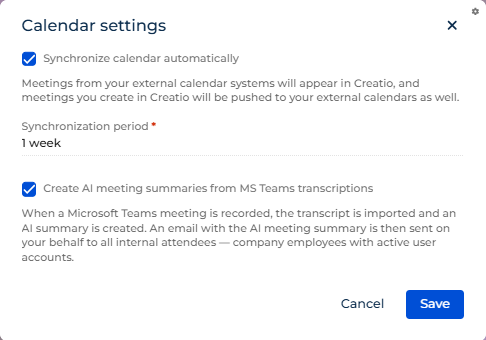
Creatio uses only the main Exchange calendar (default calendar) for synchronization. The records of additional calendars are not imported. Learn more about setting up the default calendar in Microsoft documentation.
Synchronize activities with Microsoft Exchange and Microsoft 365
Creatio can synchronize activities with the Exchange server automatically. To turn on automatic synchronization:
- Open Calendar settings.
- Select the Synchronize calendar automatically checkbox.
- Select synchronization period.
- Save the changes.
As a result, Creatio automatically synchronizes activities with your Microsoft Exchange or Microsoft 365 calendar.
Enable AI meeting summaries
This functionality is available for Creatio 8.3.3 and later. Requires the Productivity app to be installed and is supported only for Office 365 cloud accounts. Available only on the activity page in Freedom UI.
When a Microsoft Teams meeting is recorded, Creatio can automatically import its transcript and generate an AI meeting summary. To enable this:
- Set up calendar synchronization. If calendar synchronization is already enabled, proceed to the next step.
- Open Calendar settings.
- Select the Create AI meeting summary from MS Teams transcript checkbox.
- Verify that the synchronization period in the Synchronization period field covers the meetings for which you want to generate summaries. AI meeting summaries are generated only for transcripts synchronized within this period.
- Save the changes.
As a result, Creatio imports Microsoft Teams transcripts and generates AI meeting summaries for meetings synchronized within the period configured in your calendar synchronization settings. After the summary is generated, Creatio automatically sends an email with the summary on your behalf to all internal attendees who have active Creatio user accounts. External participants without active accounts do not receive this email.
To disable AI meeting summaries, clear the Create AI meeting summary from MS Teams transcript checkbox on the Calendar settings page and save the changes. As a result, Microsoft Teams transcripts are no longer synchronized, AI meeting summaries are not generated, and email notifications are not sent.