Embed Google Tag Manager into a Creatio landing page
Google Tag Manager (GTM) lets you manage all tracking tags for your landing page, such as Google Analytics or ad conversions, from a single place. Instead of editing the page code each time a tag changes, configure GTM settings and load it once via the Add script tab on a landing page in Creatio. Learn more: Configure your Google tag settings (official vendor documentation).
Before you start, locate your GTM Container ID. It looks like "GTM-XXXXX," for example, "GTM-T6GFR99L" and is available in your GTM account. Learn more: Google Tag Manager documentation (official vendor documentation).
To add Google Tag Manager to a landing page:
-
Open the Lead Generation app and go to the Landing pages section.
-
Open the landing page you want to customize.
-
Go to the Add script tab.
-
Add the main GTM script.
-
Click Add script. This opens the Add script window.
-
Fill out the script parameters.
Parameter
Description
Name
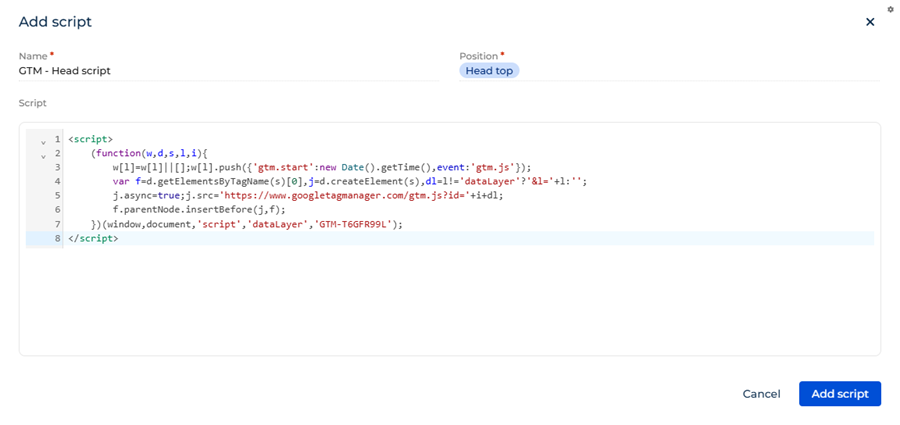
An arbitrary script name. For example, "GTM - Head script."
Position
Position in the page HTML. The position controls when the script loads and how it interacts with the rest of the page content. For this script, select "Head top." This loads the script as early as possible to capture all page activity.
Script
<script>(function(w,d,s,l,i){w[l]=w[l]||[];w[l].push({'gtm.start':new Date().getTime(),event:'gtm.js'});var f=d.getElementsByTagName(s)[0],j=d.createElement(s),dl=l!='dataLayer'?'&l='+l:'';j.async=true;j.src='https://www.googletagmanager.com/gtm.js?id='+i+dl;f.parentNode.insertBefore(j,f);})(window,document,'script','dataLayer','GTM-XXXXX');</script>Where "GTM-XXXXX" is your Container ID.
-
Click Add script.
-
-
Add the noscript fallback. This ensures tracking works for visitors who have JavaScript disabled.
-
Click Add script. This opens the Add script window.
-
Fill out the script parameters.
Parameter
Description
Name
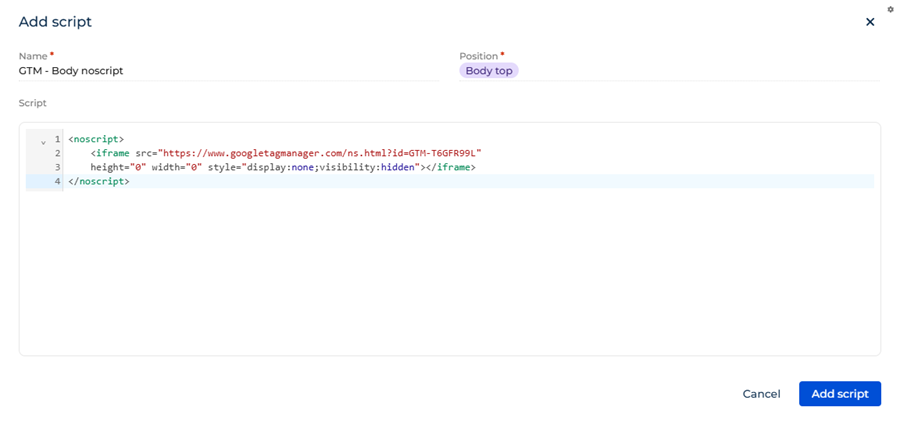
An arbitrary script name. For example, "GTM - Body noscript."
Position
Position in the page HTML. The position controls when the script loads and how it interacts with the rest of the page content. For this script, select "Body top." This places the fallback at the start of the page body.
Script
<noscript><iframe src="https://www.googletagmanager.com/ns.html?id=GTM-XXXXX"height="0" width="0" style="display:none;visibility:hidden"></iframe></noscript>Where "GTM-XXXXX" is your Container ID.
-
Click Add script.
-
-
Click Publish to apply the changes.
As a result:
- GTM will be active on the landing page.
- The main script will be loaded at the top of the page head to capture all landing page activity.
- The noscript fallback ensures basic tracking works for visitors that have JavaScript disabled.
- All tags configured in your GTM container will be applied to the landing page.
See also
Landing pages (user documentation)
Resources
Google Tag Manager documentation (official vendor documentation)