Customize success and error messages after landing page form submission
When a visitor submits a landing page form, the landing page shows default success or error messages. If you need to replace these messages with your own text or apply custom styling to match your landing page design, you can configure them via the Add script tab on a landing page in Creatio.
Before you start, make sure the following parameters are configured in the landing page form's Block options in Landing Page Designer:
- the Block identifier toggle is enabled
- the ID field includes an ID that connects the script to the form. Use a unique value without spaces. For example: "Demo_Form." If the ID contains multiple words, use an underscore instead of a space.
Customize the success message
Use this to replace the default success message with your own text or styling after a visitor submits the form successfully.
To customize the success message:
-
Open the Lead Generation app and go to the Landing pages section.
-
Open the landing page you want to customize.
-
Go to the Add script tab.
-
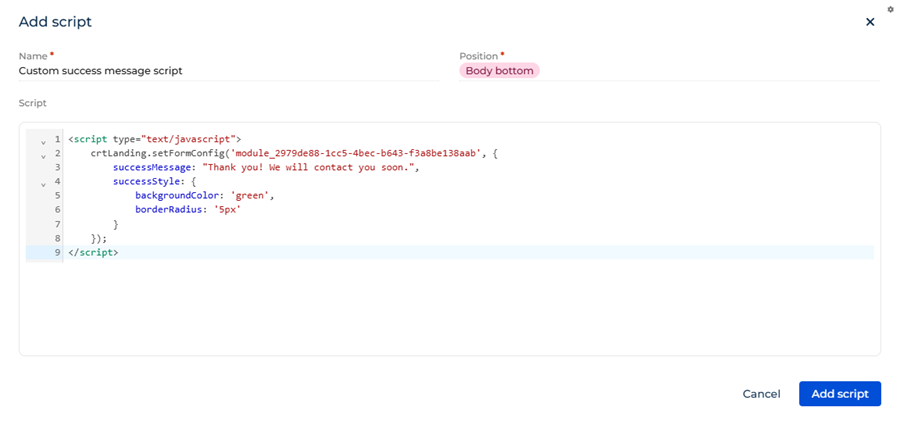
Click Add script. This opens the Add script window.
-
Fill out the script parameters.
Parameter
Description
Name
An arbitrary script name. For example, "Custom success message script."
Position
Position in the page HTML. The position controls when the script loads and how it interacts with the rest of the page content. For this script, select "Body bottom." This ensures the script runs after all page content is loaded.
Script
<script type="text/javascript">crtLanding.setFormConfig('ID_OF_SOME_LANDING_PAGE_FORM', {successMessage: "Thank you! We will contact you soon.",successStyle: {backgroundColor: 'green',borderRadius: '5px'}});</script>Where:
ID_OF_SOME_LANDING_PAGE_FORMis the ID from the Block options of the landing page form in Landing Page Designer.successMessageis the text shown when the form is submitted successfully.successStyleis the visual style of the success message. Use standard CSS properties to match your landing page design.
-
Click Add script.
-
Click Publish to apply the changes.
As a result, the custom success message will appear when the form is submitted successfully, styled according to the values set in the script.
Customize the error message
Use this to replace the default error message with your own text or styling after a form submission fails.
To customize the error message:
-
Open the Lead Generation app and go to the Landing pages section.
-
Open the landing page you want to customize.
-
Go to the Add script tab.
-
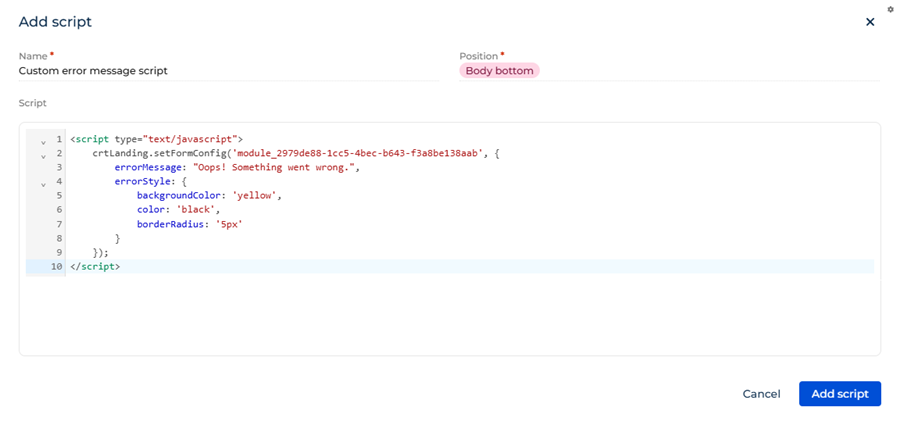
Click Add script. This opens the Add script window.
-
Fill out the script parameters.
Parameter
Description
Name
An arbitrary script name. For example, "Custom error message script."
Position
Position in the page HTML. The position controls when the script loads and how it interacts with the rest of the page content. For this script, select "Body bottom." This ensures the script runs after all page content is loaded.
Script
<script type="text/javascript">crtLanding.setFormConfig('ID_OF_SOME_LANDING_PAGE_FORM', {errorMessage: "Oops! Something went wrong.",errorStyle: {backgroundColor: 'yellow',color: 'black',borderRadius: '5px'}});</script>Where:
ID_OF_SOME_LANDING_PAGE_FORMis the ID from the Block options of the landing page form in Landing Page Designer.errorMessageis the text shown when the form cannot be submitted.errorStyleis the visual style of the error message. Use standard CSS properties to match your landing page design.
-
Click Add script.
-
Click Publish to apply the changes.
As a result, the custom error message will appear when the form submission fails, styled according to the script values.
See also
Landing pages (user documentation)