Set up the display conditions of a field on a record page
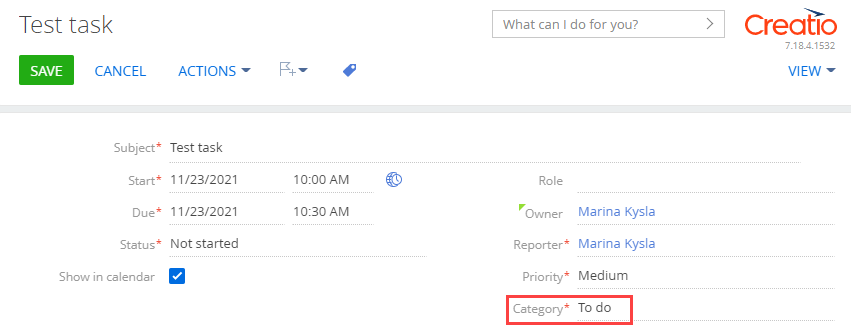
Set up the display conditions of the Meeting place field on the activity page. Creatio must display the field for activities with the "Meeting" category, i. e., the activities that have "Meeting" selected in the Category field.
1. Create a replacing object schema
-
Go to the Configuration section and select a user-made package to add the schema.
-
Click Add → Replacing object on the section list toolbar.
/scr_add_entity_schema_replaced.png)
-
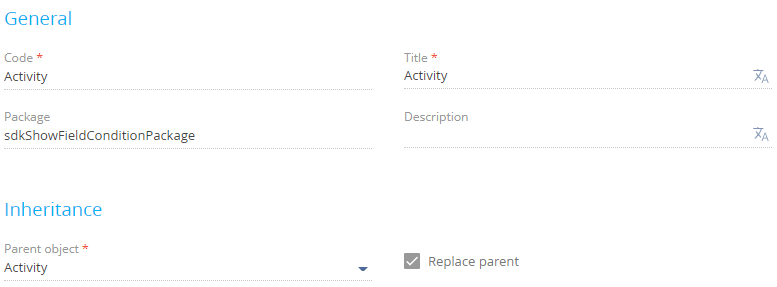
Fill out the schema properties.
- Set Code to "Activity."
- Set Title to "Activity."
- Select "Activity" in the Parent object property.
-
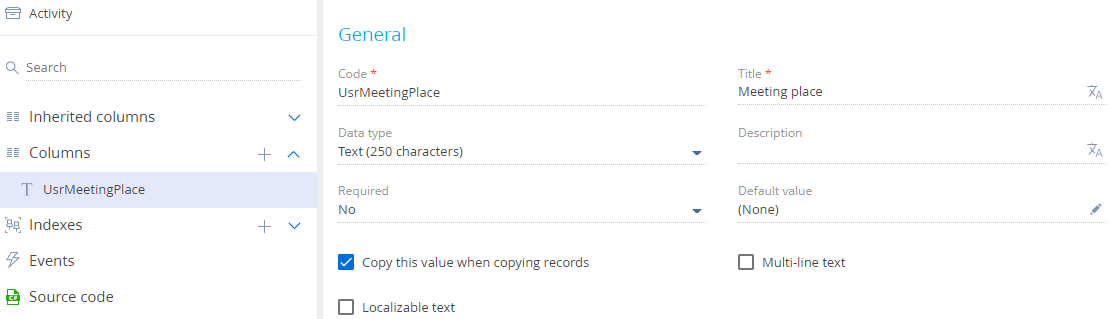
Add a column to the schema.
-
Click Save then Publish on the Object Designer's toolbar.
 in the context menu of the object structure's Columns node.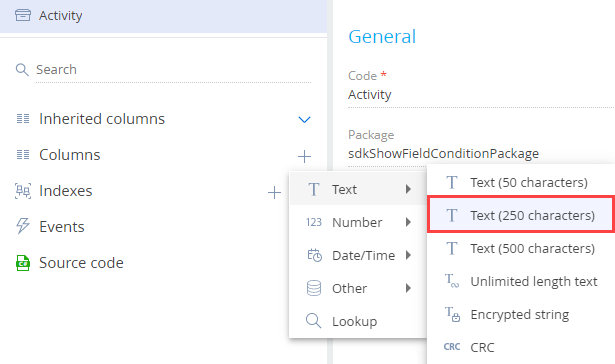
2. Create a replacing view model schema of the contact page
-
Go to the Configuration section and select a user-made package to add the schema.
-
Click Add → Replacing view model on the section list toolbar.
/scr_add_replacing_module.png)
-
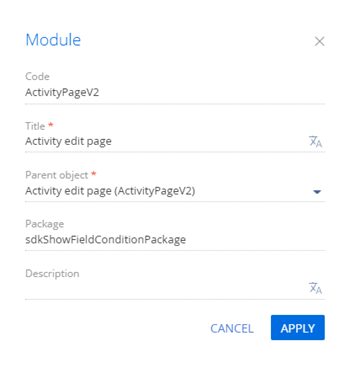
Fill out the schema properties.
- Set Code to "ActivityPageV2."
- Set Title to "Activity edit page."
- Select "ActivityPageV2" in the Parent object property.
-
Add a localizable string.
-
Add the
BusinessRuleModuleandConfigurationConstantsmodules as dependencies to the declaration of the view model class. -
Set up the field display conditions.
-
Take the following steps in the
rulesproperty for the UsrMeetingPlace column:- Set the
ruleTypeproperty toBINDPARAMETER. The value sets the business rule type. TheBusinessRuleModule.enums.RuleTypeenumeration represents the rule types. - Set the
propertyproperty toVISIBLE. The value sets the column visibility. TheBusinessRuleModule.enums.Propertyenumeration represents the properties of theBINDPARAMETERbusiness rule. - Specify the execution conditions of the business rule in the
conditionsarray. The ActivityCategory column value must match theConfigurationConstants.Activity.ActivityCategory.Meetingconfiguration constant that includes the ID of the "Meeting" record of the Activity types lookup.
- Set the
-
Add a configuration object with the settings that determine the layout of the Meeting place field to the
diffarray of modifications.
View the source code of the replacing view model schema of the activity page below.
ActivityPageV2/* Specify the BusinessRuleModule and ConfigurationConstants modules as dependencies. */
define("ActivityPageV2", ["BusinessRuleModule", "ConfigurationConstants"], function(BusinessRuleModule, ConfigurationConstants) {
return {
/* The name of the record page object's schema. */
entitySchemaName: "Activity",
/* Display the field on the record page. */
diff: /**SCHEMA_DIFF*/[
/* The properties to add a [UsrMeetingPlace] field to the record page. */
{
/* Add the element to the page. */
"operation": "insert",
/* The meta name of the parent container to add the field. */
"parentName": "Header",
/* Add the field to the parent element's collection of elements. */
"propertyName": "items",
/* The meta name of the field to add. */
"name": "UsrMeetingPlace",
/* The properties to pass to the element's constructor. */
"values": {
/* Bind the field caption to the localizable schema string. */
"caption": {"bindTo": "Resources.Strings.MeetingPlaceCaption"},
/* Set up the field layout. */
"layout": {
/* The column number. */
"column": 0,
/* The row number. */
"row": 5,
/* The column span. */
"colSpan": 12
}
}
}
]/**SCHEMA_DIFF*/,
/* The business rules of the record page's view model. */
rules: {
/* The set of rules for the [UsrMeetingPlace] column of the view model. */
"UsrMeetingPlace": {
/* The visibility of the [UsrMeetingPlace] field depends on the [ActivityCategory] field value. */
"BindParametrVisibilePlaceByType": {
/* The BINDPARAMETER rule type. */
"ruleType": BusinessRuleModule.enums.RuleType.BINDPARAMETER,
/* The rule that controls the VISIBLE property. */
"property": BusinessRuleModule.enums.Property.VISIBLE,
/* The array of conditions that trigger the rule. Check whether the [ActivityCategory] column value is "Meeting." */
"conditions": [{
/* The left side expression of the condition. */
"leftExpression": {
/* The expression type is attribute (column) of the view model. */
"type": BusinessRuleModule.enums.ValueType.ATTRIBUTE,
/* The name of the view model column whose value to compare in the expression. */
"attribute": "ActivityCategory"
},
/* Set the comparison operation type to equal. */
"comparisonType": Terrasoft.ComparisonType.EQUAL,
/* The right side expression of the condition. */
"rightExpression": {
/* Set the expression type to constant. */
"type": BusinessRuleModule.enums.ValueType.CONSTANT,
/* The value to compare to the left side expression. */
"value": ConfigurationConstants.Activity.ActivityCategory.Meeting
}
}]
}
}
}
};
}); -
-
Click Save on the Designer's toolbar.
/scr_add_button.png) button in the context menu of the Localizable strings node.
button in the context menu of the Localizable strings node.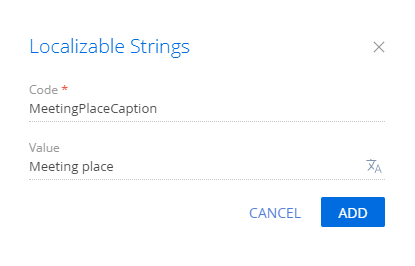
Outcome of the example
To view the outcome of the example:
- Refresh the Activities section page.
- Select "Meeting" in the Category field of the activity page if needed.
As a result, Creatio will display the Meeting place field for activities that have the "Meeting" category.
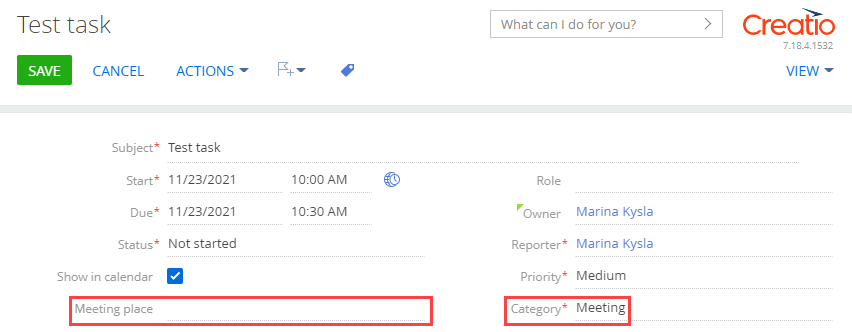
Creatio will not display the Meeting place field for other activity categories. For example, "To do."